
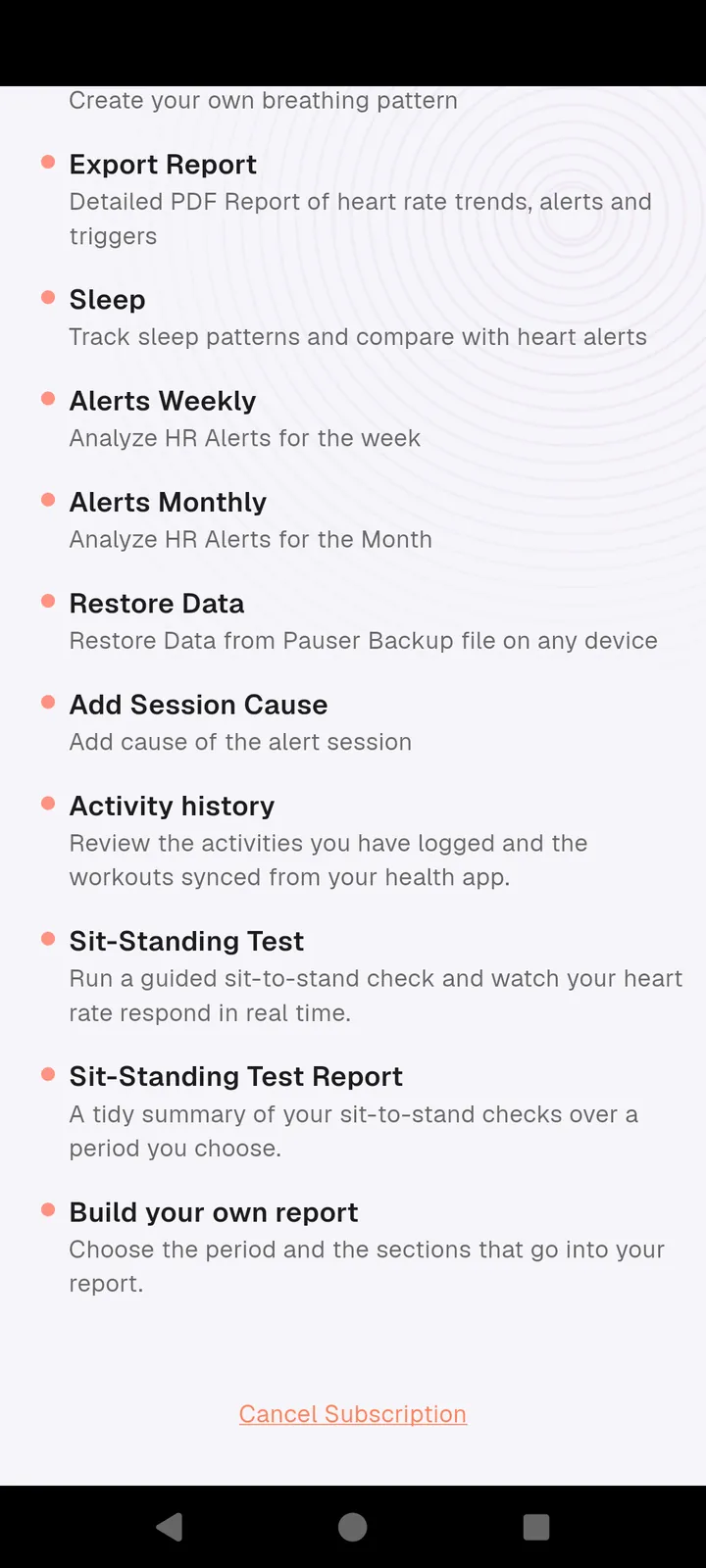
You cancel in the store you paid with. Pauser’s plan page has a Cancel Subscription link that opens your store’s subscriptions page.
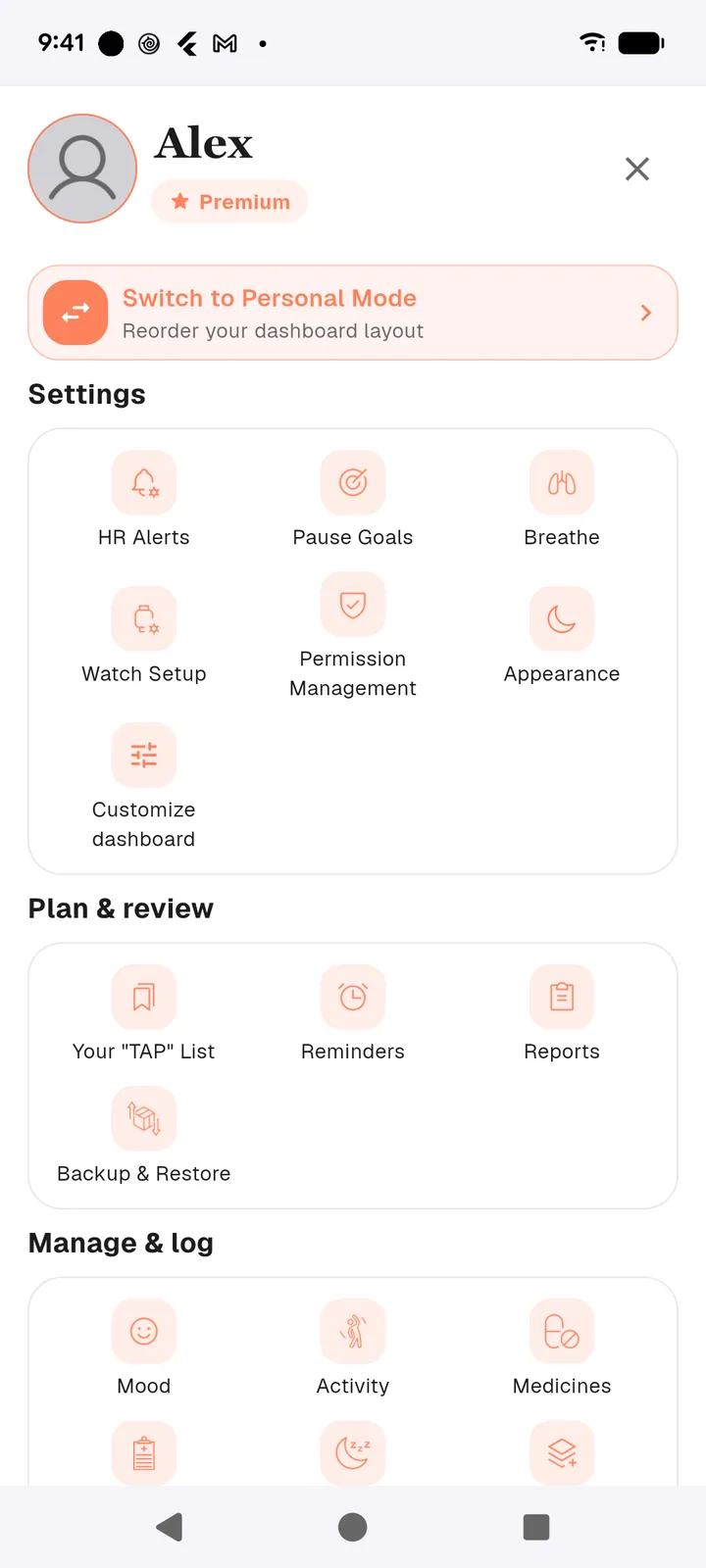
- Open the menu (top left of Home).
- Tap the plan badge under your name. (Or tap your name to open Profile, then tap your plan.)
- Your plan’s page shows “Your subscription will renew on” and the date.
- Tap Cancel Subscription.
- Finish cancelling on the store page that opens.
On an Android phone: the link opens your Google Play subscriptions page. Tap Pauser, then Cancel subscription, and follow the steps. To get there without Pauser, open the Play Store, tap your profile picture, then Payments & subscriptions, then Subscriptions.
On iPhone: the link opens your App Store subscriptions page. Tap Pauser, then Cancel Subscription, and confirm. To get there without Pauser, open the iPhone Settings app, tap your name, then Subscriptions.
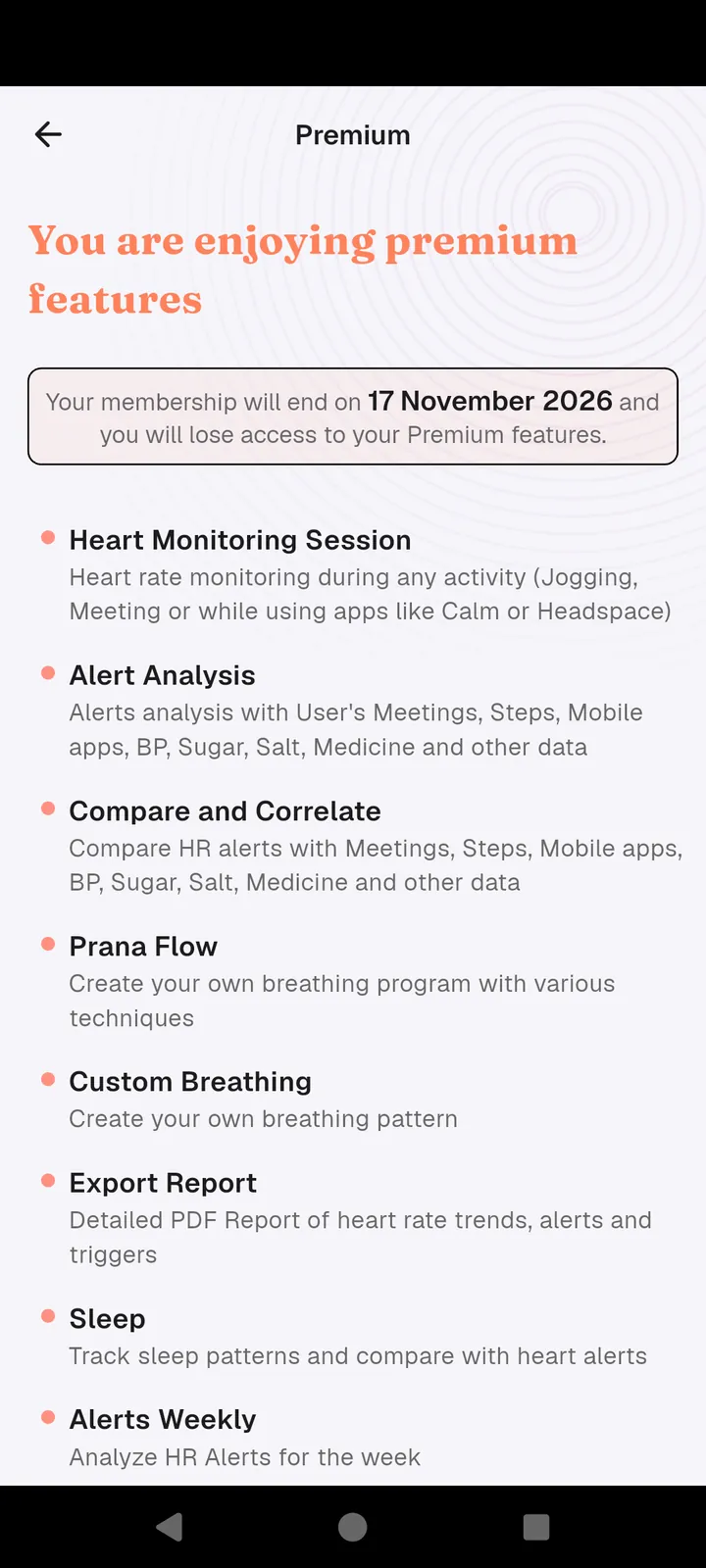
When you come back to Pauser, it refreshes your plan. Once the cancel goes through, the page says “Your membership will end on” with the date, and the Cancel Subscription link is no longer shown.
Good to know:
- The link always opens the store of the phone you are holding. If you subscribed on the other platform, cancel from that store. See I subscribed on iPhone. Will it work on Android?
- You can’t remove your Pauser account while your plan is set to renew. See Why can’t I delete my account?
Still stuck? Tap Support at the top of Home, or open the menu and tap Message us. You can also email support@pauser.health.