
Start from Pauser on your Android phone: it opens Pauser’s Play Store page on your watch, and you tap Install there. Your watch must already be paired with your phone in its companion app.
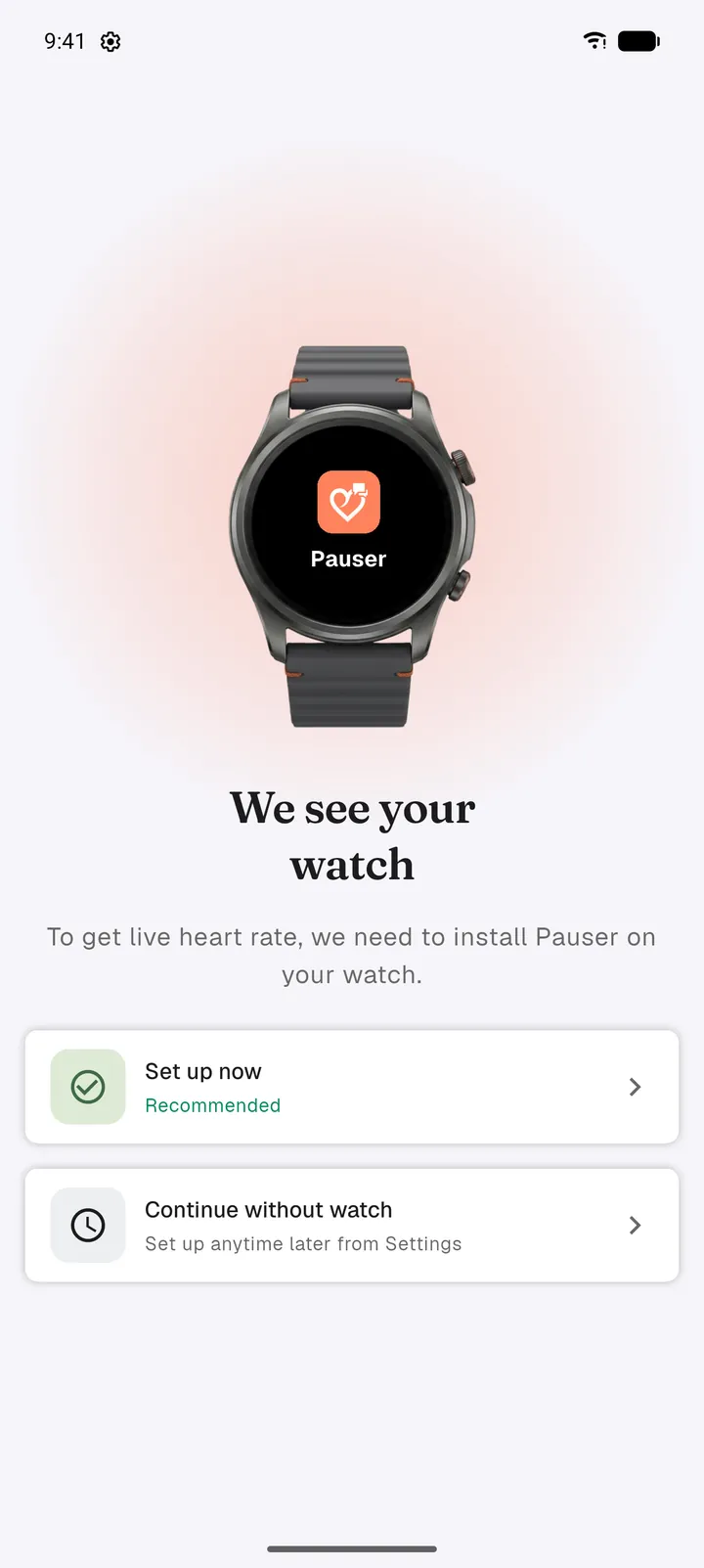
- On your phone, open the menu and, under Settings, tap Watch Setup. If you are setting up Pauser for the first time, or you tap the watch icon at the top of Home, Pauser first shows We see your watch. Tap Set up now.
- Pauser shows Checking your watch while it looks for your watch.
- If Pauser is not on the watch yet, tap Open in Play Store.
- Look at your watch. The Play Store opens on Pauser’s page. Tap Install on the watch.
- Keep the phone screen open. Pauser checks every few seconds and moves on by itself once the watch app is installed. You can also tap I’ve installed it or Check again.
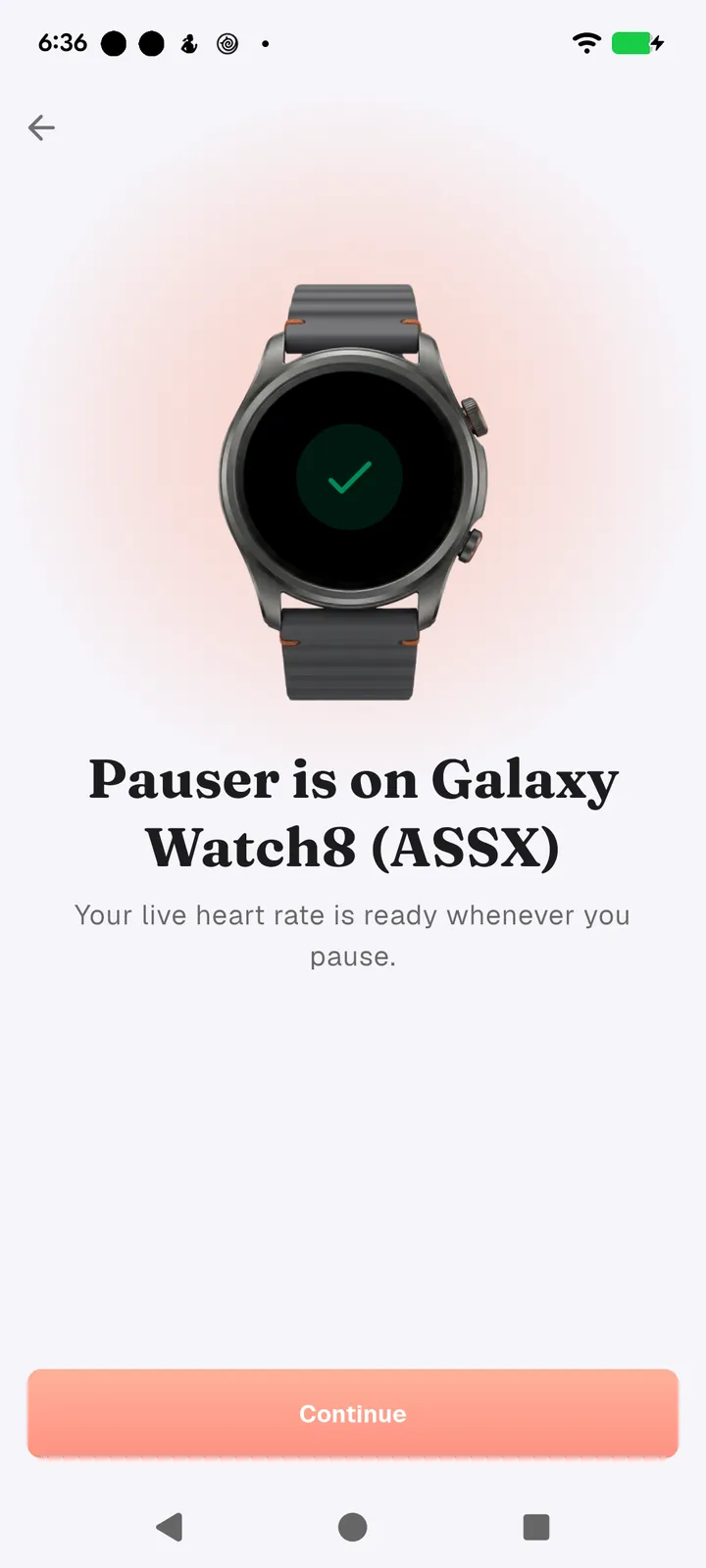
- When Pauser finds the watch app, you see Pauser is on followed by your watch’s name (or You’re connected.). Tap Continue, or Done if you opened Watch Setup from the menu. If a watch permission is missing, Pauser walks you through them one at a time: tap Allow on watch, then confirm on your watch.
Good to know:
- Installs can take a minute or two to reach the watch. If Pauser still does not find it, give it a moment and tap Check again.
- If you see We don’t see a watch, your phone is not connected to a watch right now.
- Pauser on the watch opens to a home screen with your heart rate and tiles such as Quick Calm and Breathing.

Still stuck? Tap Support at the top of Home, or open the menu and tap Message us. You can also email support@pauser.health.