
There is no separate units setting: Pauser uses the unit you last saved water in. Log one water entry in the unit you want, and Pauser keeps using it everywhere, including Quick Add.
From the water log window:
- Open the menu, tap Bio vitals, then tap + next to Water. In the Standard Home layout you can instead tap + on the Water card.
- In Log your water Intake, next to Unit:, tap oz or ml.
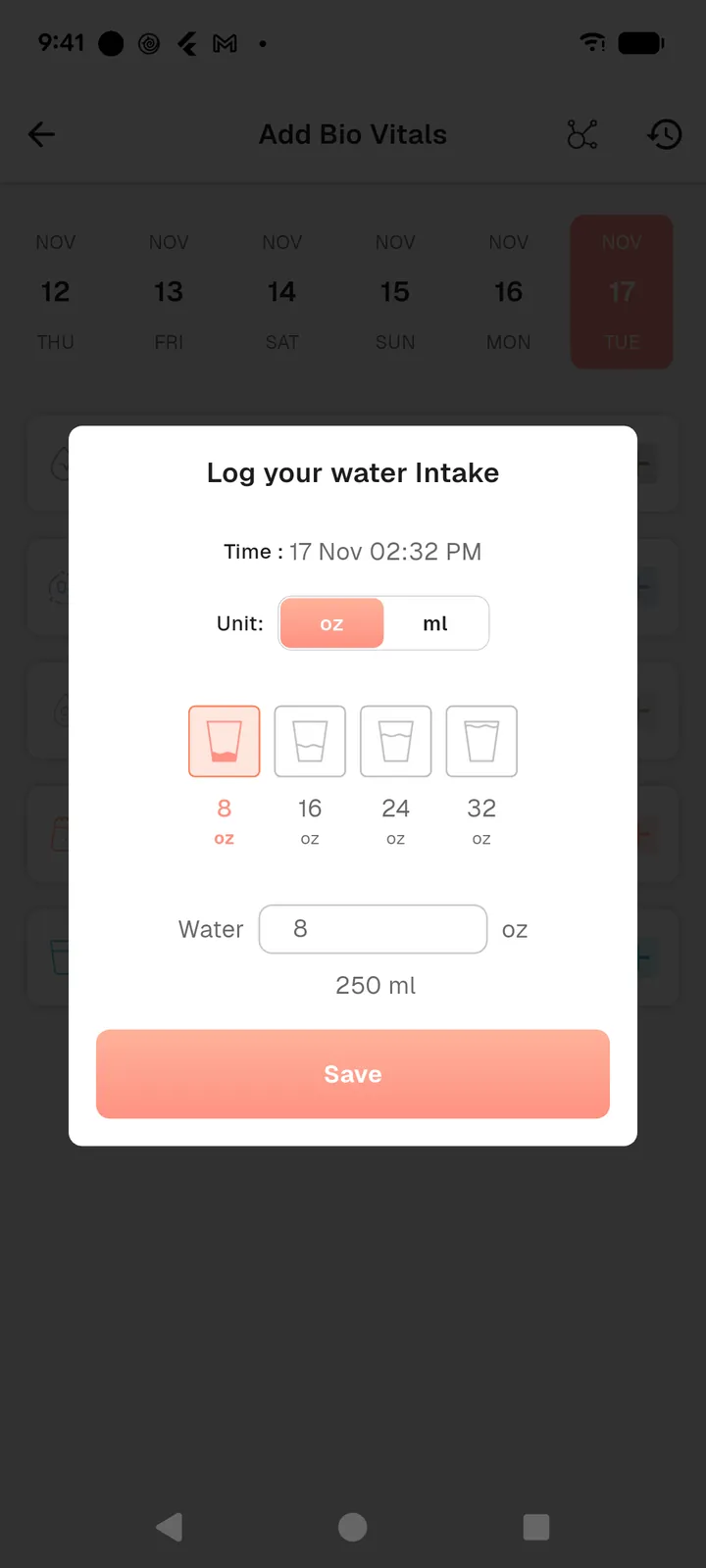
- Set the amount and tap Save.
From the Salt & Water card (POTS layout):
- On Home, find the Salt & Water card.
- Tap the edit pencil next to the water goal.

- In Water Goal, choose oz or L, then tap Save. Choosing L switches water to ml.
Good to know:
- Until you choose, Pauser shows water in oz.
- Changing the unit does not change entries you already saved; Pauser keeps each entry in both units and shows them in the one you picked.
- The Quick Add water sheet has no unit switch. It follows your saved unit.
Some features depend on your plan. To see what yours includes, open the menu and tap the plan badge under your name.
Still stuck? Tap Support at the top of Home, or open the menu and tap Message us. You can also email support@pauser.health.