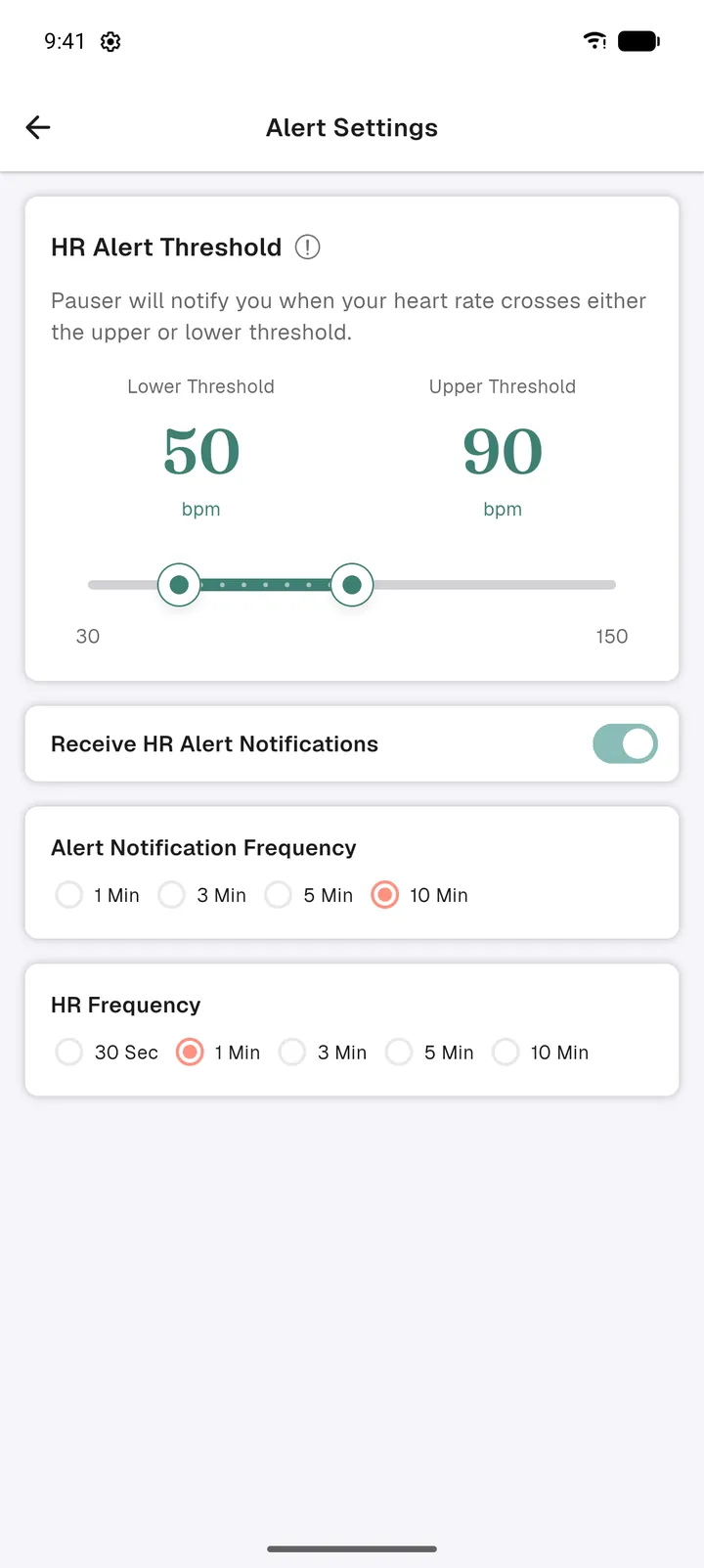
Open Alert Settings and drag the two handles on the HR Alert Threshold slider: the left one sets your Lower Threshold, the right one your Upper Threshold. Pauser saves the new value when you let go of a handle.
- Open the Alerts tab.
- Tap the settings (gear) icon at the top. You can also open the menu and tap HR Alerts.
- On Alert Settings, drag the handles on the HR Alert Threshold card.
- Check the numbers shown above the slider, then let go.
Good to know
- The slider runs from 30 to 150 bpm and moves in steps of 5 bpm.
- The two limits stay at least 5 bpm apart.
- If you have never set limits, they start at 50 bpm (lower) and 90 bpm (upper). For help choosing, see What alert limits should I use?.
- A reading exactly at a limit counts: an alert comes at or above the upper limit, and at or below the lower limit (only below it on a Wear OS watch).
- If your watch is connected, Pauser sends the new limits to it.
On a Wear OS watch: open General Settings, then under HR thresholds tap Upper or Lower. These rows show only while HR alerts is on.
On Apple Watch: swipe to General Settings and pick a value under Upper Threshold or Lower Threshold.
Still stuck? Tap Support at the top of Home, or open the menu and tap Message us. You can also email support@pauser.health.