
The Activity Monitor records your heart rate continuously for a set time while you do something, such as a walk, a workout or a meeting. You start one from the Monitor tab on your phone, or from Activity on your watch.
From your phone
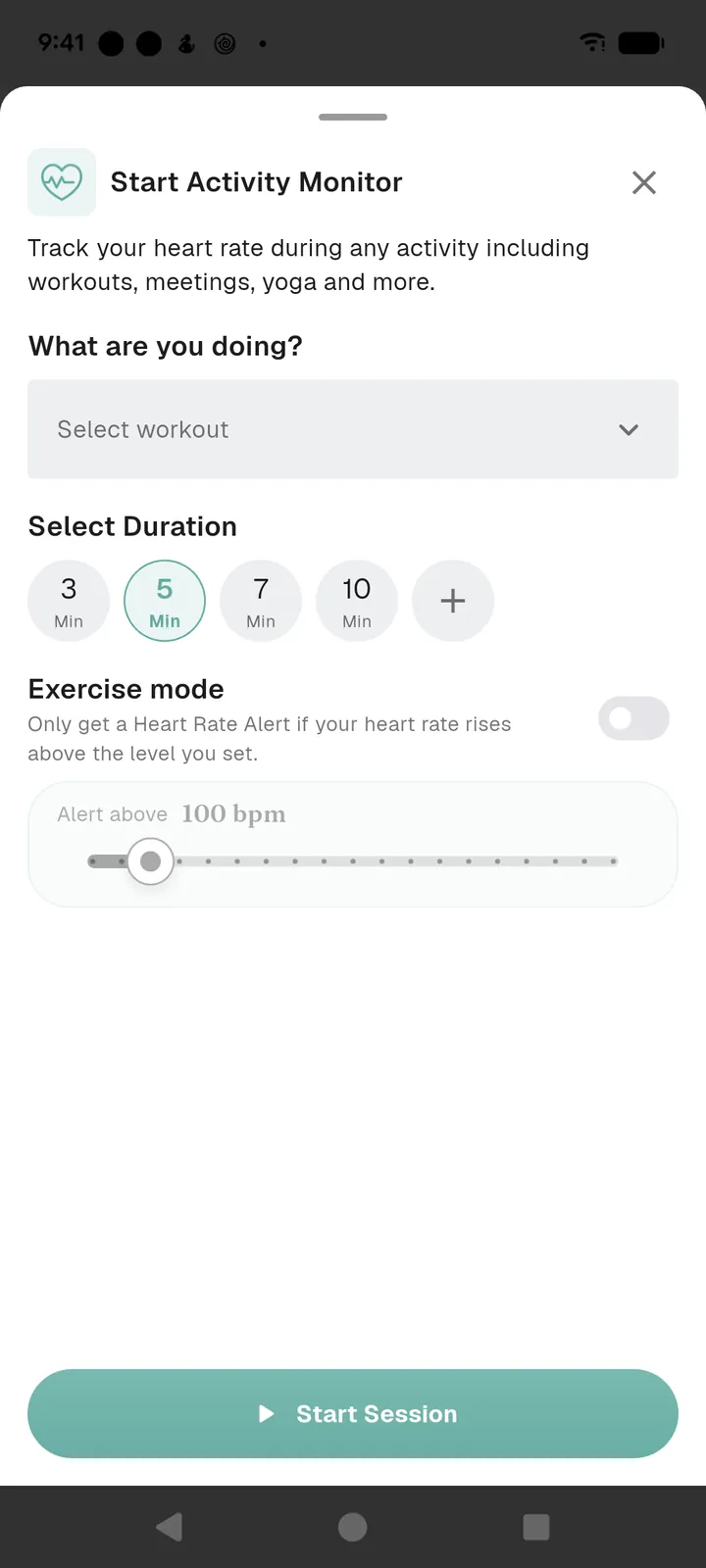
- Open the Monitor tab. Its header reads Activity Monitor.
- Tap Start Session.

- On Start Activity Monitor, tap Select workout and pick an activity. Choose Other to type your own name.
- Under Select Duration, pick 3, 5, 7 or 10 minutes, or set a custom length.
- If you like, turn on Exercise mode.
- Tap Start Session.
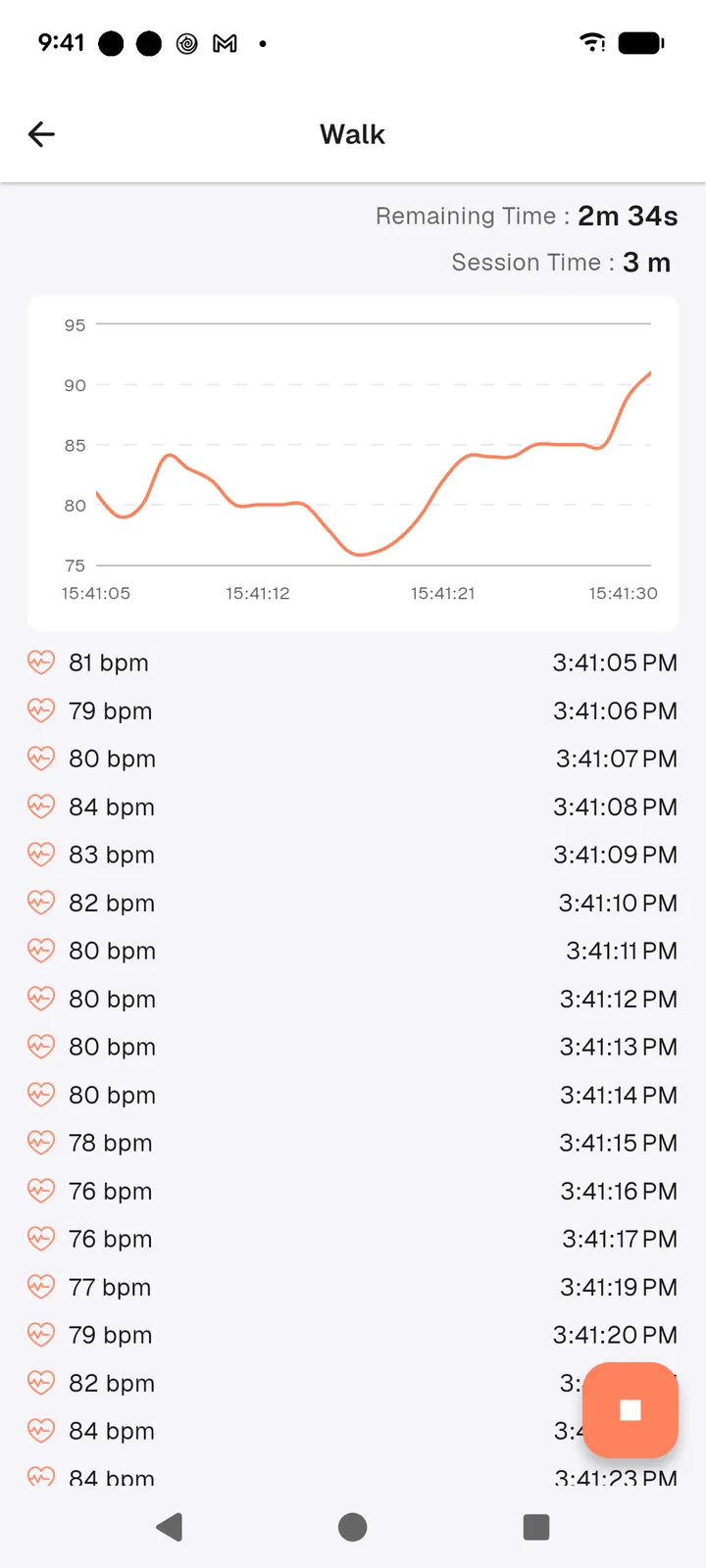
The live screen shows your heart rate as it arrives, the time left and a graph. When it ends, the session is saved in the Monitor tab. Tap it to see the details.
On a Wear OS watch: tap Activity, choose minutes under Duration · min and tap Next, then pick Standard or Exercise. When it finishes, the watch shows Workout done with your peak and average.
On Apple Watch: tap Activity, pick an activity and the minutes, turn Exercise Mode on or off, then tap Start.
Good to know
- Start Session needs a Pauser watch set up. Without one, the Monitor tab offers Create monitor session instead.
Some features depend on your plan. To see what yours includes, open the menu and tap the plan badge under your name.
Still stuck? Tap Support at the top of Home, or open the menu and tap Message us. You can also email support@pauser.health.