
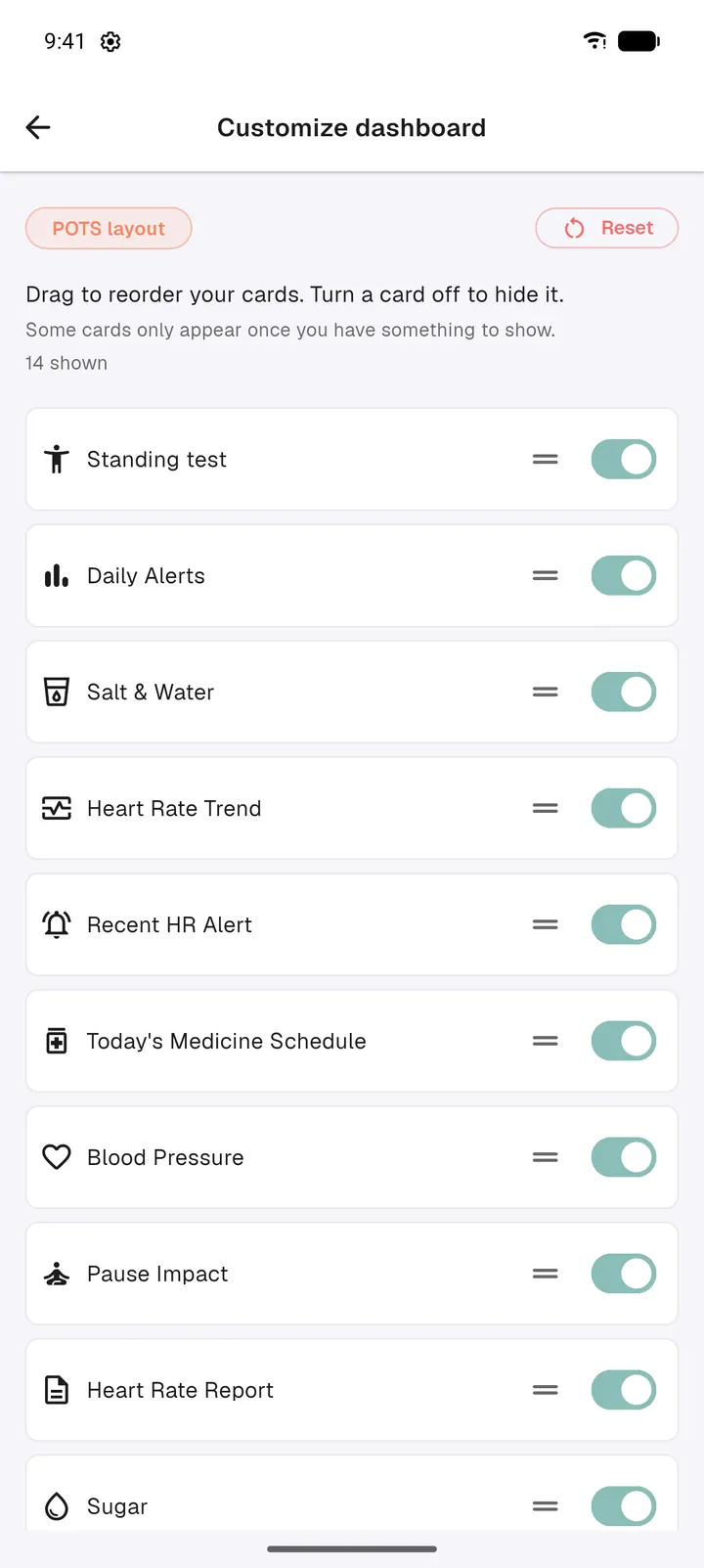
Open Customize dashboard, then drag cards to reorder them and turn a card’s switch off to hide it. Changes apply straight away.
- On Home, tap the three dots at the top right, then tap Customize dashboard in the menu that opens.
- To move a card, drag it up or down by its handle (the two lines beside the switch).
- To hide a card, turn its switch off. Turn it on to show the card again.
You can also open Customize dashboard from the menu, or from the card at the bottom of Home.
Starting over with Reset
Reset puts Home back the way Pauser first set it up, for the layout you are editing.
- At the top of Customize dashboard, tap Reset.
- In the Reset dashboard? dialog, tap Reset to confirm, or Cancel to keep your layout.
- Dashboard reset. appears briefly at the bottom of the screen.
What Reset changes:
- Your cards go back to Pauser’s standard order for this layout.
- Every card you hid is shown again.
What Reset keeps:
- Everything you have logged. No readings, alerts, medicines or other entries are deleted.
- Your layout choice. If you use the POTS layout, you stay on it.
- The other layout’s arrangement. Resetting the POTS layout doesn’t touch the Personal layout, and the other way round.
Reset can’t be undone, but you can drag and hide cards again at any time.
Good to know:
- The badge at the top shows which layout you are editing, POTS layout or Personal layout. Each keeps its own order and hidden cards.
- You must keep at least one card on Home.
- Some cards only appear once you have something to show.
Still stuck? Tap Support at the top of Home, or open the menu and tap Message us. You can also email support@pauser.health.