Pauser says “Something went wrong with your network connection”. What do I do?
This message means Pauser couldn’t reach the internet, or a request took longer than 15 seconds. Check your connection, then try again.
- Make sure Wi-Fi or mobile data is on, and that airplane mode is off.
- Open a web page in your browser to check the connection works.
- Go back to Pauser and try again. Some screens show a Retry button.
- If it keeps happening on Wi-Fi, switch to mobile data, or the other way round.
Good to know:
- Pauser checks your connection by looking up a well-known web address. On networks that block or filter this, such as some workplace or public Wi-Fi, Pauser may think you’re offline.
- If you try to subscribe while offline, Pauser shows You’re offline with “Network Error” and “Please check your internet connection”.
- What you log while offline is still saved on your phone. See “Does Pauser work offline?”
Still stuck? Tap Support at the top of Home, or open the menu and tap Message us. You can also email support@pauser.health.
Related articles
How do I create an account?
On the Sign in to Pauser screen, tick the consent box, then choose Continue with Google, Continue with Apple (iPhone only) or Continue with E-mail. With Google or Apple, your account is created as you sign in and Pauser moves on to setup.
To reach Sign in to Pauser, open Pauser, tap Get started and go through the short intro. Already have an account? Tap Log in instead.

To create an account with your email:
- Tick the consent box.
- Tap Continue with E-mail.
- On Create account, fill in First name, E-mail, Password and Confirm password. The password needs at least 6 characters.

- Tap Create account.
- Pauser shows Verify Your Email and sends you an email. Tap Ok.
- Open the email from Pauser and verify your address.
- Come back to Pauser and log in with your email and password.
On iPhone: Continue with Apple is shown above Google.
On an Android phone: there is no Apple option.
Good to know:
- You need an internet connection to create an account.
- Already have an account? Tap Log in at the bottom of the screen.
Still stuck? Tap Support at the top of Home, or open the menu and tap Message us. You can also email support@pauser.health.
Related articles
Where is my data stored?
Pauser keeps your logs, alerts and sessions in the app on your phone. Pauser’s server doesn’t keep a copy of them, so your data comes back only from a backup file.
What is kept where:
- On your phone: heart rate, Heart Rate Alerts, Pause sessions, Monitor Sessions, Standing Checks, mood check-ins, medicines, Bio Vitals, sleep and activity. This is the copy you see in the app.
- With your Pauser account: your profile details and your messages with support.
- Usage events: Pauser records how the app is used with Firebase Analytics.
- Apple Health and Health Connect: readings Pauser reads from them stay there as well. Pauser keeps its own copy on your phone.
Good to know:
- Logging out or removing your account clears Pauser’s data from your phone. Make a backup first if you want to keep it.
- To move your data to another phone, use a backup file. See How do I back up my data?
Still stuck? Tap Support at the top of Home, or open the menu and tap Message us. You can also email support@pauser.health.
Related articles
What does Pauser do?
Pauser reads your heart rate, shows you what was happening when it changed, and offers a short guided Pause to help you reset. Its motto is “Find the cause. Take a pause.”
The app intro explains it in three steps:
- Activity: Pauser reads your heart rate in the background, from Apple Health, Health Connect, or the Pauser app on your watch.
- Link: when your heart rate goes outside the range you set, Pauser raises a Heart Rate Alert and shows what was going on around it, such as meetings, sleep, medicines, blood pressure, steps and the place you tag.
- Pause: a short guided breath or meditation, so you can watch your heart rate settle.
Pauser also lets you:
- Log medicines, mood, activity and Bio Vitals (like blood pressure, water and salt).
- Run an Activity Monitor session or a Standing Check with a Pauser watch app.
- See trends on Insights and create reports to share.
Pauser is a wellness app. It shares wellness insights, not medical advice.

Still stuck? Tap Support at the top of Home, or open the menu and tap Message us. You can also email support@pauser.health.
Related articles
Where does Pauser get my heart rate from?
Pauser gets your heart rate from the Pauser app on your watch, or from Health Connect on an Android phone or Apple Health on an iPhone. Your watch or fitness app saves heart rate there, and Pauser reads it.
With the Pauser watch app (Wear OS watch or Apple Watch): your watch sends heart rate straight to Pauser on your phone. While a Pauser watch is set up, heart rate comes from that watch, and Pauser skips its usual heart rate sync from Health Connect or Apple Health.
Without the Pauser watch app: Pauser reads the heart rate that your watch, ring or fitness app saves to Health Connect or Apple Health. You give Pauser permission to read it on the Connect your heart rate screen during setup.
Good to know:
- Pauser reads your heart rate and never changes it.
- On an Android phone: Heart Rate Alert notifications come only from the Pauser app on a Wear OS watch. Heart rate from Health Connect still shows in your charts and alert history.
- On iPhone: Pauser also checks Apple Health in the background, so new readings there can raise a Heart Rate Alert while Pauser is closed.
Still stuck? Tap Support at the top of Home, or open the menu and tap Message us. You can also email support@pauser.health.
Related articles
Can Pauser alert me on Android if I use a Fitbit, Garmin or another watch through Health Connect?
Not at the moment. On an Android phone, Heart Rate Alert notifications come only through the Pauser app on a Wear OS watch.
What does work with other watches: heart rate they share with Health Connect comes into Pauser when you open the app. You’ll see it in your charts and reports, and readings outside your alert range are saved to your alert history, but no notification is sent.
If you’d like this, tell us: tap Support at the top of Home, or open the menu and tap Message us.
Related articles
What is a Heart Rate Alert?
A Heart Rate Alert is a notification from Pauser when your heart rate crosses the upper or lower limit you set, with a suggestion to take a Pause. Each alert is also saved in the Alerts tab, so you can look back at what was happening around it.
In Alert Settings, Pauser describes it like this: “Pauser will notify you when your heart rate crosses either the upper or lower threshold.”
One reading is enough: a reading at or above your upper limit, or at or below your lower limit (only below it on a Wear OS watch), raises an alert. If you have never set limits, the upper limit is 90 bpm.
What the notification says
It is titled Heart Rate Alert and reads like this: “112 bpm at 04:32 PM, above your limit of 100 bpm. Take a pause.” The time is when the reading was taken, which can be earlier than when the notification arrives.

Where alerts come from
On an Android phone: alert notifications come from Pauser on your Wear OS watch. If your heart rate reaches Pauser only through Health Connect, Pauser still saves alerts in the Alerts tab when it syncs, but it does not send a notification.
On iPhone: Pauser reads your heart rate from Apple Health, so readings from your Apple Watch, or from another device that writes to Apple Health, can raise an alert.
On a Wear OS watch: the watch checks your heart rate in the background and alerts you on the watch. Tapping the alert opens What were you doing at…? so you can tag it.
On Apple Watch: the Pauser watch app alerts you on the watch, with a Tag Alert button.
Good to know
- You can change your limits, how often alerts can repeat, and turn notifications off in Alert Settings.
- What you do after an alert is up to you. Tagging a cause and a place may help you spot patterns over time.
Still stuck? Tap Support at the top of Home, or open the menu and tap Message us. You can also email support@pauser.health.
Related articles
What does the Insights tab show?
Insights sums up your last 7 days in one place: your Heart Rate Alerts, your Pauses, what you tagged around your alerts, and shortcuts to your logs.
From top to bottom:
- Compare & Correlate and Heart Rate Report: shortcuts to compare your heart rate with other data, and to your reports.
- Your last 7 days: how many HR Alerts you had, your Max HR and your Max Alert Duration.
- Pause Goals: your daily goal, how each day went, and your Total Pauses, Breathing Pauses and Meditation Pauses, with heart rate figures from those sessions.
- Common Causes and Common Locations: what you tagged on your alerts. Tap view all for more.
- Screen Time: Android only. Your app use over the last 7 days.
- Your Logs and History: tap Alerts, Pause, Mood or Vitals to open that history.

Good to know:
- The figures count what Pauser recorded on this phone. They’re wellness insights, not a measure of your health.
- On an Android phone, the first time you open Insights, Pauser asks to use your app usage data for Screen Time. You can say no.
- Some features depend on your plan. To see what yours includes, open the menu and tap the plan badge under your name.
Pauser shares wellness insights, not medical advice. If you have questions about your readings or how you feel, talk to your clinician.
Still stuck? Tap Support at the top of Home, or open the menu and tap Message us. You can also email support@pauser.health.
Related articles
What’s the quickest way to log something?
Use the + button at the bottom right of Home. It opens the Quick Add panel (“Log something in a tap”), where one tap takes you to the right place to log.
- Open Home.
- Tap + at the bottom right.
- Tap what you want to log.
What the panel shows depends on your Home layout:
- Standard layout: Add/Log Medicine, Add Bio-Vitals, Tag Alerts, Add Mood, Add Activity.
- POTS layout: Water and Salt come first, then the same five tiles.
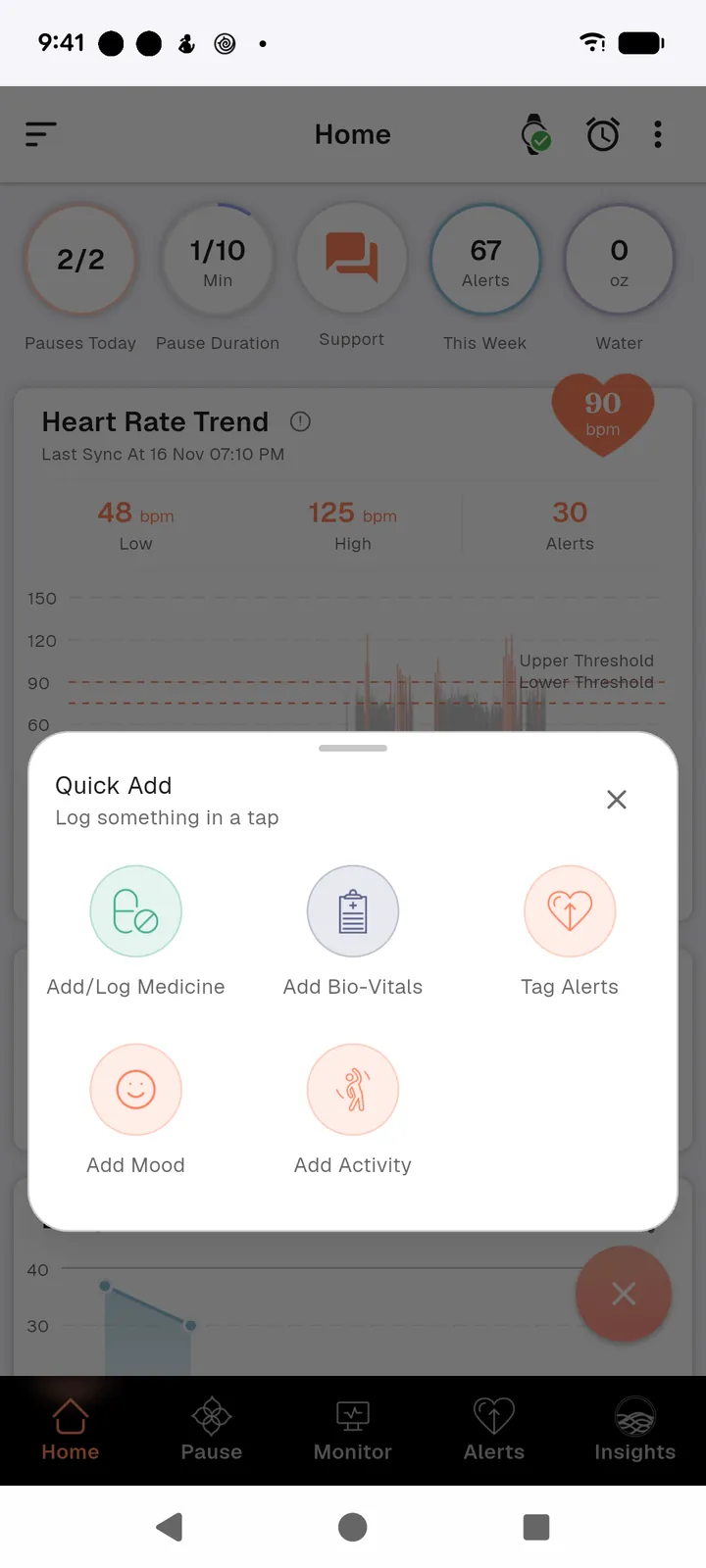

Water and Salt open a small sheet where you set an amount and tap Save, without leaving Home. The other tiles open their full screen or sheet.
Good to know:
- The + button only appears on the Home tab.
- To close the panel without logging, tap + again (it turns into an ×) or the × in the panel.
- Switching between the Standard and POTS layouts changes the panel the next time you open it.
Some features depend on your plan. To see what yours includes, open the menu and tap the plan badge under your name.
Still stuck? Tap Support at the top of Home, or open the menu and tap Message us. You can also email support@pauser.health.
Related articles
What is a Pause?
A Pause is a short guided breathing or meditation session in Pauser. It is a wellness practice that may help you slow down and reset during your day.
To take a Pause on your phone:
- Tap Pause at the bottom of the screen.
- Choose Breathe for guided breathing, or Meditation for a guided meditation.
- Tap a technique and follow the prompts.
The Breathe tab has Prana Flow, Customized Breathing, Quick Calm (30 Seconds) and a set of techniques such as Focus/Perform, Energize Your Day, Calm After Work and Before Sleep. The Meditation tab has Mindfulness Meditation, Gratitude Meditation and Focused Meditation.
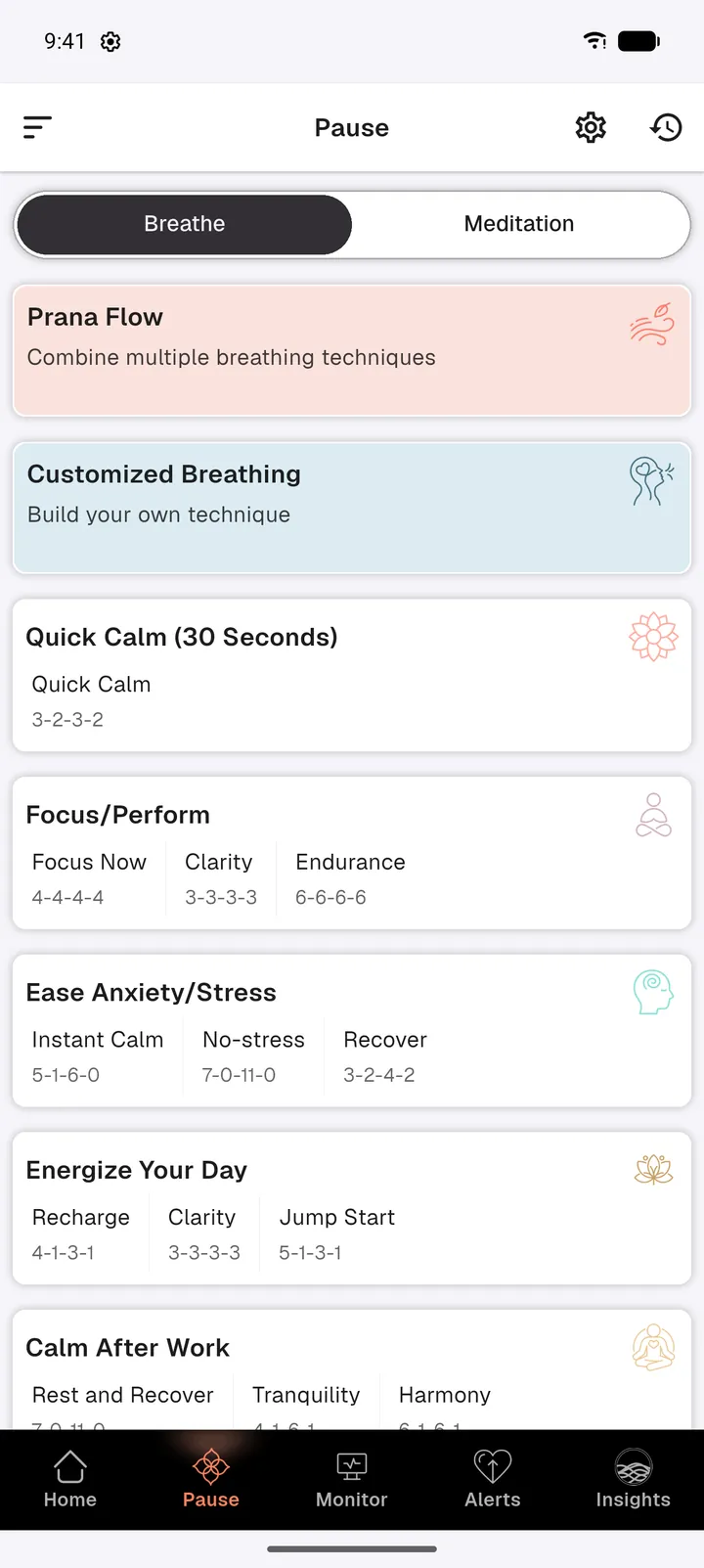
On a Wear OS watch: tap Quick Calm for a 30-second session, or Breathing for more techniques.
On an Apple Watch: tap Quick Calm on the home screen, or open Breathing Techniques.
Good to know:
- If Pauser is set up to use your watch, it reads your heart rate during the Pause and shows it afterwards on the session’s details.
- Your past Pauses are in Pause History: tap the history icon (a clock with a curved arrow) at the top right of the Pause tab.
- Some features depend on your plan. To see what yours includes, open the menu and tap the plan badge under your name.
Still stuck? Tap Support at the top of Home, or open the menu and tap Message us. You can also email support@pauser.health.
Related articles
How do I set a reminder?
Open Reminders, tap the add button, choose a time, a reminder type and the days, then tap Add Reminders.
- On Home, tap the alarm-clock icon at the top. Or open the menu and, under Plan & review, tap Reminders.
- On the Reminders tab, tap the round button with an alarm clock and a plus, at the bottom right. The New Reminder sheet opens.

- Scroll to the time you want.

- Choose a type: Take-a-Pause Reminder, Mood Check-in Reminder, Recent HR Alerts Reminder or Tag alerts Reminder.
- Choose the days, or tap All for every day.
- Tap Add Reminders.
To change a reminder, tap it. In Update Reminder, make your change and tap Update, or tap Delete to remove it. To pause a reminder without deleting it, turn off its switch.
On an Android phone: Pauser first asks for permission to send notifications and to set alarms. Reminders won’t open without them. See the related article on the “Alarms and Reminders” permission.
Good to know:
- If you see “Please Select Reminder” or “Please Select Days”, pick a type or at least one day.
- A Recent HR Alerts Reminder says “Your heart rate reached above your set limit, please take a pause!” It arrives at the time you set, whether or not you had an alert.
- Medicine reminders are set on each medicine, not here.
- The Your “TAP” List tab, next to Reminders, holds your TAP Meetings. See the related article on TAP Meetings.
- If your watch is connected, new reminders are sent to it too.
Still stuck? Tap Support at the top of Home, or open the menu and tap Message us. You can also email support@pauser.health.
Related articles
How do I create a report for my clinician?
Open Reports from the menu, tap +, choose up to 7 days and the sections you want, then tap Generate. Pauser builds a PDF Wellness Report that you can share or download.
- Open the menu and tap Reports. (On the Insights tab you can also tap Heart Rate Report.)
- Tap +. If you have no reports yet, tap Create Report.
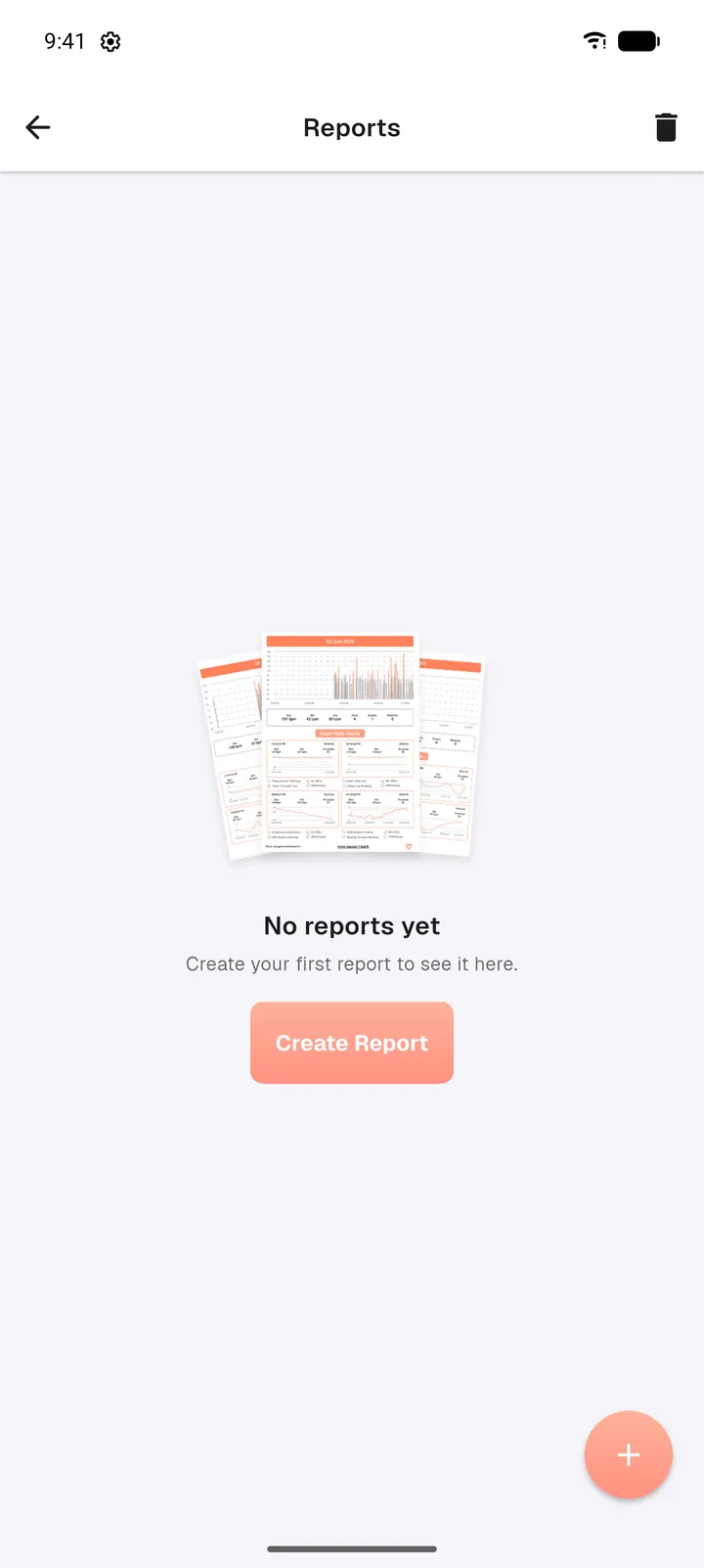
- Under Report Period, tap From and pick the first day, then tap To and pick the last day. The range can be up to 7 days and can’t go past today.
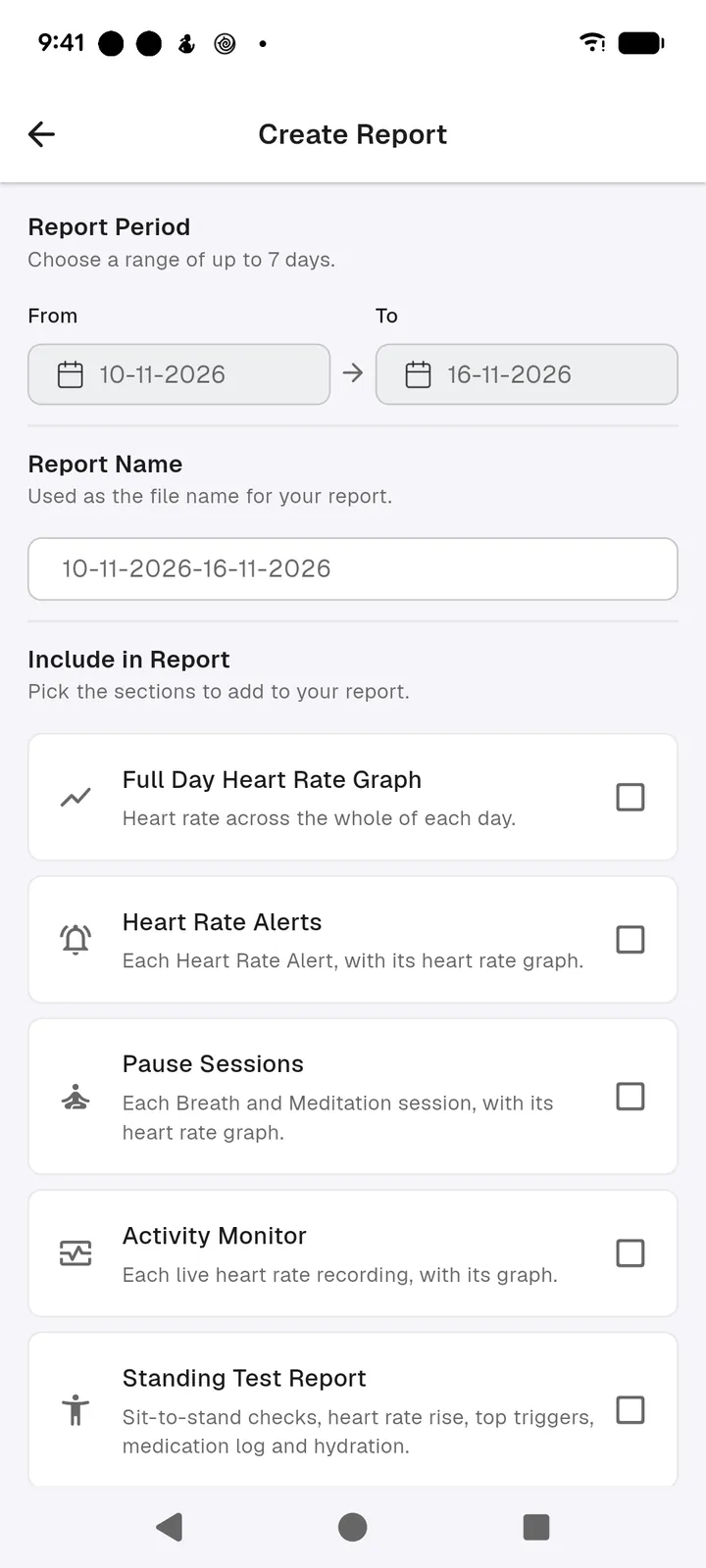
- Under Report Name, keep the suggested name (the dates) or type your own. It becomes the file name.
- Under Include in Report, tick the box next to each section you want.
- Tap Generate.
Pauser shows its progress while it builds the PDF (“Please wait, this may take a few minutes.”), then opens a preview. Use the share or download buttons at the top to send it (see “How do I download or share a report?”).
Good to know:
- Picking a new From date resets To to the same day.
- Every report you create is saved in Reports, where you can tap it to open it again.
Some features depend on your plan. To see what yours includes, open the menu and tap the plan badge under your name.
Still stuck? Tap Support at the top of Home, or open the menu and tap Message us. You can also email support@pauser.health.
Related articles
Which watches work with Pauser?
Pauser has its own watch app for Wear OS watches (with an Android phone) and for Apple Watch (with an iPhone). Other watches can still share heart rate with Pauser through Health Connect or Apple Health, but on Android only the Pauser Wear OS watch app sends Heart Rate Alert notifications.
With an Android phone:
- Wear OS watch with Pauser installed: your watch measures heart rate in the background, buzzes on your wrist when a reading crosses your limits, and sends its readings to Pauser on your phone. Your phone can also show the Heart Rate Alert.
- Other watches (for example Fitbit, Garmin or Samsung watches that write to Health Connect): Pauser reads their heart rate from Health Connect, so it appears in your charts and history. Pauser does not send Heart Rate Alert notifications from this data.
With an iPhone:
- Apple Watch with Pauser installed: the watch app can alert you on your wrist and lets you take a breathing Pause, run an Activity session or a Standing Check from the watch.
- Other watches that write heart rate to Apple Health: Pauser on iPhone reads heart rate from Apple Health, whichever watch recorded it, and can send Heart Rate Alerts from it. These watches can’t run the Pauser watch app, so the watch features above need an Apple Watch.
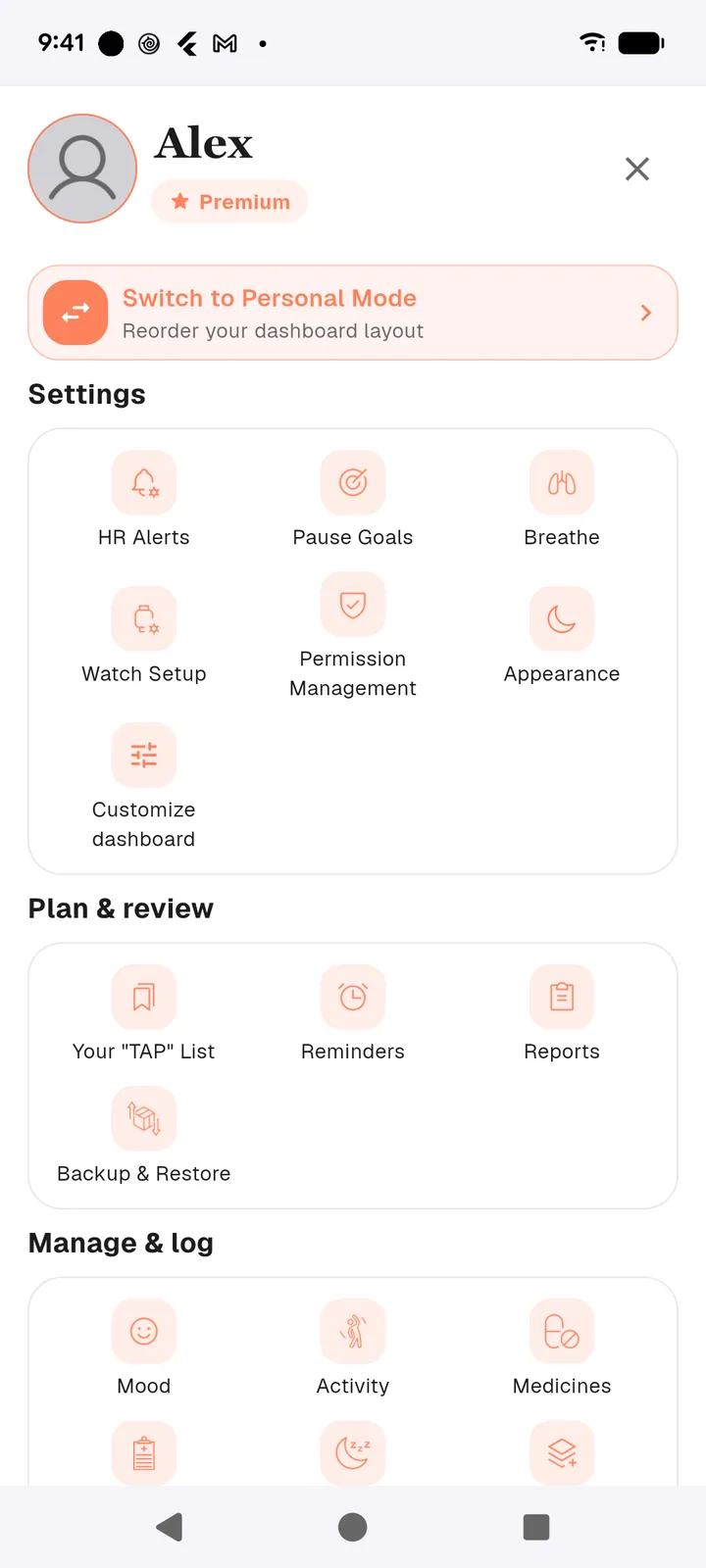
To connect a watch, open the menu and, under Settings, tap Watch Setup.
Good to know:
- On Android, while the Pauser Wear OS watch is connected, Pauser takes your heart rate from the watch and stops reading heart rate from Health Connect.
Still stuck? Tap Support at the top of Home, or open the menu and tap Message us. You can also email support@pauser.health.
Related articles
What is the Standing Check?
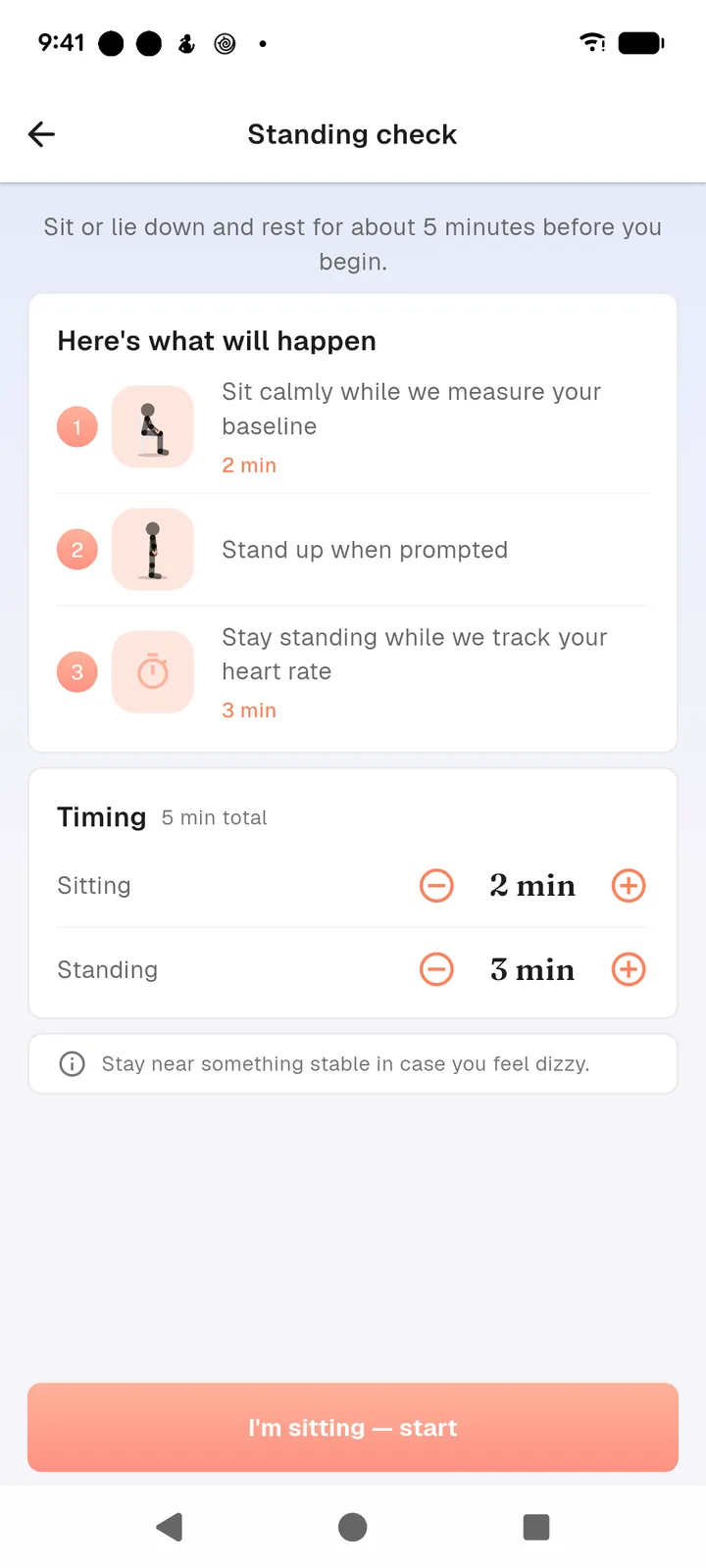
The Standing Check is a guided sit-to-stand routine: Pauser records your heart rate from your watch while you sit, then while you stand, and shows how much it changed. By default you sit for 2 minutes and stand for 3 minutes.
On the phone, the first screen lists what will happen:
- Sit calmly while we measure your baseline
- Stand up when prompted
- Stay standing while we track your heart rate
Once the check starts, a bar at the top shows where you are: Sit, Stand, Hold, Done.
When it finishes, Pauser shows your HR Rise, Baseline and Peak in bpm and your Time to peak in seconds, with a graph of your heart rate during the check. To learn how each number is worked out, see What do baseline, peak and rise mean in my result?
What you need: the Pauser app on a watch, a Wear OS watch with an Android phone or an Apple Watch with an iPhone. The heart rate comes from that watch.
Where to find it:
- POTS layout: the Standing test card at the top of Home.
- Personal layout: open the menu and tap Standing test under Manage & log.
- On your watch: the Standing Test tile (Wear OS) or Standing Check card (Apple Watch).
You can change the sitting and standing times from 1 to 10 minutes each (see Can I change how long I sit and stand?).
Some features depend on your plan. To see what yours includes, open the menu and tap the plan badge under your name.
Pauser shares wellness insights, not medical advice. If you have questions about your readings or how you feel, talk to your clinician.
Still stuck? Tap Support at the top of Home, or open the menu and tap Message us. You can also email support@pauser.health.
Related articles
What do I get with a subscription?
What a subscription includes is set by Pauser and can change, so the current list is always shown inside the app. Open your subscription page to see it.
- Open the menu (top left of Home).
- Tap the plan badge under your name.
If you are not subscribed, this opens a page that describes the benefits, with a Subscribe Now button at the bottom. If you already have a plan, it opens your plan’s page, which lists the features your plan includes.
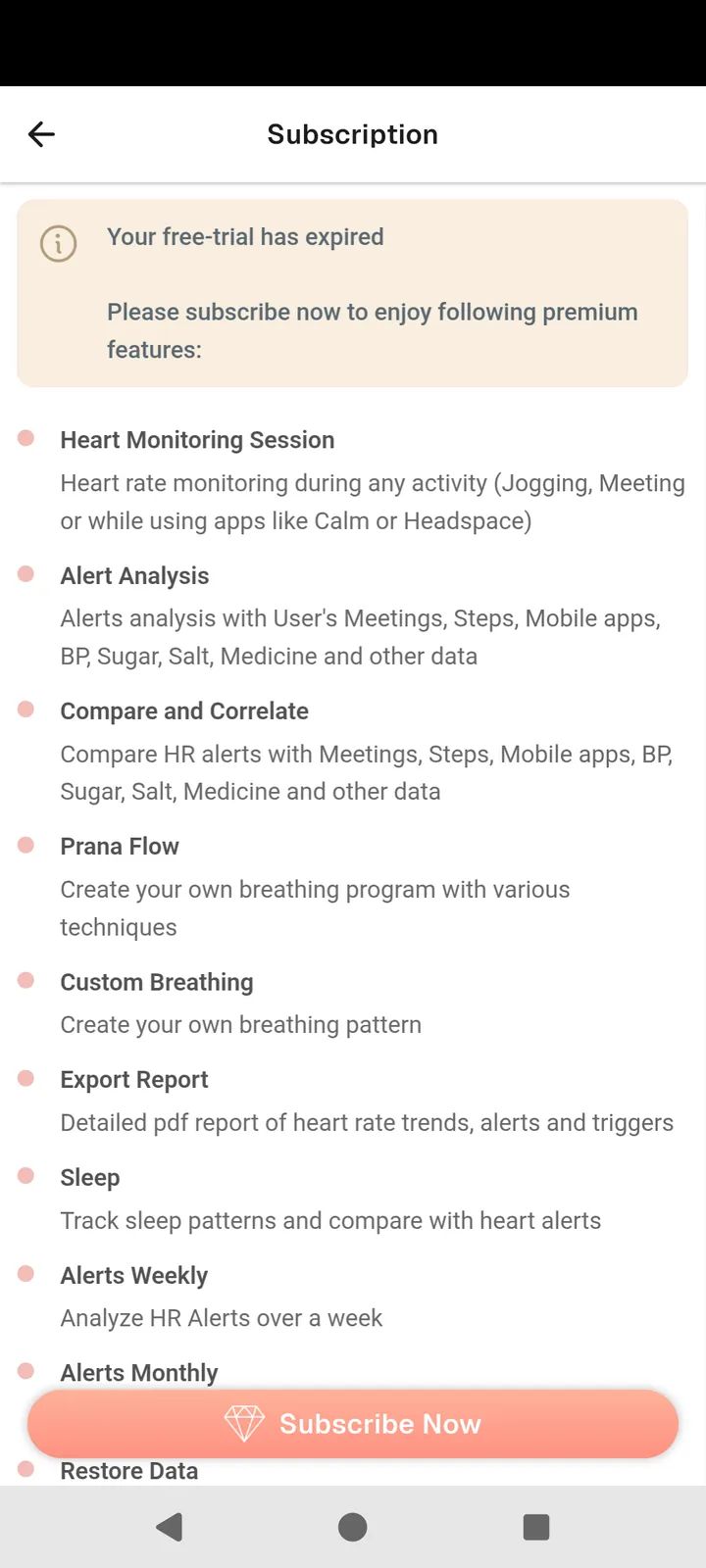
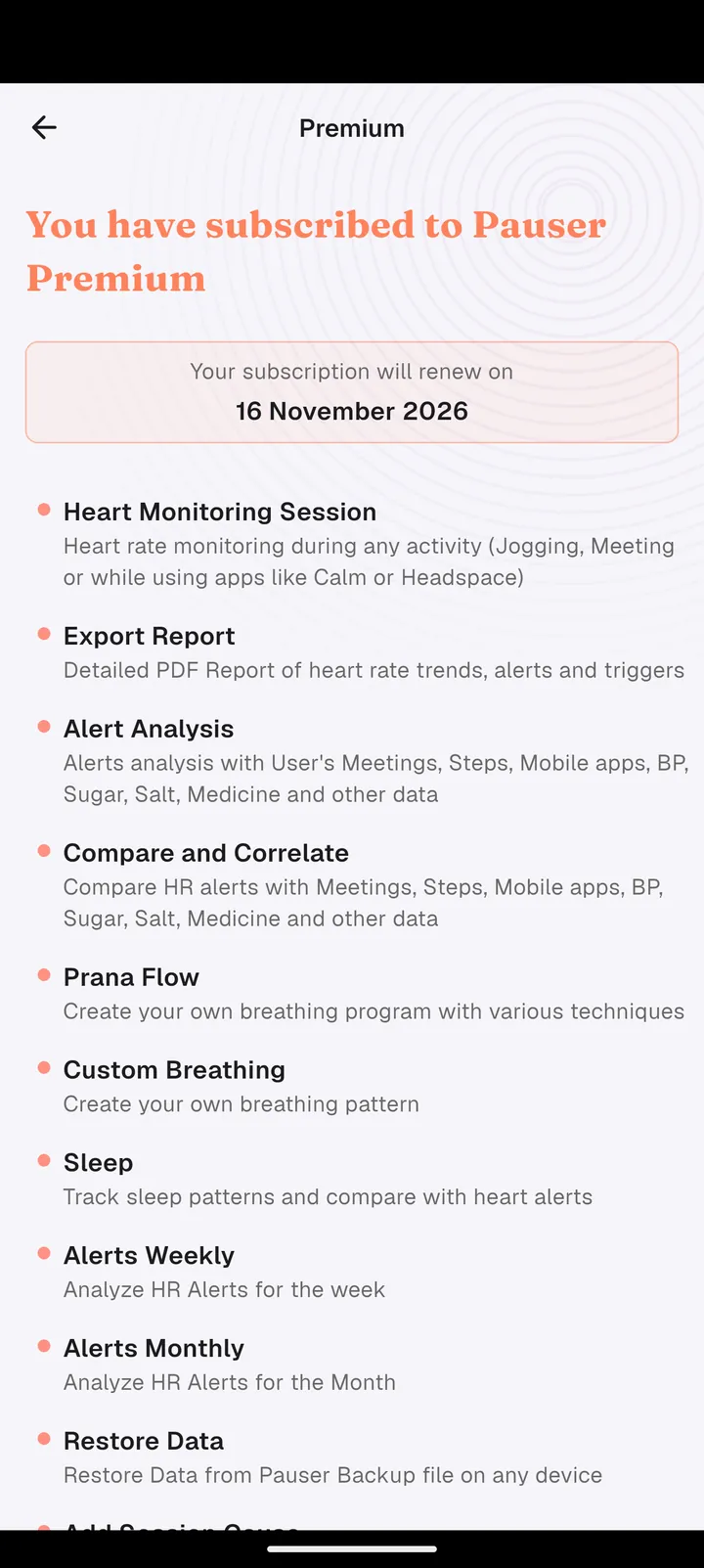
You can also reach the same page by tapping Subscribe Now at the top of Home, or the button on any locked screen.
Good to know:
- A screen that is not part of your plan shows a lock panel over it with a button to subscribe. See Why is a screen locked with a Subscribe Now button?
- The benefits page loads from the internet, so you need a connection to see it.
Still stuck? Tap Support at the top of Home, or open the menu and tap Message us. You can also email support@pauser.health.
Related articles
Does Pauser work offline?
Mostly, yes. Pauser opens and saves what you log on your phone without a connection, and it uses the plan details it saved last time you were online.
What works offline:
- Opening Pauser and moving around the app.
- Logging, such as mood, medicines and Bio Vitals. Entries are saved on your phone.
- Heart Rate Alerts, Pause sessions and other features that run on your phone and watch.
- Meditations you’ve played before, when their audio is already saved on your phone.
What needs a connection:
- Logging out and removing your account.
- Subscribing, and checking your plan for the first time.
- Meditation audio you haven’t played before.
- Support chat. Offline, Pauser shows: “You are offline. You can read earlier messages, but sending and receiving are paused until you reconnect.”
- Opening web pages such as the privacy policy and terms.
Good to know:
- If Pauser has never loaded your plan, some screens show Ooops! with a Retry button until you’re back online. See “Why does a screen say “Something went wrong, Please Retry or reopen the app”?”
- Uploads to Pauser’s server wait until you’re back online.
Still stuck? Tap Support at the top of Home, or open the menu and tap Message us. You can also email support@pauser.health.
Related articles
Why do I have to tick the consent box?
Pauser works with your health and biometric data, such as heart rate, so it asks for your agreement before you sign in. Until the box is ticked, every sign-in button shows One quick thing instead of continuing.

The box says you agree to Pauser’s Terms of Service and Privacy Policy, and consent to processing your health and biometric data to provide personalized experiences.
- Tap Terms of Service or Privacy Policy to read them (this needs an internet connection).
- Tick the box.
- Choose how you’d like to continue.
Good to know:
- The box appears on the Sign in to Pauser screen and on the Welcome back screen where you log in with email.
- Once you have agreed, Pauser remembers it, so the box may already be ticked next time.
Still stuck? Tap Support at the top of Home, or open the menu and tap Message us. You can also email support@pauser.health.
Related articles
How do I back up my data?
Open the menu, tap Backup & Restore, then tap Backup Data. Pauser makes one backup file that you keep somewhere safe and use later to restore your data.
- Open the menu.
- Under Plan & review, tap Backup & Restore.
- On the Backup Data tab, tap Backup Data.
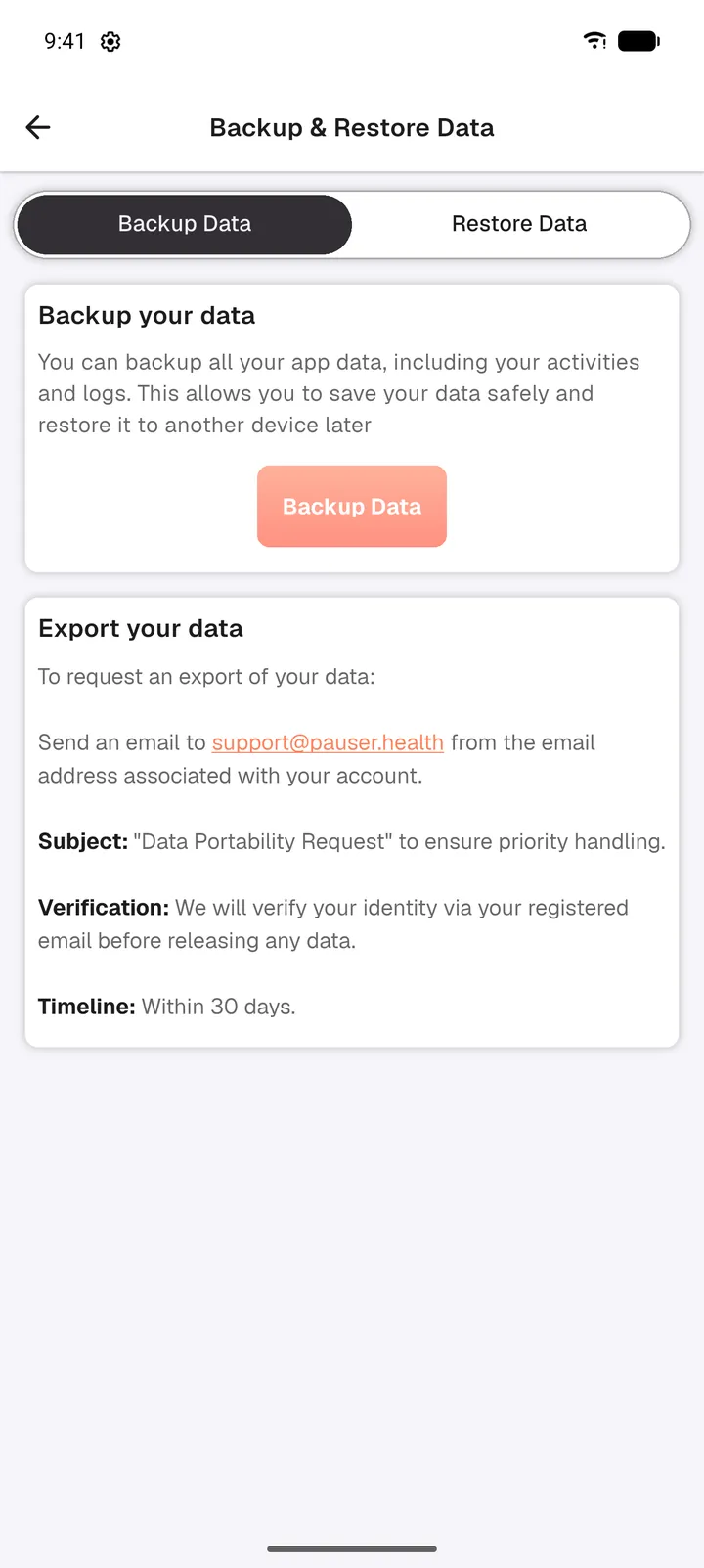
- Wait while Pauser shows Backing up your data…. Larger backups can take a moment.
On an Android phone: the file goes straight into your Downloads folder, with a name like pauser_backup_ followed by the date and time. When it’s done, Pauser shows Success. Tap Share to also send the file somewhere else, such as cloud storage or email, or tap Ok to finish.
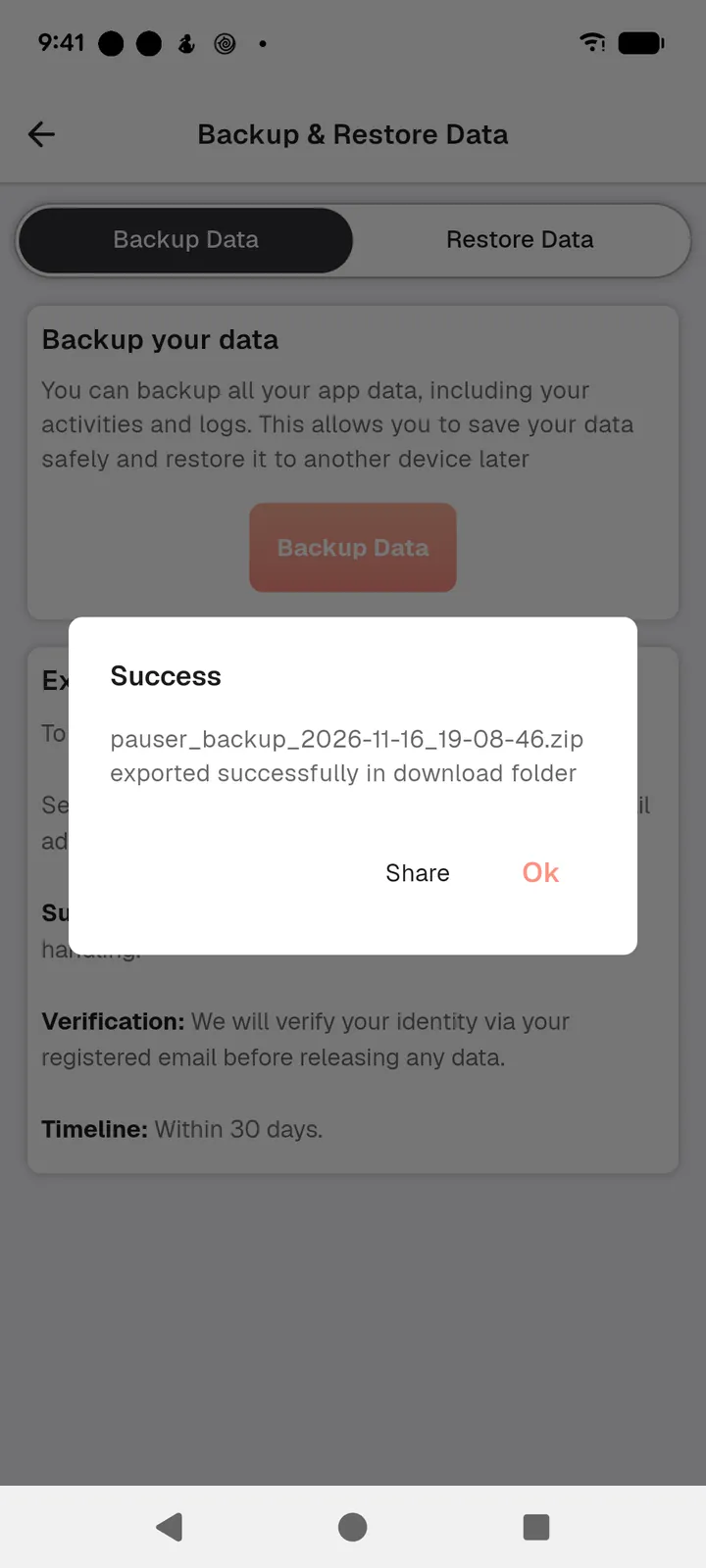
On iPhone: a save screen opens. Choose a place outside Pauser, such as iCloud Drive, and save. Pauser then shows Success with a Share option. If you close the save screen without saving, Pauser shows Backup was not saved.
Good to know:
- The backup holds your app data, including your activities, logs and Pauser settings.
- The file is locked to your Pauser account. You can restore it only while signed in with the same email address.
- Keep a copy off your phone. A backup that lives only on the phone is gone if the phone is lost.
- Some features depend on your plan. To see what yours includes, open the menu and tap the plan badge under your name.
Still stuck? Tap Support at the top of Home, or open the menu and tap Message us. You can also email support@pauser.health.
Related articles
What do I need to start using Pauser?
You need an Android phone or iPhone, a Pauser account, and a source of heart rate data: Health Connect on Android or Apple Health on iPhone. A watch with the Pauser app is optional, but some features need one.
Signing in. Open Pauser, tap Get started and go through the short intro to reach Sign in to Pauser. Tick the consent box, then choose Continue with Google, Continue with E-mail, or on iPhone Continue with Apple.
Heart rate.
- On an Android phone: Pauser reads heart rate through Health Connect. If it isn’t installed, Pauser shows Health Connect is needed with an Install Health Connect button.
- On iPhone: Pauser reads heart rate from Apple Health, which iPhone already has.
Your heart rate reaches Health Connect or Apple Health from your watch or fitness app.
Setup steps. After you sign in, What’s next lists a few quick steps:
- What are you managing these days?
- Set Your Heart Rate Alert
- Allow Heart Rate Access: Health Connect on Android, Apple Health on iPhone
- Enable Notifications
- Connect Your Smartwatch: Wear OS or Apple Watch
Tap Continue to go through them. As the screen says, you can change any of these later in Settings.

Good to know: if the Pauser app on your watch is connected, Pauser takes your heart rate from the watch instead of Health Connect or Apple Health.
Still stuck? Tap Support at the top of Home, or open the menu and tap Message us. You can also email support@pauser.health.
Related articles
How do I connect Health Connect?
Pauser asks for Health Connect access during setup, on the Connect your heart rate screen. If you skipped it or turned access off, you can turn it on again in Health Connect at any time.
During setup:
- On Connect your heart rate, tap Connect.

- Health Connect shows the data Pauser can read. Allow the data you want to share, including heart rate.

After setup, in Health Connect:
- Open Health Connect on your phone.
- Tap App permissions.
- Select Pauser.
- Turn on Heart Rate, and any other data you want Pauser to read.
- Go back to Pauser.
Or start from Pauser:
- Open the menu. Under Settings, tap Permission Management.
- On the Health Connect card, tap Permissions. This opens Pauser’s App info in your phone’s settings.

- Tap Permissions, then Health, fitness and wellness.
- Turn on Allow all.
Good to know:
- If Health Connect is not on your phone, the Health Connect card does not appear. See “Pauser says Health Connect is needed”.
- Pauser reads new data from Health Connect when you open it. See “How often does Pauser sync with Health Connect or Apple Health?”
- The exact names in your phone’s settings can differ a little between Android versions.
Still stuck? Tap Support at the top of Home, or open the menu and tap Message us. You can also email support@pauser.health.
Related articles
How do I change my upper and lower alert limits?
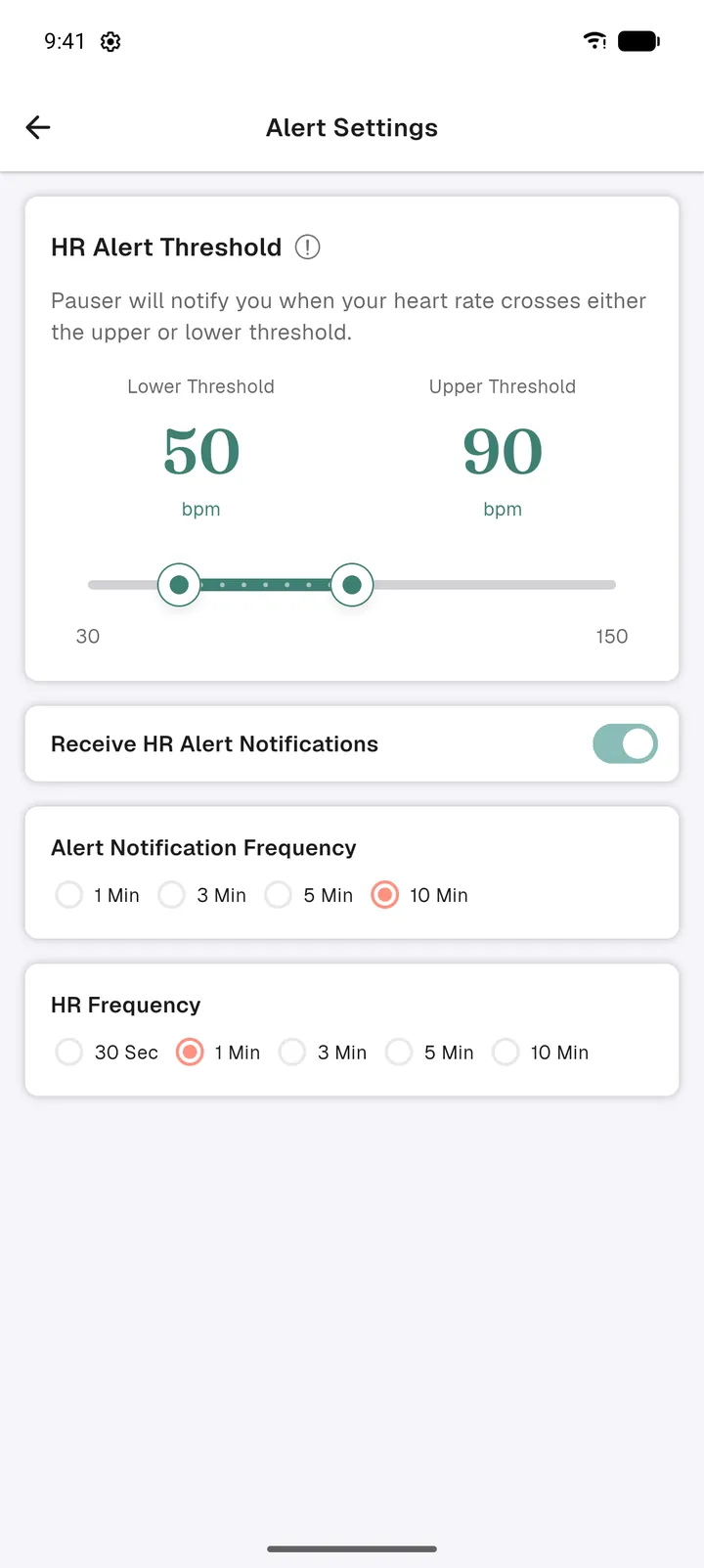
Open Alert Settings and drag the two handles on the HR Alert Threshold slider: the left one sets your Lower Threshold, the right one your Upper Threshold. Pauser saves the new value when you let go of a handle.
- Open the Alerts tab.
- Tap the settings (gear) icon at the top. You can also open the menu and tap HR Alerts.
- On Alert Settings, drag the handles on the HR Alert Threshold card.
- Check the numbers shown above the slider, then let go.
Good to know
- The slider runs from 30 to 150 bpm and moves in steps of 5 bpm.
- The two limits stay at least 5 bpm apart.
- If you have never set limits, they start at 50 bpm (lower) and 90 bpm (upper). For help choosing, see What alert limits should I use?.
- A reading exactly at a limit counts: an alert comes at or above the upper limit, and at or below the lower limit (only below it on a Wear OS watch).
- If your watch is connected, Pauser sends the new limits to it.
On a Wear OS watch: open General Settings, then under HR thresholds tap Upper or Lower. These rows show only while HR alerts is on.
On Apple Watch: swipe to General Settings and pick a value under Upper Threshold or Lower Threshold.
Still stuck? Tap Support at the top of Home, or open the menu and tap Message us. You can also email support@pauser.health.
Related articles
What is Compare and Correlate?
Compare & Correlate puts your heart rate next to one other thing you track, such as steps, salt, water or sleep, so you can see how they line up over a day or a week.
- Tap Insights at the bottom of the screen.
- Tap Compare & Correlate.
- Choose Day, Week or Month.
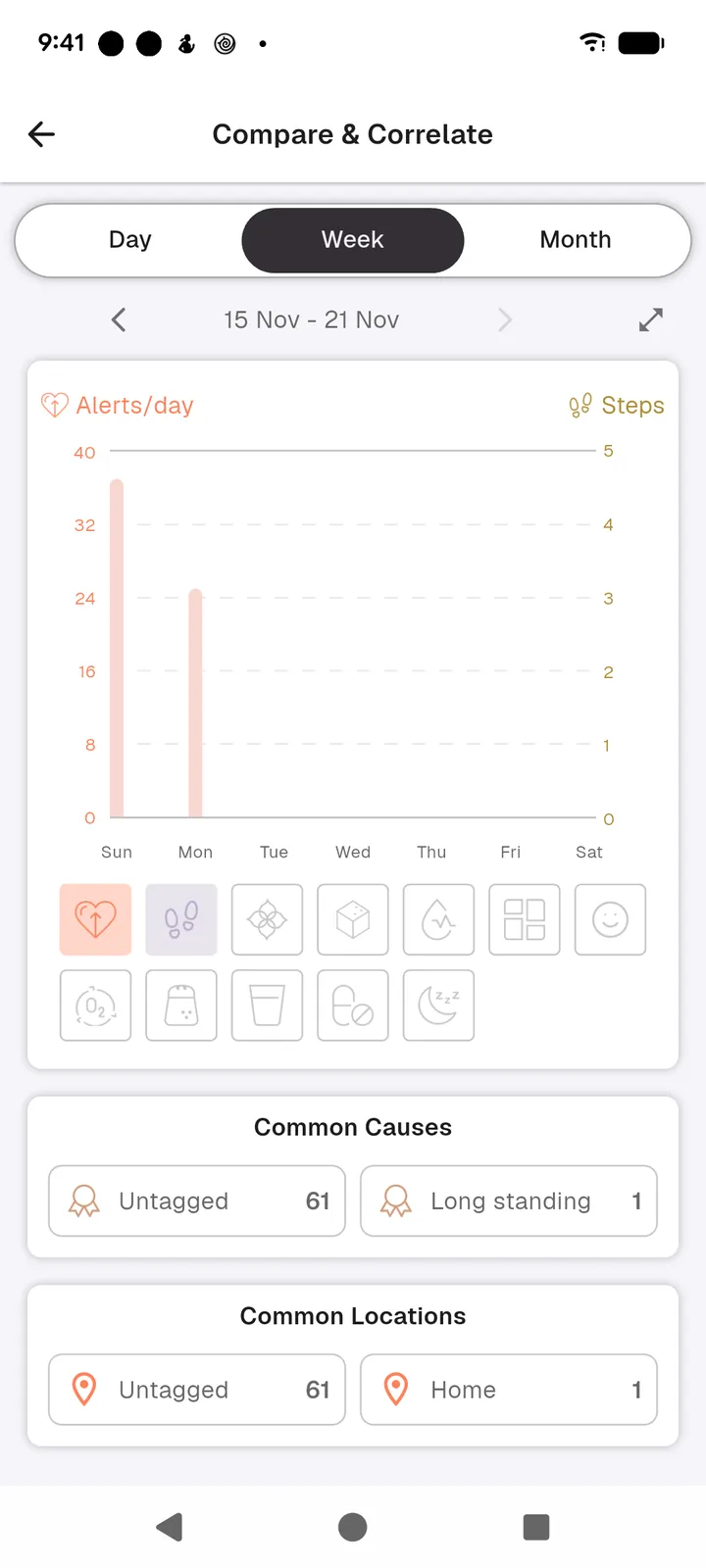
- Tap an icon in the rows of icons under the chart to pick what to compare with. The icons have no labels: the name of the one you picked shows at the top right of the chart, for example Steps.

What each view shows:
- Day: your highest heart rate in each hour (Max bpm/hour) beside the measure you picked. It starts with steps.
- Week: how many alerts you had each day (Alerts/day) beside the measure you picked.
- Month: a calendar of your alerts. Tap a date to open it in Day.
You can compare with steps, Pauses, blood sugar, blood pressure, mood, oxygen, salt, water, medicines and sleep. Android also offers app usage, and iPhone also offers heart rate variability (HRV).
Good to know:
- Below the chart you’ll see the common causes and locations you tagged on alerts in that period.
- Two things changing together doesn’t mean one caused the other.
- Some features depend on your plan. To see what yours includes, open the menu and tap the plan badge under your name.
Pauser shares wellness insights, not medical advice. If you have questions about your readings or how you feel, talk to your clinician.
Still stuck? Tap Support at the top of Home, or open the menu and tap Message us. You can also email support@pauser.health.
Related articles
What’s the easiest way to log on a low-energy day?
Most things can be logged from Home in one to three taps, without opening a full screen. Here are the shortest paths Pauser has today.
An as-needed medicine (1 tap): on the Today’s Medicine Schedule card on Home, tap Take now next to the medicine. Pauser records it at the current time.
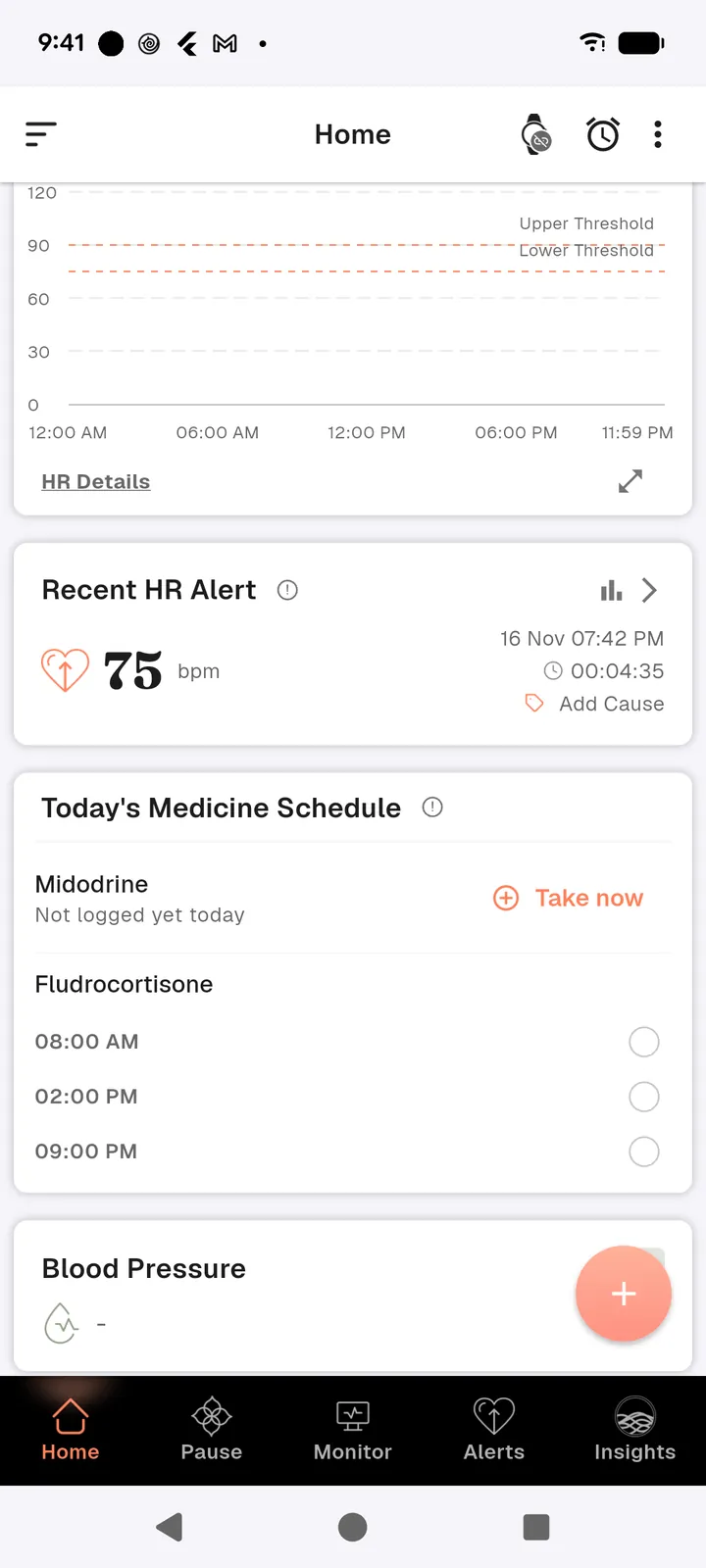
Water or salt (3 taps, POTS layout): tap + at the bottom right of Home, tap Water or Salt, then tap Save. The amount starts at what you last logged today, so you often don’t need to change it.
Water or salt from the card (1 tap, POTS layout): on the Salt & Water card, tap + under Water or Salt to add one serving. The minus button removes the last entry you made today (Pauser asks first).

From your watch: if you use Pauser on a Wear OS watch or Apple Watch, you can tag a Heart Rate Alert straight from the watch. See “How do I tag an alert from my watch?”
Good to know:
- The water, salt and Take now shortcuts save the current time. To record something from earlier, use the full screen for that item instead.
- The Water and Salt shortcuts appear when your Home uses the POTS layout. You can switch layouts from the menu.
Still stuck? Tap Support at the top of Home, or open the menu and tap Message us. You can also email support@pauser.health.
Related articles
How do I start a breathing exercise?
Open the Pause tab, pick a technique on Breathe, choose a duration and tap Start Breathing.
- Tap Pause at the bottom of the screen.
- On the Breathe tab, tap a technique card, for example Calm After Work. To go straight to one of its patterns, tap the pattern name on the card instead.
- Under Select Technique, check the pattern you want.
- Under Select Duration, tap 3, 5, 7 or 10 Min, or tap the last circle to pick any length from 1 to 120 minutes. 5 minutes is selected when the screen opens.
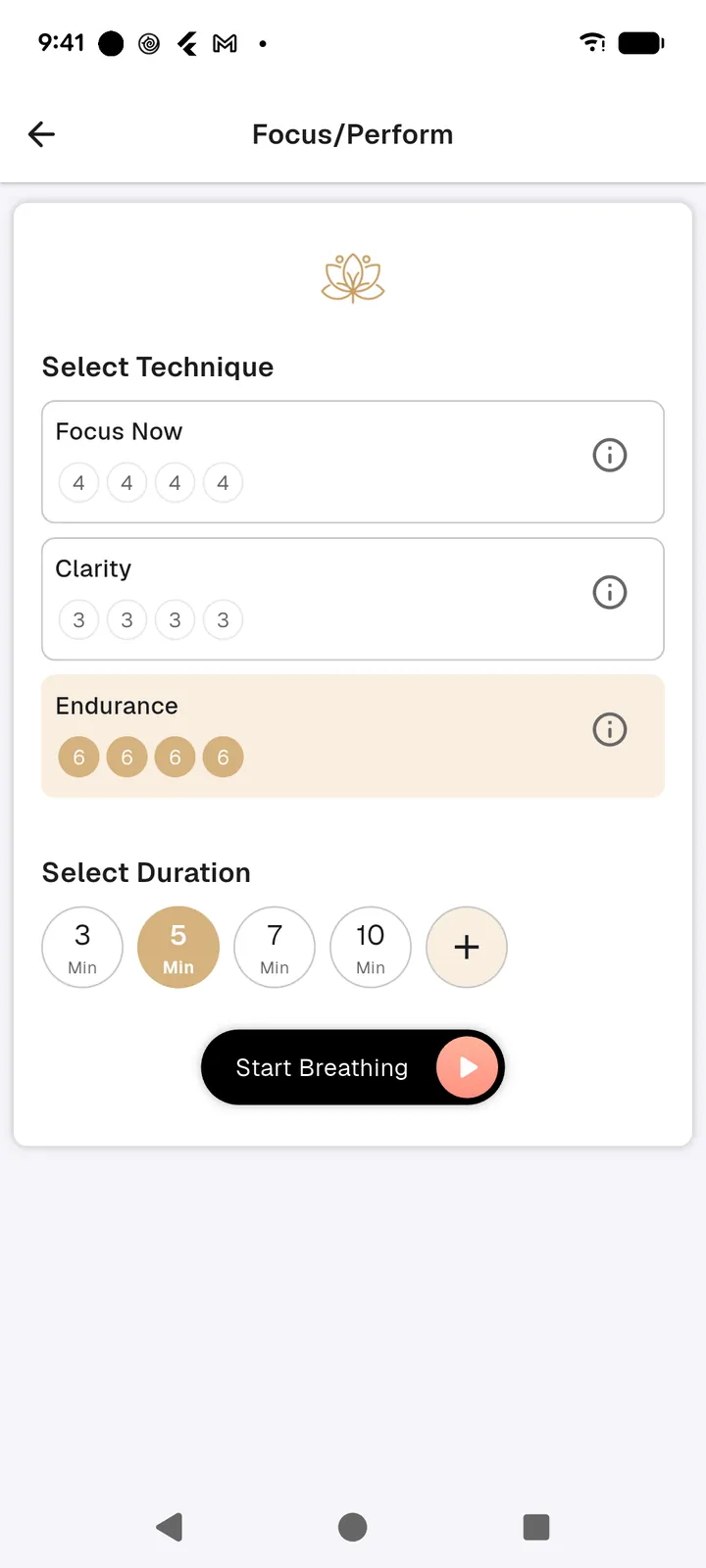
- Tap Start Breathing, then follow the circle and the Inhale, Hold and Exhale prompts.

The numbers under each pattern, such as 4-4-4-4, are seconds: breathe in, hold, breathe out, hold.
Good to know:
- Quick Calm (30 Seconds) skips these steps and starts right away.
- If Pauser is set up to use your watch, the session first shows “Connecting your watch for Heart Rate data” for up to about 25 seconds. Without a watch, you see a short “Your session will start in” countdown.
- A session runs to the end of the last full breath, so it can last a few seconds longer than you picked.
- To end early, tap the round stop button with a square in it, at the bottom of the screen. The session is saved and its details open. Going back or leaving the app also ends and saves it.
- Some features depend on your plan. To see what yours includes, open the menu and tap the plan badge under your name.
Still stuck? Tap Support at the top of Home, or open the menu and tap Message us. You can also email support@pauser.health.
Related articles
Why does Pauser need the “Alarms and Reminders” permission?
Pauser uses Android’s alarm system so your Pause and medicine reminders arrive at the exact time you set. Without that permission, Android won’t let Pauser schedule them, so Pauser keeps the Reminders screen closed until it’s allowed.
If something is missing when you open Reminders, you see Permission Required with a message such as “Schedule Alarm permission is required to access Reminders, please allow notification permission”. If notifications are off too, it says “Notification And Schedule Alarm permission is required to access Reminders, please allow notification permission”. If only notifications are off, it says “Notification permission is required to access Reminders, please allow notification permission”. Tap Allow to open Pauser’s page in your phone’s settings, turn on what’s missing, then come back.

You can also check both permissions inside Pauser:
- Open the menu.
- Under Settings, tap Permission Management.
- Turn on Access to Send Notifications.
- Turn on Access to Set Alarms and Reminders. This row appears on Android 13 and later.
Good to know:
- On most phones running Android 13 or later, Pauser gets the alarm permission when it’s installed, so you may only be asked about notifications.
- If you later turn the alarm permission off in your phone’s settings, reminders stop being scheduled until you turn it back on.
- TAP Meeting reminders need this permission too.
Still stuck? Tap Support at the top of Home, or open the menu and tap Message us. You can also email support@pauser.health.
Related articles
What’s in the Wellness Report?
The Wellness Report is a PDF of the days you chose: a cover page, a contents page, a summary of the period, then one section per day with the parts you switched on. What goes in each day depends on the sections you pick under Include in Report.
Always included:
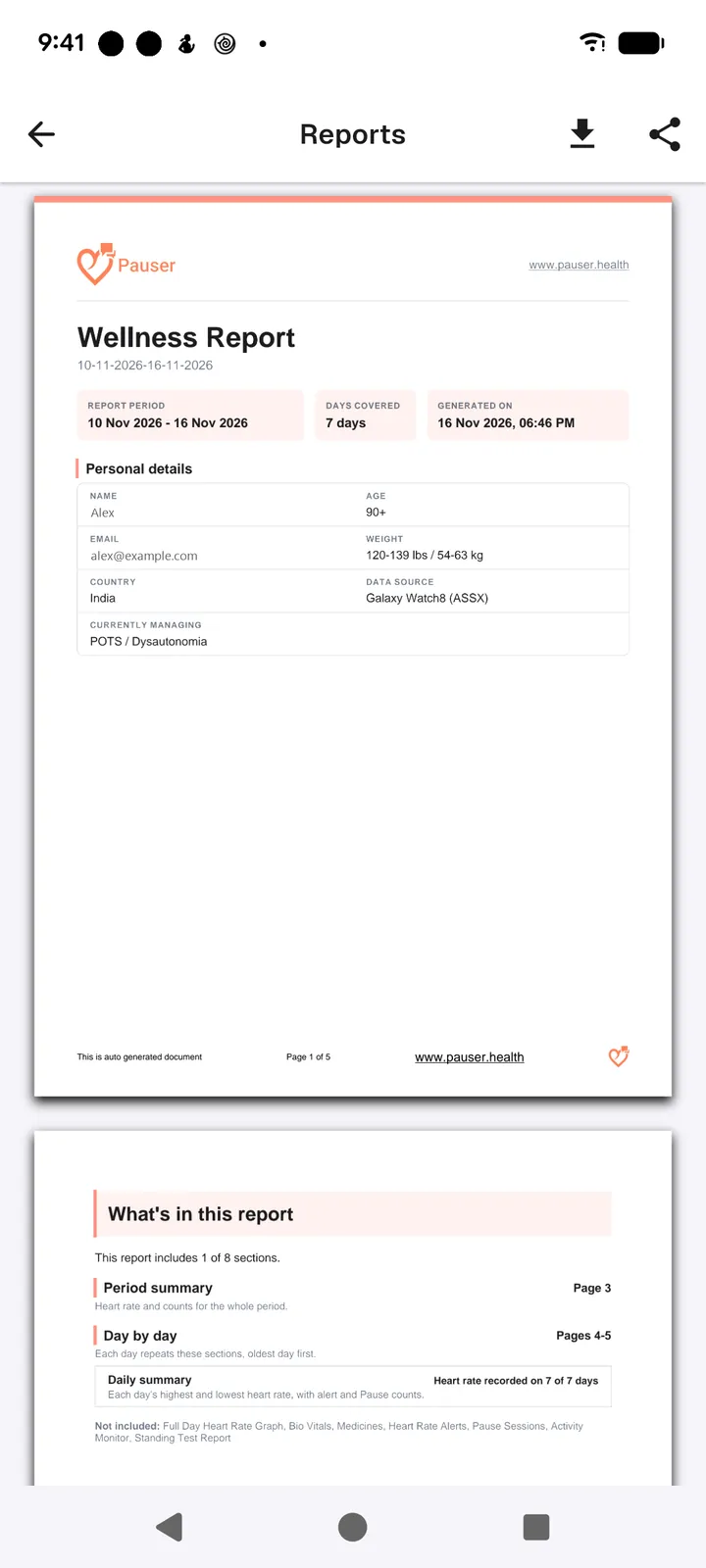
- Cover: the Report period, Days covered, Generated on, your Personal details (name, email, age, weight, country, data source) and what you are Currently managing.
- What’s in this report: the sections included, with page numbers.
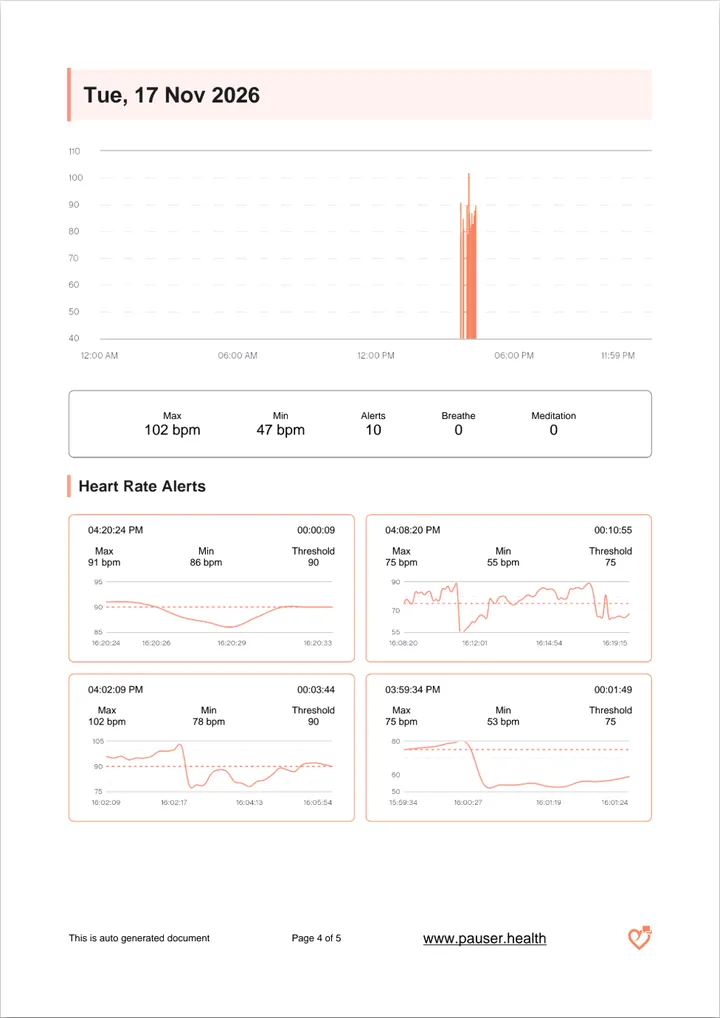
- Summary for this period: your highest and lowest heart rate, a Heart Rate Trend by Day (bpm) chart and, for the sections you include, a count per day.
Sections you can add (most appear inside each day):
- Full Day Heart Rate Graph: heart rate across the whole of each day.
- Heart Rate Alerts: each alert, with its heart rate graph.
- Pause Sessions: each Breath and Meditation session, with its graph.
- Activity Monitor: each live heart rate recording, with its graph.
- Bio Vitals: blood pressure, blood glucose, oxygen, water and salt you logged, plus HRV on iPhone. A vital with no entries shows “Not recorded”.
- Medicines: the medicine times you logged as taken, day by day, with totals on the summary page.
- Standing Test Report: your Standing Check results for the period, added at the end.
Good to know:
- Deleted medicines are not included.
Some features depend on your plan. To see what yours includes, open the menu and tap the plan badge under your name.
Pauser shares wellness insights, not medical advice. If you have questions about your readings or how you feel, talk to your clinician.
Still stuck? Tap Support at the top of Home, or open the menu and tap Message us. You can also email support@pauser.health.
Related articles
How do I install Pauser on my Wear OS watch?
Start from Pauser on your Android phone: it opens Pauser’s Play Store page on your watch, and you tap Install there. Your watch must already be paired with your phone in its companion app.
- On your phone, open the menu and, under Settings, tap Watch Setup. If you are setting up Pauser for the first time, or you tap the watch icon at the top of Home, Pauser first shows We see your watch. Tap Set up now.
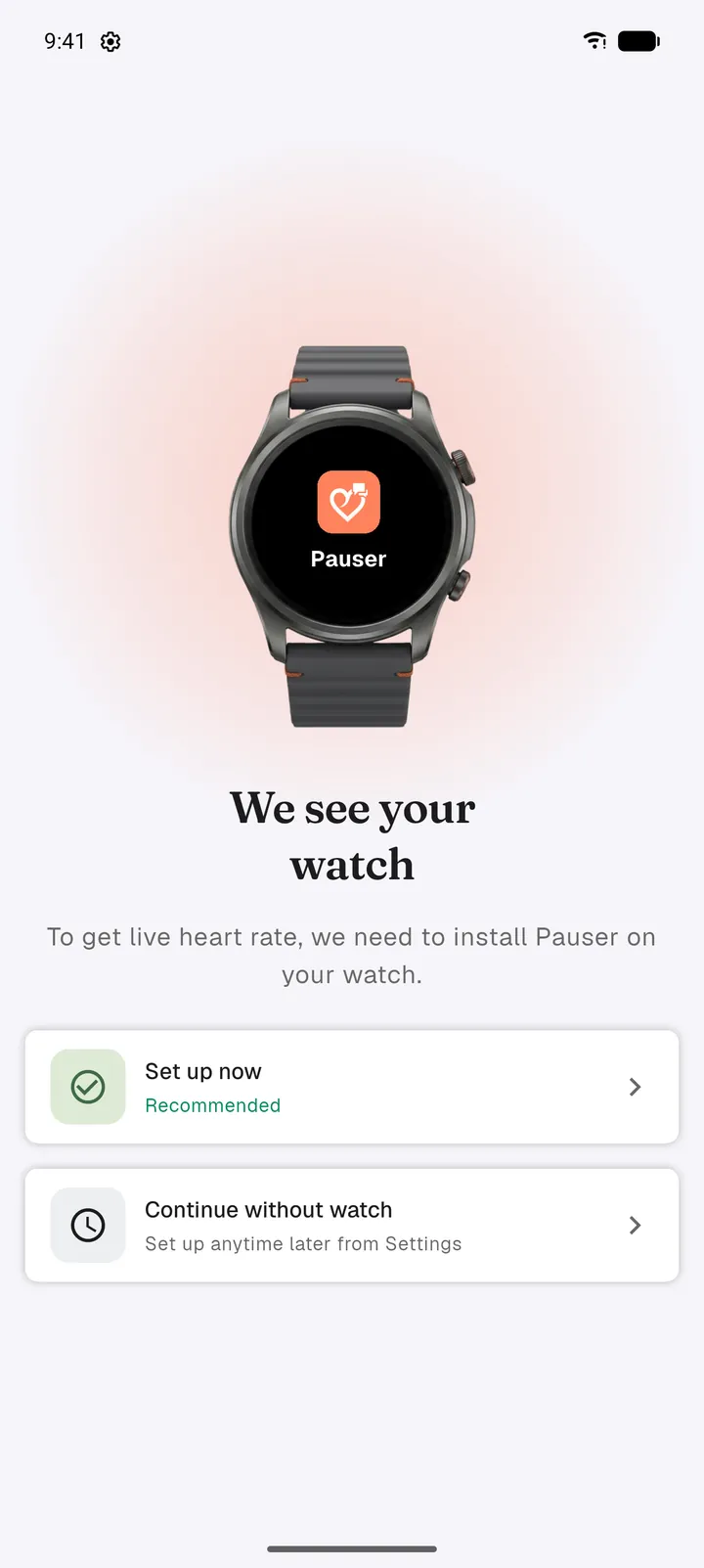
- Pauser shows Checking your watch while it looks for your watch.
- If Pauser is not on the watch yet, tap Open in Play Store.
- Look at your watch. The Play Store opens on Pauser’s page. Tap Install on the watch.
- Keep the phone screen open. Pauser checks every few seconds and moves on by itself once the watch app is installed. You can also tap I’ve installed it or Check again.
- When Pauser finds the watch app, you see Pauser is on followed by your watch’s name (or You’re connected.). Tap Continue, or Done if you opened Watch Setup from the menu. If a watch permission is missing, Pauser walks you through them one at a time: tap Allow on watch, then confirm on your watch.
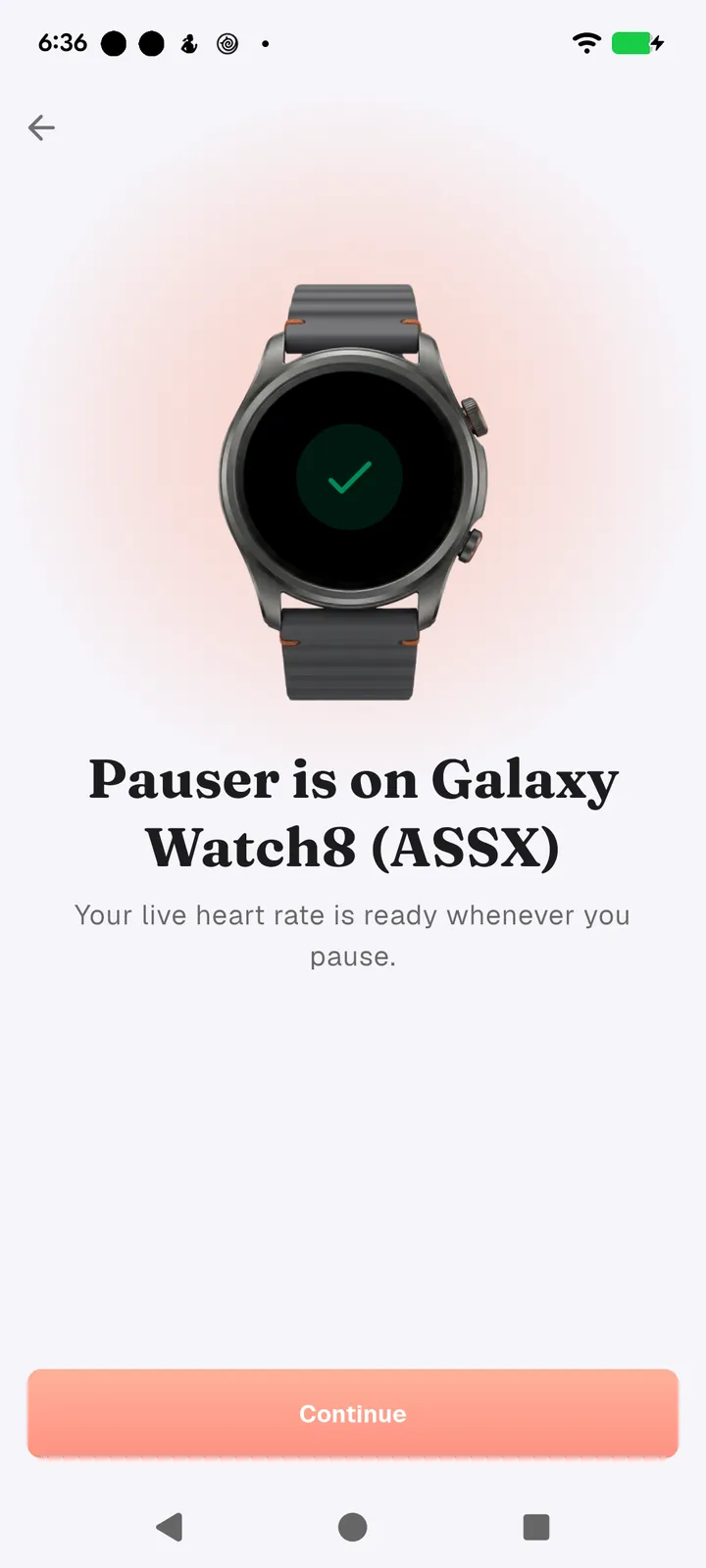
Good to know:
- Installs can take a minute or two to reach the watch. If Pauser still does not find it, give it a moment and tap Check again.
- If you see We don’t see a watch, your phone is not connected to a watch right now.
- Pauser on the watch opens to a home screen with your heart rate and tiles such as Quick Calm and Breathing.

Still stuck? Tap Support at the top of Home, or open the menu and tap Message us. You can also email support@pauser.health.
Related articles
How do I do a Standing Check?
Wear your watch with the Pauser app, open Standing test, sit and tap start, then stand when Pauser tells you to. With the default times it takes about 5 minutes.
- Open the check: on Home (POTS layout) tap Start standing check or the play button on the Standing test card. In the Personal layout, open the menu and tap Standing test.
- Read the screen. It suggests you Sit or lie down and rest for about 5 minutes before you begin. Check the sitting and standing times under Timing.
- While sitting, tap the start button at the bottom (it begins I’m sitting).
- Pauser shows Connecting to your watch… until the first heart rate reading arrives, then the sitting countdown starts. Stay still. If you have already rested, you can tap Skip wait · stand now.
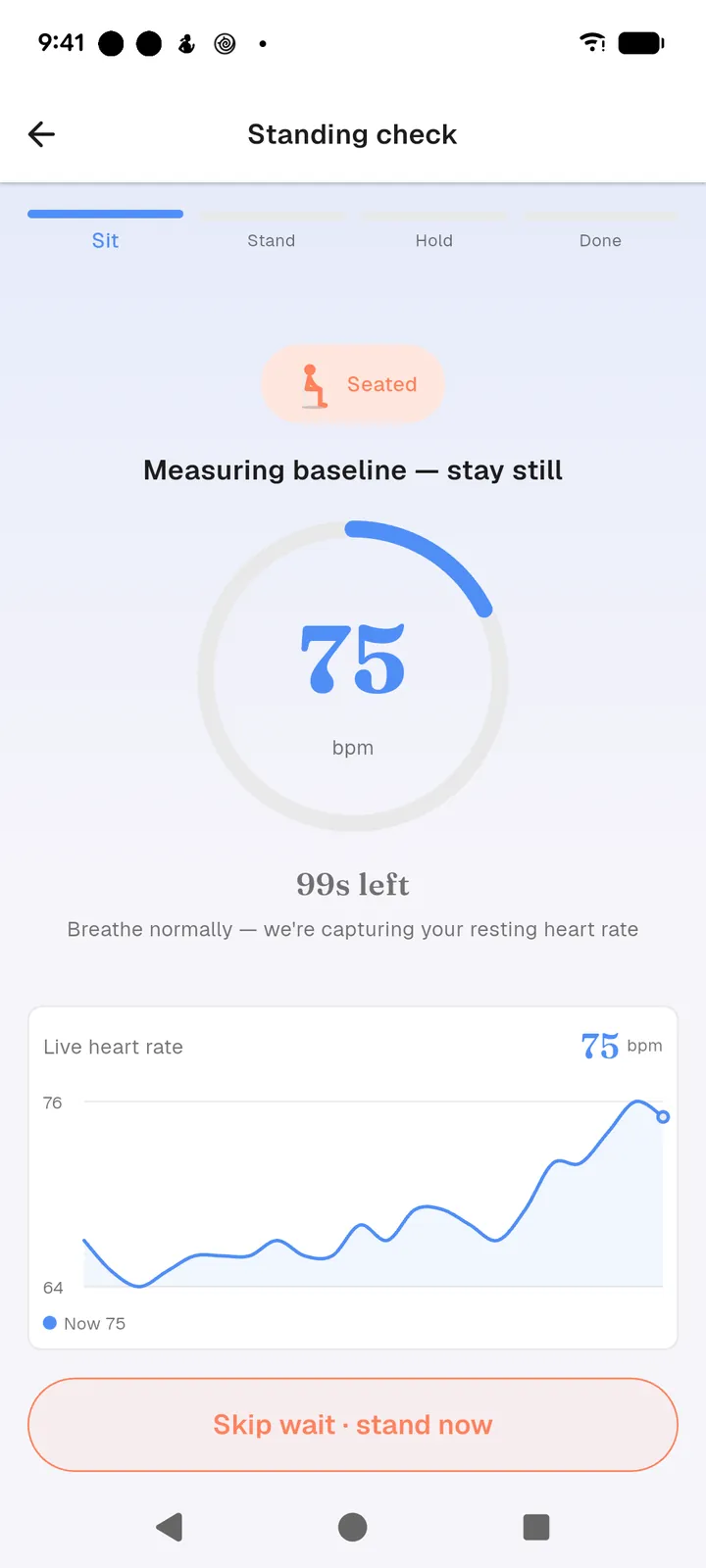
- When you see Stand up now, stand slowly and tap I’m standing.
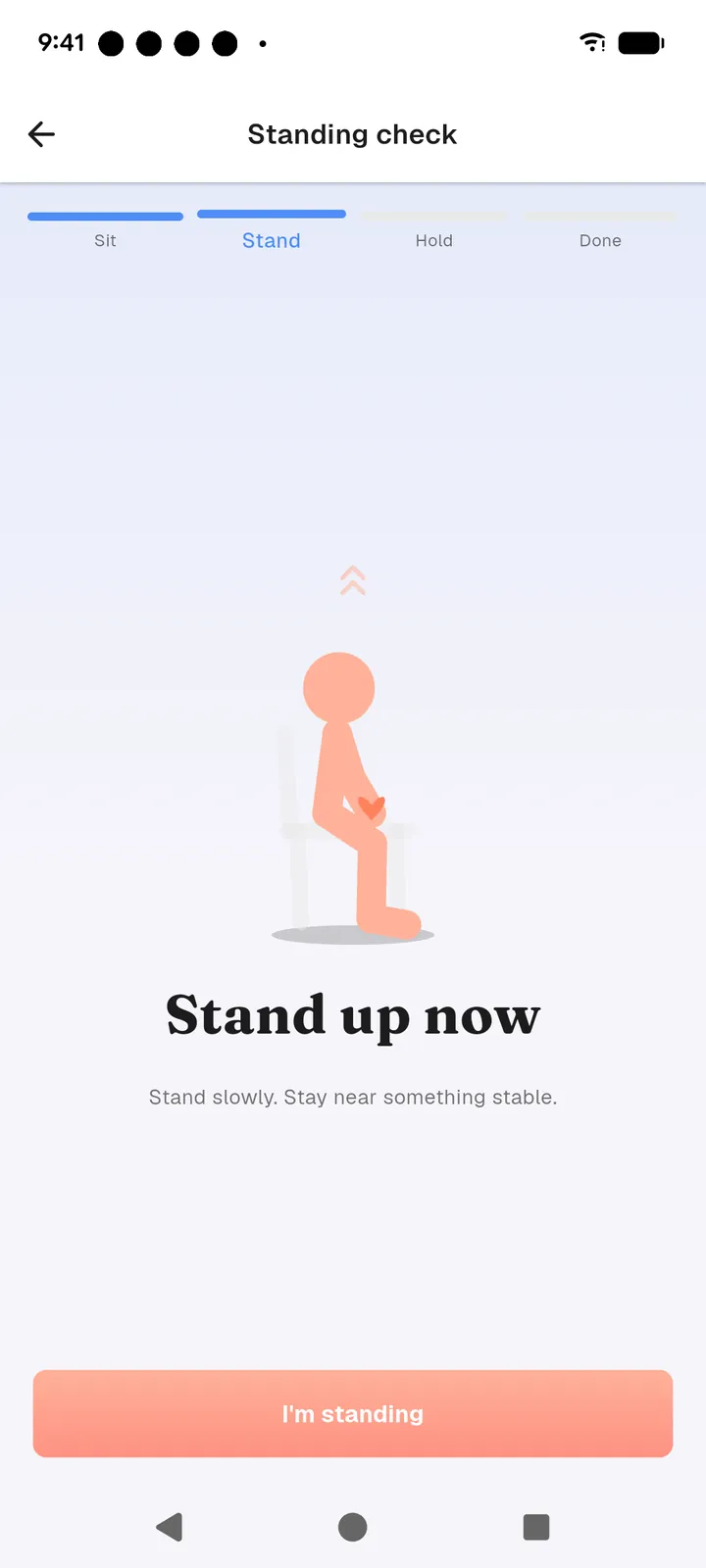
- Stay standing until the countdown ends. If you need to stop, tap I need to sit down · end test. Pauser saves what it measured (see Why does my result say “Ended early” or “Incomplete”?).
- On Standing check result, leave Add to report on if you want this check in your report, then tap Done. To understand your numbers, see What do baseline, peak and rise mean in my result?

Good to know:
- The app reminds you: Stay near something stable in case you feel dizzy.
- If you leave with the back button while measuring, Pauser asks End standing check? Tapping I need to sit down · end test in that message leaves without saving the check.
- You can also start a check from the watch (see Can I do a Standing Check from my watch?).
Some features depend on your plan. To see what yours includes, open the menu and tap the plan badge under your name.
Pauser shares wellness insights, not medical advice. If you have questions about your readings or how you feel, talk to your clinician.
Still stuck? Tap Support at the top of Home, or open the menu and tap Message us. You can also email support@pauser.health.
Related articles
Can I do a Standing Check without a watch, lying down first, or with blood pressure?
Not at the moment. A Standing Check needs the Pauser app on your Wear OS watch or Apple Watch to measure your heart rate, it starts from a sitting baseline, and it doesn’t record blood pressure during the stand.
What does work today: you sit calmly while Pauser measures your baseline, then stand when prompted, and Pauser shows how your heart rate changed. You can log blood pressure separately in Bio vitals in the menu.
If you’d like this, tell us: tap Support at the top of Home, or open the menu and tap Message us.
Related articles
How do I subscribe?
Open the subscription page, tap Subscribe Now, choose yearly or monthly, and pay through Google Play or the App Store. Your plan is linked to your Pauser account.
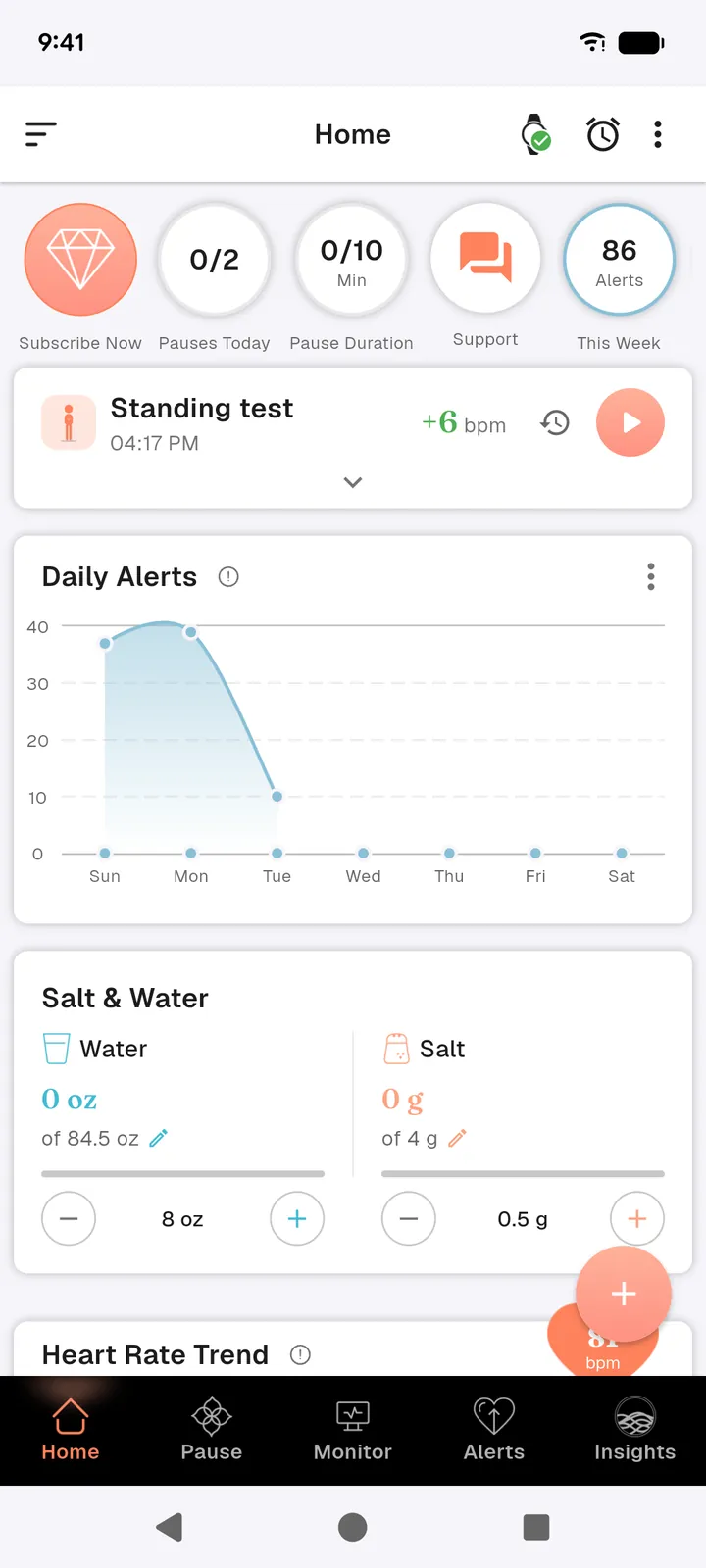
- On Home, tap Subscribe Now at the top, or the trial circle if you are on a trial. (You can also open the menu and tap the plan badge under your name, or tap the button on any locked screen.)
- Wait for the page to load, then tap Subscribe Now at the bottom.
- In Select subscription plan, tap Yearly or Monthly. Each shows its price per year or per month. Yearly is selected first.

- Tap Continue As Yearly or Continue As Monthly.
- Confirm the payment in the Google Play or App Store window that opens.
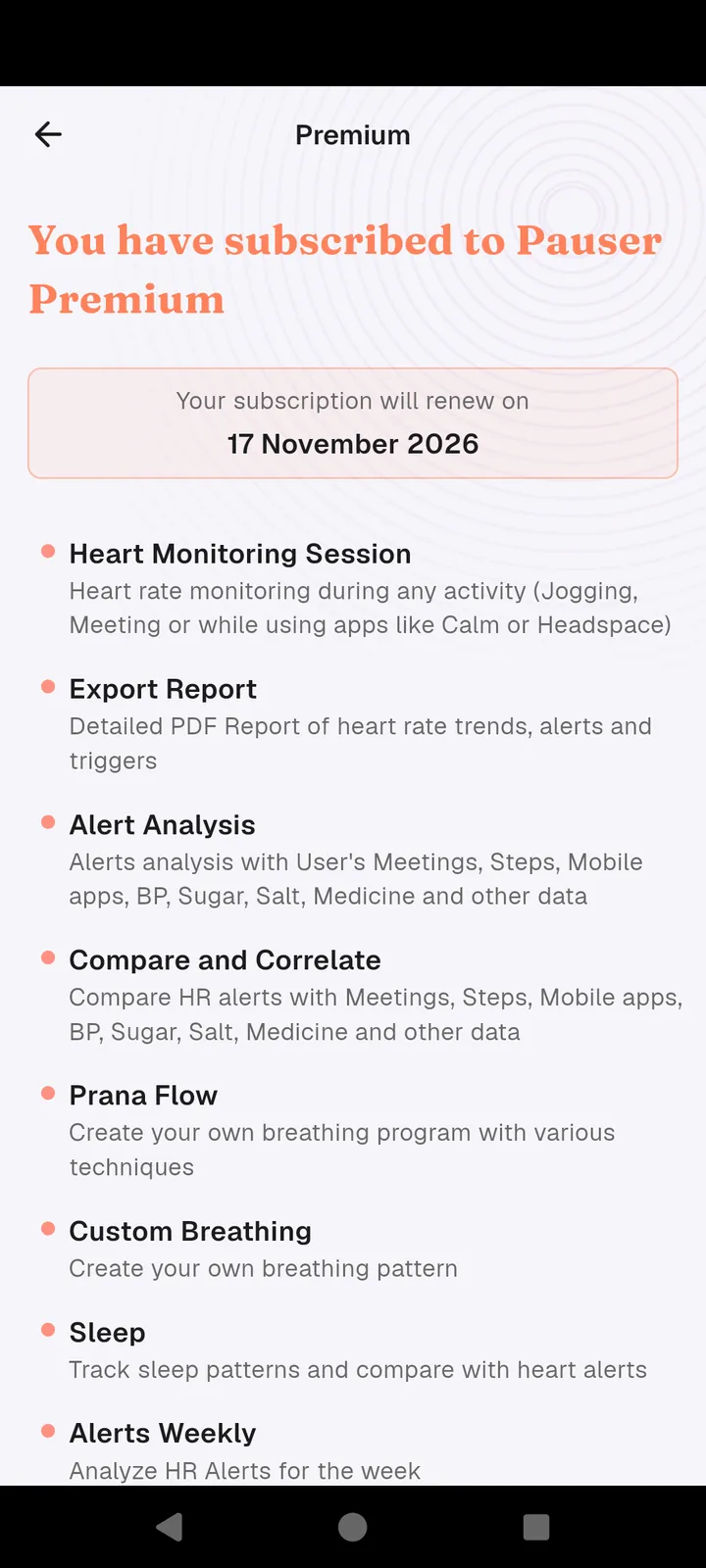
When the purchase goes through, Pauser opens your plan’s page.
Good to know:
- You need an internet connection. Offline, Pauser shows You’re offline.
- If you already have a paid plan, the subscription page opens your plan’s page instead, so you can’t buy twice by mistake.
- If a plan shows a Free Trial tag, see Is there a free trial?
Still stuck? Tap Support at the top of Home, or open the menu and tap Message us. You can also email support@pauser.health.
Related articles
Why does a screen say “Something went wrong, Please Retry or reopen the app”?
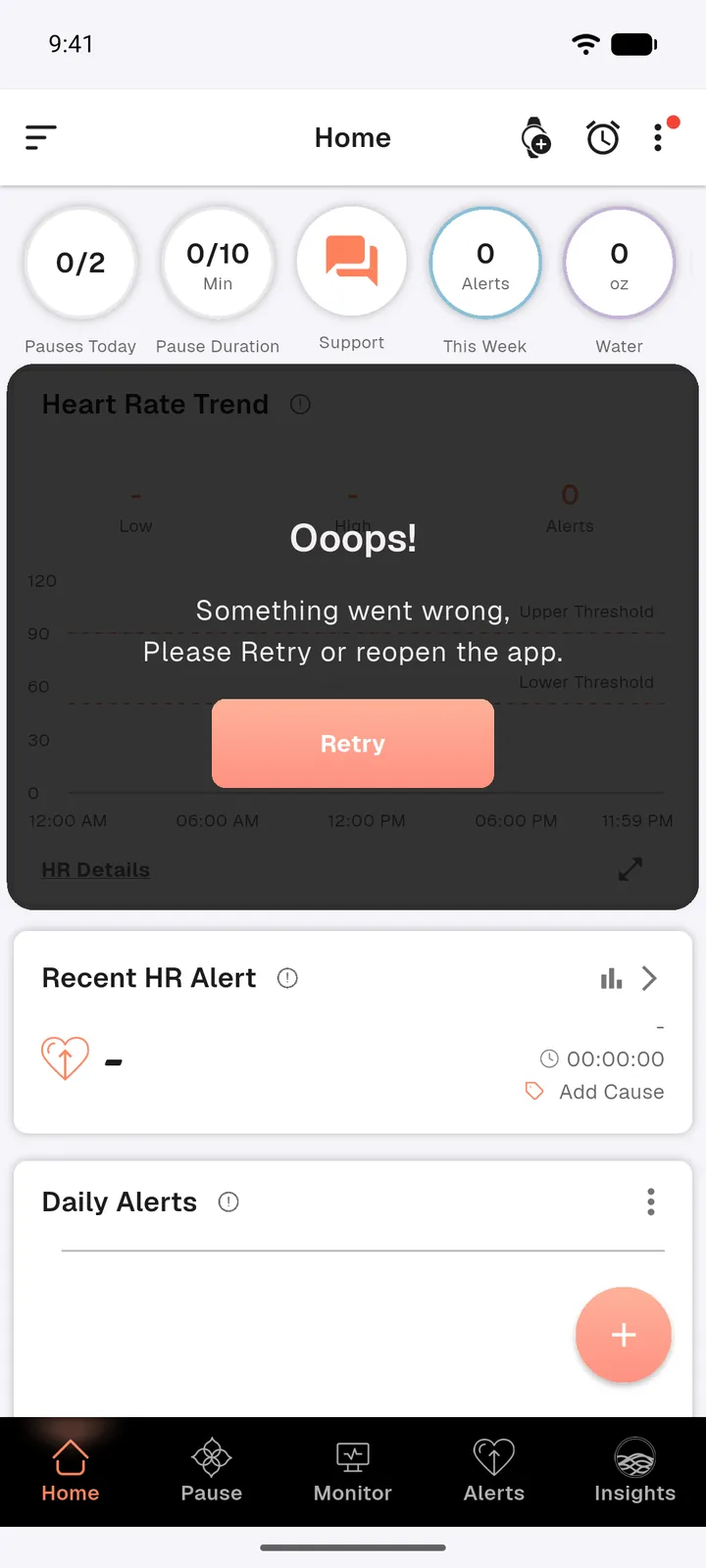
This Ooops! screen appears when Pauser doesn’t have your plan details yet, so it can’t tell whether this feature is open to you. It usually happens when Pauser couldn’t reach the internet while loading your plan.
- Check that you’re connected to Wi-Fi or mobile data.
- Tap Retry on the screen.
- If it’s still there, close Pauser fully and open it again while you’re online.
Good to know:
- Once Pauser has loaded your plan, it keeps a copy, so later offline use doesn’t bring this screen back.
- Some features depend on your plan. To see what yours includes, open the menu and tap the plan badge under your name.
Still stuck? Tap Support at the top of Home, or open the menu and tap Message us. You can also email support@pauser.health.
Related articles
Why does Pauser say my email isn’t verified?
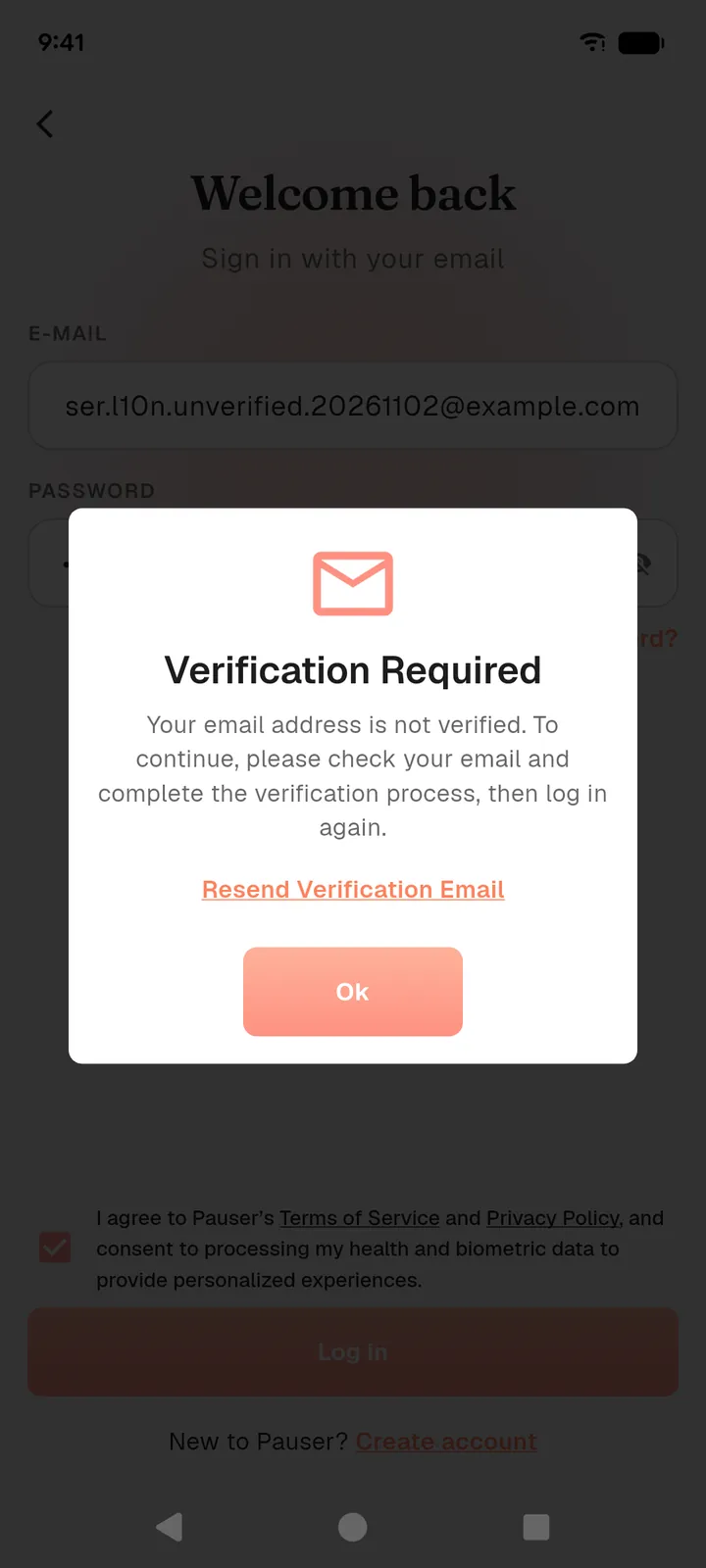
An account made with an email and password must be verified before you can log in, so Pauser shows Verification Required until you tap the link in the email it sent. Open that email, verify your address, then log in again.
If you can’t find the email:
- On the Verification Required message, tap Resend Verification Email.
- Pauser shows Verification email sent. Tap Ok.
- Check your inbox, and your spam or junk folder, for the email from Pauser and verify your address.
- Come back to Pauser and log in again.
Good to know:
- You can resend once every 60 seconds. Sooner than that, Pauser shows “Wait For 60 seconds to send email again”.
- This only applies to email accounts. Continue with Google and Continue with Apple do not need it.
- Resending needs an internet connection.
Still stuck? Tap Support at the top of Home, or open the menu and tap Message us. You can also email support@pauser.health.
Related articles
How do I restore my data on a new phone?
Install Pauser on the new phone, sign in with the same account you used when you made the backup, then restore your backup file from Backup & Restore. Restoring replaces everything Pauser has on that phone with the data in the file.
- Put your backup file somewhere the new phone can reach, such as cloud storage, email or iCloud Drive.
- Install Pauser and sign in with the same email address you used for the backup.
- Open the menu and, under Plan & review, tap Backup & Restore.
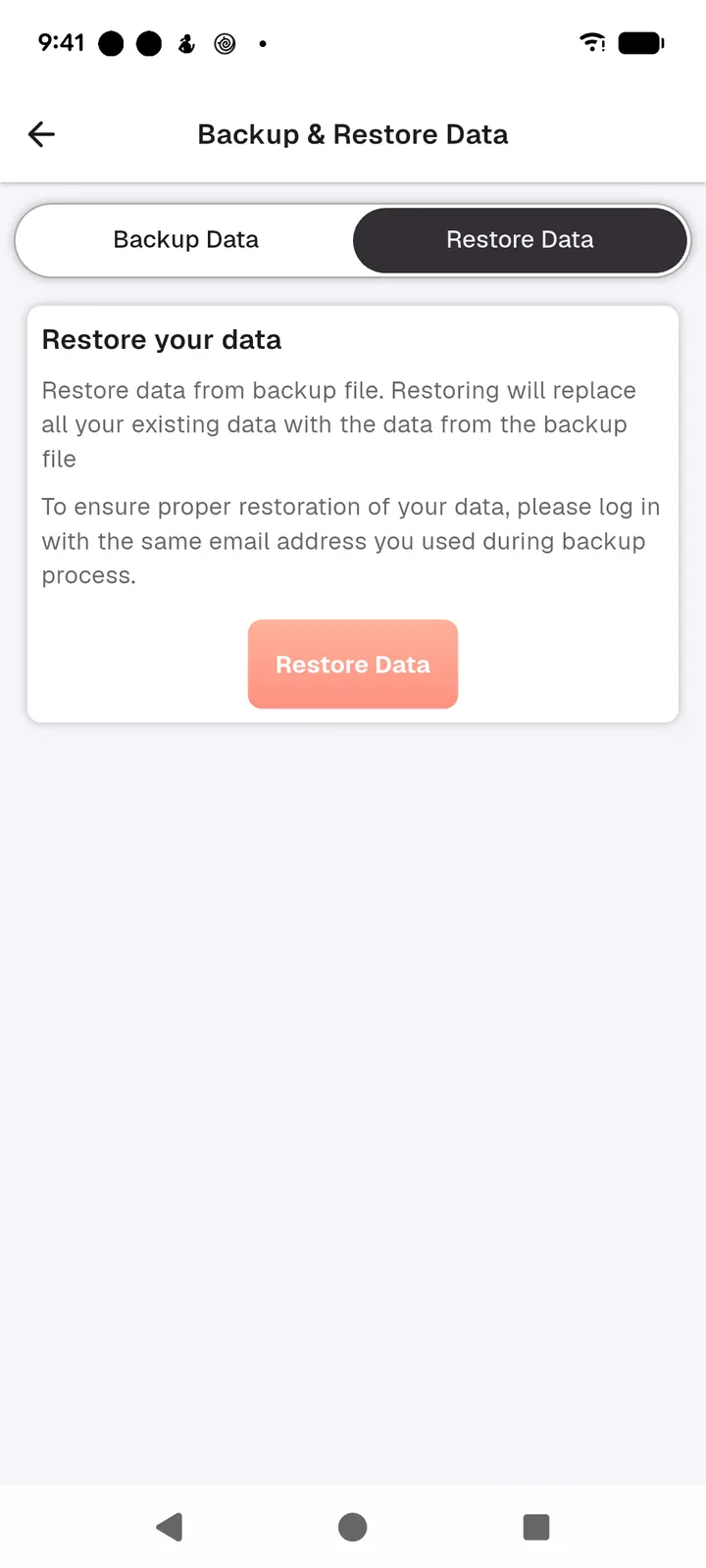
- Tap the Restore Data tab, then tap Restore Data.
- Pauser asks: “Restoring will overwrite all your current data. Want to proceed?” Tap Yes.

- Choose your backup file, the
.zipfile Pauser made. - Pauser shows Importing your data…. When it shows Success, tap Ok. Pauser restarts with your restored data.
Good to know:
- Restore works only while you’re signed in with the email address you used for the backup. Pauser reminds you of this on the Restore Data tab.
- Anything you logged on the new phone before restoring is replaced by the backup.
- Pauser can’t bring your data back from its server. Without a backup file, a new phone starts empty.
- If the restore doesn’t work, see Why did my restore fail?
- Some features depend on your plan. To see what yours includes, open the menu and tap the plan badge under your name.
Still stuck? Tap Support at the top of Home, or open the menu and tap Message us. You can also email support@pauser.health.
Related articles
Do I need a smartwatch to use Pauser?
You don’t need the Pauser watch app, but Pauser needs heart rate from Health Connect (Android) or Apple Health (iPhone), which usually comes from a watch or fitness tracker. A few features need the Pauser app on a Wear OS watch or an Apple Watch.
During setup you can tap Continue without watch and set one up later.
Works without the Pauser watch app:
- Heart rate charts, history and Heart Rate Alerts from Health Connect or Apple Health data.
- Pause sessions, logging, Insights and reports.
- Adding an Activity Monitor session after the fact, through Create an Activity Monitor.
Needs the Pauser watch app:
- Standing Check. It reads heart rate live from the Pauser app on your watch.
- A live Activity Monitor session.
- On an Android phone: Heart Rate Alert notifications come through the Pauser app on a Wear OS watch. Without it, alerts still appear in your history.
Good to know: when the Pauser watch app is connected, Pauser takes your heart rate from the watch instead of Health Connect or Apple Health.
Still stuck? Tap Support at the top of Home, or open the menu and tap Message us. You can also email support@pauser.health.
Related articles
Pauser says “Health Connect is needed”. What do I do?
Pauser reads heart rate on Android through Health Connect, and it could not find Health Connect ready on your phone. Install or update it from the Play Store, then come back to Pauser.
- Tap Install Health Connect. The Play Store opens on Health Connect.
- Install it, or update it if the Play Store offers an update.
- Go back to Pauser. Pauser checks again by itself when you return. You can also tap Re-check now.
- When Health Connect is ready, Pauser asks for permission to read your data. Allow heart rate.

Good to know:
- If you see “Health Connect still isn’t installed on this device.”, the install has not finished. Wait a moment and tap Re-check now again.
- You can tap Skip for now and carry on. Pauser will not have heart rate from Health Connect until it is installed and connected.
- Later, once Health Connect is installed, a Health Connect card appears under Permission Management in the menu. See “How do I connect Health Connect?”
- A Pauser app on a Wear OS watch can also send heart rate to your phone.
Still stuck? Tap Support at the top of Home, or open the menu and tap Message us. You can also email support@pauser.health.
Related articles
What alert limits should I use?
There is no single right range: pick limits that tell you about the moments you want to notice, and change them whenever you like. Until you save your own, Pauser uses 50 bpm for the lower limit and 90 bpm for the upper limit.
What Pauser starts with
- The setup screen, When Should Pauser Step In?, opens on that range.
- Your phone, iPhone, Apple Watch and Wear OS watch all use the same starting range.

These are starting points, not values chosen for you. Pauser doesn’t know your body or your routine.
In Alert Settings, the info button on the HR Alert Threshold card also quotes the American Heart Association: the usual range for resting heart rate is 60 to 100 bpm. That figure is about your heart rate at rest, so use it as background, not as a limit picked for you.

Finding a range that works for you
- Too many alerts? Consider widening the range, or set a longer Alert Notification Frequency so alerts come less often (see How often can alerts repeat?).
- Missing moments you care about? Consider narrowing the range.
- Try a range for a few days, look back at your alerts, and adjust.
To change your limits, open the Alerts tab and tap the settings (gear) icon, then drag the handles on HR Alert Threshold (see How do I change my upper and lower alert limits?).
Pauser shares wellness insights, not medical advice. If you have questions about your readings or how you feel, talk to your clinician.
Still stuck? Tap Support at the top of Home, or open the menu and tap Message us. You can also email support@pauser.health.
Related articles
Why does Compare and Correlate ask me to add data?
It asks when you pick blood sugar, blood pressure, oxygen, salt or water and Pauser has nothing recorded for the period you’re looking at. There’s nothing to draw yet, so it offers to let you add a value by hand.
You’ll see a message such as “Looks like you haven’t added any Salt Intake for today. Would you like to add it manually?”
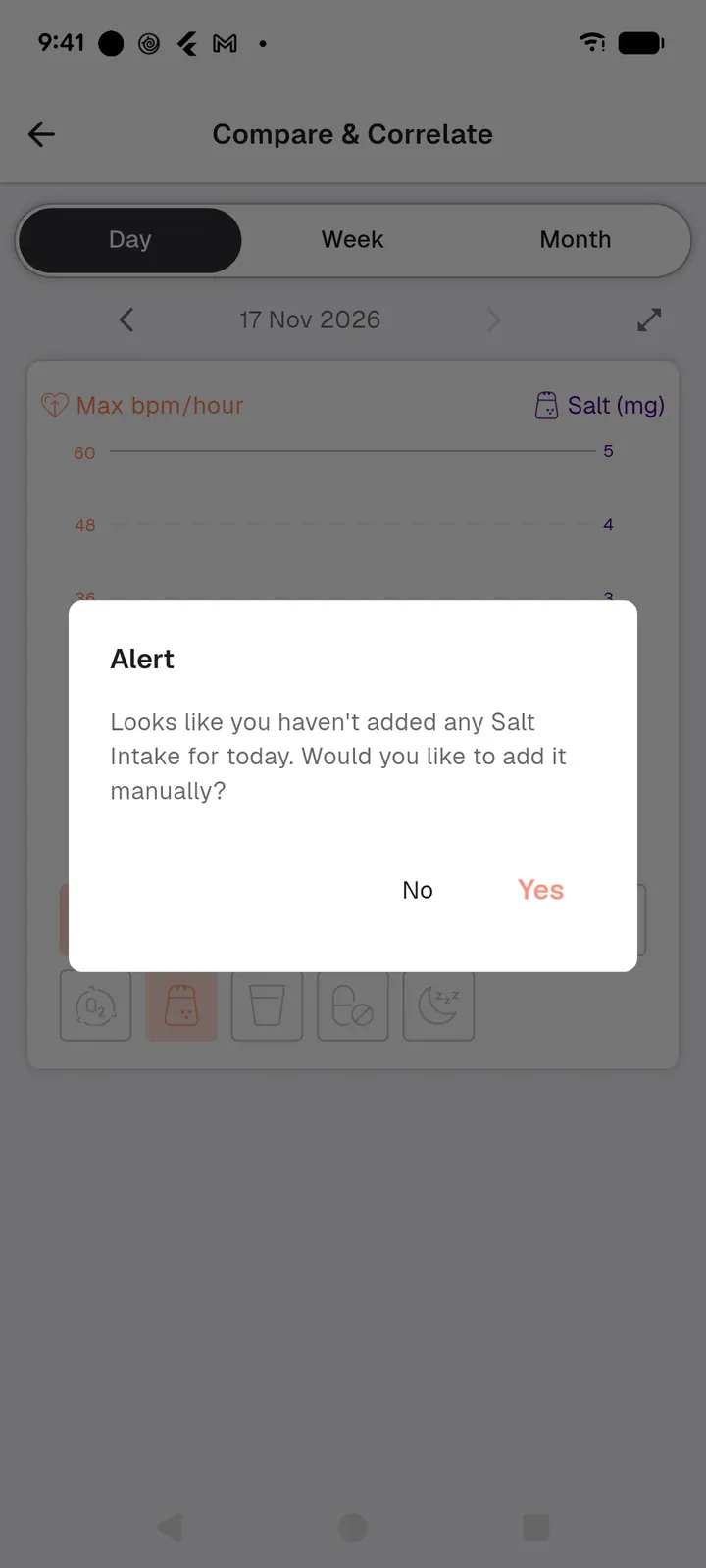
- Tap Yes to open the screen for adding the value. When you come back, the chart refreshes.
- Tap No to close the message and keep looking at the chart.
Good to know:
- The message appears on the Day and Week views, once for each measure you pick.
- Steps, Pauses, mood, medicines and sleep don’t show this message.
Still stuck? Tap Support at the top of Home, or open the menu and tap Message us. You can also email support@pauser.health.
Related articles
How do I log water and salt?
The fastest way is the + button at the bottom right of Home, then Water or Salt (shown when Home uses the POTS layout). You can also log them from the Water and Salt cards on Home, or from Add Bio Vitals when you need a different time or day.
Quick Add (POTS layout):
- On Home, tap + at the bottom right.
- Tap Water or Salt.
- Set the amount with the minus and plus buttons or a preset: 8, 16, 24 or 32 oz (or 250, 500, 750 or 1000 ml) for water, and 50, 100, 500 or 1000 mg for salt.
- Tap Save.
The sheet also shows what you have logged Today and your Goal.

From the Home cards: in the POTS layout, the Salt & Water card has plus buttons that add one serving each. In the Standard layout, the Water and Salt cards each have a + button that opens the log window.
For another time or day: open the menu and tap Bio vitals (or Add Bio-Vitals in Quick Add). Pick the day on the date strip, tap + on Salt or Water, set the Time and amount, then tap Save.
Good to know:
- Quick Add and the card buttons always save the current time.
- Times in the future are not accepted.
Some features depend on your plan. To see what yours includes, open the menu and tap the plan badge under your name.
Still stuck? Tap Support at the top of Home, or open the menu and tap Message us. You can also email support@pauser.health.
Related articles
What is Quick Calm?
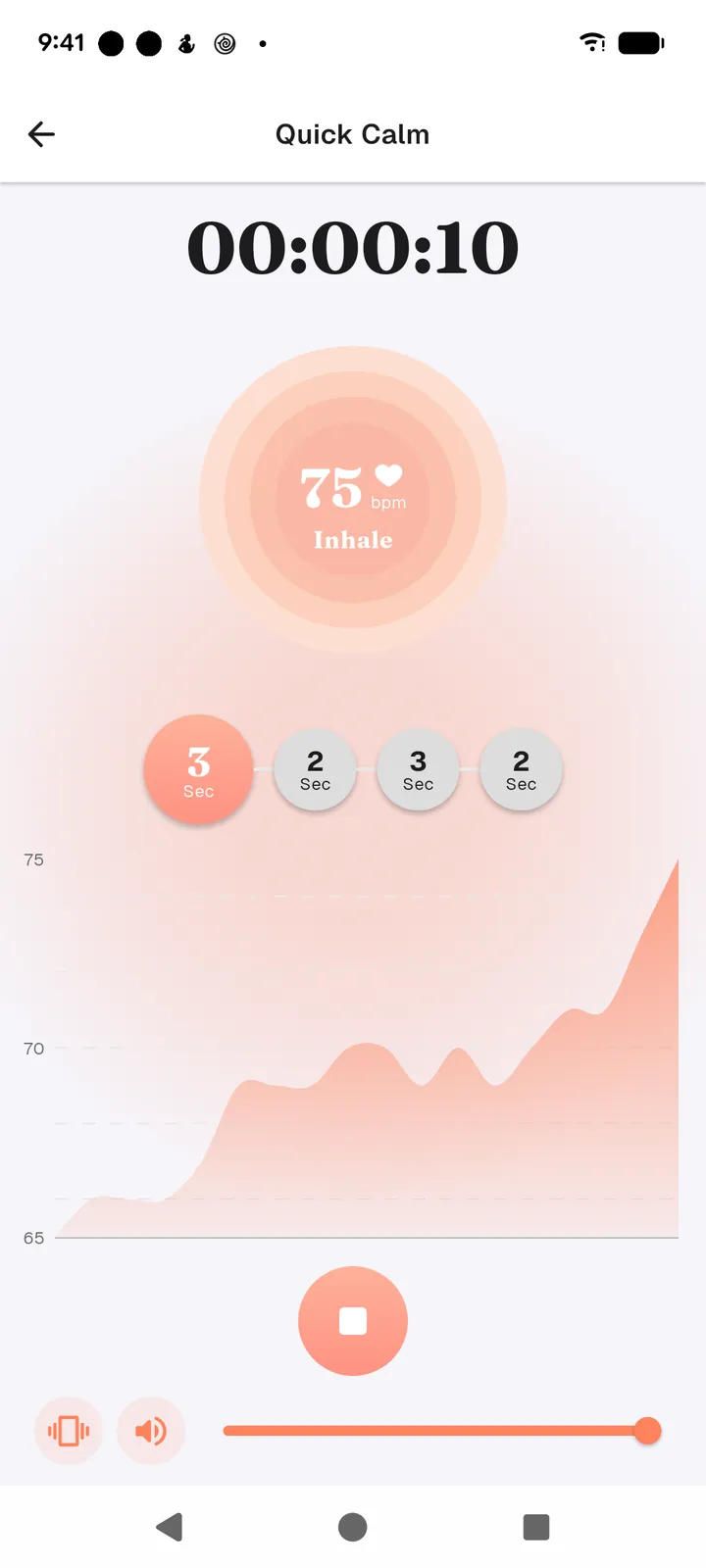
Quick Calm is Pauser’s 30-second breathing Pause. You breathe in for 3 seconds, hold for 2, breathe out for 3 and hold for 2, three times over.
It needs no setup, so it may suit a moment when you want a short reset with little effort.
On your phone:
- Tap Pause at the bottom of the screen.
- On the Breathe tab, tap Quick Calm (30 Seconds). The session starts straight away.
On a Wear OS watch: tap Quick Calm (“30-second reset”) on the watch home screen. After you finish a check-in on the watch, Pauser may also ask “Do you want to take a Quick Pause?”. Tap Yes to start Quick Calm, or swipe away to skip.

On an Apple Watch: tap Quick Calm on the home screen.
Good to know:
- The pattern is the same on the phone and both watches.
- On the phone, if Pauser is set up to use your watch, it first connects for heart rate before the 30 seconds begin.
- Some features depend on your plan. To see what yours includes, open the menu and tap the plan badge under your name.
Still stuck? Tap Support at the top of Home, or open the menu and tap Message us. You can also email support@pauser.health.
Related articles
Why didn’t my reminder go off?
Most missed reminders come from a reminder that’s switched off, notifications that are blocked, or (on Android) a phone that was off or restarted. Work through the checks below.
On both phones:
- Open Reminders and check the reminder’s switch is on and the right days are picked.
- Check Pauser is allowed to send notifications: open the menu, tap Permission Management under Settings, and look at Access to Send Notifications.
On an Android phone:
- Access to Set Alarms and Reminders must be on. Without it, Pauser can’t schedule reminders at all.
- If a reminder would arrive more than 5 minutes late, for example because the phone was switched off, Android skips that one. It still comes back the next week.
- After your phone restarts, Pauser sets your reminders again from a background task that runs about every 15 minutes, and only while you’re signed in. Strict battery saving on some phones can delay it, so reminders may be missing for a while after a restart.
On iPhone:
- Reminders are regular notifications, so a Focus mode such as Sleep or Do Not Disturb holds them until the Focus ends.
- iPhone lets an app schedule only 64 notifications at a time. Each reminder uses one for every day you picked, and medicine reminders are set up to 4 weeks ahead, so a long list of medicines and times can push some out.
Still stuck? Tap Support at the top of Home, or open the menu and tap Message us. You can also email support@pauser.health.
Related articles
Why can I only choose up to 7 days?
Each Wellness Report covers at most 7 days in a row, counting the first day. On Create Report this is shown as “Choose a range of up to 7 days.”, and the To calendar only lets you pick days inside that window.
To cover a longer stretch:
- Create one report for the first 7 days.
- Create another for the next 7 days, and so on.
- Share or download them together (see “How do I download or share a report?”).
Good to know:
- The window starts from your From date. For example, from the 1st you can pick any end date up to the 7th.
- The end date can’t be later than today.
- Choosing a new From date resets To to that same day, so pick From first.
- Giving each report a clear Report Name makes a set of weekly reports easier to tell apart.
Some features depend on your plan. To see what yours includes, open the menu and tap the plan badge under your name.
Still stuck? Tap Support at the top of Home, or open the menu and tap Message us. You can also email support@pauser.health.
Related articles
How do I install Pauser on my Apple Watch?
Install it from Apple’s Watch app on your iPhone, then let Pauser check for it. Your Apple Watch must already be paired with your iPhone.
- In Pauser on your iPhone, open the menu and, under Settings, tap Watch Setup.
- Pauser shows Checking your watch while it looks for the Pauser app on your Apple Watch.
- If it is not there yet, Pauser asks you to install it. Open the Watch app on your iPhone, find Pauser, and tap Install. Pauser arrives on your Apple Watch automatically.
- Come back to Pauser and tap I’ve installed it. If it is still not found, wait a moment and tap Check again.
- When Pauser finds the watch app, you’ll see that Pauser now works on your Apple Watch too. Tap Done.
Good to know:
- The Apple Watch app does not ask for Apple Health access on the watch. It uses the access you gave Pauser on your iPhone, so allow heart rate there first.
- New watch apps can take a few minutes to finish installing.
- On the watch, Pauser’s first page shows your heart rate with Quick Calm, Activity and Standing Check. Swipe or turn the Digital Crown for more.
Still stuck? Tap Support at the top of Home, or open the menu and tap Message us. You can also email support@pauser.health.
Related articles
Do I need a watch for the Standing Check?
Yes. The Standing Check reads your heart rate live from the Pauser app on your watch: a Wear OS watch if you use an Android phone, or an Apple Watch if you use an iPhone.
You can open the Standing Check without a watch, but it can’t measure. After Connecting to your watch… it shows We couldn’t get a heart rate from your watch. Please try again.
To set up the watch app, open the menu and, under Settings, tap Watch Setup (see How do I install Pauser on my Wear OS watch? or How do I install Pauser on my Apple Watch?).
Good to know:
- The check is run through the Pauser watch app. A watch that only syncs to Health Connect or Apple Health can’t run it.
- Keep your watch on your wrist, snug, and near your phone while the check runs.
- You can also start a Standing Check on the watch itself (see Can I do a Standing Check from my watch?).
Some features depend on your plan. To see what yours includes, open the menu and tap the plan badge under your name.
Still stuck? Tap Support at the top of Home, or open the menu and tap Message us. You can also email support@pauser.health.
Related articles
Is there a free trial?
Sometimes. A plan in the subscription sheet shows a Free Trial tag when Google Play or the App Store offers a trial on it for your store account, and some Pauser accounts also have a trial set by Pauser.
A trial from the store: when you tap Subscribe Now, look for the Free Trial tag on Yearly or Monthly. If there is no tag, that plan has no store trial for you right now. Pauser’s sheet does not show the trial’s length, so check it in the store’s payment window before you confirm.
A trial from Pauser: if your account is on one, Home shows a trial circle at the top. Tap it to see “Your Pauser trial will expire on” with the end date, plus what the trial includes. You can tap Subscribe Now on that page at any time.


Good to know:
- When a trial ends, the features it covered lock again until you subscribe. See What happens when my subscription ends?
- Whether a trial is offered is decided by the store and by Pauser, and can change.
Still stuck? Tap Support at the top of Home, or open the menu and tap Message us. You can also email support@pauser.health.
Related articles
Why does a screen say “This feature is temporarily not available”?
Pauser shows “This feature is temporarily not available. Please try again in some time” when the plan details it received don’t include this feature yet. It’s on Pauser’s side, not something on your phone.
- Wait a little, then open the screen again.
- Close Pauser fully and open it again while you’re online, so it loads your plan details fresh.
- Make sure Pauser is up to date. See “How do I update Pauser?”
Good to know:
- Your other features keep working as usual.
- Some features depend on your plan. To see what yours includes, open the menu and tap the plan badge under your name.
If it’s still there after a day, let us know which screen it was.
Still stuck? Tap Support at the top of Home, or open the menu and tap Message us. You can also email support@pauser.health.
Related articles
How do I reset my password?
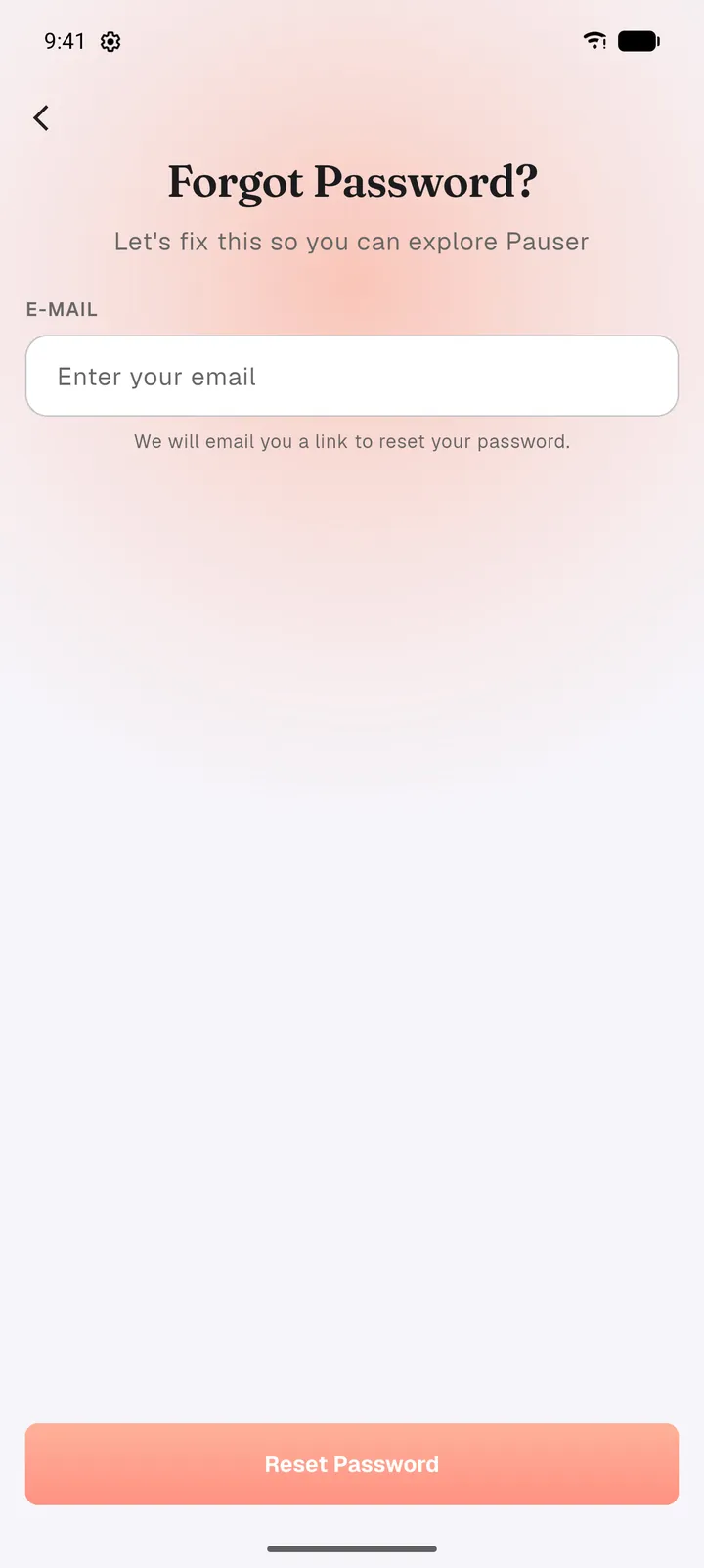
On the log in screen, tap Forgot password?, enter your email and tap Reset Password. Pauser emails you a link to set a new password.
- On Sign in to Pauser, tap Log in at the bottom (or Continue with E-mail, then Log in).
- On Welcome back, tap Forgot password?.

- Enter your E-mail.
- Tap Reset Password.
- Pauser confirms the link was sent. Tap Ok.
- Open the email (check your spam or junk folder if it hasn’t arrived), set a new password, then log in with it.
If you see Session Expired and choose email, the same option appears there as Forgot Password?.
Good to know:
- You need an internet connection.
- If you created your account with Continue with Google or Continue with Apple, sign in with that button instead.
Still stuck? Tap Support at the top of Home, or open the menu and tap Message us. You can also email support@pauser.health.
Related articles
Why did my restore fail?
Most often, you’re signed in with a different account from the one that made the backup, or the file isn’t a complete Pauser backup. Pauser shows the reason after the word Failed:.
What the message means:
- Import failed (Android phone) or Backup File is corrupted (iPhone): Pauser couldn’t open the file. A backup is locked to the account that made it, so you see this when you’re signed in with a different email address. It also appears when the file is damaged or isn’t a Pauser backup.
- Cannot import data: The backup belongs to a different user (Android phone): the backup was made with another account.
- Unsupported backup version: this version of Pauser can’t read the file. Make sure Pauser is up to date, then try again.
- Import cancelled or No file selected: no file was chosen. Try again and pick the backup file.
- Restore could not start because the database is busy. Please try again.: wait a moment, then try again.
- Restore finished but the app could not reopen the database. Please restart the app.: close Pauser fully and open it again.
What to try:
- Make sure you’re signed in with the email address you used when you made the backup. If not, tap Logout in the menu and sign in with that account. Logging out clears what’s on this phone, and the restore replaces it anyway.
- Pick the original
.zipfile Pauser saved. Don’t unzip it first. - If you have more than one backup, try the newest one.
Still stuck? Tap Support at the top of Home, or open the menu and tap Message us. You can also email support@pauser.health.
Related articles
What does “What are you managing these days?” change?
It personalizes Pauser. Today, choosing POTS / Dysautonomia is the choice that changes what you see; your other choices are saved to your profile and printed on the cover of your wellness report.
If you choose POTS / Dysautonomia:
- Setup adds a Choose your dashboard step, where you pick the POTS layout or the Personal layout.
- When you tag a Heart Rate Alert, a POTS tab of common triggers appears first.
- When you add a medicine, a Common POTS meds shortcut appears.
- Appearance shows a Dashboard layout choice, so you can switch layouts later.
To change your answers later:
- Open the menu and tap your name to open your Profile.
- In Conditions I’m managing, tap Manage (or Add conditions if none are chosen).
- Pick what applies and tap Done.
- Tap Save changes.
Adding POTS / Dysautonomia here switches Home to the POTS layout. Removing it switches Home back to the Personal layout.
Good to know: you can tap Skip for now during setup. Nothing is saved, and you can add choices later from your Profile.

Still stuck? Tap Support at the top of Home, or open the menu and tap Message us. You can also email support@pauser.health.
Related articles
Pauser says “Heart Rate access is off”. How do I turn it on?
This screen means Pauser does not have permission to read heart rate from Health Connect. Tap Check Health Connect Access to ask again, or turn it on yourself in Health Connect.

- Tap Check Health Connect Access.
- If Health Connect shows its permission screen, allow heart rate. Pauser moves on by itself.
- If Health Connect does not ask again (it can stop asking after you decline), Pauser opens How to enable Heart Rate access. Follow its steps:
- Open Health Connect on your phone.
- Tap App permissions.
- Select Pauser.
- Turn on Heart Rate.
- Come back to Pauser and tap Re-check now (the sheet’s last step calls it “Try Again”). Pauser also checks again by itself when you return to it.
Good to know:
- If you see “Heart Rate access is still off. Enable it in Health Connect to continue.”, the switch for Pauser is still off in Health Connect.
- You can tap Skip for now and turn access on later. See “How do I connect Health Connect?”
- Without heart rate access, Pauser cannot show heart rate from Health Connect. A Pauser app on a Wear OS watch can still send heart rate to your phone.
Still stuck? Tap Support at the top of Home, or open the menu and tap Message us. You can also email support@pauser.health.
Related articles
Does my heart rate have to stay high before I get an alert?
No. A single heart rate reading at or above your upper limit is enough for a Heart Rate Alert, even if the next reading is back in your range.
In Alert Settings, tap the info button on the HR Alert Threshold card. It says an alert comes “When your heart rate stays above this threshold value for over a minute”, but one reading is enough.
What happens after that first reading
- Pauser waits before it alerts you again, for the time set in Alert Notification Frequency (10 minutes unless you change it). If your heart rate stays high, you don’t get a new alert every reading (see How often can alerts repeat?).
- The alert is saved in the Alerts tab, so you can look back at it later.
- The same applies to low readings: one reading at or below your lower limit is enough, or below it on a Wear OS watch (see Can I get alerts when my heart rate is low?).
How each device reads it
- On iPhone and Apple Watch: each reading that reaches Pauser is checked against your limits as it arrives.
- On a Wear OS watch: the watch takes your heart rate in short bursts. One usable reading in a burst that is past a limit is enough. Readings taken while the watch is off your wrist or charging are skipped.
- On an Android phone without a Pauser Wear OS watch: readings from Health Connect are checked when Pauser syncs. They are saved in the Alerts tab, but no notification is sent.
Pauser shares wellness insights, not medical advice. If you have questions about your readings or how you feel, talk to your clinician.
Still stuck? Tap Support at the top of Home, or open the menu and tap Message us. You can also email support@pauser.health.
Related articles
What are Common Causes and Common Locations?
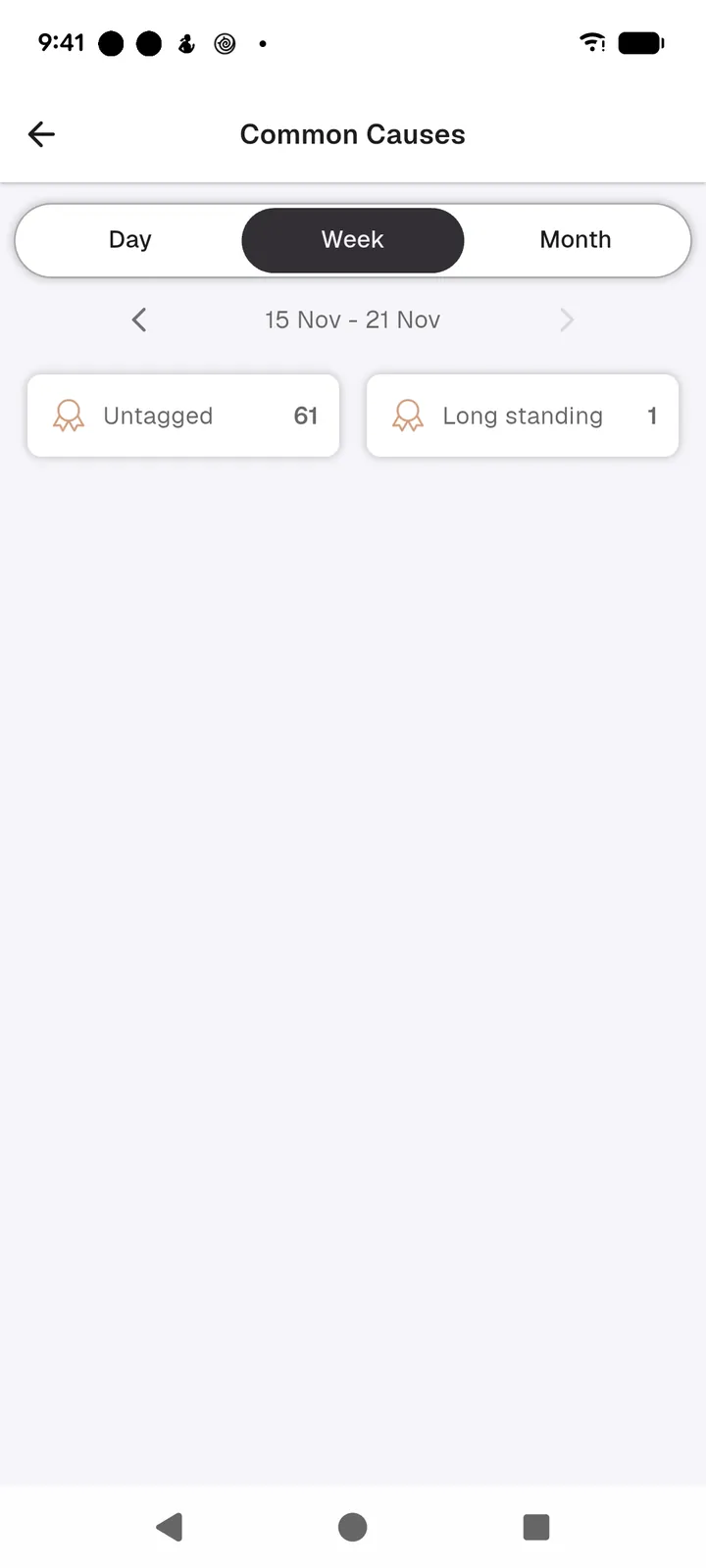
They count what you tagged on your Heart Rate Alerts. Common Causes shows the causes you picked, such as a POTS trigger or a cause you added yourself, and Common Locations shows the places you tagged, such as Home or Work.
Each chip shows a tag and how many alerts carry it, with the most frequent first. Pauser doesn’t work out causes itself: these cards only add up your own tags.
- Tap Insights at the bottom of the screen.
- Find Common Causes or Common Locations. These cover your last 7 days.
- Tap a chip to see the alerts with that tag.
- Tap view all to switch between Day, Week and Month. It opens on Week.
Good to know:
- Alerts you haven’t tagged are counted as Untagged. Older alerts from before place tags existed also show as Untagged under locations.
- Archived alerts aren’t counted.
- Until enough alerts have tags, the card says “Nothing to correlate yet”.
- To tag an alert, see How do I tag what may have caused an alert? and How do I tag where I was during an alert?
- Some features depend on your plan. To see what yours includes, open the menu and tap the plan badge under your name.
Pauser shares wellness insights, not medical advice. If you have questions about your readings or how you feel, talk to your clinician.
Still stuck? Tap Support at the top of Home, or open the menu and tap Message us. You can also email support@pauser.health.
Related articles
Can I rate how strong a signal was, log several at once, or add one for an earlier time?
Not at the moment. Each mood check-in can include one signal from a short list, with no strength scale, and it’s saved at the time you add it.
What does work today: when you check in your mood, you can pick one of Dizziness, Lightheadedness, Palpitations, Fatigue or Brain fog, and add a note to describe more. Your check-ins are listed in Mood Log.
If you’d like this, tell us: tap Support at the top of Home, or open the menu and tap Message us.
How do I switch water between ml and oz?
There is no separate units setting: Pauser uses the unit you last saved water in. Log one water entry in the unit you want, and Pauser keeps using it everywhere, including Quick Add.
From the water log window:
- Open the menu, tap Bio vitals, then tap + next to Water. In the Standard Home layout you can instead tap + on the Water card.
- In Log your water Intake, next to Unit:, tap oz or ml.
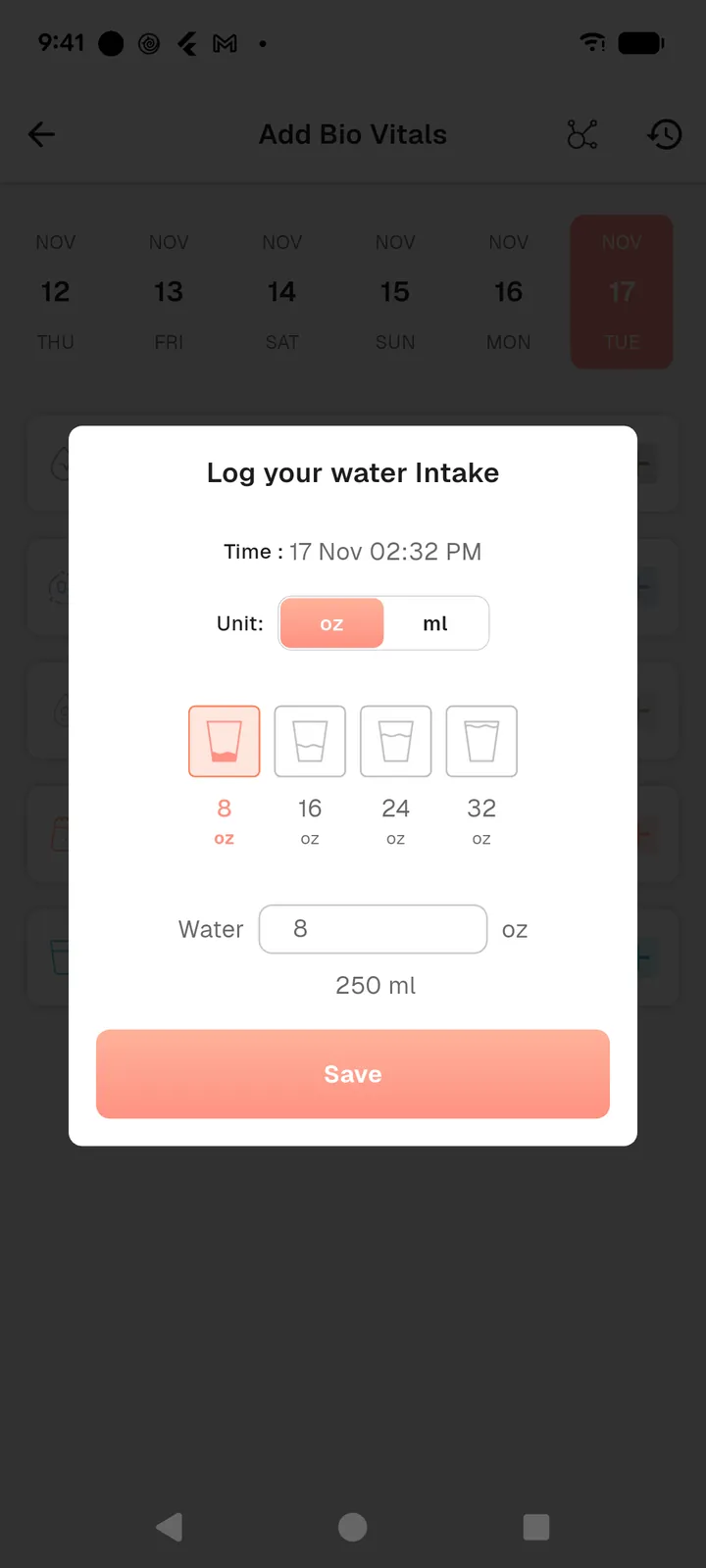
- Set the amount and tap Save.
From the Salt & Water card (POTS layout):
- On Home, find the Salt & Water card.
- Tap the edit pencil next to the water goal.
- In Water Goal, choose oz or L, then tap Save. Choosing L switches water to ml.
Good to know:
- Until you choose, Pauser shows water in oz.
- Changing the unit does not change entries you already saved; Pauser keeps each entry in both units and shows them in the one you picked.
- The Quick Add water sheet has no unit switch. It follows your saved unit.
Some features depend on your plan. To see what yours includes, open the menu and tap the plan badge under your name.
Still stuck? Tap Support at the top of Home, or open the menu and tap Message us. You can also email support@pauser.health.
Related articles
Can I make my own breathing pattern?
Yes. Customized Breathing lets you set your own breathe-in, hold and breathe-out times, save the pattern with a name, and use it again later.
- Tap Pause at the bottom of the screen, then Breathe.
- Tap Customized Breathing (“Build your own technique”). The Your Technique screen opens.
- Set the seconds for Inhale, Hold, Exhale and Hold.
- Under Select Duration, pick how many minutes.
- Type a name in Name your technique.
- Tap Save & Start to save it and begin, or tap the round tick button beside the name to keep it for later.

Once you have a saved pattern, it appears in a list on the same screen. Tap it to open it, then tap Start Breathing. Use the pencil to edit it, or the bin to delete it (“Delete this technique?”, then Delete). To make another, tap Add new technique.
Good to know:
- Breathe in and breathe out can each be 1 to 20 seconds. Each hold can be 0 to 20 seconds.
- Sessions can be up to 120 minutes.
- Some features depend on your plan. To see what yours includes, open the menu and tap the plan badge under your name.
Still stuck? Tap Support at the top of Home, or open the menu and tap Message us. You can also email support@pauser.health.
Related articles
Why aren’t my reminders showing on my watch?
Pauser sends your reminders to your watch when the watch is connected. If they’re missing, the phone and watch usually haven’t synced yet, or (on Wear OS) the watch isn’t allowed to show reminders.
- Open Reminders on your phone.
- If you see Sync Reminder With Watch, tap it. “Reminders synced to watch” means it worked.
- If you see “Watch is not connected, please connect watch and try again.”, make sure the watch is on and near your phone, then try again.
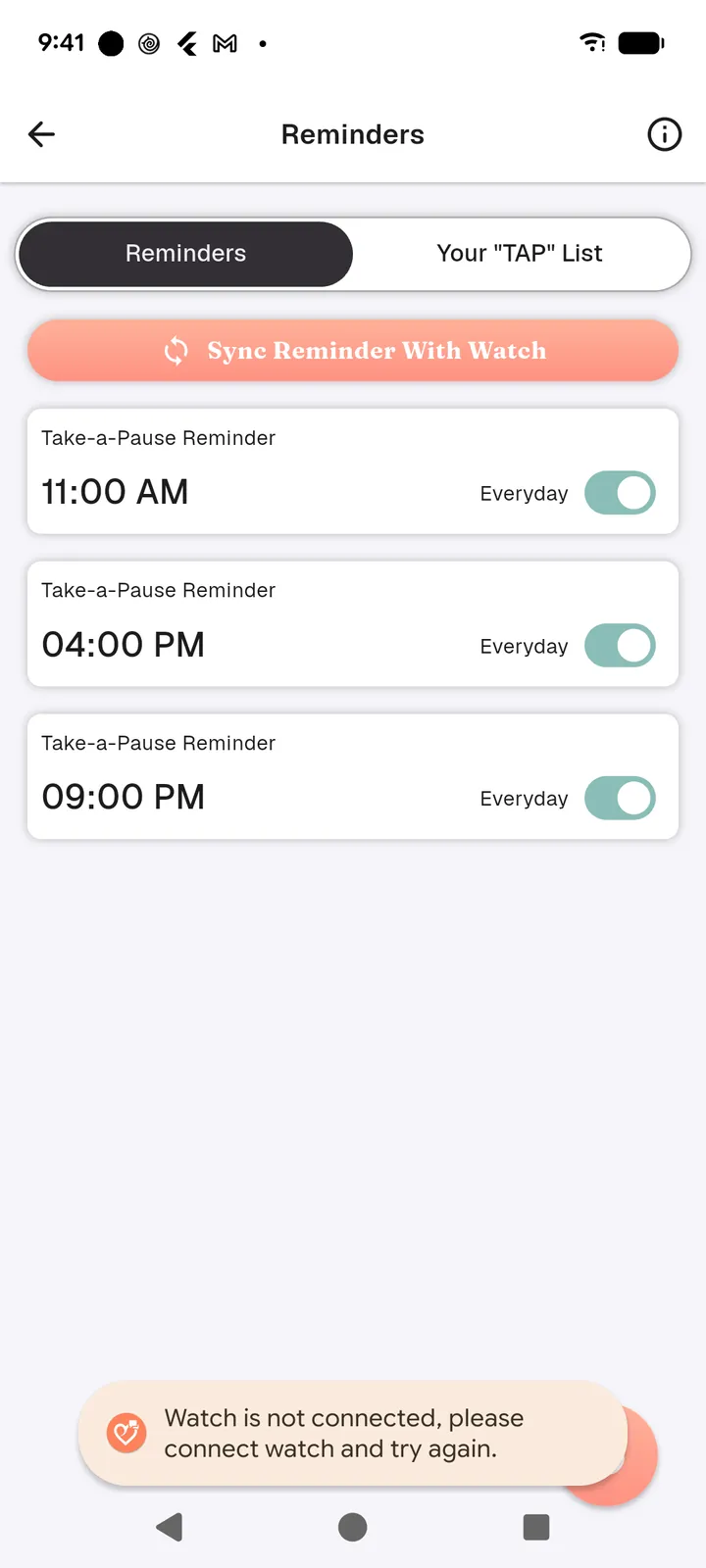
- If the sync times out, Pauser asks you to connect your watch from the menu. Under Settings, tap Watch Setup.
With a Wear OS watch: if the Reminders screen on your phone shows Reminders are off on your watch, tap that card. On Allow Reminders on your watch, tap Allow on watch and confirm on the watch. Pauser syncs your reminders once it’s allowed. To see them, tap Reminder on the watch’s home screen. They’re listed under Reminders.

On an Apple Watch: open Reminders. If it says “No reminders yet”, add them on your iPhone first, then sync from the iPhone.
Good to know:
- After you add or change a reminder, Pauser tries to sync it to your watch by itself.
- The Sync Reminder With Watch button only shows while your watch is connected and not yet in sync.
Still stuck? Tap Support at the top of Home, or open the menu and tap Message us. You can also email support@pauser.health.
Related articles
What is the Sit Standing Test Report?
The Sit Standing Test Report is a PDF of your Standing Checks over the last 7, 14 or 30 days, with related notes from the same period: your most common alert tags, your medicine log, and your average salt and water. You make it from your Standing Check history and can share it with your clinician.
To open it:
- Go to Standing check history. On Home, tap the history icon on the Standing test card. In the Personal layout, open the menu and, under Manage & log, tap Sit-Stand history.
- Tap Create Sit-Standing Test Report.
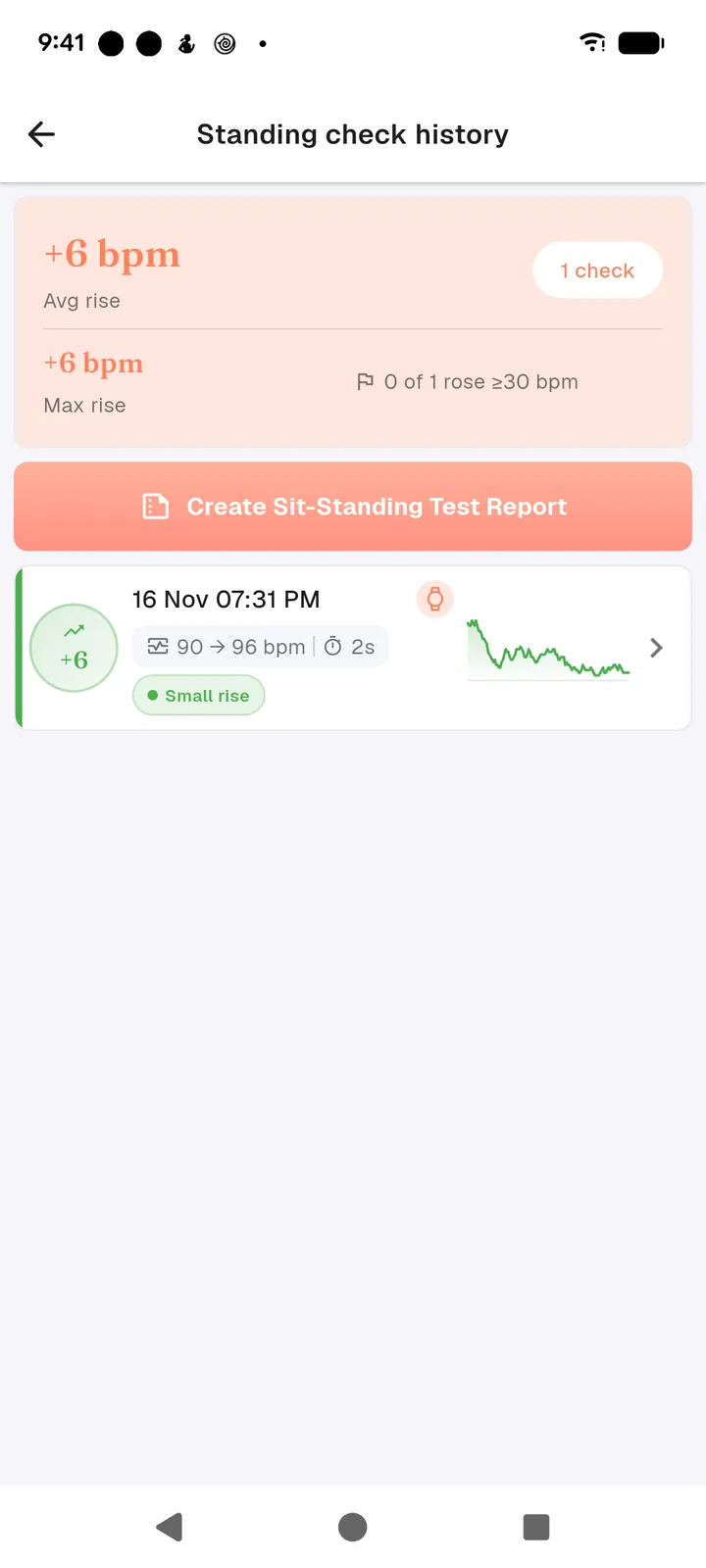
- Choose 7 days, 14 days or 30 days. It starts on 7 days.
- Check the preview, then tap Export & share to send the PDF.

What’s in it:
- Summary line: how many of your checks had a heart rate rise of 30 bpm or more, and your largest rise.
- Standing checks: one row per check, newest first, with Date, Baseline, Peak, HR rise, Sustained (the rise still there at the end of standing) and Outcome (Complete, Ended early or Incomplete). Rows are shaded by the size of the rise: Small (<20), Moderate (20-29) or Larger (30+). Checks from your watch carry a watch mark.
- HR rise trend: a chart of your rises across the period.
- Top triggers: the three tags you used most on Heart Rate Alerts on days when a check rose by 30 bpm or more.
- Medication log: each medicine scheduled in the period, with Scheduled days and Missed days (scheduled days with nothing logged for it).
- Daily hydration & sodium: your average daily salt and water.
Good to know:
- Checks you turned off with Add to report are left out.
- If the period has no checks to include, the screen shows No standing checks yet and there’s nothing to share.
- The same pages can also be added to the end of a Wellness Report.
Some features depend on your plan. To see what yours includes, open the menu and tap the plan badge under your name.
Pauser shares wellness insights, not medical advice. If you have questions about your readings or how you feel, talk to your clinician.
Still stuck? Tap Support at the top of Home, or open the menu and tap Message us. You can also email support@pauser.health.
Related articles
Why does Pauser say “We don’t see a watch”?
Pauser shows this on Watch Setup when your phone has no watch connected to it at that moment. Pauser checks the phone’s own watch connection, so the fix is on the phone and watch side, not in Pauser.
On an Android phone: Pauser looks for a Wear OS watch that is connected to the phone right now. A paired watch that is switched off, out of Bluetooth range, or has Bluetooth turned off counts as not connected.
- Make sure your watch is on, nearby and paired in its companion app.
- Check that Bluetooth is on for both your phone and watch.
- Tap Check again.
On an iPhone: Pauser looks for an Apple Watch paired in Apple’s Watch app.
- Make sure your Apple Watch is paired in the Watch app and nearby.
- Tap Check again.

Good to know:
- If the check takes too long to get an answer from the phone’s watch connection, Pauser also shows this screen. Trying again usually helps.
- During setup you can tap Continue without watch and connect one later from Watch Setup.
Still stuck? Tap Support at the top of Home, or open the menu and tap Message us. You can also email support@pauser.health.
Related articles
Can I do a Standing Check from my watch?
Yes. The Pauser app on a Wear OS watch and on an Apple Watch can run the Standing Check on its own, and the result is sent to Pauser on your phone. The watch uses the sitting and standing times of the last check you started on your phone, or 2 and 3 minutes if you haven’t changed them.
On a Wear OS watch:
- Open Pauser and tap Standing Test.
- Sit down, then tap anywhere on the screen (Tap to begin).
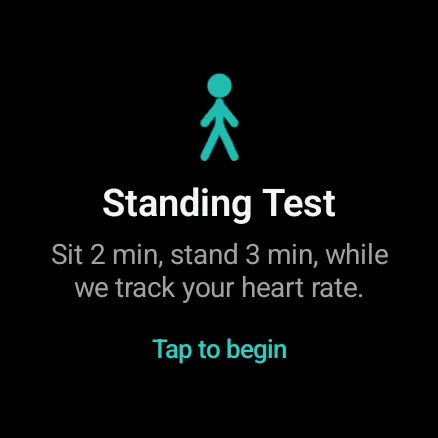
- Wait for your heart rate, then stay seated during Sit & relax. Tap Skip to stand if you have already rested.
- At Stand up now, stand and tap I’m standing.

- Stay standing until the countdown ends, or tap End to stop.
- Read your result, tap Continue, then answer Add this to your doctor report? with Yes or No.

On an Apple Watch:
- Open Pauser and tap Standing Check.
- Sit down and tap the start button (it begins I’m sitting).
- Stay seated during Sit still. Tap Skip wait · stand now if you have already rested.
- At Stand up now, stand and tap I’m standing.
- During Keep standing, stay up until the countdown ends, or tap I need to sit down · end test.
- Your result shows Sitting, Standing peak and Time to peak. Tap Done.
Good to know: watch checks appear in your phone’s Standing Check history marked Recorded from watch.
Some features depend on your plan. To see what yours includes, open the menu and tap the plan badge under your name.
Pauser shares wellness insights, not medical advice. If you have questions about your readings or how you feel, talk to your clinician.
Still stuck? Tap Support at the top of Home, or open the menu and tap Message us. You can also email support@pauser.health.
Related articles
How do I restore my subscription on a new phone or after reinstalling?
Sign in with the same Pauser account you subscribed with, while you have an internet connection. Your plan belongs to your Pauser account, so it comes back on its own; there is no Restore button to tap.
If your plan doesn’t show after you sign in:
- Make sure your phone is online.
- Close Pauser fully and open it again.
Each time Pauser starts and sees no paid plan on your account, it checks your Google Play or App Store purchases on that phone. If it finds an active Pauser subscription, it links it to the account you are signed in with.
On an Android phone: if you tap Subscribe Now and your Google account already owns the plan, Pauser does not charge you again. It shows Already subscribed and restores your access.
Good to know:
- Sign in the same way you did before (Google, Apple or email), so you reach the account that holds your plan.
- Your logs are separate from your plan. They come back only from a backup file.
Still stuck? Tap Support at the top of Home, or open the menu and tap Message us. You can also email support@pauser.health.
Related articles
How do I update Pauser?
Update Pauser from the Google Play Store on an Android phone, or the App Store on iPhone. Pauser also shows a banner on Home when an update is needed, though not for every new version, so update from the store now and then to stay on the latest.
From Pauser:
- On Home, tap Update on the banner at the top. Its title is usually New version available, though the wording can change from release to release.

- Read what’s new, then tap Update Pauser. Your phone’s app store opens on Pauser.
- Tap Update in the store.
You can also open the menu, tap About Pauser, and tap check update next to App version.

From your app store: search for Pauser in the Google Play Store or the App Store and tap Update.
On a Wear OS watch: when your watch needs an update and is connected, Home shows a second banner for the watch, usually New version available for smart watch. Tap Update on it, then Update Pauser on Watch, and follow the steps on your watch. You can also tap check update next to Watch App version on About Pauser.
On Apple Watch: the watch app comes with the iPhone app, so updating Pauser on your iPhone updates it too.
Good to know:
- Sometimes an update is required. Pauser then shows an update message you can’t close, with only an Update button. Update to keep using Pauser.
Still stuck? Tap Support at the top of Home, or open the menu and tap Message us. You can also email support@pauser.health.
Related articles
Why can’t I sign in?
The message Pauser shows tells you what went wrong. Find it below, and make sure you have an internet connection and have ticked the consent box.
- One quick thing: the consent box isn’t ticked. Tick it and try again.
- Verification Required: your email isn’t verified yet. See Why does Pauser say my email isn’t verified?
- “There is no user registered with this email address. Please sign up to proceed”: no account uses that email. Check the spelling, or create an account.
- “Invalid email or password. Please try again.”: check both, or reset your password.
- “Too many attempts. Please try again later.”: wait a while before trying again.
- “This account has been disabled. Please contact support.”: message us.
- “Network request failed. Please check your connection and try again.” or a message about your network connection: connect to the internet and try again.
Good to know:
- Sign in the same way you did before. If you used Continue with Google, tap it again rather than typing your email.
- Continue with Apple appears only on iPhone. The Android sign-in screen has no Apple option.
- Passwords need at least 6 characters.
Still stuck? Tap Support at the top of Home, or open the menu and tap Message us. You can also email support@pauser.health.
Related articles
Will I lose my data if I reinstall or change phones?
Yes, unless you have a backup file. Pauser keeps your data on the phone and can’t bring it back from its server, so a reinstall or a new phone starts empty until you restore a backup.
Before you uninstall or switch phones:
- Open the menu and, under Plan & review, tap Backup & Restore. Then tap Backup Data. See How do I back up my data?
- Keep the file somewhere off the phone, such as cloud storage or email.
- After you reinstall, sign in with the same account and restore the file. See How do I restore my data on a new phone?
On an Android phone: Android’s own backup and phone-to-phone transfer don’t carry Pauser’s data. Only a Pauser backup file brings it back.
On iPhone: when you save the backup, choose a place outside Pauser, such as iCloud Drive, so it’s still there after you delete the app.
Good to know:
- Logging out also clears Pauser’s data from the phone. Pauser warns you first and suggests making a backup. You can do that in Settings under Backup & Restore Data, or from the menu under Plan & review.
- Some features depend on your plan. To see what yours includes, open the menu and tap the plan badge under your name.
Still stuck? Tap Support at the top of Home, or open the menu and tap Message us. You can also email support@pauser.health.
Related articles
What is the POTS layout, and how do I switch layouts?
The POTS layout is a Home screen arrangement that puts the cards most used for POTS at the top. You can switch between it and the Personal layout from the menu at any time.
What the POTS layout changes:
- Home starts with the Standing test card, then Daily Alerts, a combined Salt & Water card, Heart Rate Trend, Recent HR Alert, Today’s Medicine Schedule and Blood Pressure.
- Quick Add (the + button on Home) starts with Water and Salt.
- The separate Salt and Water cards are replaced by the combined card.
You first see this choice on Choose your dashboard during setup, when you pick POTS / Dysautonomia. POTS layout is preselected there.

To switch from the menu:
- Open the menu (top left of Home).
- Tap Switch to POTS Mode or Switch to Personal Mode.
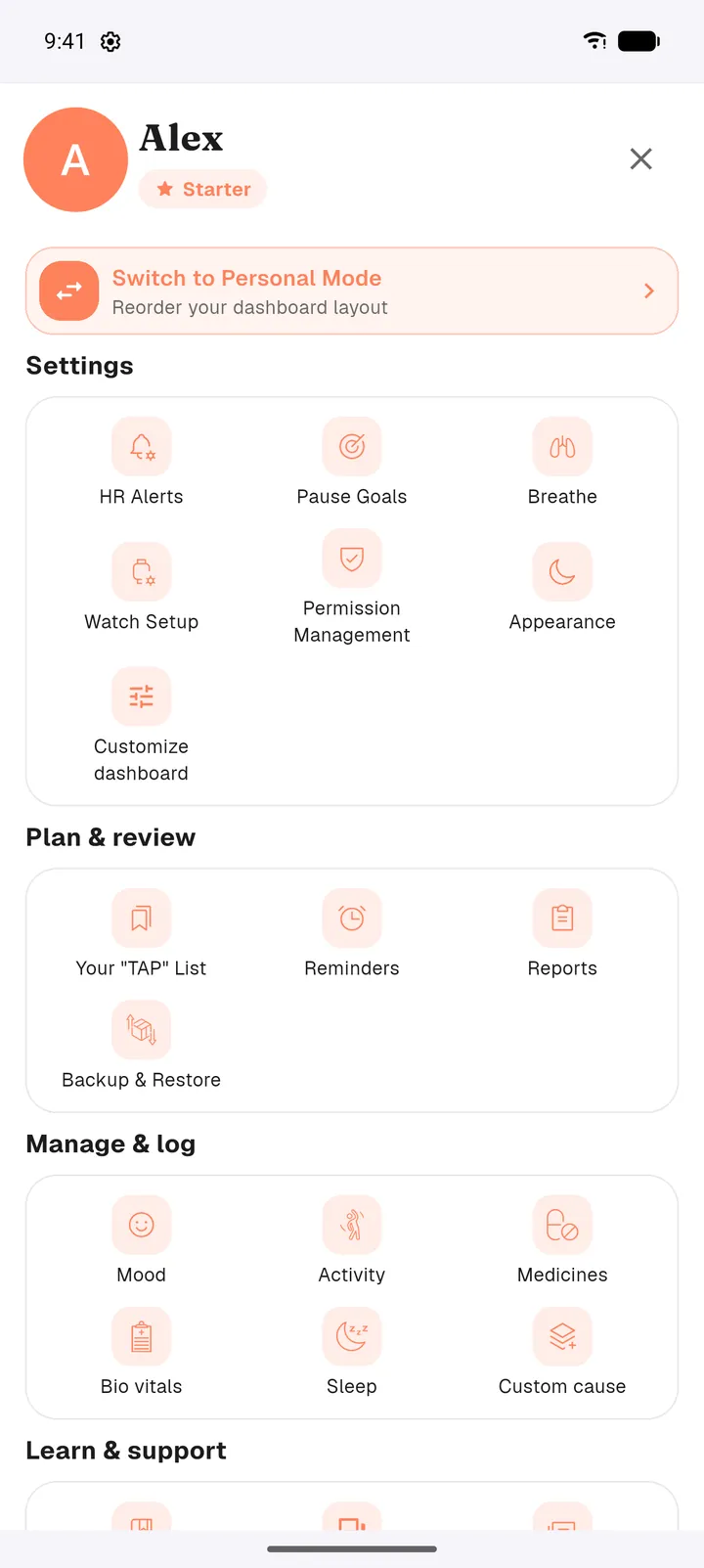
This also adds POTS / Dysautonomia to your profile, or removes it.
To switch in Settings (if POTS / Dysautonomia is on your profile):
- Open the menu and tap Appearance.
- Under Dashboard layout, tap POTS layout or Personal layout.
Good to know: each layout keeps its own card order and hidden cards. To change them, see How do I rearrange or hide cards on my Home screen?
Still stuck? Tap Support at the top of Home, or open the menu and tap Message us. You can also email support@pauser.health.
Related articles
How do I give Pauser access to Apple Health?
Pauser asks during setup: on Connect your heart rate, tap Connect, then turn on the data in the Apple Health sheet, including Heart Rate. If you turned something off, change it in the Health app.
To change access later:
- Open the Health app.
- Tap your profile picture in the top-right corner.
- Under Privacy, tap Apps.
- Tap Pauser.
- Turn on Heart Rate, and any other data you want Pauser to use.
Or start from Pauser: open the menu, tap Permission Management, then tap Permissions on the Apple Health card. If iOS can still ask, you see the Apple Health sheet again. If it cannot, Pauser points you to the Health settings instead. On iOS 18 and later, Pauser may show the path Settings -> Apps -> Health -> Data Access & Devices -> Pauser -> Turn On All.
Good to know:
- iOS does not tell apps whether you allowed them to read your data. Pauser can only tell from whether readings arrive, so the Apple Health card does not show “Allowed” or “Not Allowed”.
- If nothing shows up after you allow access, see “Why does Pauser say No heart-rate data yet?”
- Heart Rate Alerts on iPhone work best with Background App Refresh on. See “Why does Pauser ask me to turn on Background App Refresh?”
Still stuck? Tap Support at the top of Home, or open the menu and tap Message us. You can also email support@pauser.health.
Related articles
How often can alerts repeat?
After an alert, Pauser waits before it alerts you again: 1, 3, 5 or 10 minutes, set in Alert Notification Frequency. If you have never changed it, the wait is 10 minutes.
- Open the Alerts tab and tap the settings (gear) icon.
- Make sure Receive HR Alert Notifications is on. The frequency options only show while it is on.
- Under Alert Notification Frequency, pick 1 Min, 3 Min, 5 Min or 10 Min.
Good to know
- During the wait, Pauser does not send another alert, even if your heart rate stays past your limit.
- This setting only changes how often you are notified. It does not change which readings Pauser records.
- On iPhone and Apple Watch: high and low alerts each have their own wait, so a low alert can still come soon after a high one.
- On an Android phone and a Wear OS watch: high and low alerts share one wait.
On a Wear OS watch: open General Settings and choose under Alert every. It shows only while HR alerts is on.
On Apple Watch: swipe to General Settings and choose under Frequency.
Still stuck? Tap Support at the top of Home, or open the menu and tap Message us. You can also email support@pauser.health.
Related articles
How do I see my heart rate trend over a week or month?
Pauser draws your heart rate one day at a time. For a week or a month, it shows how many Heart Rate Alerts you had each day rather than a heart rate line.
To see heart rate for any day:
- On Home, find the Heart Rate Trend card.
- Tap the open full view button, the two diagonal arrows at the bottom right of the card. The full view opens sideways, in landscape.
- Use the arrows beside the date at the top to move to another day.

To see a week or a month:
- On Home, the Daily Alerts card shows your alerts per day for the current week, if that card is on your Home screen.
- On the Alerts tab, tap Week or Month to see your alerts per day, and tap a day to open it.

- In Compare & Correlate, the Week view shows Alerts/day next to another measure, such as steps or salt.
Good to know:
- A week or month average heart rate line isn’t available at the moment.
- Some features depend on your plan. To see what yours includes, open the menu and tap the plan badge under your name.
Pauser shares wellness insights, not medical advice. If you have questions about your readings or how you feel, talk to your clinician.
Still stuck? Tap Support at the top of Home, or open the menu and tap Message us. You can also email support@pauser.health.
Related articles
Does Pauser have a flare mode, a low-energy mode or an energy scale?
Not at the moment. Pauser doesn’t have a special mode for hard days, or a scale for rating your energy.
What does work today: you can check in your mood, pick Fatigue as the signal, and add a note about how your day is going. Check-ins are saved in Mood in the menu.
If you’d like this, tell us: tap Support at the top of Home, or open the menu and tap Message us.
Related articles
How do I log blood pressure, glucose or oxygen?
Open Add Bio Vitals, tap + next to Blood Pressure, Sugar (blood glucose) or Oxygen, set the value and time, then tap Save. You can log for today or any of the past 364 days.
- Open the menu and tap Bio vitals. You can also tap + at the bottom right of Home, then Add Bio-Vitals.
- On the date strip at the top, tap the day you want. Today is selected to start with.
- Tap + next to Blood Pressure, Oxygen or Sugar.

- Tap the time if you want to change it.
- Scroll the number wheels to your reading.

- Tap Save.
What you can enter:
- Blood Pressure (mmHg): top number 70 to 250, bottom number 40 to 150.
- Sugar (blood glucose, mg/dL, though the sheet labels it mm/dl): 40 to 400. There’s no mmol/L option.
- Oxygen (SpO2, %): 60 to 100.
To change or remove a reading, tap the card to show its entries, tap the entry, then tap Update or Delete.
Good to know:
- Times in the future are not accepted: “Please pick a date and time that is not in the future.”
- The number in brackets next to each card title is how many readings you have for the chosen day.
Some features depend on your plan. To see what yours includes, open the menu and tap the plan badge under your name.
Pauser shares wellness insights, not medical advice. If you have questions about your readings or how you feel, talk to your clinician.
Still stuck? Tap Support at the top of Home, or open the menu and tap Message us. You can also email support@pauser.health.
Related articles
What is Prana Flow?
Prana Flow lets you combine several breathing techniques into one session that plays them in order. You build and name each Prana Flow yourself.
- Tap Pause at the bottom of the screen, then Breathe.
- Tap Prana Flow.
- Tap the round + button at the bottom of the screen, type a name under “Enter Prana Flow Name” and tap Save.

- Tap your new Prana Flow to open it.
- Tap + to “Add Breath Technique”. Under Technique, pick one of Quick Calm, Focus Now, Instant Calm, Rest and Recover or Body-Mind Tranquilizer. Enter the Duration (Minutes) and tap Save.
- Repeat step 5 to add more, then tap Let’s get started.
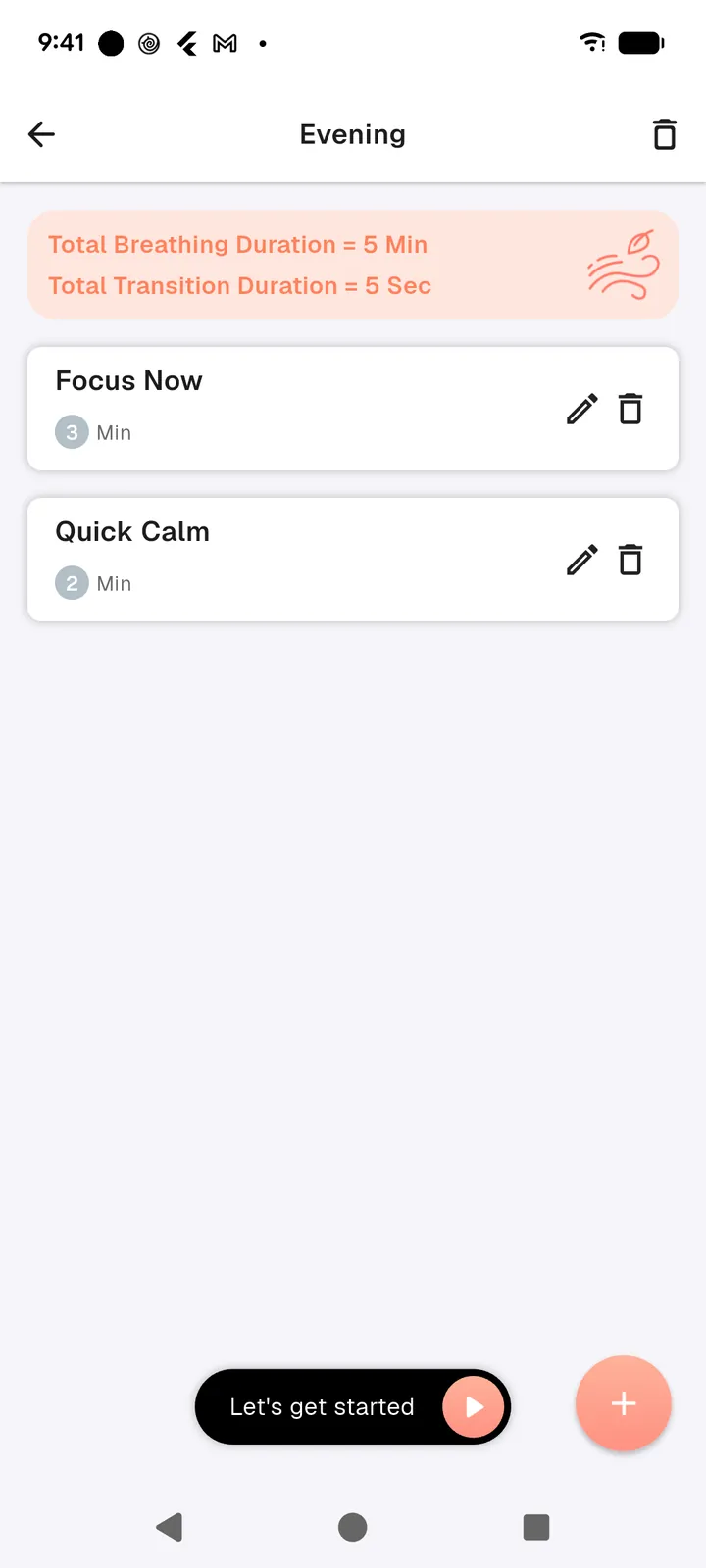
Good to know:
- The screen shows the Total Breathing Duration and the Total Transition Duration: Pauser adds a 5-second gap between techniques.
- To rename a Prana Flow, use the edit button on its card (“Edit Prana Flow Name”).
- To delete one, open it, tap the bin and confirm with OK.
- Some features depend on your plan. To see what yours includes, open the menu and tap the plan badge under your name.
Still stuck? Tap Support at the top of Home, or open the menu and tap Message us. You can also email support@pauser.health.
Related articles
Why do I already have three reminders?
When you first set up Pauser, it adds three Take-a-Pause Reminders for you: 11:00 AM, 4:00 PM and 9:00 PM, every day. They’re there to help you start a simple daily Pause routine, and you can change or remove them.
To change one:
- Open Reminders.
- Tap the reminder.
- In Update Reminder, change the time, type or days and tap Update.
To stop one:
- Turn off its switch to keep it but stop it for now, or
- Tap it and tap Delete to remove it.
Good to know:
- Pauser adds these only once, and only when your reminder list is empty. If you restored reminders from a backup, you won’t get extra copies.
- If your watch is connected, these reminders are sent to it as well.
Still stuck? Tap Support at the top of Home, or open the menu and tap Message us. You can also email support@pauser.health.
Related articles
How do I download or share a report?
Open Reports, tap ⋮ next to the report, then tap Share or Download. Right after you create a report, the same two buttons are at the top of its preview.
Share (to email, messages or another app):
- Open the menu and tap Reports.
- Tap ⋮ next to the report and tap Share.
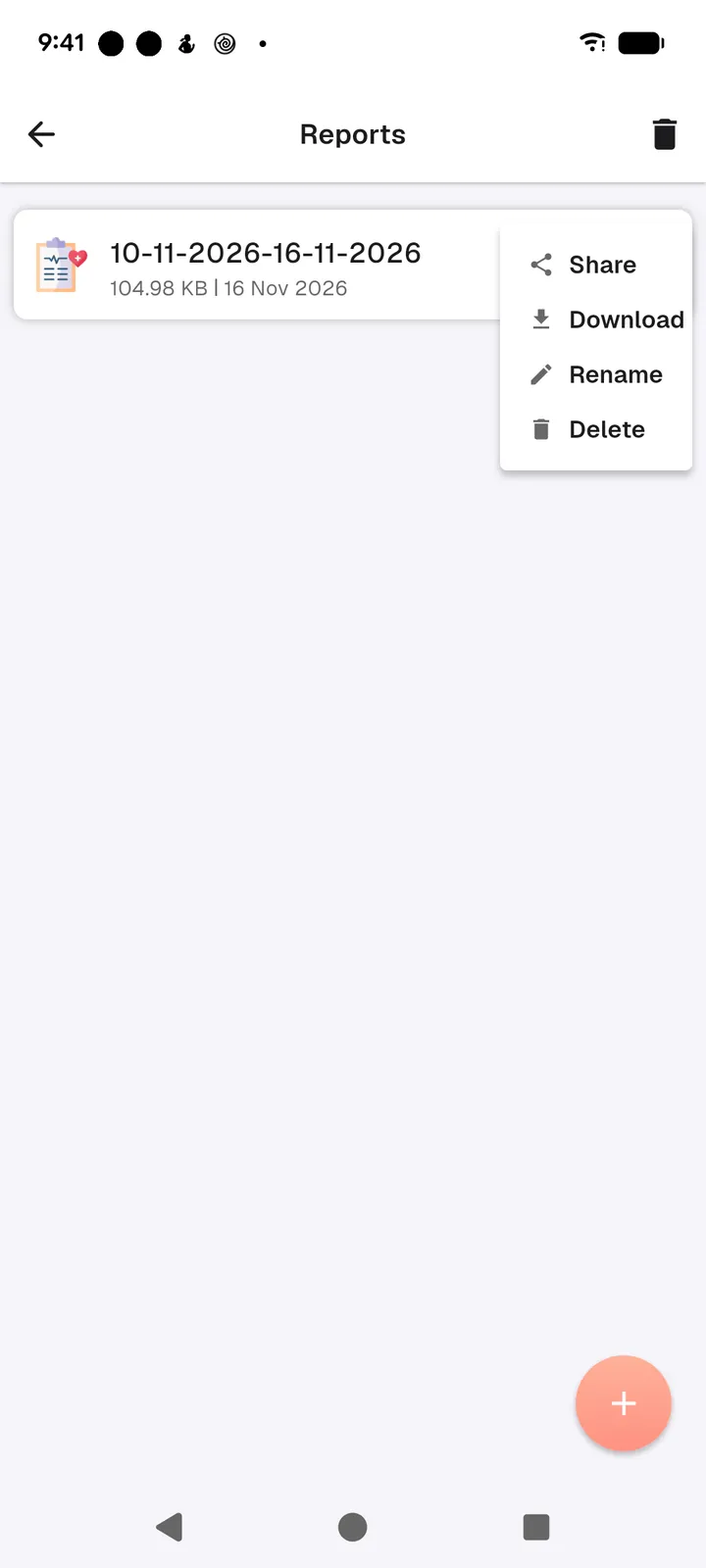
- Pick the app or person in your phone’s share sheet.
Download (keep a copy outside Pauser):
- Tap ⋮ next to the report and tap Download.
- On an Android phone: Pauser saves the PDF to your phone’s Downloads folder and shows “Saved to Downloads”.

- On iPhone: a Files window opens. Choose where to save it, such as iCloud Drive or a folder on your iPhone, and confirm. There is no extra message from Pauser.
On the preview screen, the download button is the arrow icon and the share button is next to it.
Good to know:
- The PDF’s file name is the report’s name.
- If you tap either button while the report is still being built, Pauser asks you to wait: “Please wait while report is generated”.
- If saving fails, you’ll see “Could not save the report. Please try again.”
Some features depend on your plan. To see what yours includes, open the menu and tap the plan badge under your name.
Still stuck? Tap Support at the top of Home, or open the menu and tap Message us. You can also email support@pauser.health.
Related articles
Which permissions does the Wear OS app need?
Pauser on your Wear OS watch needs body sensor access to read your heart rate, set to all the time so it keeps reading when the screen is off, plus notifications for Heart Rate Alerts. Physical activity (for steps) and alarms (for reminders) are also used.
| Permission | What it is for |
|---|---|
| Body sensors | Reads your heart rate. Without it, heart rate stays blank. |
| Body sensors, all the time | Keeps reading heart rate in the background, so Heart Rate Alerts can reach you with the screen off. |
| Physical activity | Counts your steps. |
| Notifications | Shows Heart Rate Alerts and reminders on your watch. |
| Alarms and reminders | Lets reminders arrive at their set time. |
Easiest way, from your phone:
- Open the menu and, under Settings, tap Watch Setup.
- If anything is missing, Pauser shows one permission at a time. Tap Allow on watch, then confirm on your watch.
- For background heart rate, choose Allow all the time on the watch, not “While using the app”.
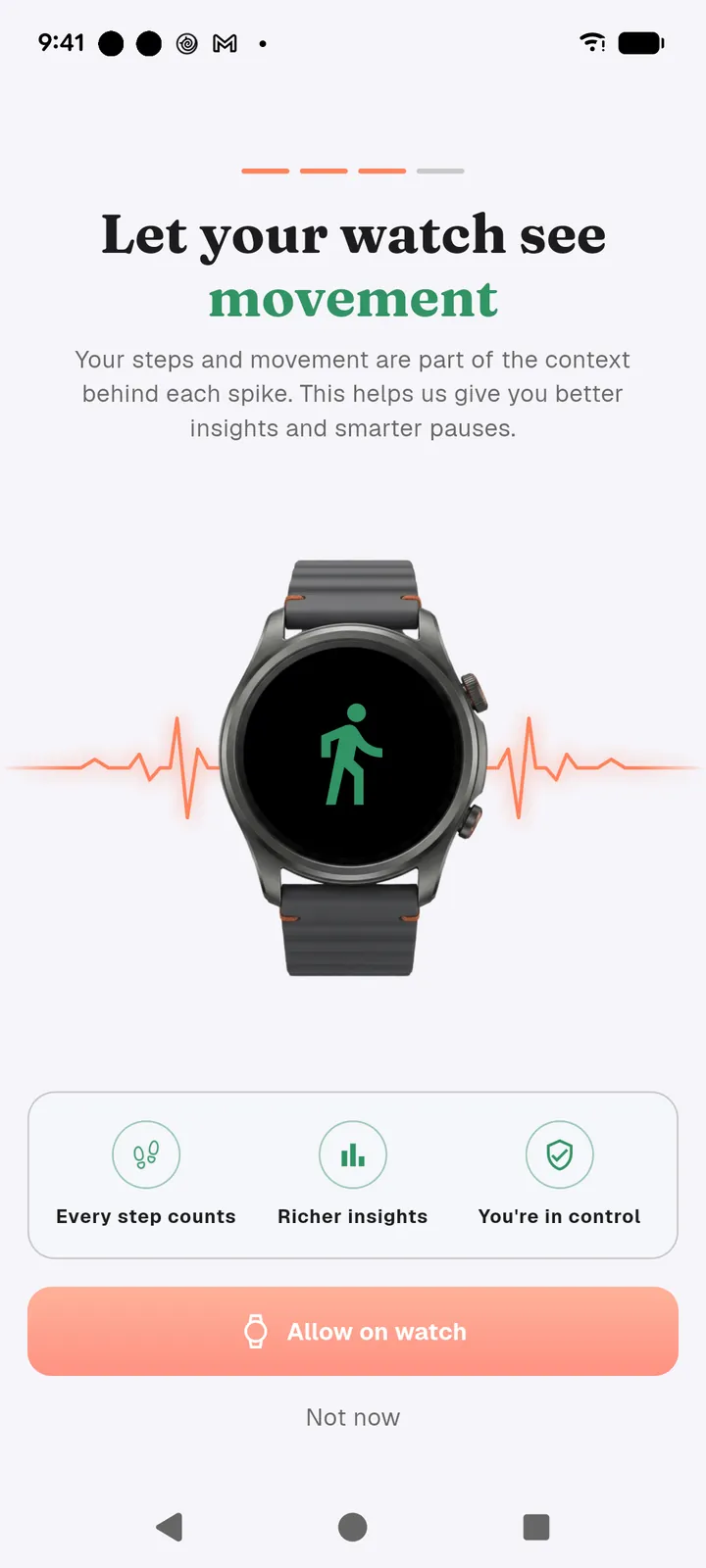
On the watch: Pauser’s home screen shows a banner for each missing permission, such as Enable Body Sensors, Set sensors to “All the time”, Enable Activity or Enable Notifications. Tap the banner to allow it. Missing notification or alarm access shows on the Reminders screen (open the Reminder tile) as Notifications are off or Alarms are blocked.

Good to know:
- If you said no before, Android may not ask again. Pauser then opens the watch’s settings for Pauser so you can turn the permission on there.
- Some permissions only appear on newer Wear OS versions. If a step doesn’t show, your watch already has it.
Still stuck? Tap Support at the top of Home, or open the menu and tap Message us. You can also email support@pauser.health.
Related articles
Can I change how long I sit and stand?
Yes, on your phone: on the Standing Check’s first screen, under Timing, you can set Sitting and Standing to anything from 1 to 10 minutes each. The default is 2 minutes sitting and 3 minutes standing.
- Open the Standing Check.
- Under Timing, tap minus or plus next to Sitting and Standing. The card shows the total, for example “5 min total”.

- Start the check as usual.
To go back to 2 and 3 minutes, tap Reset to default.
Good to know:
- Pauser remembers the times of the last check you started and uses them next time.
- On a Wear OS watch or Apple Watch: you can’t change the times on the watch. It uses the times of the last check you started on your phone, and shows them before you begin, for example “Sit 2 min, stand 3 min, while we track your heart rate.”
- If you tap Skip wait · stand now, the sitting part ends early, whatever time you set.
Some features depend on your plan. To see what yours includes, open the menu and tap the plan badge under your name.
Still stuck? Tap Support at the top of Home, or open the menu and tap Message us. You can also email support@pauser.health.
Related articles
I paid but my subscription isn’t showing. What should I do?
Don’t buy again. Close Pauser fully and open it again while you are online: each time Pauser starts without a paid plan on your account, it checks your Google Play or App Store purchase and links it.
On an Android phone: if the payment went through but linking it to your account didn’t finish, Pauser shows Purchase received. It says your subscription will activate automatically, usually within a few minutes, and that there is no need to purchase again. If it doesn’t appear shortly, restart Pauser.

If it still isn’t showing:
- Check that you are signed in to the same Pauser account you used to pay.
- Check that the phone uses the same Google Play or App Store account that made the purchase.
- Close and reopen Pauser once more, with an internet connection.
On iPhone: if the purchase was waiting for a family organizer’s approval, your plan unlocks the next time Pauser starts after it’s approved, so close Pauser fully and open it again. See Why does my purchase say “Awaiting approval”?
If none of this helps, message us with the date of the purchase and the store you used.
Still stuck? Tap Support at the top of Home, or open the menu and tap Message us. You can also email support@pauser.health.
Related articles
Why does Pauser close as soon as I open it?
To protect your data, Pauser closes straight away on a phone that has been rooted (Android) or jailbroken (iPhone). It shows no message when this happens.
On an Android phone: Pauser closes if it finds signs of root access, such as a root manager app like Magisk or SuperSU, or a phone running a test build of Android.
On iPhone: Pauser closes if it finds signs that the iPhone is jailbroken, such as jailbreak apps or tools.
What to try:
- If your phone is rooted or jailbroken, Pauser can’t run on it. Use Pauser on a phone without these changes.
- If your phone isn’t rooted or jailbroken, update Pauser to the latest version, then restart your phone and try again.
- If it still closes, contact us before you reinstall. Reinstalling starts with an empty app unless you have a backup file. When you write, tell us your phone model and system version.
Still stuck? Tap Support at the top of Home, or open the menu and tap Message us. You can also email support@pauser.health.
Related articles
Why did Pauser say my session expired?
When Pauser starts with an internet connection, it checks that you are still signed in. If your sign-in is no longer valid, it shows Session Expired and asks you to sign in again before you can continue.
- On the Session Expired message, tap Sign In.
- Choose the same way you signed in before: Continue with Google, Continue with Apple (iPhone only) or Continue with E-mail.
- Sign in with your usual account.
If it is the same account, Pauser keeps your data and takes you back into the app.
If you sign in with a different account, Pauser warns you first. See What happens if I sign in with a different account?
Good to know:
- The message can’t be closed without signing in.
- If you use email and forgot your password, tap Continue with E-mail, then Forgot Password?.
- If instead Pauser shows a message that the user does not exist, with only an Ok button, your account was not found. Tapping Ok clears Pauser’s data on this phone and returns you to the sign-in screen.
Still stuck? Tap Support at the top of Home, or open the menu and tap Message us. You can also email support@pauser.health.
Related articles
How do I get a copy of all my data?
Email support@pauser.health from the email address on your Pauser account, with the subject “Data Portability Request”. Pauser checks it’s you through that address, and the timeline it gives is within 30 days.
To start the email from Pauser:
- Open the menu and, under Plan & review, tap Backup & Restore.
- On the Backup Data tab, find Export your data.
- Tap the email address. Your email app opens with the subject Data Portability Request already filled in.
- Send it from the email address you use for Pauser.
If you don’t see the Export your data card, write the same email yourself.
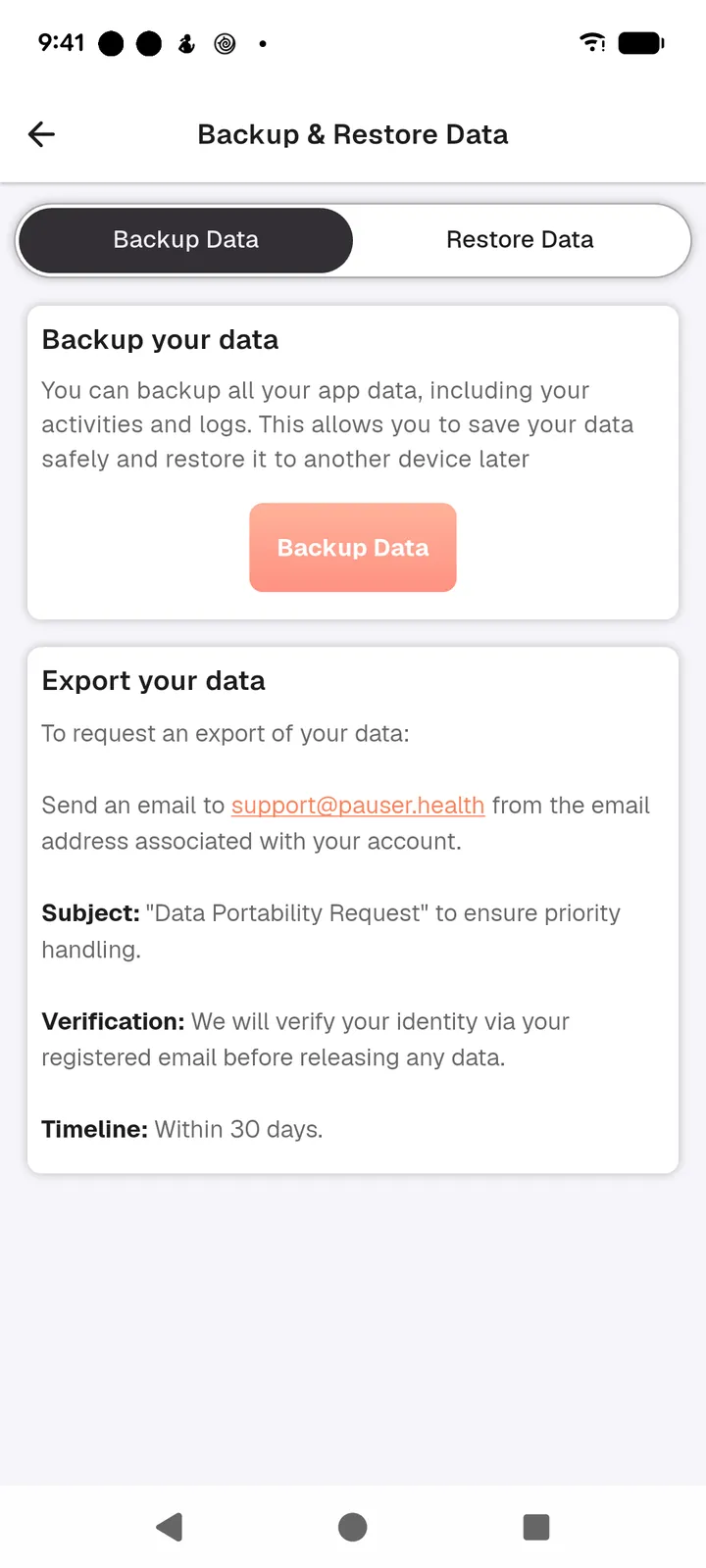
Good to know:
- The Backup Data file is different. It’s locked to your account and made for restoring into Pauser, not for reading.
- To share a readable summary, create a PDF report from Reports in the menu.
Still stuck? Tap Support at the top of Home, or open the menu and tap Message us. You can also email support@pauser.health.
Related articles
How do I choose my alert range during setup?
On When Should Pauser Step In?, drag the two ends of the slider to set your Low and High limits, then tap Continue. Pauser alerts you when a heart rate reading goes outside that range, and you can change it any time later.
- After What are you managing these days?, setup opens When Should Pauser Step In? (the Set Your Heart Rate Alert step).
- Drag the left end of the slider to set Low, and the right end to set High. The numbers above the slider show your choice in bpm.
- Read the sentence under the slider, for example “You’ll get an alert if your heart rate goes below 50 bpm or above 90 bpm.”
- Tap Continue. Pauser saves both limits, and sends them to your watch if one is connected.
Good to know:
- The slider starts at your saved limits: 50 to 90 bpm unless you changed them before. You can pick anything from 30 to 150 bpm, in steps of 5, and the two limits stay at least 5 bpm apart.
- These starting values are only a place to begin. Pick the range that suits you (see What alert limits should I use?).
- One reading is enough for an alert: at or above your upper limit, or at or below your lower limit, or below it on a Wear OS watch (see Does my heart rate have to stay high before I get an alert? and Can I get alerts when my heart rate is low?).
- This step has no skip.
- To change your range later, open the menu and tap HR Alerts (see How do I change my upper and lower alert limits?).
Still stuck? Tap Support at the top of Home, or open the menu and tap Message us. You can also email support@pauser.health.
Related articles
Why does Pauser say “No heart-rate data yet”?
During setup, Pauser looked for heart rate from the last 7 days and found none in Apple Health or Health Connect. Usually your watch has not synced yet, or Pauser is not allowed to read heart rate.
On iPhone:
- Tap Check Apple Health. Pauser shows How to enable Heart Rate access.
- Open the Health app, tap your profile picture, then under Privacy tap Apps, tap Pauser and turn on Heart Rate.
- Make sure your Apple Watch or health device is recording heart rate.
- Come back to Pauser and tap Re-check now (the sheet’s last step calls it “Try Again”).
On an Android phone:
- Tap Check Health Connect. Pauser shows How to check your Heart Rate data.

- Open Health Connect and tap Data and access, then Heart rate.
- If it is empty, make sure your watch or fitness app is syncing to Health Connect. Wear your watch for a few minutes to record fresh data.
- Come back to Pauser. It checks again by itself when you return, or tap Re-check now in the help sheet (its last step calls it “Try Again”).
Good to know:
- Re-check now looks for readings from the past day. If it finds none, you see “Still no new Heart Rate data”. Give your watch a moment to sync and try again.
- You can tap Skip for now. Your readings show up once your watch syncs.
- A Pauser app on your watch can send heart rate straight to your phone instead.
Still stuck? Tap Support at the top of Home, or open the menu and tap Message us. You can also email support@pauser.health.
Related articles
Why didn’t I get an alert when my heart rate was high?
Usually one of these: notifications are off, Pauser was still waiting out the time since your last alert, or the reading never reached Pauser. On an Android phone, alert notifications also need the Pauser app on a Wear OS watch.
Check these first
- Open the Alerts tab and tap the settings (gear) icon.
- Check your upper limit on HR Alert Threshold. A reading has to reach it to raise an alert. If you have never changed it, it is 90 bpm (see What alert limits should I use?).
- Make sure Receive HR Alert Notifications is on.
- Look at Alert Notification Frequency. After an alert, Pauser waits that long before it alerts again.
- Make sure notifications for Pauser are allowed in your phone’s settings.
On an Android phone: notifications come from Pauser on your Wear OS watch. If your heart rate comes only from Health Connect (for example from another brand of watch), Pauser saves the alert in the Alerts tab when it syncs, but sends no notification.
On iPhone: Pauser needs permission to read heart rate in Apple Health. If Alert Settings shows a message about Background App Refresh, tap Open Settings and turn it on. The first time Pauser reads Apple Health after you install it, it does not alert on readings that were already there.
On a Wear OS watch:
- Tap any banner on the watch’s Pauser home screen, such as Enable Body Sensors, Set sensors to “All the time” or Enable Notifications.
- Check that the Pauser icon is on your watch face. If it’s gone, background checks have stopped: open Pauser on the watch to start them again (see What is the Pauser icon on my Wear OS watch face?).
- The watch checks your heart rate at set times, every 30 seconds unless you change it (HR check every on the watch, HR Frequency in Alert Settings on an Android phone, which shows 1 Min until you change it). A short rise between checks can be missed (see How often does my watch check my heart rate?).
- Readings taken while charging, in the first minute after you take the watch off the charger, or while the watch is off your wrist are ignored.
On Apple Watch: make sure Alert is on in General Settings. Readings taken while the watch is off your wrist are ignored.
Still stuck? Tap Support at the top of Home, or open the menu and tap Message us. You can also email support@pauser.health.
Related articles
Where do I see my sleep?
Open the menu and, under Manage & log, tap Sleep. Pauser shows the sleep that your watch or other apps save to Health Connect (Android) or Apple Health (iPhone).
- Open the menu.
- Under Manage & log, tap Sleep.
- Pick a month, then a day, to see that night’s total and sleep times.
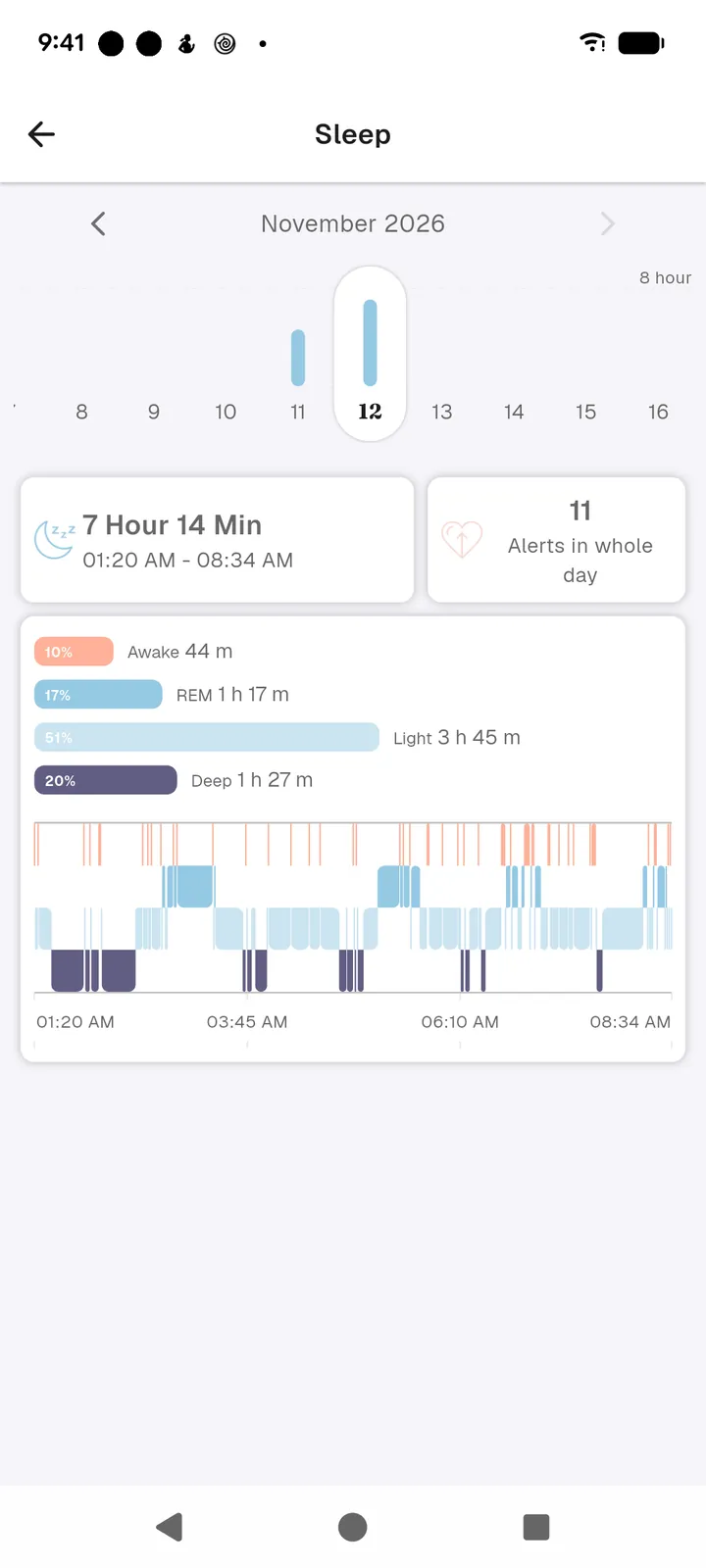
You can also tap the sleep card on Home, if it’s on your Home screen, to open the same screen.
On an Android phone: if Pauser can’t read sleep yet, the screen says “Allow Pauser to read your sleep to see it here.” Allow it and your sleep loads when you come back.
On iPhone: check that Pauser is allowed to read Sleep in Apple Health.
Good to know:
- If nothing appears, check that your watch or sleep app is saving sleep to Health Connect or Apple Health.
- To see that day’s alerts, tap the Alerts in whole day card on the Sleep screen. It opens that day on the Alerts tab.
- When there’s nothing to show, the Home card says “No sleep data yet”.
- Some features depend on your plan. To see what yours includes, open the menu and tap the plan badge under your name.
Still stuck? Tap Support at the top of Home, or open the menu and tap Message us. You can also email support@pauser.health.
Related articles
Can I enter blood glucose in mmol/L?
Not at the moment. Pauser records blood glucose in mg/dL only, even though the sheet for logging it shows the unit as mm/dl.
If your meter shows mmol/L, convert the reading to mg/dL before you enter it.
To log a reading:
- Open the menu and tap Bio vitals.
- Tap + next to Sugar. The Log your Sugar Intake sheet opens, with Unit set to mm/dl.
- Scroll the number wheel to your reading.
- Tap Save.
Good to know:
- The wheel goes from 40 to 400 mg/dL, in whole numbers.
- The Sugar card, Bio Vitals History and the Bio Vitals card on an alert also label the unit mm/dl. The numbers are mg/dL.
- When Pauser saves a copy to Apple Health or Health Connect, it saves it in mg/dL too.
Some features depend on your plan. To see what yours includes, open the menu and tap the plan badge under your name.
Still stuck? Tap Support at the top of Home, or open the menu and tap Message us. You can also email support@pauser.health.
Related articles
Can I track compression garments, electrolytes or salt tablets?
Not at the moment. Pauser doesn’t have a tracker for compression garments or electrolyte drinks, and salt tablets aren’t in its list of medicine names.
What does work today:
- Add salt tablets or an electrolyte product in Medicines by typing its name, so you can set reminders and mark doses as taken.
- Log how much salt (in mg) and water you have in Bio vitals, under Salt and Water.
If you’d like this, tell us: tap Support at the top of Home, or open the menu and tap Message us.
Related articles
Why won’t my meditation play?
Each meditation’s audio downloads the first time you open it, so that first play needs an internet connection. If the audio isn’t on your phone yet and can’t download, it can’t play: offline the meditation doesn’t start and you see “Oops! Something went wrong with your network connection….”, and if the download fails while you’re online, Pauser shows no message and the session can start with no sound.
To fix it:
- Check that you’re connected to Wi-Fi or mobile data.
- Go back to the Meditation tab.
- Open the meditation again and wait for it to finish loading.
- Tap Start.
Good to know:
- If a download fails, Pauser tries it again the next time you open that meditation.
- After the first download, that meditation can play without a connection.
- Pauser keeps the audio in your phone’s temporary storage. If your phone clears that space, the next play needs to download it again.
- Each of the three meditations downloads on its own, so one can work offline while another can’t yet.
- If Pauser asks you to “Select Meditation duration”, pick a length first. The choices are 1, 2, 5, 10, 15 or 30 minutes, or you can pick a length yourself.
- If Pauser is set up to use your watch, the meditation connects for heart rate before it starts. If no heart rate arrives, see Why does it say “No Heart Rate data yet” when I start a Pause?
Still stuck? Tap Support at the top of Home, or open the menu and tap Message us. You can also email support@pauser.health.
Related articles
How do I turn notifications on?
Open the menu, tap Permission Management under Settings, and turn on Access to Send Notifications. Notifications are how Pauser brings you Heart Rate Alerts and reminders when the app isn’t open.
- Open the menu.
- Under Settings, tap Permission Management. The Permission Manager screen opens.
- Turn on Access to Send Notifications and allow it when your phone asks. A card with no switch is already allowed.
If you said no before, your phone may not ask again. In that case Pauser opens your phone’s settings for Pauser, where you can turn notifications on yourself.
During setup: Pauser asks once. Tap Allow notifications, or Skip for now to decide later. If notifications are already blocked, the screen says Turn on notifications in Settings and offers Open Settings.

Good to know:
- If a permission Pauser needs is off, Home may show a card about it, or a red exclamation mark at the top. Tap it to fix the permission from there.
- On an Android phone, reminders also need Access to Set Alarms and Reminders on the same screen.
- On iPhone, see the related article on Focus and Do Not Disturb.
Still stuck? Tap Support at the top of Home, or open the menu and tap Message us. You can also email support@pauser.health.
Related articles
Where do I find a report I downloaded?
On an Android phone, it’s in your phone’s Downloads folder, under the report’s name. On iPhone, it’s wherever you chose to save it in the Files window, so open the Files app and look there.
On an Android phone:
When the download finishes, Pauser shows “Saved to Downloads”.
- Open your phone’s Files (or My Files) app.
- Go to Downloads.
- Look for the report’s name, ending in .pdf.

If a file with the same name was already there, Android adds a number, for example “report name (1).pdf”. Pauser never overwrites an earlier download.
On iPhone:
- Open the Files app.
- Go to the place you picked when you downloaded it, for example iCloud Drive or On My iPhone.
- You can also search for the report’s name in Files.
Good to know:
- Reports you haven’t deleted are also kept inside Pauser: open the menu and tap Reports.
- Renaming a report in Pauser doesn’t rename a copy you already downloaded.
Still stuck? Tap Support at the top of Home, or open the menu and tap Message us. You can also email support@pauser.health.
Related articles
Why is the heart rate on my watch blank?
Usually the watch has no reading yet, cannot reach your skin, or Pauser does not have access to heart rate. The line under the number tells you which.
On a Wear OS watch: while Pauser is open, the watch reads your heart rate live. The status under the number shows:
- Measuring…: Pauser is waiting for the first reading. Give it a few seconds.
- Wear watch snugly: the sensor reports the watch is off your wrist. Tighten the strap so the back touches your skin.
- No reading yet: the watch has no reading to show. Check that the strap is snug and that body sensor access is allowed (see below).
If you see the Enable Body Sensors banner, heart rate stays blank until you allow it. Tap the banner and choose to allow.

On an Apple Watch: the number shows — until a reading arrives, with Measuring… above it while the watch fetches one. Tap the number to measure again. The watch app uses the Apple Health access you gave Pauser on your iPhone, so if it stays blank, check that heart rate is allowed for Pauser in the Health app on your iPhone.
Good to know:
- Pauser on the watch ignores readings taken while the watch is off your wrist.
- On Apple Watch, the home screen updates at the watch’s own background pace, which can be every few minutes.
Still stuck? Tap Support at the top of Home, or open the menu and tap Message us. You can also email support@pauser.health.
Related articles
What do baseline, peak and rise mean in my result?
Baseline is your average heart rate while you sat, Peak is your highest reading while you stood, and HR Rise is Peak minus Baseline, in bpm. They describe what your watch measured during this check, not what it means for your health.
The main numbers
- Baseline: the average of the readings from the sitting part of the check.
- Peak: the highest reading from the standing part, which starts when you tap I’m standing.
- HR Rise: Peak minus Baseline. For example, a Baseline of 70 bpm and a Peak of 95 bpm gives +25 bpm. If either number is missing, it shows —.
- Time to peak: the seconds from your I’m standing tap to the first time your heart rate reached its Peak.
Comparisons on the result
- vs yesterday: how much bigger or smaller this HR Rise is than the rise of your latest check yesterday.
- 7-day avg: the average HR Rise of your checks over the last 7 days.
On a check’s details (from Standing check history) you also see:
- The rise as a percentage of your Baseline, for example +36% over baseline.
- End HR: your last reading of the check (for a finished check, the end of the standing part), and Sustained rise: End HR minus Baseline.
- A label for the size of the rise: No rise (0 or less), Small rise (1 to 19 bpm), Moderate rise (20 to 29 bpm) or Larger rise (30 bpm or more). The rise is coloured to match.

While you stand, the screen shows Peak so far. If your rise reaches 30 bpm, Pauser shows a warning sign with the words HR rise is above the 30 bpm POTS marker.
On your watch
- Apple Watch: Sitting is your Baseline, Standing peak is your Peak, and the large number is your rise, marked bpm rise on standing.
- Wear OS watch: the result says “Your heart rate rose by 25 bpm after standing”, or We couldn’t measure a clear rise this time when there was no rise to show.
Some features depend on your plan. To see what yours includes, open the menu and tap the plan badge under your name.
Pauser shares wellness insights, not medical advice. If you have questions about your readings or how you feel, talk to your clinician.
Still stuck? Tap Support at the top of Home, or open the menu and tap Message us. You can also email support@pauser.health.
Related articles
How do I cancel my subscription?
You cancel in the store you paid with. Pauser’s plan page has a Cancel Subscription link that opens your store’s subscriptions page.
- Open the menu (top left of Home).
- Tap the plan badge under your name. (Or tap your name to open Profile, then tap your plan.)
- Your plan’s page shows “Your subscription will renew on” and the date.
- Tap Cancel Subscription.
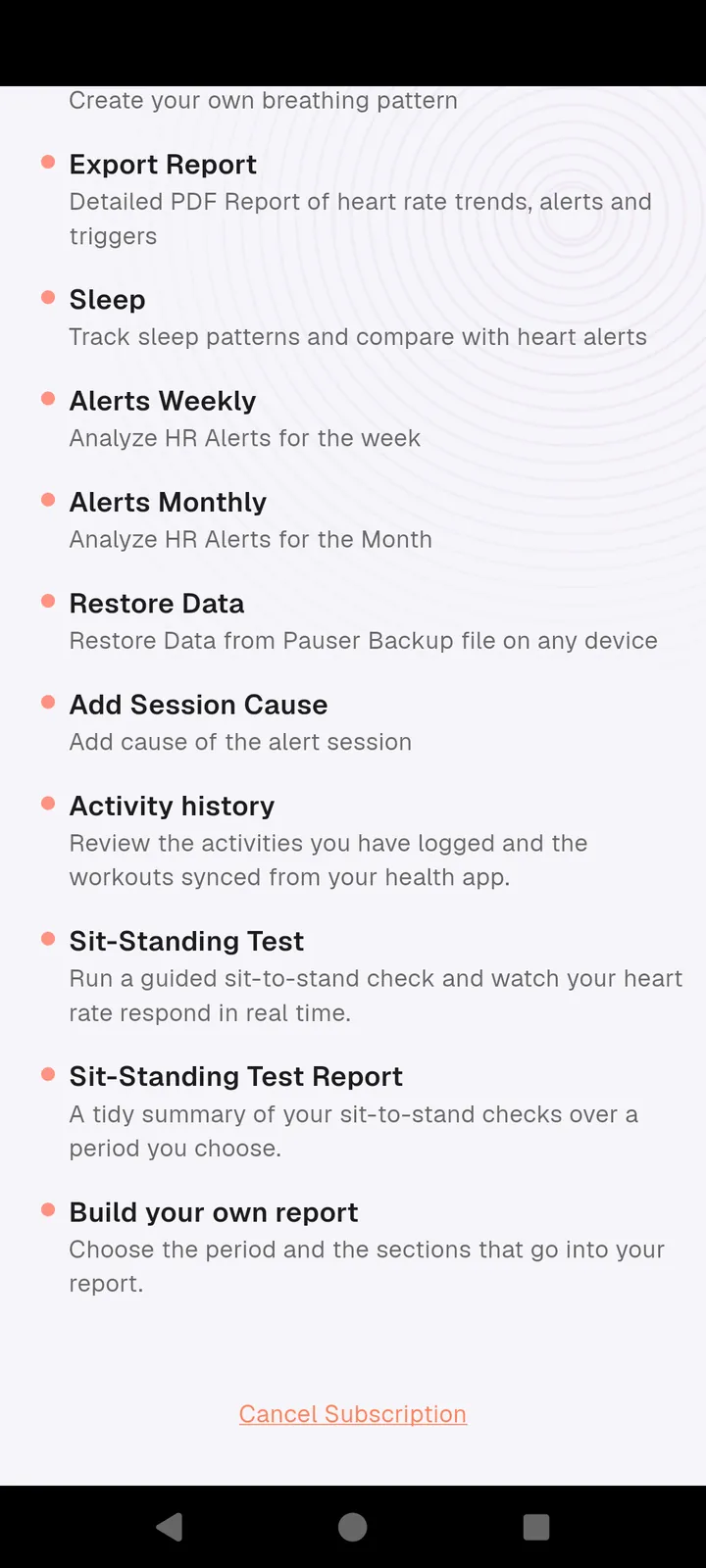
- Finish cancelling on the store page that opens.
On an Android phone: the link opens your Google Play subscriptions page. Tap Pauser, then Cancel subscription, and follow the steps. To get there without Pauser, open the Play Store, tap your profile picture, then Payments & subscriptions, then Subscriptions.
On iPhone: the link opens your App Store subscriptions page. Tap Pauser, then Cancel Subscription, and confirm. To get there without Pauser, open the iPhone Settings app, tap your name, then Subscriptions.
When you come back to Pauser, it refreshes your plan. Once the cancel goes through, the page says “Your membership will end on” with the date, and the Cancel Subscription link is no longer shown.
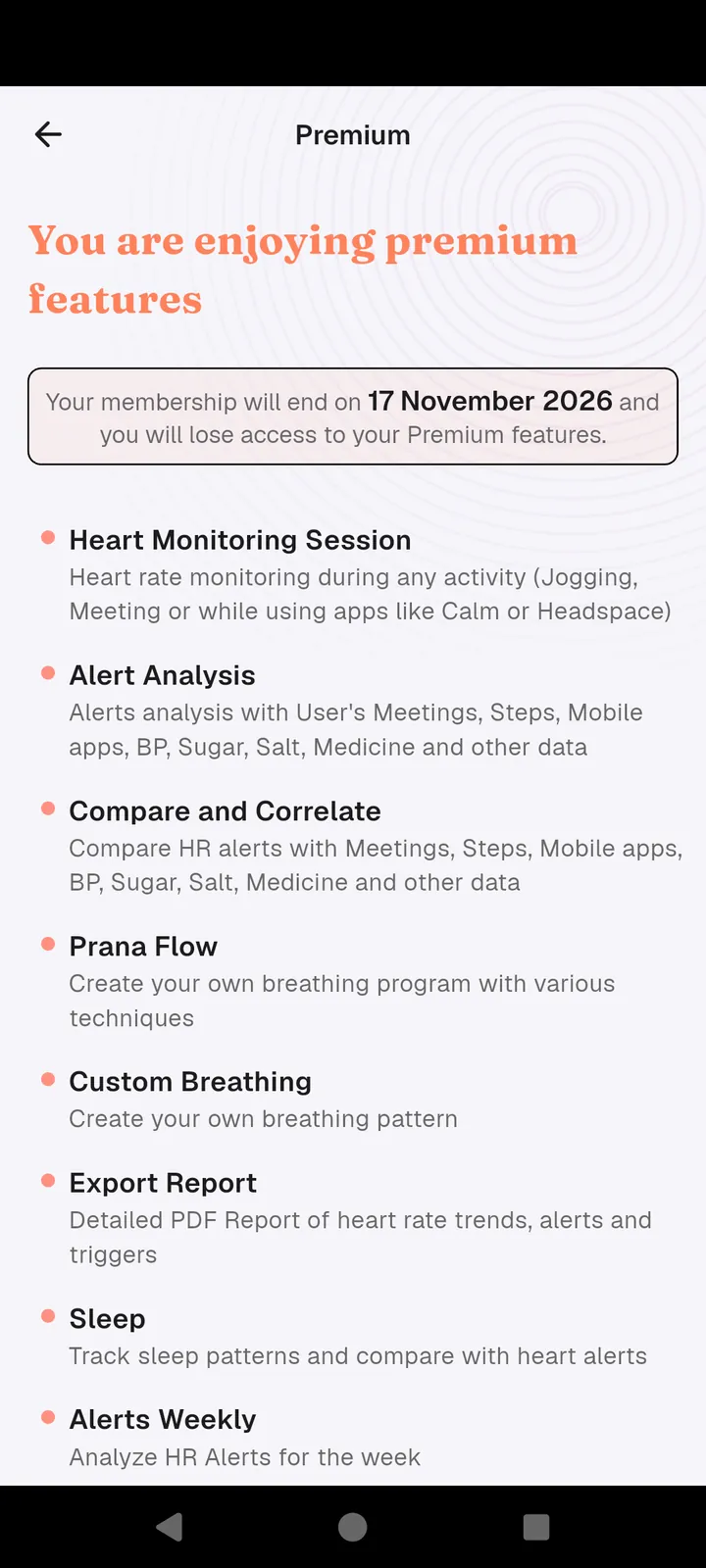
Good to know:
- The link always opens the store of the phone you are holding. If you subscribed on the other platform, cancel from that store. See I subscribed on iPhone. Will it work on Android?
- You can’t remove your Pauser account while your plan is set to renew. See Why can’t I delete my account?
Still stuck? Tap Support at the top of Home, or open the menu and tap Message us. You can also email support@pauser.health.
Related articles
How do I check which permissions Pauser has?
Open the menu and, under Settings, tap Permission Management. On the Permission Manager screen, a missing permission shows Not Allowed with a switch to turn it on, and one that’s already allowed has no switch.
- Open the menu.
- Under Settings, tap Permission Management.
- Check each card:
- Access to Phone Calendar
- Access to Send Notifications
- Access to Set Alarms and Reminders (Android phone)
- Usage Access (Android phone)
- Health Connect (Android phone) or Apple Health (iPhone)
- Turn on the switch next to anything that says Not Allowed. A card without a switch is already allowed.
- For health data, tap Permissions on the Health Connect or Apple Health card.
On iPhone: you can also check health access in the iPhone’s Settings. Pauser’s steps are: Settings -> Apps -> Health -> Data Access & Devices -> Pauser -> Turn On All.
Good to know:
- Notifications need to be on for Heart Rate Alerts and reminders to reach you.
- If something is missing, Home may show an Allow Permissions card. If you closed that card, a red exclamation mark at the top of Home opens the same list.

Still stuck? Tap Support at the top of Home, or open the menu and tap Message us. You can also email support@pauser.health.
Related articles
What happens if I sign in with a different account?
If you log out first, Pauser has already cleared the previous account’s data from this phone, so the new account starts fresh. If you sign in with a different account from the Session Expired message instead, Pauser asks before it removes the previous data.
After logging out: Pauser warns you before it clears the phone. To keep the data, make a backup first. See What happens to my data when I log out?
From the Session Expired message: Pauser shows Different Account, “A different account was detected. All previous data will be removed.”
- Continue: Pauser removes the previous account’s data from this phone and takes you through setup again for the new account.
- Cancel: Pauser keeps the previous data and signs the new account out. You stay on Session Expired, where you can sign in with your original account.
Good to know: the data that is removed exists only on this phone. If you want to keep it, sign in with the original account and make a backup from Backup & Restore in the menu first.
Still stuck? Tap Support at the top of Home, or open the menu and tap Message us. You can also email support@pauser.health.
Related articles
What happens to my data when I delete my account?
When you remove your account, Pauser clears its data from your phone and returns you to the Sign in to Pauser screen. Before that, it warns that you will permanently lose your account along with the data it lists.
To remove your account, open Profile from the menu, tap the three dots at the top right, then Remove Account. The Remove Account? message lists HR Alert history, Breathing and Meditation analysis and graphs, Mood check-in history and Heart rate monitoring session data. For each step, see How do I delete my account?
Good to know:
- You need an internet connection. Offline, Pauser shows “Oops! Something went wrong with your network connection….” and your account stays as it is.
- If your subscription renews automatically, Pauser asks you to cancel it first: “Your subscription is on Auto Renew, please cancel your subscription to stop future payment before removing your account”.
- If you’d like a copy of your data, ask for it before you remove your account. See How do I get a copy of all my data?
Still stuck? Tap Support at the top of Home, or open the menu and tap Message us. You can also email support@pauser.health.
Related articles
Can I skip a setup step and finish it later?
Yes, most setup steps can be skipped, and you can finish each one later from the menu. If you close Pauser partway through setup, it picks up at the first step you haven’t finished.
What you can skip:
- The intro slides: tap Skip, then Skip anyway.
- What are you managing these days?: tap Skip for now.
- Heart rate access: if access is off or no data is found, tap Skip for now on the next screen.
- Notifications: tap Skip for now.
- Your watch: tap Continue without watch, or Skip for now on the watch setup screen.
The alert range step has no skip, but you can change your limits any time.
Where to finish later (open the menu first):
- What you’re managing: tap your name to open your Profile.
- Alert limits: tap HR Alerts.
- Heart rate access and notifications: tap Permission Management.
- Watch: tap Watch Setup.
Still stuck? Tap Support at the top of Home, or open the menu and tap Message us. You can also email support@pauser.health.
Related articles
Which health data does Pauser read and write?
Pauser reads heart rate, sleep, steps, workouts and vitals such as blood pressure, blood glucose and blood oxygen from Health Connect or Apple Health. It writes back the blood pressure, blood glucose, blood oxygen and water entries you add in Pauser.
On an Android phone, Pauser brings in from Health Connect:
- Heart rate
- Steps
- Sleep
- Blood pressure, blood glucose and blood oxygen
- Workouts (exercise sessions)
It also asks to read water and resting heart rate, plus distance and calories, which Health Connect needs before it shares workouts. Pauser does not keep distance or calories.

On iPhone, Pauser brings in from Apple Health:
- Heart rate
- Steps
- Sleep
- Blood pressure, blood glucose, blood oxygen and water
- Workouts
The Apple Health sheet also lists other types Pauser asks to read, such as heart rate variability, resting heart rate and mindful minutes.
What Pauser writes: when you add a blood pressure, blood glucose, blood oxygen or water entry in Pauser, it saves a copy to Health Connect or Apple Health. The permission screens also ask to write workouts:
- On an Android phone: Pauser does not write workouts to Health Connect.
- On iPhone: an Activity Monitor, Pause or Standing Check you record with your Apple Watch can appear as a workout in Apple Health, if it lasted at least 20 seconds and recorded heart rate.
Good to know:
- You choose what to allow. Pauser reads only what you turn on.
- Pauser reads your heart rate and never changes it.
- See “Does Pauser send my vitals to Apple Health or Health Connect?” for edits and deletes.
Still stuck? Tap Support at the top of Home, or open the menu and tap Message us. You can also email support@pauser.health.
Related articles
Why did my alert arrive late?
Pauser can only alert once a heart rate reading reaches it, and readings often travel in batches. The alert always shows the time the reading was taken, for example “at 04:32 PM”, so you can see when it happened.
On iPhone: your Apple Watch, or other device, first syncs readings to Apple Health, then iOS wakes Pauser to read them. iOS groups these wake-ups, and gaps of 5 to 15 minutes are common, especially after you close Pauser from the app switcher. If Alert Settings shows a message about Background App Refresh, tap Open Settings and turn it on.
On a Wear OS watch: while the watch sleeps, it can hold back readings and hand them over together when it wakes, so the alert comes a little after the reading. The watch also only checks at the interval you set, every 30 seconds unless you change it (HR check every on the watch, HR Frequency in Alert Settings on an Android phone). Until you change it, HR Frequency on the phone shows 1 Min even though the watch checks every 30 seconds.
On an Android phone without a Pauser Wear OS watch: Pauser reads Health Connect when you open the app, so alerts appear in the Alerts tab only then, with no notification.
Good to know
- A late alert still reports the reading that crossed your limit, not your heart rate at the moment it arrives.
Still stuck? Tap Support at the top of Home, or open the menu and tap Message us. You can also email support@pauser.health.
Related articles
Where do I find my medicine and activity history?
Both are in the menu under Manage & log. Medicine history is kept for each medicine, and activities have one shared list.
Medicine history:
- Open the menu.
- Under Manage & log, tap Medicines.
- On the medicine you want, tap History. Medicine history opens for that medicine.
If you haven’t logged it yet, you’ll see “No History Available”.

Activity history:
- Open the menu.
- Under Manage & log, tap Activity. Activity History opens.
It lists the activities you checked in yourself and the workouts Pauser reads from Apple Health or Health Connect, newest first.
Good to know:
- The Your Logs and History row on the Insights tab covers alerts, Pauses, mood and vitals, but not medicines or activities.
- Before you delete a medicine, read What happens when I delete a medicine?
- Some features depend on your plan. To see what yours includes, open the menu and tap the plan badge under your name.
Still stuck? Tap Support at the top of Home, or open the menu and tap Message us. You can also email support@pauser.health.
Related articles
How do I add a medicine and its reminders?
Open Medicines, tap +, enter the medicine and when you take it, turn on Remind me to take medication, then tap Add This Medicine. Pauser keeps a record of what you enter; it does not suggest medicines or amounts.
- Open the menu and tap Medicines. You can also tap + on Home, then Add/Log Medicine.
- Tap the + button.
- Under How do you take it?, choose On a schedule or As needed.
- Type the Medicine Name. Add a Note if you like. If you see Common POTS meds next to the name, you can tap it to pick a name from a list (see What are the POTS medicine shortcuts?).
- For a scheduled medicine:
- Set the Medicine Start Date. A Medicine End Date is optional.
- Tap Add Time for each time of day you take it.
- Under Days, keep Everyday or tap the days you need.

- Under Reminders, turn on Remind me to take medication.
- Tap Add This Medicine.
If something is missing, Pauser tells you what: “Select start date”, “Add your medicine time” or “Select your medicine days”.
Good to know:
- Reminders are off until you turn them on.
- As-needed medicines have no times, days or reminders, and their dates are optional.
- To change a medicine later, tap it in Medicines, edit it on Edit Medicine, then tap Update.
- Reminders need notification permission on your phone. If one doesn’t arrive, see “Why didn’t my reminder go off?”
Some features depend on your plan. To see what yours includes, open the menu and tap the plan badge under your name.
Still stuck? Tap Support at the top of Home, or open the menu and tap Message us. You can also email support@pauser.health.
Related articles
How do I change the voice, sound or vibration?
On your phone, open Breathing Settings from the gear at the top of the Pause tab. Your watch has its own breathing settings.
On your phone:
- Tap Pause at the bottom of the screen.
- Tap the gear at the top of the screen. Breathing Settings opens.
- Turn Vibration on or off.
- Turn Sound on or off.
- Under Voice/Sound, choose Female, Male or Bell. This choice works only while Sound is on.

You can also get there from the menu: under Settings, tap Breathe. Vibration and sound start out on, with the female voice.
On a Wear OS watch: on the watch home screen, tap Breathe Settings. Turn Vibration on or off, and choose Female voice, Male voice, Bell or Off.
On an Apple Watch: open Breathe Settings. Turn Vibration on or off, and under Voice / Sound choose Female, Male, Bell or Disable.
Good to know:
- A change on the phone doesn’t change the watch, and a change on the watch doesn’t change the phone. Set each one the way you like.
- During a breathing session on the phone, you can also mute the sound, turn vibration on or off, and change the volume.
Still stuck? Tap Support at the top of Home, or open the menu and tap Message us. You can also email support@pauser.health.
Related articles
Will Heart Rate Alerts come through Focus or Do Not Disturb?
Yes, on iPhone and Apple Watch, as long as Time Sensitive notifications are allowed. Pauser sends Heart Rate Alerts as Time Sensitive notifications, which iOS and watchOS can let through a Focus such as Sleep or Do Not Disturb.
To make sure they come through:
- Open the iPhone Settings app and go to Notifications, then Pauser.
- Check that notifications are allowed and Time Sensitive Notifications is on.
- In each Focus you use, check that Time Sensitive notifications are allowed.
What else comes through, and what waits:
- Exercise Mode alerts are also Time Sensitive.
- Reminders (Pause, mood, alert review, medicine) are regular notifications. A Focus holds them until it ends.
- The heart rate variability reading notification is deliberately not Time Sensitive, so it won’t wake you. It waits until the Focus ends.
Good to know:
- Time Sensitive notifications need iOS 15 or later on iPhone, and watchOS 8 or later on Apple Watch.
- Alerts raised by the Pauser app on your Apple Watch are Time Sensitive too.
Still stuck? Tap Support at the top of Home, or open the menu and tap Message us. You can also email support@pauser.health.
Related articles
Why does it say “Could not generate report”?
Pauser ran into a problem while building the PDF and stopped, so there is no report to preview. Tap Retry to build it again with the same choices.
What to try:
- Tap Retry on the message. Building can take a few minutes, so give it time.
- If it fails again, go back and create the report again with a shorter period or fewer sections under Include in Report.
- Close Pauser fully, open it again, and try once more.
Good to know:
- The message doesn’t say which part failed. If it keeps happening, tell us the dates and sections you picked, and whether you’re on an Android phone or iPhone.
- A report that failed is not added to Reports.
Some features depend on your plan. To see what yours includes, open the menu and tap the plan badge under your name.
Still stuck? Tap Support at the top of Home, or open the menu and tap Message us. You can also email support@pauser.health.
Related articles
Can I make a report longer than 7 days, export a spreadsheet, or share live with my clinician?
Not at the moment. A report you make in Create Report covers up to 7 days, reports come as PDF files only, and there’s no live view to share with someone else.
What does work today:
- Make a PDF report of up to 7 days in Reports, then share or download it.
- The Sit Standing Test Report can cover the last 7, 14 or 30 days.
- For a full copy of your data, email support@pauser.health with the subject “Data Portability Request”.
- Some features depend on your plan. To see what yours includes, open the menu and tap the plan badge under your name.
If you’d like this, tell us: tap Support at the top of Home, or open the menu and tap Message us.
Related articles
Why is my watch heart rate different from the number in the app?
The watch and Pauser on your phone are often showing readings from different moments. The watch screen shows the reading it has right now, while the app shows the readings it has received and saved so far.
Common reasons the numbers differ:
- Live versus saved. On a Wear OS watch, the home screen shows a LIVE reading while it is open. It saves one of those readings about every 10 seconds. In the background, the watch measures in short windows from time to time. Your phone gets the saved readings, not every number you saw on screen.
- Delivery takes time. Readings reach your phone only when the watch is connected to it. On iPhone, Apple Watch readings reach Pauser through Apple Health, and delays of 5 to 15 minutes are common.
- Some readings are skipped. A Wear OS watch does not save readings taken while it is off your wrist or charging, or outside 15 to 300 bpm. On iPhone, off-wrist readings and readings outside 25 to 250 bpm do not raise alerts.
- Different figures. Cards in the app can show a daily figure, such as an average, rather than a single reading.
Good to know:
- On a Wear OS watch, the status under the number changes from LIVE to “Updated” with a time once the live reading stops, so you can see how old the number is.
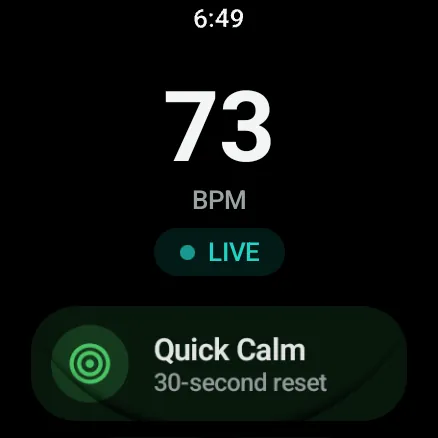
Still stuck? Tap Support at the top of Home, or open the menu and tap Message us. You can also email support@pauser.health.
Related articles
Should I sit or lie down before the Standing Check?
Before you start, the app suggests you Sit or lie down and rest for about 5 minutes before you begin. The check itself then starts with you sitting: Pauser measures your heart rate while you sit, then while you stand.
- Rest, sitting or lying down, for about 5 minutes.
- Sit up, and start the check while you are sitting.
- Stay still and breathe normally while Pauser takes your sitting heart rate.
Good to know:
- Pauser has no lying-down step. Your starting numbers always come from the sitting part of the check.
- If you have already rested for a while, you can tap Skip wait · stand now to move to standing sooner.
- The app suggests you Stay near something stable in case you feel dizzy.
- The watch apps don’t show the 5-minute rest suggestion, but the check runs the same way: sit first, then stand.
Some features depend on your plan. To see what yours includes, open the menu and tap the plan badge under your name.
Pauser shares wellness insights, not medical advice. If you have questions about your readings or how you feel, talk to your clinician.
Still stuck? Tap Support at the top of Home, or open the menu and tap Message us. You can also email support@pauser.health.
Related articles
What happens when my subscription ends?
The features your plan covered lock again as soon as the end date passes. Your logs are not deleted: a locked screen shows a panel over it with a button to subscribe, and the screen opens again if you subscribe.
Before the end date:
- Your plan’s page says “Your membership will end on” with the date.
- On Profile, your plan shows “Ends on” with the date and how many days are left.
After the end date, locked screens show the lock panel. Its button (usually Subscribe Now) opens the subscription page. Home also shows Subscribe Now at the start of its top row, and the plan card on Profile shows an Upgrade button instead of the end date.


Some features depend on your plan. To see what yours includes, open the menu and tap the plan badge under your name.
Good to know:
- A cancelled plan keeps working until its end date.
- Your logs stay on your phone. If you want a copy, make one from Backup & Restore in the menu before your plan ends, since backup can be one of the features that depend on your plan.
Still stuck? Tap Support at the top of Home, or open the menu and tap Message us. You can also email support@pauser.health.
Related articles
How do I contact support?
Send us a message in Pauser’s support chat, or email us.
- On Home, tap Support at the top. Or open the menu and, under Learn & support, tap Message us.

- Type your question in Type your question and send it.
- We usually reply within one business day. You get a notification when we reply.
Good to know:
- Support chat is open to everyone signed in to Pauser, whatever your plan.
- If you send five messages before we reply, Pauser pauses the message box and confirms that they all reached us.
- You need an internet connection to send and receive. Offline, you can still read earlier messages.
- To email instead, tap Contact in the menu. Your email app opens with support@pauser.health filled in.
- When you write, tell us your phone model and what you were doing, so we can help faster.
Still stuck? Tap Support at the top of Home, or open the menu and tap Message us. You can also email support@pauser.health.
Related articles
Can I change my email address or password?
Not from inside Pauser. The E-mail field on your Profile can be filled in only when it is empty, and there is no option to change your password while you are signed in.
Password: if you sign in with email, you can set a new password with the reset link on the log in screen. See How do I reset my password? You reach that screen only when signed out, and logging out clears Pauser’s data from your phone, so make a backup first. See What happens to my data when I log out?
Email address: if you need a different email on your account, message us.
Good to know:
- If you sign in with Continue with Google or Continue with Apple, your password is managed by Google or Apple, not by Pauser.
Still stuck? Tap Support at the top of Home, or open the menu and tap Message us. You can also email support@pauser.health.
Related articles
Does Pauser track my location?
No. Pauser doesn’t record your GPS position. Instead, you can tag a Heart Rate Alert with the place you were, such as Home or Work.
To tag a place on an alert:
- Open a Heart Rate Alert from the Alerts tab.
- Find the Location card. It asks Where were you?
- In Select a location, pick Home, Work, or a place you add yourself.
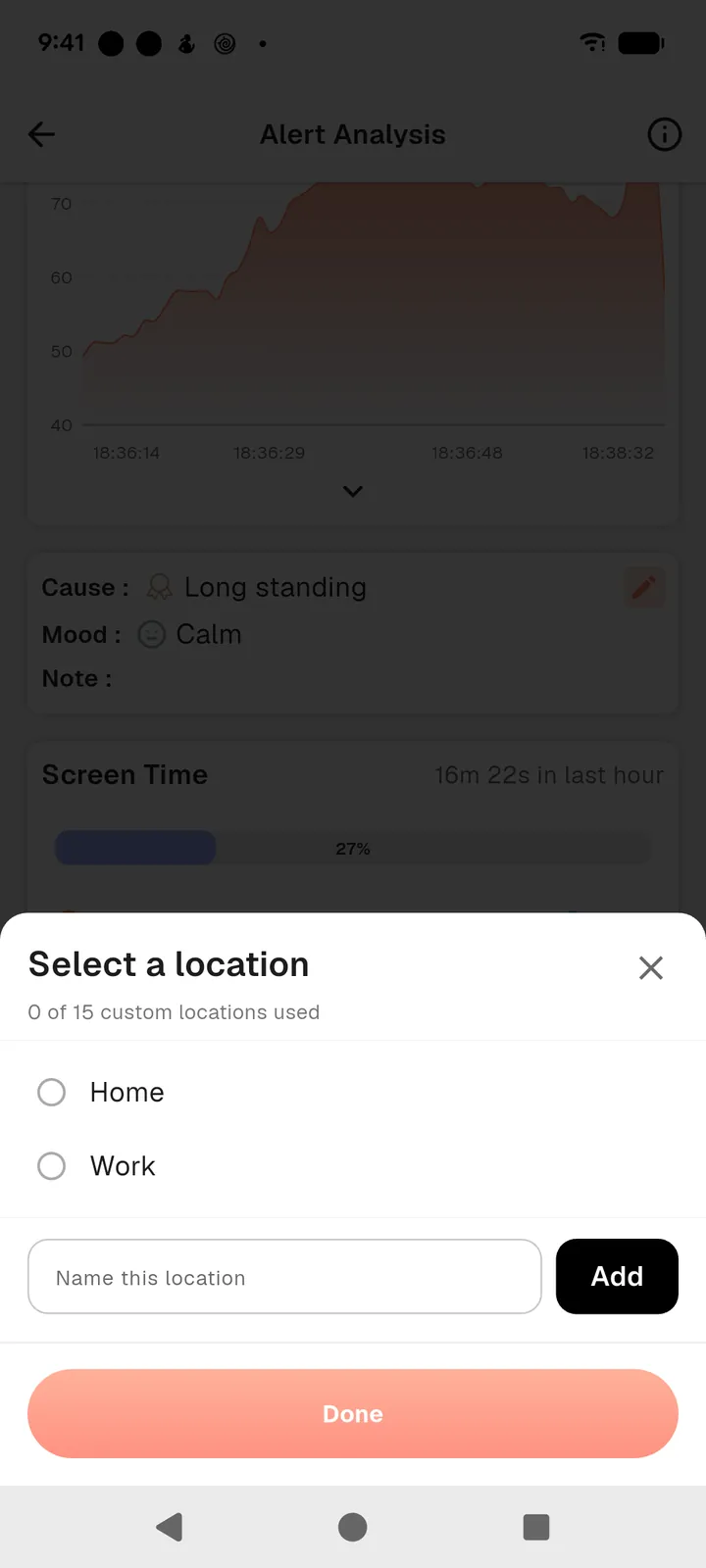
Good to know:
- Pauser doesn’t ask for location access on your phone.
- You can keep up to 15 places of your own.
- Alerts recorded by older versions of Pauser may still show a map with the position saved back then. Pauser only shows what was already saved. It doesn’t record new positions.
Still stuck? Tap Support at the top of Home, or open the menu and tap Message us. You can also email support@pauser.health.
Related articles
How do I find my way around the app?
Use the five tabs along the bottom for the main areas, and the menu (top left) for everything else.
Bottom tabs:
- Home: your cards for the day.
- Pause: guided breathing and meditation.
- Monitor: your Activity Monitor sessions.
- Alerts: your Heart Rate Alerts by day, week or month.
- Insights: trends and patterns over time.
On Home:
- Support at the top opens a chat with our team.
- More (the three dots) has Notifications, Customize dashboard and Settings.
- The + button opens Quick Add, for logging something in a tap.
The menu opens from the icon at the top left. Tap your name for your Profile. Below that:
- A switch between the POTS and Personal layouts.
- Settings: alerts, goals, breathing, watch, permissions, appearance and Home cards.
- Plan & review: your “TAP” List, reminders, reports, and backup and restore.
- Manage & log: mood, activity, medicines, Bio Vitals, sleep and custom causes.
- Learn & support: Quick Read, Message us, the introduction, FAQ, feedback, contact and About Pauser.
- Logout at the bottom.
Still stuck? Tap Support at the top of Home, or open the menu and tap Message us. You can also email support@pauser.health.
Related articles
How often does Pauser sync with Health Connect or Apple Health?
Pauser reads new data each time you open it and each time you come back to it. On iPhone, Apple Health can also wake Pauser in the background when new heart rate arrives, usually a few minutes after it was measured.
On an Android phone: Pauser reads Health Connect only while it is open. Readings your watch or fitness app saved while Pauser was closed come in the next time you open Pauser. There is no background sync from Health Connect.
On iPhone: Pauser reads Apple Health when you open it or return to it. In between, Apple Health can wake Pauser when new heart rate arrives, even if Pauser was closed. A delay of 5 to 15 minutes between a reading and its delivery is normal, and your Apple Watch adds its own syncing time on top. Blood pressure, blood glucose, blood oxygen, water and sleep are read when Pauser opens or moves to the background.
To check for new data now on iPhone, tap the sync icon on the Heart Rate Trend card on Home. Pauser shows Syncing. The card shows Last Sync At with the time of the latest reading. The Heart Rate Trend card is one of the features that depend on your plan. To see what yours includes, open the menu and tap the plan badge under your name.
Good to know:
- With the Pauser app on your watch, heart rate comes from the watch instead. See “What happens when my watch is away from my phone?”
Still stuck? Tap Support at the top of Home, or open the menu and tap Message us. You can also email support@pauser.health.
Related articles
Why did I get two alerts for the same moment?
Your watch and your phone each check your heart rate and each send their own alert, so one rise can produce an alert on both. Each device also keeps its own wait before it alerts again.
On iPhone with Apple Watch: the Pauser watch app alerts you on the watch, and your iPhone can alert for the same reading once it reaches the phone. Both use your Alert Notification Frequency, but they count the wait separately.
On an Android phone with a Wear OS watch: yes, both can alert. The watch alerts you on the watch, and when the same reading reaches your phone, your phone shows its own Heart Rate Alert notification too. The phone’s notification is not copied to the watch, so your watch buzzes once per alert.
What you can do
- A longer Alert Notification Frequency means fewer alerts overall.
- The alert on/off switch is shared between your phone and a connected watch, so turning it off on one turns alerts off on both.
Still stuck? Tap Support at the top of Home, or open the menu and tap Message us. You can also email support@pauser.health.
Related articles
Can I see my logged signals, like dizziness, next to my heart rate in Compare & Correlate?
Not at the moment. Compare & Correlate puts your heart rate next to things like steps, sleep, salt, water, medicines and Mood, but not the signals you pick in a mood check-in.
What does work today: you can compare your heart rate with your Mood check-ins in Compare & Correlate, and a signal you logged with an alert shows up next to that alert in a PDF report when the report includes your alerts.
Some features depend on your plan. To see what yours includes, open the menu and tap the plan badge under your name.
If you’d like this, tell us: tap Support at the top of Home, or open the menu and tap Message us.
Related articles
What does Screen time in Insights show?
On an Android phone, Screen Time shows how long you used apps on your phone over the last 7 days, your daily average, and your five most-used apps. It’s there so you can look at app use alongside your Heart Rate Alerts.
What you see on the card:
- Your total app time for the last 7 days.
- Daily average for that period.
- A chart of each day.
- Most Used: the top five apps and how long you used each.

To see it, Pauser needs Android’s usage access. The first time you open Insights, Pauser asks for it. Tap Allow to go to your phone’s settings and turn it on, or Don’t Allow to skip.
To turn it on later:
- Open the menu.
- Under Settings, tap Permission Management.
- Turn on Usage Access.
Good to know:
- Until there’s data, the card says “No screen time yet” and “Usage appears here after your first full day with Pauser.”
- Screen Time isn’t available on iPhone.
- Some features depend on your plan. To see what yours includes, open the menu and tap the plan badge under your name.
Still stuck? Tap Support at the top of Home, or open the menu and tap Message us. You can also email support@pauser.health.
Related articles
How do I mark a medicine as taken?
Open Medicines, tap Log Medicine on the medicine’s card, tick each time you took it, then tap Update. The checkboxes on the Home card only show what is logged; you can’t tick them there.
- Open the menu and tap Medicines.
- On the medicine’s card, tap Log Medicine.
- You’ll see today’s date and each scheduled time. Tap a time to tick it. Taken appears next to it.
- Tap Update. Pauser shows “Medicine logged successfully”.

To undo, tap the ticked time again and tap Update.
Good to know:
- Pauser records the scheduled time you ticked (for example 08:00 AM), not the exact minute you took it.
- On a day that isn’t one of the medicine’s days, no times are listed.
- The Today’s Medicine Schedule card on Home shows ticks for today’s logged times. Tapping the card opens Medicines.
- History on the medicine’s card opens its Medicine history.
- For an as-needed medicine, see “How do I log an as-needed medicine?”
Some features depend on your plan. To see what yours includes, open the menu and tap the plan badge under your name.
Still stuck? Tap Support at the top of Home, or open the menu and tap Message us. You can also email support@pauser.health.
Related articles
Why does it say “No Heart Rate data yet” when I start a Pause?
When Pauser is set up to use your watch, each Pause first spends up to about 25 seconds getting your heart rate (“Connecting your watch for Heart Rate data”). If no reading arrives in that time, you see No Heart Rate data yet.
You can choose:
- Try again: Pauser listens for your watch again.
- Continue without heart rate: the Pause goes ahead, just without heart rate.
- Cancel Pause for now: ends the Pause and takes you to Home.
- The X at the top right of the message: ends the Pause and returns you to where you were.
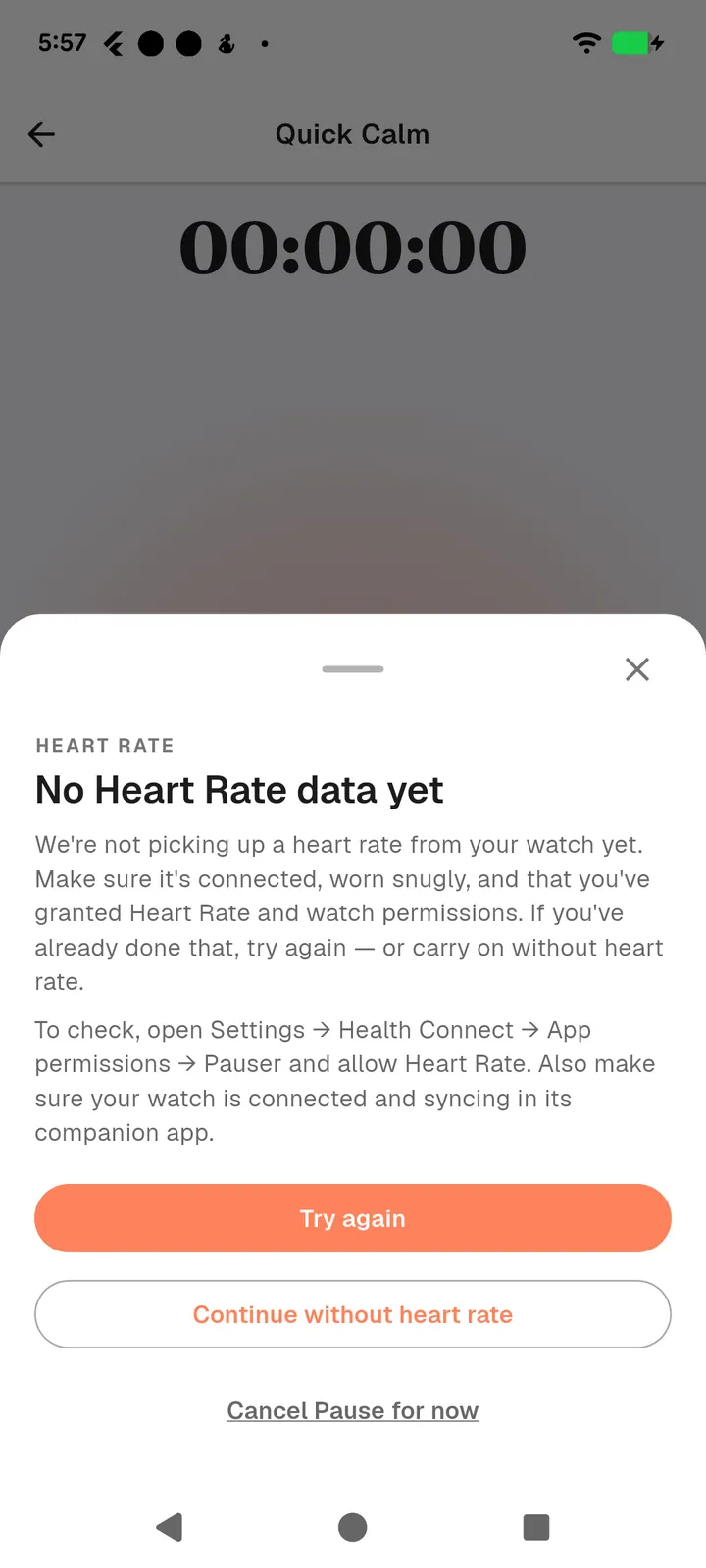
Before you tap Try again, check that:
- Your watch is on, connected to your phone, and worn snugly.
- On iPhone: Pauser can read Heart Rate and Workouts. Open the Settings app, then Health, then Data Access & Devices, then Pauser.
- On an Android phone: the Pauser app is installed on your Wear OS watch and the watch is connected. Heart rate during a Pause comes straight from that watch app. The message on your phone also suggests allowing Heart Rate in Health Connect, but Pause heart rate doesn’t come through Health Connect, so check the watch first.
On an Android phone, if Pauser on your watch isn’t allowed to read heart rate, you see Heart rate access is off on your watch instead. Tap Allow on watch and confirm on the watch. The Pause carries on by itself once access is given.
If Pauser isn’t set up with a watch, a Pause doesn’t wait for heart rate and you won’t see this message.
Still stuck? Tap Support at the top of Home, or open the menu and tap Message us. You can also email support@pauser.health.
Related articles
What is a TAP Meeting?
TAP stands for Take A Pause. A TAP Meeting is a calendar meeting you’ve added to your TAP list, and Pauser reminds you to take a short Pause 10 minutes before it starts.
To add a meeting:
- Go to the Alerts tab and tap an alert.
- Scroll to Meetings. It lists the calendar events from around the time of the alert.
- Tap the bell next to a meeting.

- On Add to ‘Take-A-Pause’ List?, tap Yes. The bell fills in.
Every meeting with the same name is added, so a weekly meeting needs just one tap.
Your TAP list: open the menu and, under Plan & review, tap Your “TAP” List. It shows the TAP Meetings from the last 7 days, with Meeting Time and Meeting Name. Tap a meeting to open its alert.
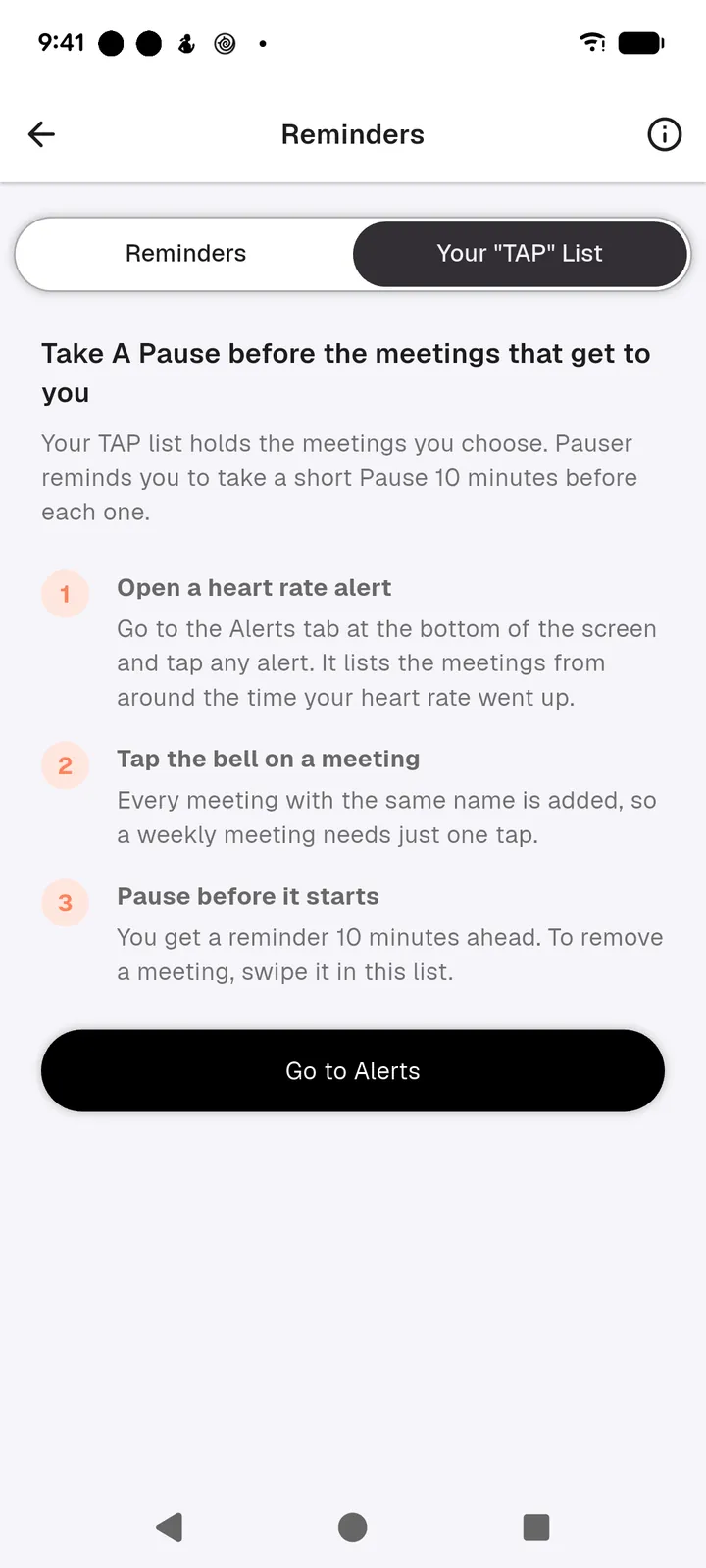
To remove a meeting: swipe it in the list, or tap its filled bell on an alert, then tap Yes on Removed from ‘Take-A-Pause’ list?.
The reminder: 10 minutes before the meeting, you get “Your Meeting Starts Soon: Take a short guided pause before your meeting begins.”
On an Android phone: the reminder needs the Alarms and Reminders permission. See the related article on that permission.
Good to know:
- The Add to ‘Take-A-Pause’ List? message says “This feature can remind you to ‘Take a Pause’ 5 min before similar events.” The reminder comes 10 minutes before the meeting.
- Pauser needs calendar access to see your meetings. See the related article on calendar access.
- Pauser shows meetings from the calendar accounts connected on your phone. If your Google, Outlook or other calendar isn’t showing, connect that account to your phone.
Some features depend on your plan. To see what yours includes, open the menu and tap the plan badge under your name.
Still stuck? Tap Support at the top of Home, or open the menu and tap Message us. You can also email support@pauser.health.
Related articles
Can I rename or delete a report?
Yes. In Reports, tap ⋮ next to a report and choose Rename or Delete.
To rename a report:
- Open the menu and tap Reports.
- Tap ⋮ next to the report, then Rename.
- In Rename File, type a New File Name.
- Tap Rename.
If the name is empty or another report already has it, Pauser says “File name cannot be empty” or “A file with this name already exists”.
To delete one report:
- Tap ⋮ next to the report, then Delete.
- Pauser asks if you’re sure. Tap Yes.
To delete all reports: tap the bin icon at the top of Reports. Pauser asks “Are you sure you want to delete all reports?”. Tap Yes.
Good to know:
- Deleting removes the report from Pauser. A copy you already downloaded or shared stays where it is.
- Deleted reports can’t be brought back, but you can create the same report again; it is built from the data in Pauser at that moment.
- Renaming changes the name you see in Reports and the file name the next time you share or download it.
Some features depend on your plan. To see what yours includes, open the menu and tap the plan badge under your name.
Still stuck? Tap Support at the top of Home, or open the menu and tap Message us. You can also email support@pauser.health.
Related articles
How often does my watch check my heart rate?
A Wear OS watch checks your heart rate every 30 seconds unless you change it, and you can pick from 30 seconds to 10 minutes. An Apple Watch has no setting in Pauser: Pauser uses the readings your Apple Watch takes on its own schedule.
On a Wear OS watch
In the background, the watch turns its heart rate sensor on for a few seconds, then waits for the time you set before the next check.
- Open Pauser on the watch and tap General Settings.
- Under HR check every, pick 30 sec, 1 min, 3 min, 5 min or 10 min.

On an Android phone: the same setting is HR Frequency in Alert Settings (open the Alerts tab and tap the settings (gear) icon). It offers 30 Sec, 1 Min, 3 Min, 5 Min and 10 Min. Changing it on the phone or the watch updates the other. Until you change it, the phone shows 1 Min while the watch checks every 30 seconds.
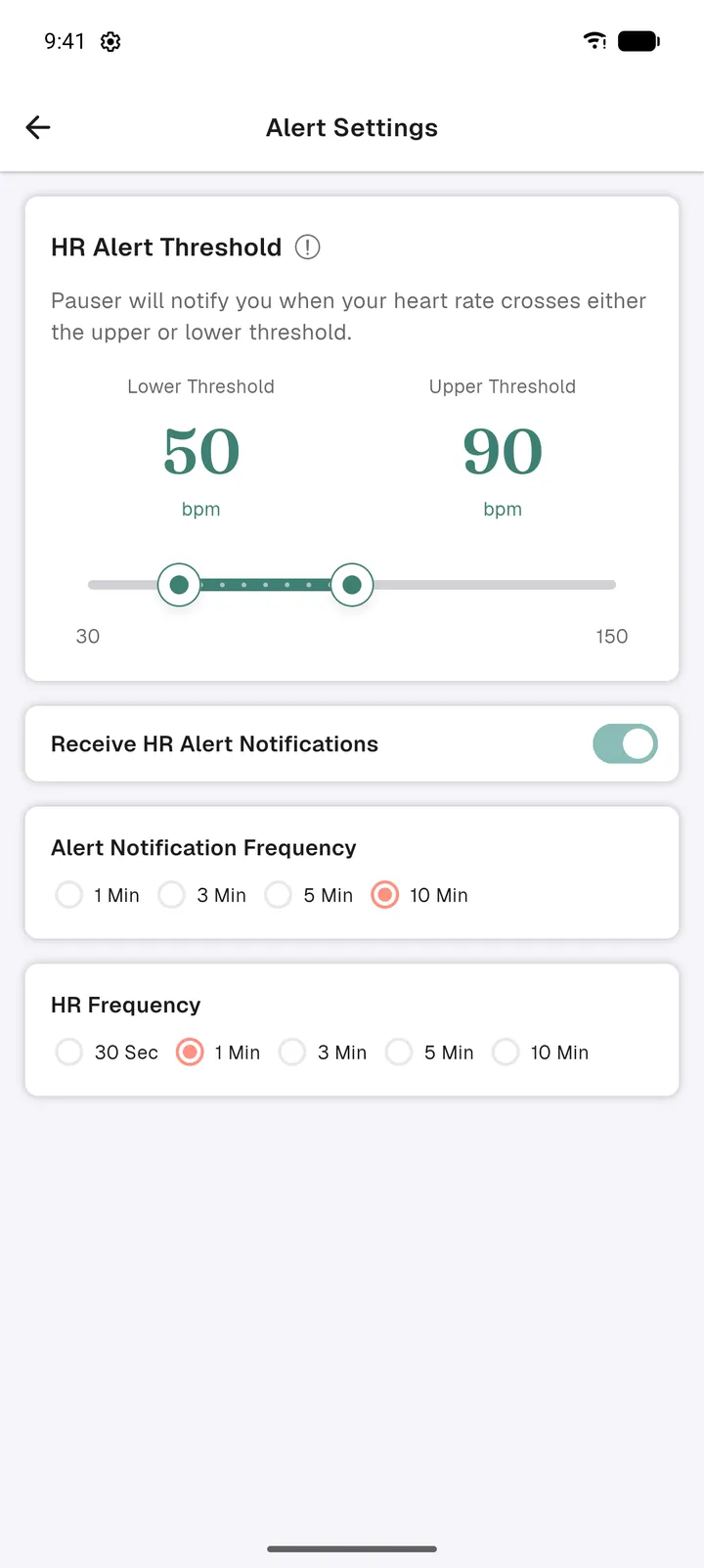
On an Apple Watch
Your Apple Watch decides how often it measures your heart rate in the background. Pauser checks each reading against your limits as it arrives.
Good to know
- Checking more often may help catch short changes, and may use more battery. A short rise between two checks can be missed.
- While Pauser is open on a Wear OS watch, the home screen reads your heart rate live.
- During an Activity Monitor or a Standing Check, the watch reads your heart rate continuously, whatever this setting says.
- A Wear OS watch skips checks while it is charging or off your wrist (see Why does my watch say “Wear watch snugly”?).
Still stuck? Tap Support at the top of Home, or open the menu and tap Message us. You can also email support@pauser.health.
Related articles
Why does my result say “Ended early” or “Incomplete”?
Ended early means you ended the check before the standing countdown finished, but Pauser still had both sitting and standing readings. Incomplete means Pauser is missing either the sitting or the standing reading, so it can’t work out a rise.
You see these labels in Standing check history and on a check’s details. A check without one shows Complete on its details.
Ended early. This happens when:
- You tapped I need to sit down · end test before the countdown finished.
Pauser keeps what it measured and notes Test ended early. The standing part was shorter than planned, so keep that in mind when you compare it with other checks.
Incomplete. This usually happens when:
- You didn’t tap I’m standing within 2 minutes of the prompt (see Why did it say I didn’t stand up?).
- The check was cut short before it had a sitting reading or a standing reading.
Good to know:
- If you go back during a check, Pauser asks End standing check? and says Your progress so far will not be saved. Its I need to sit down · end test button leaves without saving, so the attempt doesn’t appear in your history. While you’re standing, you can keep what was measured by tapping I need to sit down · end test on the check screen instead.
- On an Apple Watch, the result title says Ended early or Test not completed instead. A watch check that is closed during the standing part is saved without the Ended early label.
- If the watch stops its heart rate session, the connection to the watch is lost or an error stops a check while it is measuring, Pauser saves what it has. With both a sitting and a standing reading, the check shows Complete, even though the standing part was shorter. If heart rate stops arriving, the check keeps going until its countdown ends.
Some features depend on your plan. To see what yours includes, open the menu and tap the plan badge under your name.
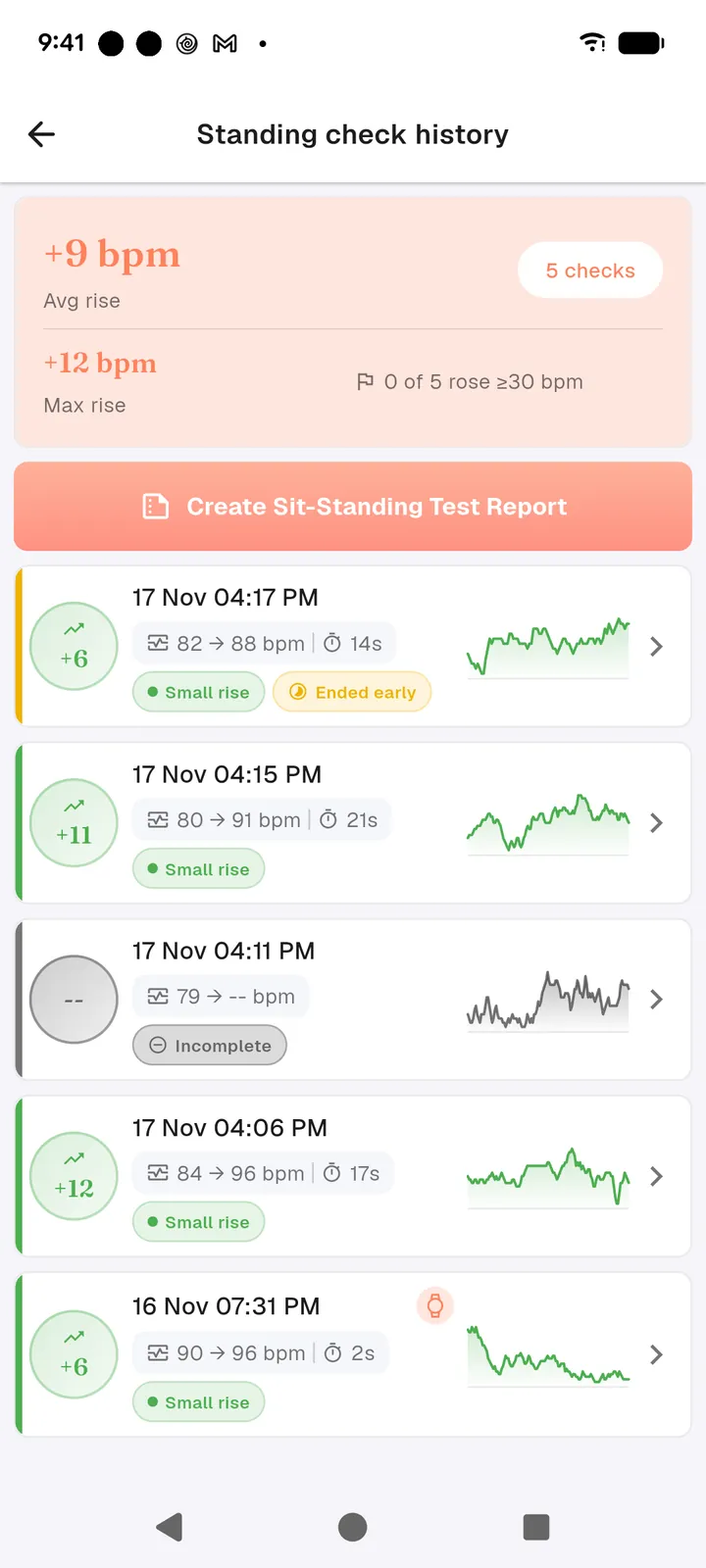
Still stuck? Tap Support at the top of Home, or open the menu and tap Message us. You can also email support@pauser.health.
Related articles
Can I switch between monthly and yearly?
Not from inside Pauser. Once you have a paid plan, the subscription page opens your plan’s page, which has no option to change plans and no Subscribe Now button.
What you can do:
- On your plan’s page, tap Cancel Subscription. It opens your Google Play or App Store subscriptions page, where your subscription is managed.
- If you cancel, your plan keeps working until its end date.
- After it ends, open the subscription page again, tap Subscribe Now and choose the other plan.
To open your plan’s page, open the menu and tap the plan badge under your name.
Good to know:
- The Cancel Subscription link appears only while your plan is set to renew.
- See How do I cancel my subscription? for the full steps.
Still stuck? Tap Support at the top of Home, or open the menu and tap Message us. You can also email support@pauser.health.
Related articles
How do I edit my profile and what I am managing?
Open the menu and tap your name or photo to open Profile. Change what you need, then tap Save changes.
- Open the menu (top left of Home).
- Tap your name or photo at the top.
- Edit any of these:
- About you: your name. (Your email can be added only if it is empty.)
- Wellness profile: age, weight and country.
- Conditions I’m managing: tap Manage (or Add conditions if none are picked), choose what you manage, then tap Done.
- Tap Save changes at the bottom.
If you go back without saving, Pauser shows Unsaved changes and lets you save or discard.
Profile photo: tap your photo, then choose Camera or Gallery. You can also view or remove the current photo there. Photos must be 5 MB or smaller.
Good to know:
- Adding POTS here switches Home to the POTS layout, and removing it switches back to the Personal layout. If POTS stays as it was, your layout choice is not changed. See What is the POTS layout, and how do I switch layouts?

Still stuck? Tap Support at the top of Home, or open the menu and tap Message us. You can also email support@pauser.health.
Related articles
Why does Pauser ask for camera, photo, calendar or location access?
Pauser asks for the camera and photos only so you can set a profile picture, and for your calendar so it can show your meetings alongside your Heart Rate Alerts. Pauser doesn’t ask for location access.
- Camera (iPhone): to take a profile photo. On an Android phone, Pauser opens your phone’s own camera app, so it doesn’t need its own camera permission.
- Photos (iPhone): to choose a profile picture. On an Android phone, the system photo picker opens without a permission request.
- Calendar: to show which meetings were around your Heart Rate Alerts, and for Your “TAP” List: tag a meeting and Pauser reminds you to take a Pause before similar meetings.
- Location: never requested. You tag the place you were on an alert yourself, such as Home or Work.
You can say no to any of these and still use the rest of Pauser. To review them later, open the menu and, under Settings, tap Permission Management.
Still stuck? Tap Support at the top of Home, or open the menu and tap Message us. You can also email support@pauser.health.
Related articles
How do I rearrange or hide cards on my Home screen?
Open Customize dashboard, then drag cards to reorder them and turn a card’s switch off to hide it. Changes apply straight away.
- On Home, tap the three dots at the top right, then tap Customize dashboard in the menu that opens.
- To move a card, drag it up or down by its handle (the two lines beside the switch).
- To hide a card, turn its switch off. Turn it on to show the card again.
You can also open Customize dashboard from the menu, or from the card at the bottom of Home.
Starting over with Reset
Reset puts Home back the way Pauser first set it up, for the layout you are editing.
- At the top of Customize dashboard, tap Reset.
- In the Reset dashboard? dialog, tap Reset to confirm, or Cancel to keep your layout.
- Dashboard reset. appears briefly at the bottom of the screen.
What Reset changes:
- Your cards go back to Pauser’s standard order for this layout.
- Every card you hid is shown again.
What Reset keeps:
- Everything you have logged. No readings, alerts, medicines or other entries are deleted.
- Your layout choice. If you use the POTS layout, you stay on it.
- The other layout’s arrangement. Resetting the POTS layout doesn’t touch the Personal layout, and the other way round.
Reset can’t be undone, but you can drag and hide cards again at any time.
Good to know:
- The badge at the top shows which layout you are editing, POTS layout or Personal layout. Each keeps its own order and hidden cards.
- You must keep at least one card on Home.
- Some cards only appear once you have something to show.
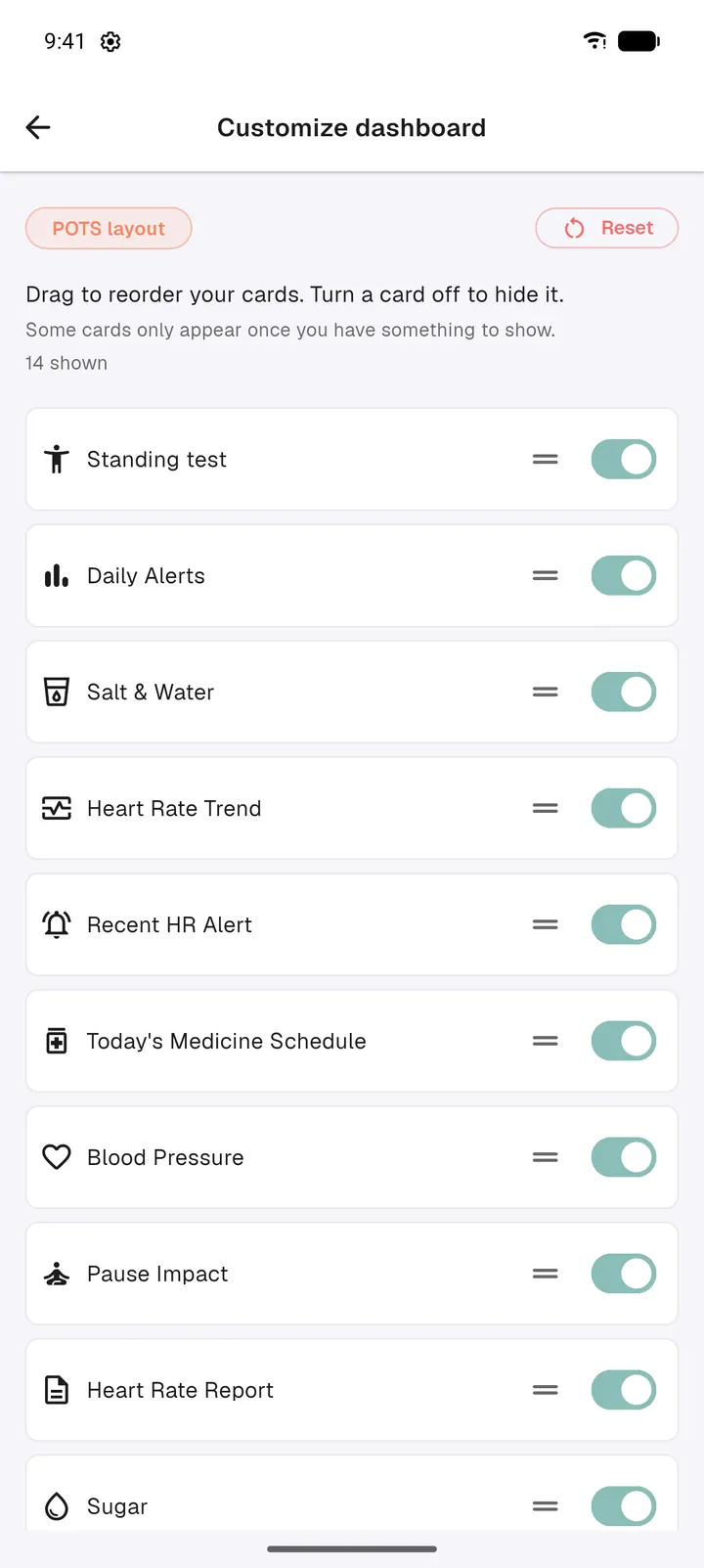
Still stuck? Tap Support at the top of Home, or open the menu and tap Message us. You can also email support@pauser.health.
Related articles
Can I use a Fitbit, Garmin, Samsung or other watch?
Yes, for your data: if your watch’s app saves heart rate to Health Connect (Android phone) or Apple Health (iPhone), Pauser reads it. Heart Rate Alert notifications work differently on each phone.
On an Android phone: heart rate from any watch that syncs to Health Connect shows in your charts and history. Pauser checks it against your alert limits when you open Pauser, and readings outside your limits are added to your alert history. Pauser does not send a Heart Rate Alert notification for them. Notifications on Android come only from the Pauser app on a Wear OS watch.
On iPhone: heart rate from any device that saves to Apple Health is read by Pauser, and Apple Health can wake Pauser in the background when new heart rate arrives. A reading outside your limits can then raise a Heart Rate Alert notification, usually a few minutes after it was measured.
Good to know:
- Make sure your watch’s own app is set to share heart rate with Health Connect or Apple Health. Check this in that app’s settings.
- On Android, while a Pauser Wear OS watch is set up, Pauser takes heart rate from it and skips heart rate from Health Connect.
- See “Which watches work with Pauser?” for the Pauser watch apps.
Still stuck? Tap Support at the top of Home, or open the menu and tap Message us. You can also email support@pauser.health.
Related articles
Can I get alerts when my heart rate is low?
Yes. Pauser alerts you when a heart rate reading is at or below your lower limit, the left handle on the HR Alert Threshold slider. On a Wear OS watch, the reading has to be below the limit.
In Alert Settings, Pauser says: “Pauser will notify you when your heart rate crosses either the upper or lower threshold.”
To set your lower limit
- Open the Alerts tab and tap the settings (gear) icon.
- Drag the left handle on HR Alert Threshold to set your Lower Threshold.
- Let go to save.
What a low alert looks like
On your phone it has the same Heart Rate Alert title as a high one, and reads like this: “48 bpm at 07:15 AM, below your limit of 50 bpm. Take a pause.”
Good to know
- A reading exactly at your lower limit counts on iPhone, on Apple Watch and for Health Connect readings. With a lower limit of 50 bpm, a reading of 50 bpm raises a low alert there. A Wear OS watch alerts only below your limit: 49 bpm raises a low alert, 50 bpm does not.
- One reading is enough, just like a high alert (see Does my heart rate have to stay high before I get an alert?).
- In the Alerts tab, tap Low in the Day view to see only low alerts.
- On an Android phone and a Wear OS watch, high and low alerts share one wait before the next alert. On iPhone and Apple Watch each has its own (see How often can alerts repeat?).
- On a Wear OS watch or Apple Watch, set the lower limit in General Settings (see How do I change alert settings on my watch?).
Pauser shares wellness insights, not medical advice. If you have questions about your readings or how you feel, talk to your clinician.
Still stuck? Tap Support at the top of Home, or open the menu and tap Message us. You can also email support@pauser.health.
Related articles
Where do I see my App Usage History?
There’s no menu item or button for App Usage History. It opens only when you tap a Pauser notification, or a link in a Pauser message, that leads to it.
For your app use day to day, use the Screen Time card on the Insights tab instead. It shows your last 7 days, your daily average and your most-used apps.
If you do open App Usage History, it lists the app use Pauser has recorded on this phone, newest first, with each app’s name and time.

Good to know:
- App use is recorded only on an Android phone, and only after you give Pauser usage access. See What does Screen time in Insights show?
- An app can appear more than once in the list, because each recorded stretch of use is its own line.
Still stuck? Tap Support at the top of Home, or open the menu and tap Message us. You can also email support@pauser.health.
Related articles
How do I log an as-needed medicine?
Tap Take now next to the medicine on the Today’s Medicine Schedule card on Home. Pauser records it at the current time and adds it to today’s count.
First, the medicine has to be set up as As needed (see “How do I add a medicine and its reminders?”).
From Home (1 tap):
- On Home, find the Today’s Medicine Schedule card.
- Tap Take now next to the medicine.
The line under its name changes from Not logged yet today to Taken today with the number of times, for example “Taken today (2)”.
From Medicines (to see, add or remove times):
- Open the menu and tap Medicines.
- On the medicine’s card, tap Log Medicine.
- Tap Take now for the current time, or Add a time to pick an earlier time.
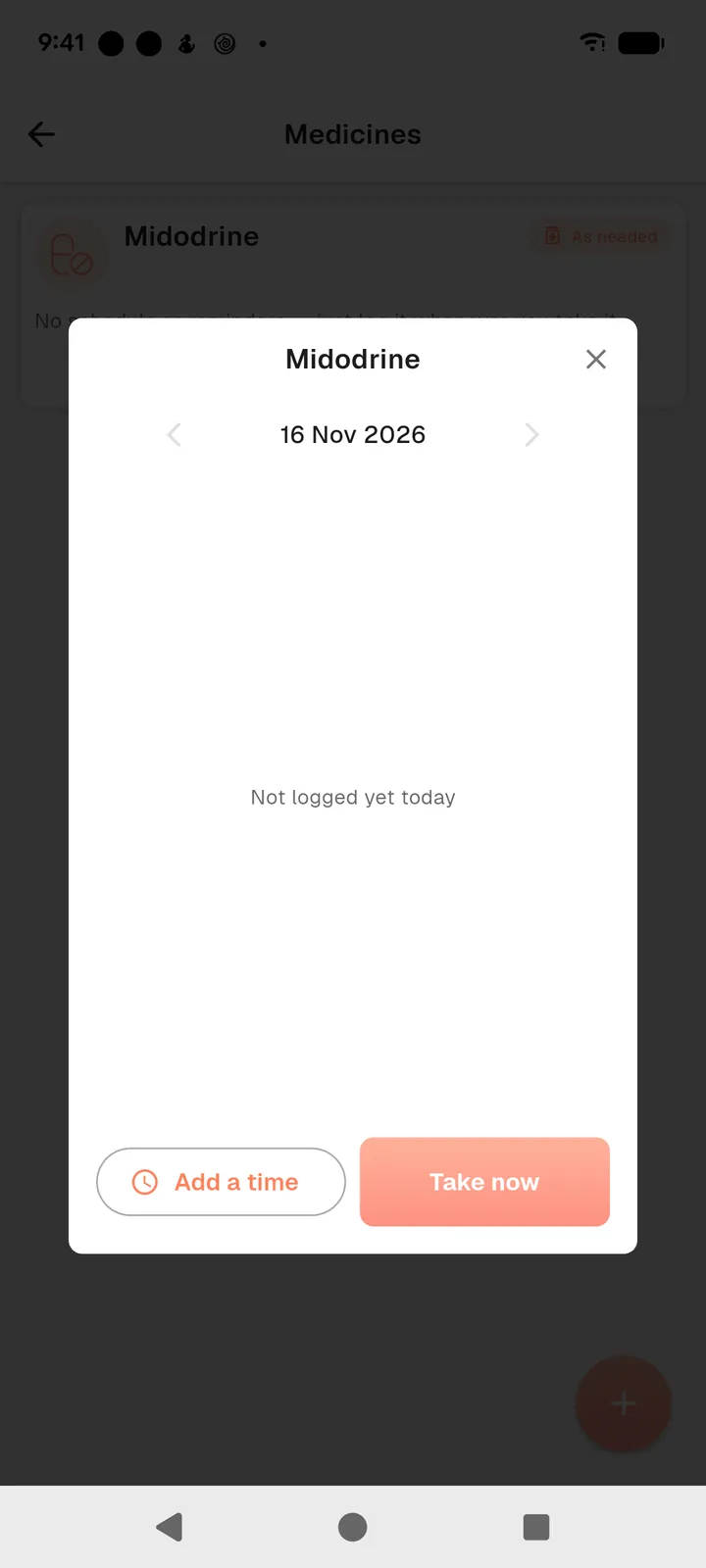
- Each entry shows as “Taken at” and its time. Tap the × next to one to remove it.
Every change here is saved right away, and Pauser shows “Medicine logged successfully”.
Good to know:
- Times are saved to the minute, so two taps within the same minute count once.
- As-needed medicines never send reminders.
Some features depend on your plan. To see what yours includes, open the menu and tap the plan badge under your name.
Still stuck? Tap Support at the top of Home, or open the menu and tap Message us. You can also email support@pauser.health.
Related articles
Can Pauser track heat or weather, my menstrual cycle, or how long I stand each day?
Not at the moment. Pauser doesn’t record the weather, track your cycle, or count how long you spend standing.
What does work today:
- Tag a Heart Rate Alert with what may have set it off. If you’ve told Pauser you’re managing POTS, the POTS tab of causes includes Heat exposure, Period / cycle and Long standing.
- Anyone can add their own causes under My Causes, or from Custom cause in the menu.
- To see how your heart rate responds when you stand up, try a Standing Check.
If you’d like this, tell us: tap Support at the top of Home, or open the menu and tap Message us.
Related articles
Where can I see my past Pauses?
Your past Pauses are in Pause History. Open it from the history icon at the top of the Pause tab.
- Tap Pause at the bottom of the screen.
- Tap the history icon (a clock with a curved arrow) at the top right. Pause History opens.
- Tap any session to see its details.

You can also open it from Insights: under Your Logs and History, tap Pause.
Good to know:
- The list shows breathing, Prana Flow and meditation sessions together, newest first.
- A session’s details show its heart rate (when Pauser had your watch’s heart rate during it) and, for breathing, your breath cycles.
- Some heart rate details may show a lock, depending on your plan. See Why are some heart rate numbers locked after a Pause?
- Some features depend on your plan. To see what yours includes, open the menu and tap the plan badge under your name.
Still stuck? Tap Support at the top of Home, or open the menu and tap Message us. You can also email support@pauser.health.
Related articles
Why does Pauser ask for calendar access?
Pauser reads the calendar on your phone to show which meetings were around the time of a Heart Rate Alert, and to build your TAP list of meetings you want a Pause reminder before. Calendar access is optional: everything else in Pauser works without it.
Pauser asks when you open Your “TAP” List from the menu. You can also turn it on later:
- Open the menu.
- Under Settings, tap Permission Management.
- Turn on Access to Phone Calendar.
If you refused before, Pauser shows Permission Required: “Calendar permission is required to sync your meetings and show your TAP list. Please enable it from app settings.” Tap Allow to open your phone’s settings for Pauser and turn calendar access on there.
Good to know:
- While access is off, the TAP list says Calendar access is off, with an Allow calendar access button, and no meetings appear on it.
- Your alerts won’t list meetings either until access is on.
- For how the TAP list works, see the related article on TAP Meetings.

Still stuck? Tap Support at the top of Home, or open the menu and tap Message us. You can also email support@pauser.health.
Related articles
Are my reports stored online?
No. The report PDF is created and kept on your phone, inside Pauser. It leaves your phone only when you share or download it.
When you tap Generate, Pauser does send its server a short note about the report: its name, its start and end dates, and which of the heart rate, alert, Pause, Activity Monitor and Standing Test sections you picked. The PDF itself and the readings in it are not sent.
To keep a copy safe:
- Download or share the report (see “How do I download or share a report?”).
- Or make a backup: a backup file made with Backup & Restore includes your saved reports, and restoring it brings them back.
Good to know:
- If you delete Pauser from your phone, its saved reports are removed with it, unless you downloaded them or have a backup file.
- Restoring a backup replaces the reports currently in Pauser with the ones in the backup.
- Reports you delete in Pauser are gone from your phone; there is no online copy to recover.
Still stuck? Tap Support at the top of Home, or open the menu and tap Message us. You can also email support@pauser.health.
Related articles
What happens when my watch is away from my phone?
Your Pauser watch app keeps working on its own: it keeps measuring and can still buzz you with a Heart Rate Alert. What waits is getting that data to your phone, which happens once they are connected again.
On a Wear OS watch:
- The watch decides on alerts itself, so a Heart Rate Alert can still appear on your wrist.
- Heart rate readings are kept on the watch and sent to Pauser on your phone after they reconnect, with the watch’s next heart rate check.
- Alert check-ins, Standing Check results and steps are sent as soon as the phone is reachable again.
- Alerts on your Android phone only come from readings it has received, so your phone will not show an alert while the watch is away.
- Your Android phone shows a notification, Heart rate tracking stopped, when it loses the connection to your watch, and Heart rate tracking resumed when the watch connects again.
On an Apple Watch:
- The watch checks your heart rate against your limits itself, so alerts can still appear on your wrist.
- Breathing sessions and alert tags you make on the watch are queued and delivered to your iPhone later.
Good to know:
- The Wear OS watch itself does not show a message when it loses your phone (see Will my Wear OS watch tell me when it loses the connection to my phone?). If your charts have a gap, bring the watch near the phone and open Pauser on the phone.
Still stuck? Tap Support at the top of Home, or open the menu and tap Message us. You can also email support@pauser.health.
Related articles
Why couldn’t the Standing Check get my heart rate?
No heart rate reading arrived from the Pauser app on your watch within about 30 seconds of starting. Check that the watch is snug on your wrist, has the Pauser app, and is connected to your phone, then try again.
On your phone you see We couldn’t get a heart rate from your watch. Please try again. Tap Try again to start over with the same times.
- On iPhone: before showing this, Pauser also looks in Apple Health for readings your Apple Watch recorded but hadn’t sent yet.
- On an Android phone: if heart rate access is off on your Wear OS watch, you see Heart rate access is off on your watch, so the Standing Check can’t measure. Allow it on your watch to start. Tap Allow on watch and allow it on the watch. The check then starts again.
On a Wear OS watch you see We couldn’t detect your heart rate. Make sure the watch is snug and try again. Tap Retry or Cancel.
On an Apple Watch you see No heart rate and a reminder to make sure the watch is snug on your wrist. Tap Close, then start again.
Things to check:
- Wear the watch snugly, on your wrist, for the whole check.
- Make sure the Pauser watch app is set up and connected (see Why does Pauser say “We don’t see a watch”?).
What gets saved:
- A check started on your phone or Apple Watch that never got a first reading isn’t saved. One started on a Wear OS watch may appear in your history as Incomplete.
- If heart rate stops arriving partway through a check you started on your phone, the check keeps going until its countdown ends, then Pauser saves what it measured. It is saved like a complete check, or as Incomplete if it is missing the sitting or the standing part (see Why does my result say “Ended early” or “Incomplete”?).
Some features depend on your plan. To see what yours includes, open the menu and tap the plan badge under your name.

Still stuck? Tap Support at the top of Home, or open the menu and tap Message us. You can also email support@pauser.health.
Related articles
I subscribed on iPhone. Will it work on Android?
Yes. A subscription bought on one platform unlocks the same Pauser account on the other, so sign in with that account on your Android phone (or iPhone) and your plan is there.
Good to know:
- Your plan is linked to your Pauser account, not to the phone. Don’t buy it again on the other phone: when you already have a paid plan, the subscription page shows your plan instead of the purchase options.
- To cancel or manage it, use the store you paid with. The Cancel Subscription link in Pauser always opens the store of the phone you are holding: the App Store on iPhone, Google Play on Android.
- Continue with Apple appears only on iPhone. If you created your account with Apple, the Android sign-in screen does not offer that option.
- Your logs are stored on the phone and are not part of your plan, so they do not move with it.
Still stuck? Tap Support at the top of Home, or open the menu and tap Message us. You can also email support@pauser.health.
Related articles
Can support give me medical advice?
No. Our support team can help with using Pauser, such as your account, your subscription or how a feature works, but we are not able to offer medical guidance.
We’re happy to help with questions like:
- How a Heart Rate Alert, Standing Check or report works.
- Where to find something in the app.
- Why a reading or a sync looks wrong in Pauser.
- Your plan, purchases and account.
Questions about what your readings mean for you, your medicines or how you feel are best taken to your clinician. A Pauser report can be a useful way to share what you’ve logged with them. If you need help urgently, contact your local emergency number.
Pauser shares wellness insights, not medical advice. If you have questions about your readings or how you feel, talk to your clinician.
Still stuck? Tap Support at the top of Home, or open the menu and tap Message us. You can also email support@pauser.health.
Related articles
What happens to my data when I log out?
Logging out clears Pauser’s data from your phone, and Pauser’s server does not keep a copy of your logs, so it can’t be brought back by signing in again. If you want to keep it, make a backup first; data comes back only from a backup file.
Before you log out:
- Open the menu (top left of Home).
- Under Plan & review, tap Backup & Restore and back up your data.
You can also open it from Home: tap More (the three dots), then Settings, then Backup & Restore Data. This is the Settings the log out message mentions. Some features depend on your plan. To see what yours includes, open the menu and tap the plan badge under your name.
To log out:
- Open the menu and tap Logout at the bottom.
- Pauser asks “Are you sure you want to logout?” and lists data you will lose, including HR Alert history, Breathing and Meditation analysis and graphs, Mood check-in history and Heart rate monitoring session data.

- Tap Yes to log out, or No to stay signed in.
Good to know:
- You need an internet connection to log out. Offline, Pauser shows No internet connection with Retry and Cancel.
- After logging out, you return to the Sign in to Pauser screen.
- Your subscription is not affected. It stays with your account.
Still stuck? Tap Support at the top of Home, or open the menu and tap Message us. You can also email support@pauser.health.
Related articles
Where can I read the privacy policy and terms?
Open the menu and, under Learn & support, tap About Pauser. The Privacy Policy and Terms Of Use links are on that screen.
- Open the menu.
- Under Learn & support, tap About Pauser.
- Tap Privacy Policy or Terms Of Use. The page opens from the web, so you need an internet connection.
You can also read them on the web at any time:
- Privacy Policy: https://pauser.health/privacy-policy
- Terms of Use: https://pauser.health/terms-of-use
The same links also appear when you create your account.
Still stuck? Tap Support at the top of Home, or open the menu and tap Message us. You can also email support@pauser.health.
Related articles
Can Pauser restore my data from the cloud after I reinstall?
Not at the moment. Signing in again doesn’t bring your data back; it returns only from a backup file you made earlier.
What does work today: make a backup in Backup & Restore (under Plan & review in the menu), keep the file somewhere off your phone, such as cloud storage or iCloud Drive, and use Restore Data after you sign in on the new install.
Some features depend on your plan. To see what yours includes, open the menu and tap the plan badge under your name.
If you’d like this, tell us: tap Support at the top of Home, or open the menu and tap Message us.
Related articles
Why are my steps different from another app?
Pauser counts steps from one source at a time and reads them only when it syncs, so its total can differ from your watch app or the Health app. The difference is usually about which device’s steps are counted.
On an Android phone:
- With a Pauser Wear OS watch set up: Pauser counts only the steps from that watch. Steps taken while you were not wearing it are not counted, even if your phone or another app recorded them.
- Without a Pauser watch: Pauser reads steps from Health Connect. For each day, it uses the one app or device that recorded the most step entries, and does not add other sources on top.
On iPhone: Pauser reads steps from Apple Health for the last 7 days and adds up the step entries it finds. The Health app has its own way of combining iPhone and Apple Watch steps, so the totals may not match exactly.
Good to know:
- Pauser picks up new steps when it syncs, so today’s count can lag until you open Pauser again. See “How often does Pauser sync with Health Connect or Apple Health?”
- Different apps can use different rules for the same steps. Neither number is wrong; they are counted differently.
Still stuck? Tap Support at the top of Home, or open the menu and tap Message us. You can also email support@pauser.health.
Related articles
How do I turn alert notifications off or back on?
Use the Receive HR Alert Notifications switch in Alert Settings. When your watch is connected, the same setting is shared with the watch, so changing it in one place changes it on both.
On your phone
- Open the Alerts tab and tap the settings (gear) icon. You can also open the menu and tap HR Alerts.
- Turn Receive HR Alert Notifications off or on.
On a Wear OS watch
- On the watch’s Pauser home screen, tap General Settings.
- Turn HR alerts off or on.

On Apple Watch
- Open Pauser and swipe to General Settings.
- Turn Alert off or on.
Good to know
- With notifications off, Pauser still records readings outside your limits in the Alerts tab. It just does not notify you.
- If notifications stay silent after you turn them back on, check that notifications for Pauser are allowed in your phone’s or watch’s own settings.
Still stuck? Tap Support at the top of Home, or open the menu and tap Message us. You can also email support@pauser.health.
Related articles
Can I log a dose I took earlier?
Yes. In Medicines, tap Log Medicine on the medicine’s card, move to the day you want with the arrows (or tap the date), and log it there. You can go back as far as the medicine’s start date, but not into the future.
For a scheduled medicine:
- Open the menu and tap Medicines.
- On the medicine’s card, tap Log Medicine.
- Tap the left arrow beside the date, or tap the date and pick a day.
- Tick the times you took it, then tap Update.

Pauser records the scheduled times you tick, not the exact minute.
For an as-needed medicine:
- Open Log Medicine for it as above.
- Choose the day with the arrows or by tapping the date.
- Tap Add a time and pick when you took it. It saves straight away.
Good to know:
- An as-needed medicine with no start date can only be logged for today. To log earlier days, edit the medicine and give it a start date on or before that day.
- Take now on Home always uses the current time.
- If a medicine’s end date has passed, Log Medicine opens on its end date.
Some features depend on your plan. To see what yours includes, open the menu and tap the plan badge under your name.
Still stuck? Tap Support at the top of Home, or open the menu and tap Message us. You can also email support@pauser.health.
Related articles
Why are some heart rate numbers locked after a Pause?
Detailed heart rate after a Pause depends on your plan. When your plan doesn’t include it, some numbers show a lock instead of a value.
On a session’s details, when this detail is locked:
- Start and End heart rate still show.
- Low and Avg show a lock.
- The heart rate graph and the breathing-cycle card are covered.
- The list of readings shows the first 3, with the rest covered.
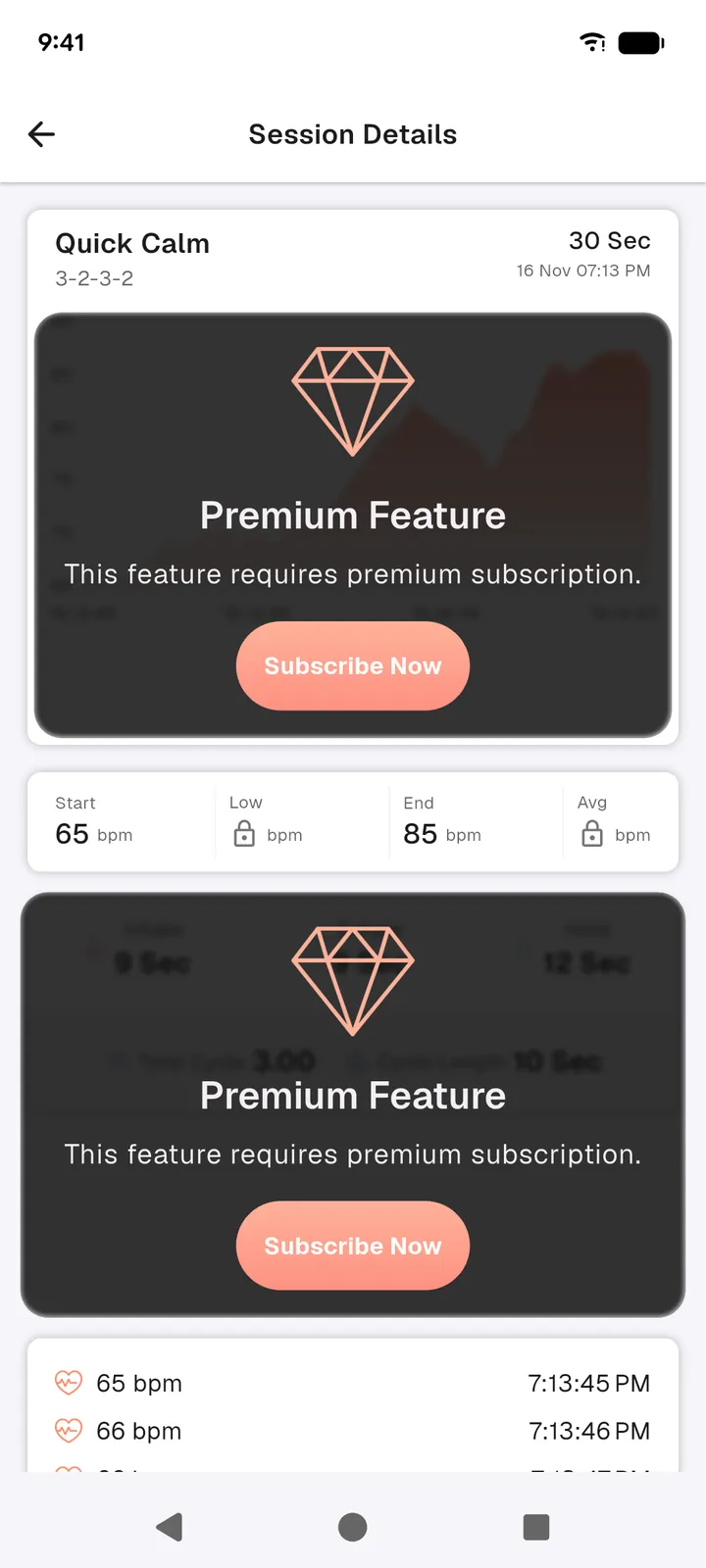
On Pause History, each card’s graph and some of its values can be locked in the same way.
Tap a padlock to see what’s needed. The message offers Subscribe or Cancel.
Good to know:
- Your Pause itself is always saved. The lock only covers how much heart rate detail you see.
- Some features depend on your plan. To see what yours includes, open the menu and tap the plan badge under your name.
Still stuck? Tap Support at the top of Home, or open the menu and tap Message us. You can also email support@pauser.health.
Related articles
Where do I see past notifications, and how do I clear them?
Your Pauser notifications are on the Notifications screen. Open it from the three-dot More menu at the top of Home.
- Tap Home at the bottom of the screen.
- Tap the three dots at the top right. A dot next to Notifications means you have unread ones.
- Tap Notifications.
To clear them, tap the three dots on the Notifications screen, then:
- Mark All As Read to keep them but mark them read, or
- Clear All to delete them all.

Clear All deletes straight away, with no confirmation, and can’t be undone. When the list is empty, you see “You are all caught up…”.
Good to know:
- This list holds messages from Pauser, such as notices and Pause nudges. It isn’t a copy of every notification on your phone.
- Your Heart Rate Alerts are on the Alerts tab, not here.
Still stuck? Tap Support at the top of Home, or open the menu and tap Message us. You can also email support@pauser.health.
Related articles
Why can’t I see the Share or Download button?
The share and download buttons on a report’s preview only appear when your plan includes the report preview. If it doesn’t, the buttons are hidden and the preview is locked.
What to check:
- Look at your plan: open the menu and tap the plan badge under your name.
- If your plan was just upgraded, the buttons appear on their own once Pauser has your updated plan.
- If you’re looking in Reports, the Share and Download options are under ⋮ next to each report, not at the top of the screen.
Good to know:
- If the buttons are there but nothing happens, the report may still be building. Pauser says “Please wait while report is generated”. Wait for the preview to finish loading, then try again.
- When your plan doesn’t include reports, the + button and the bin icon in Reports are hidden too, and a lock panel covers the screen.
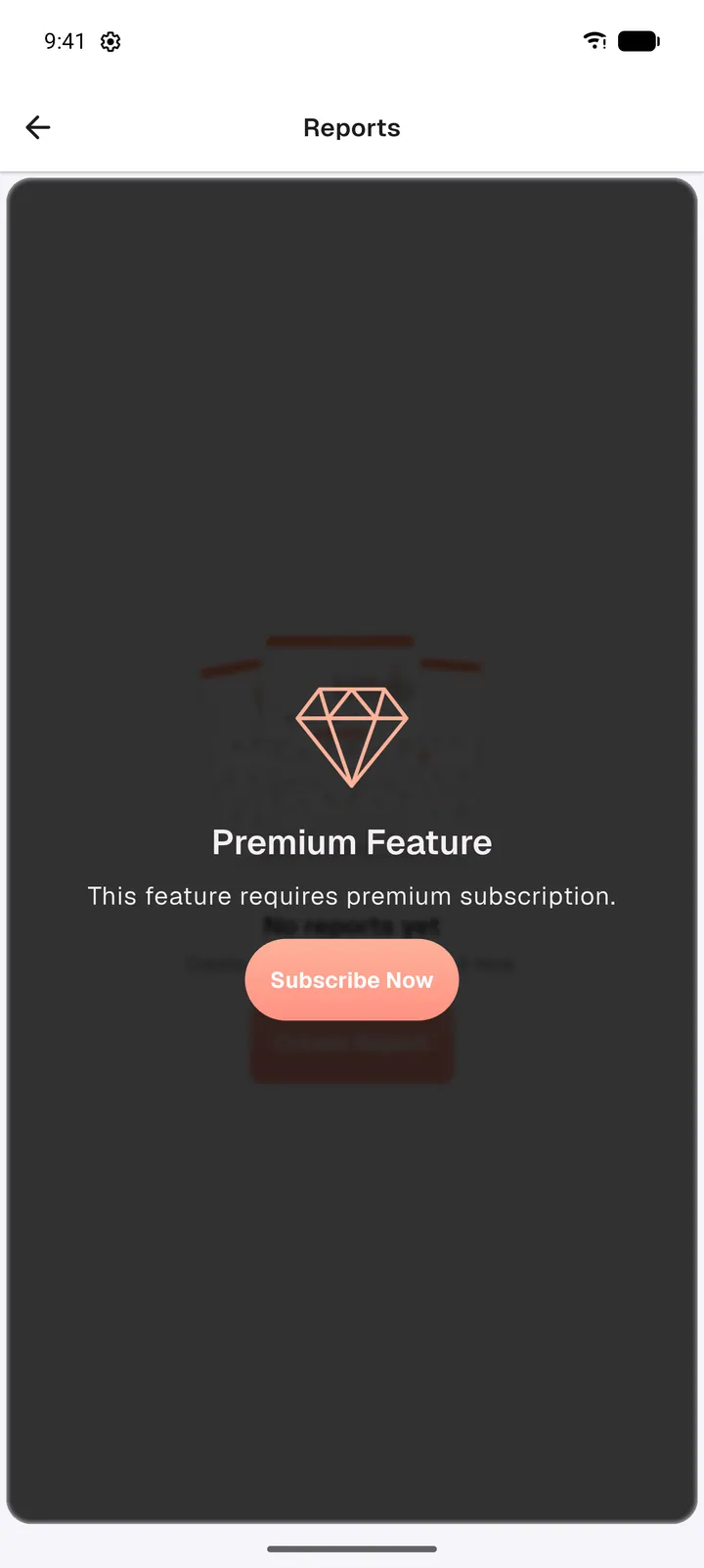
Some features depend on your plan. To see what yours includes, open the menu and tap the plan badge under your name.
Still stuck? Tap Support at the top of Home, or open the menu and tap Message us. You can also email support@pauser.health.
Related articles
What is the Pauser icon on my Wear OS watch face?
The small Pauser heart icon on your watch face means Pauser is checking your heart rate in the background. Leave it running: these checks are what keep your Heart Rate Alerts working.
While the icon is there, Pauser:
- checks your heart rate regularly, even when the Pauser app is closed
- sends you a Heart Rate Alert on your watch and your Android phone when your heart rate goes outside your limits
- sends your readings to Pauser on your phone
If background checks stop, you lose all three until they start again: no alerts on your watch or phone, and no new readings from your watch on your phone.

To see your latest reading:
- Tap the Pauser icon on the watch face. If other apps are also running something, your watch may show a list first. Tap Pauser in it.
- Pauser shows your latest heart rate. Tap Open App to open Pauser.

Good to know:
- Getting too many alerts? You don’t need to stop anything. Change your limits, or turn off HR alerts in General Settings on the watch. Pauser keeps measuring, but the watch stops alerting you.
- “–” instead of a number means Pauser has no reading yet, for example while the watch is charging or off your wrist.
- If the icon is gone, background checks have stopped. Open Pauser on your watch to start them again. They also start again when the watch restarts or when Pauser updates. If your phone is connected and you’re signed in, Pauser on your phone can also restart them during its regular background task, which Android runs about every 15 minutes or later.
Still stuck? Tap Support at the top of Home, or open the menu and tap Message us. You can also email support@pauser.health.
Related articles
Why did it say I didn’t stand up?
Pauser doesn’t sense your movement. It knows you stood up only when you tap I’m standing, and if that tap doesn’t come within 2 minutes of Stand up now, the check stops.
On your phone you see We didn’t detect that you stood up, so this check didn’t finish. Tap Try again to start over with the same times. The attempt is kept in your history as Incomplete.
On a Wear OS watch you see a message that the test was not completed because you didn’t confirm standing in time. Tap Retry or Cancel.
On an Apple Watch the result is titled Test not completed.
To avoid it:
- When Stand up now appears, stand up, then tap I’m standing as soon as you are upright.
- Keep the phone or watch where you can reach it while you stand.
- On an Apple Watch, the watch taps your wrist when it’s time to stand.
Some features depend on your plan. To see what yours includes, open the menu and tap the plan badge under your name.
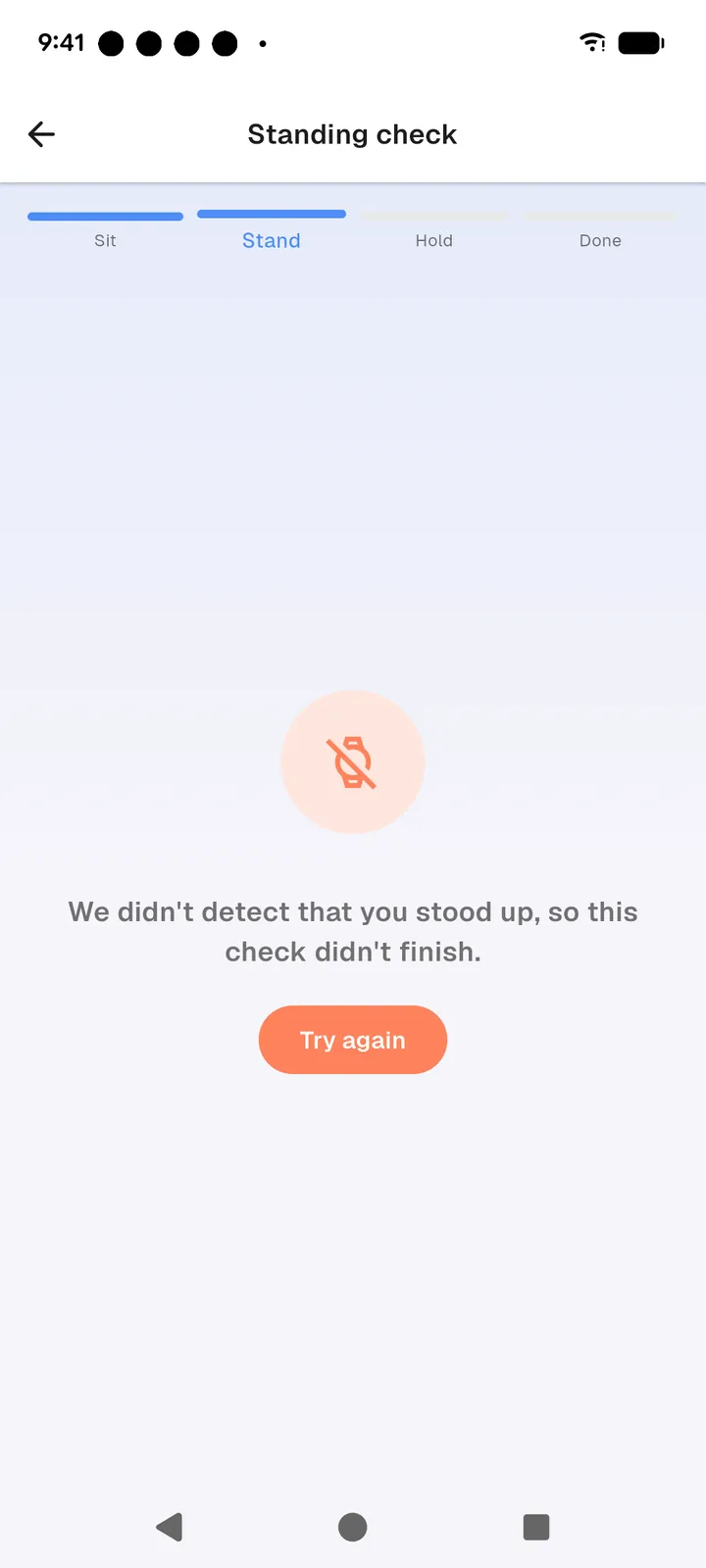
Still stuck? Tap Support at the top of Home, or open the menu and tap Message us. You can also email support@pauser.health.
Related articles
Why does my purchase say “Awaiting approval”?
The App Store is waiting for someone to approve the purchase, usually the family organizer when Ask to Buy is on. You have not been charged yet, and Pauser shows “Your purchase is awaiting approval. We’ll unlock your plan once it’s approved.”
What to do:
- Ask the person who approves purchases to approve it.
- Once the purchase is approved, close Pauser fully and open it again while you are online. Your plan doesn’t unlock while Pauser stays open.
- Open the menu and tap the plan badge under your name to check your plan.
When Pauser starts, it checks your App Store purchase and links it to your account. If it still isn’t showing, close Pauser fully and open it once more.
Good to know:
- This message appears on iPhone only.
Still stuck? Tap Support at the top of Home, or open the menu and tap Message us. You can also email support@pauser.health.
Related articles
How do I delete my account?
Open Profile, tap the three-dot menu at the top right, then tap Remove Account and confirm with Yes. You need an internet connection, and a subscription that is set to renew must be cancelled first.
- Open the menu (top left of Home).
- Tap your name or photo at the top to open Profile.
- Tap the three dots at the top right.
- Tap Remove Account.
- Read the Remove Account? message. It says you will permanently lose your account, along with your HR Alert history, Breathing and Meditation analysis and graphs, Mood check-in history and Heart rate monitoring session data.
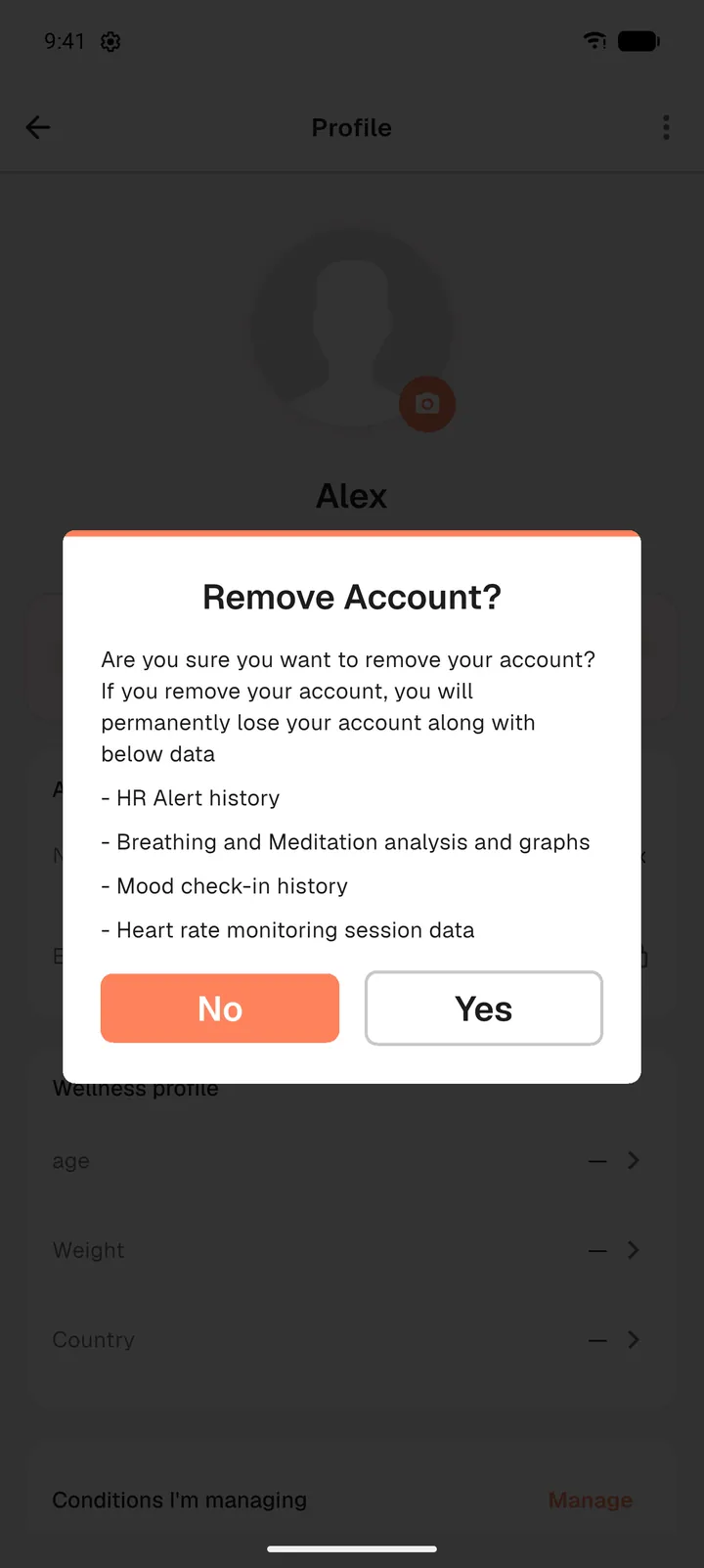
- Tap Yes to remove your account, or No to keep it.
After you tap Yes, Pauser clears its data from your phone and returns you to the Sign in to Pauser screen.
Good to know:
- If your subscription is on auto renew, Pauser stops you and asks you to cancel it first. See Why can’t I delete my account?
- Offline, Pauser closes the message and shows a network error instead. Connect and try again.
- If you want to keep a copy of your logs, make a backup from Backup & Restore in the menu before you start.
Still stuck? Tap Support at the top of Home, or open the menu and tap Message us. You can also email support@pauser.health.
Related articles
Why is my sleep missing or split up?
Pauser shows sleep that another app or device saved to Health Connect or Apple Health, so if Pauser cannot read sleep or nothing was saved, you see No sleep data yet. A night can look split when there is a long gap in the records.

If sleep is missing on an Android phone:
- If you see “Allow Pauser to read your sleep to see it here.”, tap Allow.
- If Health Connect does not ask, open Health Connect, tap App permissions, select Pauser and turn on Sleep.
- Check that your watch or sleep app saves sleep to Health Connect.
If sleep is missing on iPhone:
- If you see “Make sure you’ve allowed Pauser to read Sleep in Apple Health.”, tap Allow.
- Or open the Health app, tap your profile picture, then under Privacy tap Apps, tap Pauser and turn on Sleep.
- Check that your Apple Watch or sleep app saves sleep to Apple Health.
Why a night can be split:
- Records from the same app that are more than 2 hours apart count as separate sleeps.
- Sleep from two different apps is never merged, so the same night can show twice, once per app.
- A sleep belongs to the day it ended, so a nap and the night before can sit on the same day.
- A single record longer than 24 hours is ignored.
Good to know:
- New sleep arrives when Pauser syncs. See “How often does Pauser sync with Health Connect or Apple Health?”
- Some features depend on your plan. To see what yours includes, open the menu and tap the plan badge under your name.
Still stuck? Tap Support at the top of Home, or open the menu and tap Message us. You can also email support@pauser.health.
Related articles
How do I tag what may have caused an alert?
Open the alert, tap Add Cause, Note & Mood, pick a cause and tap Done. Tagging alerts over time may help you notice what tends to come before them.
- Open the Alerts tab.
- Tap the alert you want to tag. Alert Analysis opens.
- Tap Add Cause, Note & Mood.

- On Select a cause/trigger, choose a tab: POTS (shown, and first, if you told Pauser you are managing POTS), My Causes, General, Work or Socials.
- Tap a cause.
- If you like, pick a mood under How are you feeling? and type under Add Note.
- Tap Done.

Shortcut: in the alert list, tap Add Cause on the right of an alert to open the same screen.
Good to know
- A cause is required. Without one, Pauser shows Please Select Cause.
- To change a tag, open the alert again and tap the cause card.
- You can also tag from your watch.
Some features depend on your plan. To see what yours includes, open the menu and tap the plan badge under your name.
Still stuck? Tap Support at the top of Home, or open the menu and tap Message us. You can also email support@pauser.health.
Related articles
What are the POTS medicine shortcuts?
They are name shortcuts on the Add Medicine screen: tap one and Pauser fills in the Medicine Name for you. They only save typing; they are not suggestions, and they don’t add an amount, a schedule or reminders.
You’ll see them if your Home uses the POTS layout, or if you chose POTS under “What are you managing these days?”.
To use them:
- On Add Medicine, tap Common POTS meds next to Medicine Name.
- In Common POTS medications, tap a name.

- Finish the rest of the form as usual.
You can also start typing a name: matching shortcuts appear under the field.
The list:
- Fludrocortisone (Florinef)
- Midodrine
- Propranolol
- Metoprolol
- Ivabradine
- Pyridostigmine (Mestinon)
- Droxidopa (Northera)
- Desmopressin (DDAVP)
- Clonidine
- Low Dose Naltrexone (LDN)
Good to know:
- You can still type any name you like, including ones not on the list.
- After you pick a shortcut you can edit the name before saving.
Some features depend on your plan. To see what yours includes, open the menu and tap the plan badge under your name.
Still stuck? Tap Support at the top of Home, or open the menu and tap Message us. You can also email support@pauser.health.
Related articles
How do I change alert settings on my watch?
Open General Settings in Pauser on your watch. There you can turn alerts on or off, set your upper and lower heart rate limits, choose how long Pauser waits before alerting you again and, on a Wear OS watch, how often it checks your heart rate.
On a Wear OS watch:
- Open Pauser on the watch and tap General Settings.
- Use the HR alerts switch to turn alerts on or off.
- With alerts on, under HR thresholds, tap Upper or Lower and pick a value from 30 to 150 bpm.
- With alerts on, under Alert every, pick 1 min, 3 min, 5 min or 10 min.
- Under HR check every, pick 30 sec, 1 min, 3 min, 5 min or 10 min. This sets how often the watch checks your heart rate in the background, 30 seconds unless you change it (see How often does my watch check my heart rate?). This setting is there whether HR alerts is on or off.
On an Apple Watch:
- Open Pauser on the watch and swipe to the page with General Settings, then tap it.
- Use the Alert switch to turn alert notifications on or off.
- Under Frequency, pick 1 Min, 3 Mins, 5 Mins or 10 Mins.
- Under Heart Rate, tap Upper Threshold (60 to 149 bpm) or Lower Threshold (30 to 129 bpm) and pick a value.
Good to know:
- The upper limit must stay above the lower limit. If you pick a value that breaks this, the watch shows a short message and keeps your old value.
- If no limits have been set yet, the watch starts at 90 bpm (upper) and 50 bpm (lower).
- An Apple Watch has no heart rate check setting. It measures on its own schedule (see How often does my watch check my heart rate?).
- Changes you make on the watch are sent to Pauser on your phone. You can also change these settings on your phone: open the menu and, under Settings, tap HR Alerts.
- The alert frequency is the shortest gap between two alerts. Readings that cross your limit during that gap do not send another alert.
Still stuck? Tap Support at the top of Home, or open the menu and tap Message us. You can also email support@pauser.health.
Related articles
What does “You stood a little after the prompt” mean?
It means more than 45 seconds passed between Stand up now appearing and your tap on I’m standing. Pauser still saves the check, and adds the note You stood a little after the prompt, so this result may understate your response.
Why it matters: the standing part of the check starts from your tap. If you stood up well before tapping, part of the change after standing happened before Pauser started counting it.
Where you see the note:
- On your phone: on the result screen right after a check you started on the phone.

- On a Wear OS watch: on the result, as a note starting Low confidence.
- On an Apple Watch: the watch doesn’t show it, but the result still records the late stand.
To avoid it, tap I’m standing as soon as you are upright.
Some features depend on your plan. To see what yours includes, open the menu and tap the plan badge under your name.
Pauser shares wellness insights, not medical advice. If you have questions about your readings or how you feel, talk to your clinician.
Still stuck? Tap Support at the top of Home, or open the menu and tap Message us. You can also email support@pauser.health.
Related articles
Why does it say “Purchase not completed” or “Service unavailable”?
Both mean the purchase did not go through, so try again in a moment. Purchase not completed means the store did not finish the payment and you have not been charged; Service unavailable means Pauser could not reach Google Play or the App Store.
Purchase not completed (Android phone): the payment was declined or closed before it finished. Tap Subscribe Now and try again.
Service unavailable: “The store is unavailable right now. Please try again in a moment.” If the subscription page itself shows “Service Not available”, the store could not be reached when the page opened. Close the page and open it again later.
Other messages you may see:
- You’re offline: there is no internet connection. Connect and try again.
- Purchase didn’t start (Android phone): the store window did not open. Try again in a moment.
- On iPhone, if the App Store reports an error, Pauser shows the store’s message in a box with an Ok button. If you closed the App Store window yourself, nothing is shown.
If you were charged but your plan isn’t showing, see I paid but my subscription isn’t showing. What should I do?
Still stuck? Tap Support at the top of Home, or open the menu and tap Message us. You can also email support@pauser.health.
Related articles
Why can’t I delete my account?
Pauser won’t remove an account while its subscription is set to renew, so you aren’t charged again after the account is gone. Cancel the subscription first, then try again.
When this happens, Pauser shows a Subscription message: “Your subscription is on Auto Renew, please cancel your subscription to stop future payment before removing your account”.
- Open the menu and tap the plan badge under your name.
- Tap Cancel Subscription and finish cancelling in Google Play or the App Store. See How do I cancel my subscription?
- Return to Pauser. Your plan’s page refreshes and should say “Your membership will end on” with a date.
- Open Profile, tap the three dots, then Remove Account again.
The other reason is no internet connection. Pauser then closes the message and shows a network error. Connect and try again.
Good to know:
- If you subscribed on the other platform (iPhone or Android), cancel from that platform’s store.
- If the message still appears after cancelling, close Pauser fully and open it again while online, so it picks up the change.
Still stuck? Tap Support at the top of Home, or open the menu and tap Message us. You can also email support@pauser.health.
Related articles
Does Pauser send my vitals to Apple Health or Health Connect?
Yes, for four vitals. When you add blood pressure, blood glucose, blood oxygen or water in Pauser, it also saves a copy to Health Connect on an Android phone or Apple Health on iPhone.
What gets copied:
- Blood pressure
- Blood glucose (in mg/dL)
- Blood oxygen
- Water
Other entries, such as salt, stay in Pauser only. Pauser never writes heart rate.
Good to know:
- If you edit an entry in Pauser, Pauser replaces the copy in Health Connect or Apple Health. If you delete it in Pauser, the copy is removed too.
- Pauser needs write access for each vital. If you did not allow it, your entry is still saved in Pauser, just not copied. See “Which health data does Pauser read and write?”
- You add vitals from Bio vitals in the menu.
Still stuck? Tap Support at the top of Home, or open the menu and tap Message us. You can also email support@pauser.health.
Related articles
What are the POTS triggers in the tag list?
The POTS tab lists eight triggers people often note: Heat exposure, Period / cycle, Alcohol, Long standing, Travel / flying, Poor sleep, Skipped meal and Missed medication. Pick one when you tag an alert to keep a record of what was going on.
When the POTS tab shows
On your phone: the POTS tab appears, as the first tab, when you chose POTS / Dysautonomia for What are you managing these days?. You can change this later in your Profile. If an alert already has a POTS trigger, the tab also shows when you edit that alert.
On Apple Watch: the POTS list shows, first, when your phone tells the watch you are managing POTS.
On a Wear OS watch: the POTS list shows for everyone.
Good to know
- If none of these fit, add your own cause under My Causes.
- A trigger is a note you add. Pauser does not decide what caused an alert.
Some features depend on your plan. To see what yours includes, open the menu and tap the plan badge under your name.
Pauser shares wellness insights, not medical advice. If you have questions about your readings or how you feel, talk to your clinician.
Still stuck? Tap Support at the top of Home, or open the menu and tap Message us. You can also email support@pauser.health.
Related articles
Why can’t I log my medicine yet?
The medicine’s start date is still in the future. Pauser only lets you log a medicine from its Medicine Start Date onward, and shows “Oops! It looks like your medicine schedule hasn’t started yet” with the date you can start.
To log it now:
- Open the menu and tap Medicines.
- Tap the medicine to open Edit Medicine.
- Change Medicine Start Date to today or earlier.
- Tap Update.
- Tap Log Medicine again.
If Log Medicine opens but shows no times: the day shown is not one of the medicine’s days. Move to another day with the arrows, or edit the medicine’s Days.
Good to know:
- When a medicine’s end date has passed, Log Medicine opens on its last day, and you can’t move past it.
- You can’t log for days in the future.
Some features depend on your plan. To see what yours includes, open the menu and tap the plan badge under your name.
Still stuck? Tap Support at the top of Home, or open the menu and tap Message us. You can also email support@pauser.health.
Related articles
How do I tag an alert from my watch?
Tap the Heart Rate Alert notification on your watch, pick what you were doing, and tap Submit. It takes about three taps, and Pauser then offers a short breathing Pause.
On a Wear OS watch:
- Tap the Heart Rate Alert notification.
- Pauser asks What were you doing at the time of the alert. Pick a cause you use often under Most used, or open a category such as POTS, General, Work or Socials and pick from there.
- Tap Submit. You’ll see Activity logged.
- Pauser asks Do you want to take a Quick Pause? Tap Yes for a 30-second Quick Calm, or swipe away to skip.

On an Apple Watch:
- Tap the Heart Rate Alert notification, or its Tag Alert button.
- Under Select a cause/trigger, pick a category, such as POTS or General, then a cause.
- Tap Submit.
- Pauser asks Do you want to take a quick pause? Tap Yes or No.
Good to know:
- This screen only opens from a watch Heart Rate Alert.
- Your choice is sent to Pauser on your phone. If the alert already has a cause there, Pauser keeps the one you set.
- On Android, the tag shows on the alert when you next open the Alerts tab on your phone.
Still stuck? Tap Support at the top of Home, or open the menu and tap Message us. You can also email support@pauser.health.
Related articles
Why can’t I start a Standing Check right now?
Usually because an Activity Monitor session is running. Only one heart rate session can run on your watch at a time, so Pauser shows Finish the active Activity Monitor before starting a standing check.
What to do: finish or stop the Activity Monitor session on the Monitor tab, then start the Standing Check again.
On an Apple Watch: if another Pauser session is already running on the watch, you see One at a time and Finish your current session first, then start a Standing Check. Tap Close, end the other session, and try again.
If the Standing Check screen opens locked: the Standing Check may not be part of your plan. Some features depend on your plan. To see what yours includes, open the menu and tap the plan badge under your name.
If the check starts but stops at Connecting to your watch…, see Why couldn’t the Standing Check get my heart rate?
Still stuck? Tap Support at the top of Home, or open the menu and tap Message us. You can also email support@pauser.health.
Related articles
Why is a screen locked with a Subscribe Now button?
That screen is not part of your current plan, or your plan has ended. Pauser shows a panel over it with a short description and a button, usually Subscribe Now, that opens the subscription page.
Some features depend on your plan. To see what yours includes, open the menu and tap the plan badge under your name.
What to do:
- Tap the button on the panel to see the subscription options.
- If you already pay for a plan that should include this screen, close Pauser fully and open it again while you are online, so it can refresh your plan.
Good to know:
- The panel’s title and text come from Pauser’s server, so the wording can differ between screens and over time.
- The lock only covers the screen. It does not delete anything you logged.
- A screen that says “Something went wrong” with a Retry button, or “This feature is temporarily not available”, is a different problem. See Why does a screen say “Something went wrong, Please Retry or reopen the app”? and Why does a screen say “This feature is temporarily not available”?
Still stuck? Tap Support at the top of Home, or open the menu and tap Message us. You can also email support@pauser.health.
Related articles
Does Pauser tell me which battery settings to change so alerts and reminders arrive on time?
Not at the moment. Pauser doesn’t check your phone’s or watch’s battery-saving settings, or show steps for changing them.
What does work today: open the menu and, under Settings, tap Permission Management to check that notifications, alarms and health access are allowed. If alerts or reminders still seem late, look in your phone’s or watch’s own battery settings for Pauser, and allow it to run in the background.
If you’d like this, tell us: tap Support at the top of Home, or open the menu and tap Message us.
Related articles
How do I write a letter to Pauser’s CEO?
Touch and hold the Pauser app icon on your home screen, then tap Write to CEO. This shortcut is the only way to open it; it isn’t in Pauser’s menu.
- Touch and hold the Pauser icon on your phone’s home screen.
- Tap Write to CEO in the list that appears.
- Pauser opens. Tap Start Writing.
- On Write a letter to our CEO, type your message.
- Tap Share message.
Pauser shows Thanks for writing when your letter has been sent.
Good to know:
- The shortcut works on both Android phones and iPhone. It appears after you have opened Pauser at least once.
- You need to be signed in and finished with setup. Otherwise the shortcut just opens Pauser.
- A letter can be up to 2000 characters; the counter under the box shows how many you have used.
- You need an internet connection to send it. If sending fails, your text stays on the screen so you can try again.
- The same shortcut list also offers Start a Pause, Log a Trigger and View Weekly Report.
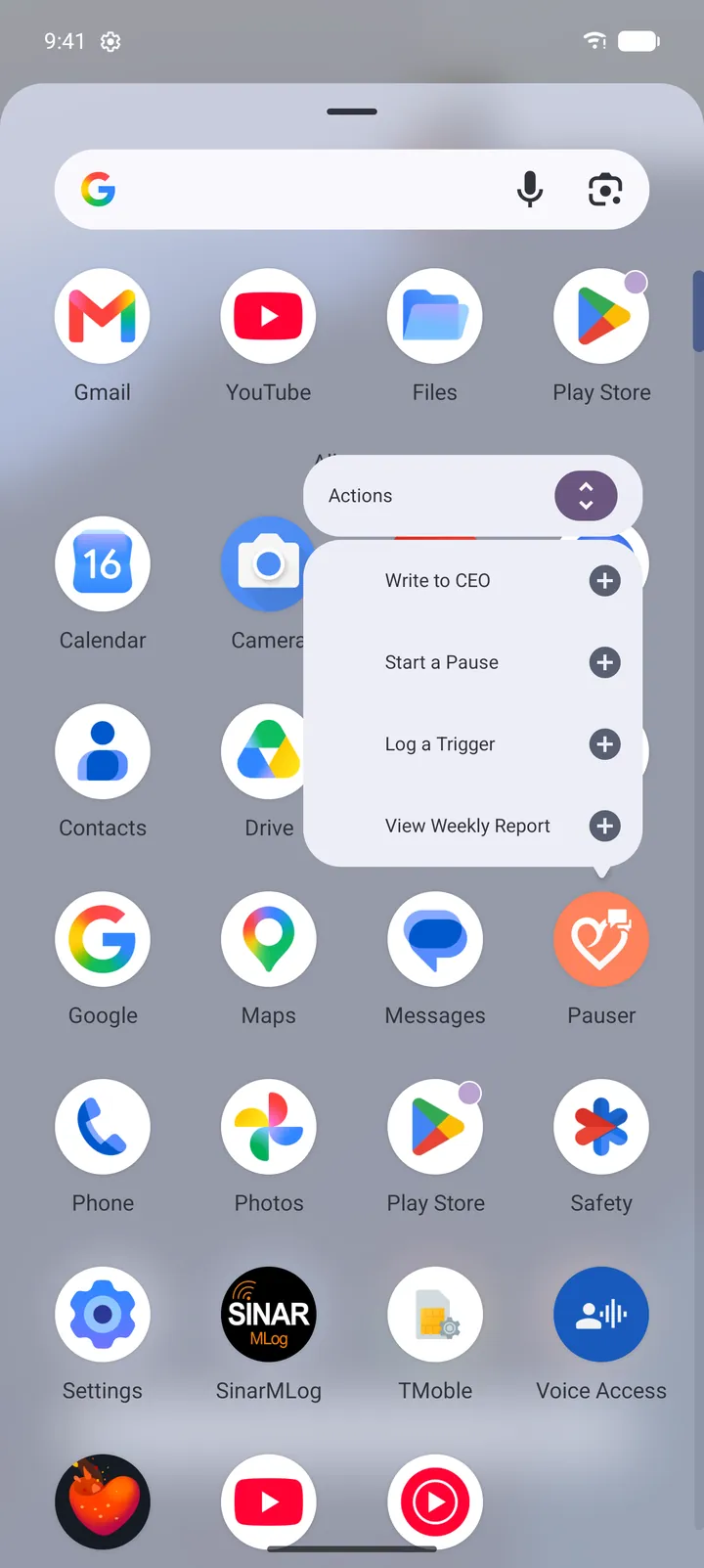
Still stuck? Tap Support at the top of Home, or open the menu and tap Message us. You can also email support@pauser.health.
Why do I see a workout I didn’t add, or not see one I did?
Pauser copies workouts from Health Connect or Apple Health, whichever app recorded them. So a workout your watch or another fitness app saved shows in Pauser too, and a workout that never reached Health Connect or Apple Health does not.
A workout you didn’t add: it came from another app or device that saves workouts to Health Connect or Apple Health, such as your watch’s own workout app. If a Heart Rate Alert happened during that workout and has no cause yet, Pauser tags the alert with the workout’s activity.
A workout you can’t find:
- Check that the workout is in Health Connect or Apple Health. If it isn’t there, Pauser cannot see it.
- Make sure Pauser is allowed to read workouts (exercise) there. See “How do I connect Health Connect?” or “How do I give Pauser access to Apple Health?”
- Open the menu and, under Manage & log, tap Activity. This opens Activity History, and opening it checks for new workouts.
Good to know:
- The first time Pauser syncs workouts, it reaches back up to a year. After that, it rechecks the last 30 days, so a workout added later with an earlier date still comes in.
- The same workout is never added twice.
- Some features depend on your plan. To see what yours includes, open the menu and tap the plan badge under your name.
Still stuck? Tap Support at the top of Home, or open the menu and tap Message us. You can also email support@pauser.health.
Related articles
How do I add my own cause?
Open the menu, tap Custom cause, then tap Add Custom Cause, type a name and tap Add Cause. Your cause then appears under My Causes whenever you tag an alert.
- Open the menu.
- Under Manage & log, tap Custom cause.
- Tap Add Custom Cause at the bottom.
- Type a name and tap Add Cause.

You can also add one while tagging: on the My Causes tab of Select a cause/trigger, tap Add Cause.
Good to know
- Each name can be added once. A name you already have shows Cannot add existing cause.
- To remove a cause, tap the delete icon next to it on Add Custom Cause, then confirm.
- On Apple Watch: your own causes show under My Causes when you tag an alert on the watch.
- On a Wear OS watch: your own causes are not on the watch. Tag with them on your phone.
Some features depend on your plan. To see what yours includes, open the menu and tap the plan badge under your name.
Still stuck? Tap Support at the top of Home, or open the menu and tap Message us. You can also email support@pauser.health.
Related articles
What happens when I delete a medicine?
Its reminders stop, and it disappears from Medicines, the Today’s Medicine Schedule card on Home, and the Medicines section of any new report. There is no undo, so if you only want to pause a medicine, consider turning its reminders off or setting an end date instead.
To delete a medicine:
- Open the menu and tap Medicines.
- Swipe the medicine’s card to the left, or tap it and tap the bin icon at the top of Edit Medicine.
- Pauser asks: “Are you sure you want to delete this medicine? This will also turn off its reminders.”
- Tap Delete. You’ll see “Medicine deleted”.
Good to know:
- Its Medicine history can no longer be opened, because the medicine is no longer listed.
- Reports you already created and saved don’t change.
- Times you logged before deleting it can still be counted in the medicine chart in Compare & Correlate.
- To track the same medicine again, add it as a new medicine. Its earlier logs won’t show under the new one.
Some features depend on your plan. To see what yours includes, open the menu and tap the plan badge under your name.
Still stuck? Tap Support at the top of Home, or open the menu and tap Message us. You can also email support@pauser.health.
Related articles
Can I take a Pause from my watch?
Yes. Both watch apps offer guided breathing: a quick 30-second Quick Calm, or a full session where you pick a focus, a pattern and a length. Meditation is on the phone only.
On a Wear OS watch:
- For a short reset, tap Quick Calm on Pauser’s home screen.
- For a full session, tap Breathing, pick a focus, choose a pattern, pick the minutes and tap Start.

On an Apple Watch:
- Tap Quick Calm on the first page.
- For a full session, swipe to Breathing Techniques, pick a category, then a technique and a length.
Good to know:
- Breathing sessions you finish on the watch are sent to Pauser on your phone.
- After you tag a Heart Rate Alert on the watch, Pauser offers a Quick Pause straight away.
Still stuck? Tap Support at the top of Home, or open the menu and tap Message us. You can also email support@pauser.health.
Related articles
Will my Wear OS watch tell me when it loses the connection to my phone?
Not at the moment. The Pauser app on your Wear OS watch doesn’t show a message when it loses the connection to your phone.
What does work today: your Android phone shows a notification, Heart rate tracking stopped, saying “Pauser lost the connection to your watch. Check Bluetooth and keep your watch nearby.” When the watch connects again, you see Heart rate tracking resumed. The watch keeps checking your heart rate on its own and can still show Heart Rate Alerts while it’s apart from the phone.
If you’d like this, tell us: tap Support at the top of Home, or open the menu and tap Message us.
Related articles
Where can I see my past Standing Checks?
Open Standing check history. It lists your most recent checks, newest first, including ones you ran on your watch.
To open it:
- POTS layout: on the Standing test card on Home, tap the history (clock) icon, or History.
- Personal layout: open the menu and tap Sit-Stand history under Manage & log.
What you see:
- A summary at the top with your Avg rise, Max rise and the number of checks.
- A Create Sit-Standing Test Report button (see How do I share my Standing Check results with my clinician?).
- One row per check, with its date and numbers. Rows that didn’t finish normally show Ended early or Incomplete (see Why does my result say “Ended early” or “Incomplete”?).
Tap a check to see its details, including a graph of your heart rate during the check. Checks from your watch are marked Recorded from watch. On the details screen you can also turn Add to report on or off.
Good to know:
- The list shows up to your 50 most recent checks.
- If you have none yet, it says No standing checks yet.
Some features depend on your plan. To see what yours includes, open the menu and tap the plan badge under your name.
Pauser shares wellness insights, not medical advice. If you have questions about your readings or how you feel, talk to your clinician.
Still stuck? Tap Support at the top of Home, or open the menu and tap Message us. You can also email support@pauser.health.
Related articles
Why does Pauser ask me to turn on Background App Refresh?
On iPhone, Pauser checks Apple Health for new heart rate while it is in the background, so it can send a Heart Rate Alert. With Background App Refresh off, iOS may wake Pauser less often, so alerts can come late.
When it is off, Alert Settings shows: “Heart-rate alerts work best with Background App Refresh on. Open iOS Settings to enable it.”
- Open the menu. Under Settings, tap HR Alerts.
- On Alert Settings, tap Open Settings in the banner. iOS opens Pauser’s page in Settings.
- Turn on Background App Refresh.
- Go back to Pauser. The banner is gone the next time you open Alert Settings.
Good to know:
- The banner shows only on iPhone, and only when iOS reports Background App Refresh as off or not allowed for Pauser.
- Even with it on, a delay of a few minutes between a reading and its alert is normal. See “How often does Pauser sync with Health Connect or Apple Health?”
Still stuck? Tap Support at the top of Home, or open the menu and tap Message us. You can also email support@pauser.health.
Related articles
How do I tag where I was during an alert?
Open the alert, tap Add locations, pick a place and tap Done. Pauser comes with Home and Work, and you can add your own places.
- Open the Alerts tab and tap the alert.
- On Alert Analysis, scroll to the location card and tap Add locations.
- On Select a location, tap a place.
- To add a new one, type it in Name this location at the bottom and tap Add.
- Tap Done.
Once tagged, the card shows Location : Home (or the place you chose). Tap it to change the place.
Good to know
- You can keep up to 15 places of your own. The sheet shows how many you have used.
- Your own places can be renamed or deleted with the icons next to them. Home and Work cannot be changed.
- Deleting a place does not remove it from alerts you already tagged with it.
- Pauser does not record your GPS position. Some alerts recorded by older versions of Pauser may still show a Recorded Location card with a saved map position.
Some features depend on your plan. To see what yours includes, open the menu and tap the plan badge under your name.
Still stuck? Tap Support at the top of Home, or open the menu and tap Message us. You can also email support@pauser.health.
Related articles
Why does my watch say “No reminders yet”?
The watch only shows reminders you set up in Pauser on your phone, and it shows this when none have reached it yet. You can’t add or edit reminders on the watch.
- On your phone, open the menu and, under Plan & review, tap Reminders.
- Add a reminder, or check the ones you have. Pauser sends reminders to your watch after you save one.
- If you see Sync Reminder With Watch, tap it. You’ll see Reminders synced to watch when it works.
- Open the reminders on your watch again.
Good to know:
- If Pauser says the watch is not connected, make sure the watch is nearby and connected, then try again. You can check from Watch Setup.
Still stuck? Tap Support at the top of Home, or open the menu and tap Message us. You can also email support@pauser.health.
Related articles
How do I share my Standing Check results with my clinician?
Create a Sit Standing Test Report from your Standing Check history, then tap Export & share to send it as a PDF. You can cover the last 7, 14 or 30 days.
- Open Standing check history (see Where can I see my past Standing Checks?).
- Tap Create Sit-Standing Test Report.
- The report opens on 7 days and builds a preview. Tap 14 days or 30 days to cover more.
- Tap Export & share, then pick how to send it, for example email or a messaging app.
Choosing which checks go in: every check is included unless you turn it off.
- On the phone, use Add to report on the result screen or on a check’s details.
- On a Wear OS watch, answer No to Add this to your doctor report? to leave a check out.
- A Wear OS check that stopped before a result (no heart rate, no stand in time, or you left the check) is left out until you turn Add to report on.
Good to know:
- If the period has no checks to include, the report screen says No standing checks yet and there’s nothing to share.
- Exporting may depend on your plan, even when you can see the preview.
Some features depend on your plan. To see what yours includes, open the menu and tap the plan badge under your name.
Pauser shares wellness insights, not medical advice. If you have questions about your readings or how you feel, talk to your clinician.
Still stuck? Tap Support at the top of Home, or open the menu and tap Message us. You can also email support@pauser.health.
Related articles
How do I archive or delete an alert?
To archive, open the alert and tap Archive at the bottom; to delete, press and hold the alert in a list and tap Delete. Archiving moves an alert aside, while deleting removes it from your history.
Archive an alert
- Open the Alerts tab and tap the alert.
- Scroll to the bottom of Alert Analysis and tap Archive.
- If you like, pick a reason: Sports, Physical Activity, Walking or Running.
- Tap Yes.

To find archived alerts, tap the archive icon at the top of the Alerts tab to open Archived Alerts. To bring one back, open it and tap Unarchive, then Yes.
Delete an alert
- In the Alerts tab, HR Alert History or Archived Alerts, press and hold the alert.
- On Delete alert?, tap Delete.
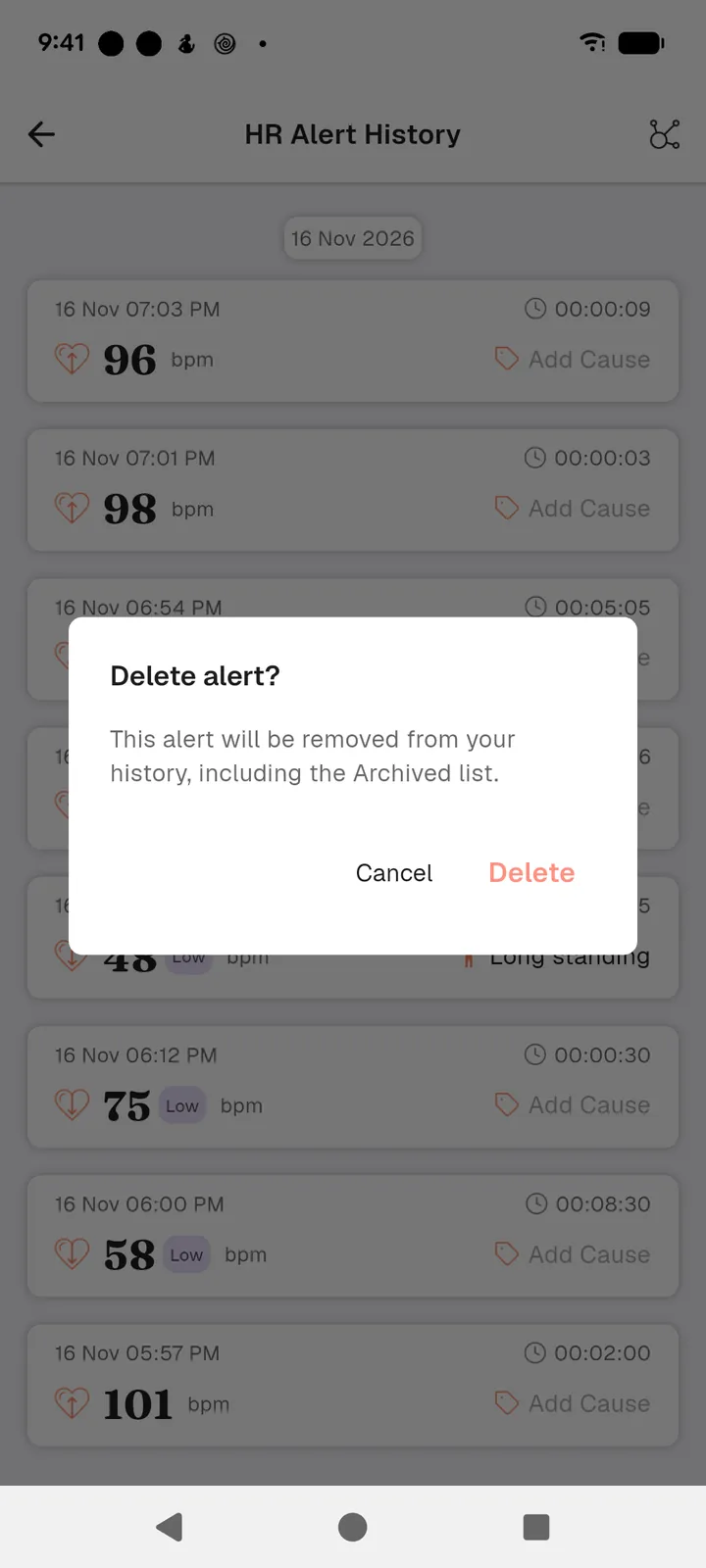
- You see Alert deleted with Undo for a few seconds. Tap Undo if you change your mind.
Good to know
- Deleting also removes the alert from the Archived Alerts list.
- An alert that is still being recorded cannot be deleted yet. Pauser shows This alert is still in progress. You can delete it once it has finished.
Some features depend on your plan. To see what yours includes, open the menu and tap the plan badge under your name.
Still stuck? Tap Support at the top of Home, or open the menu and tap Message us. You can also email support@pauser.health.
Related articles
Why does my watch say “Wear watch snugly”?
Your watch’s sensor is reporting that it is not touching your wrist, so it cannot read your heart rate. Tighten the strap so the back of the watch sits flat against your skin.
What to try:
- Put the watch on and tighten the strap so it sits firmly on your wrist. The watch reads heart rate only while it does.
- Wait a few seconds. When the watch reads your heart rate again, the status changes to LIVE.
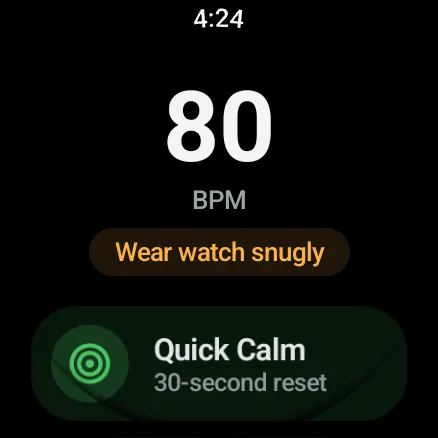
Good to know:
- While the watch thinks it is off your wrist, Pauser skips its background heart rate checks, so no Heart Rate Alert can come from that time.
- Pauser also skips checks while the watch is on its charger.
Still stuck? Tap Support at the top of Home, or open the menu and tap Message us. You can also email support@pauser.health.
Related articles
Where can I see my past alerts?
Open the Alerts tab and switch between Day, Week and Month. For one long list of all your alerts, open HR Alert History from the Insights tab.
In the Alerts tab
- Day shows a chart and the list of that day’s alerts. Use the chips to show All, High or Low. An Archive chip also appears on days that have archived alerts. Change the date at the top.
- Week and Month give an overview. Tap a day to open it in Day.
- Tap any alert to open Alert Analysis.
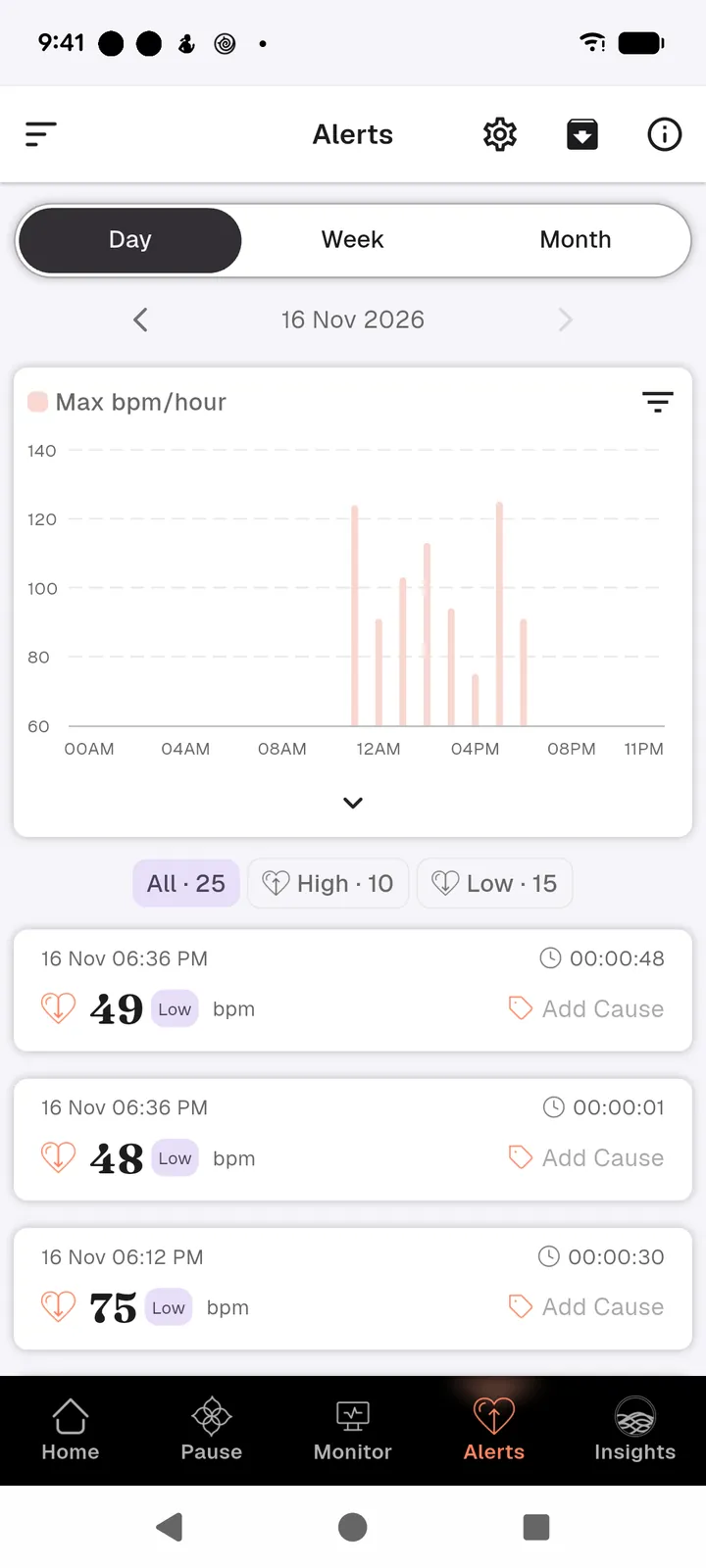
HR Alert History
- Open the Insights tab.
- Scroll to Your Logs and History and tap Alerts. You can also tap HR Alerts in the Your last 7 days summary.
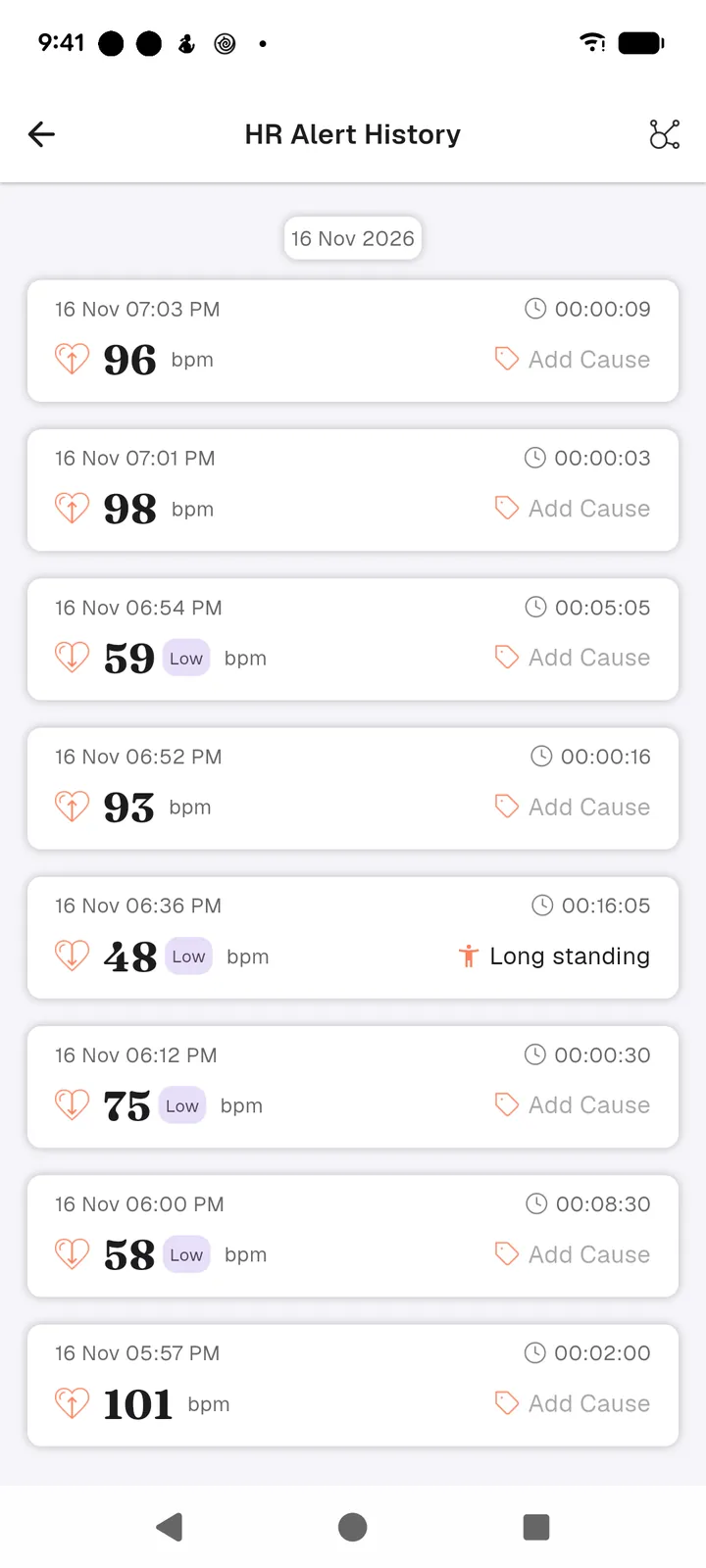
Archived alerts
Tap the archive icon at the top of the Alerts tab to open Archived Alerts.
Good to know
- HR Alert History and Archived Alerts leave out very short alerts, those lasting 1 second or less (often a single reading). The Day list shows them, so an alert you see there may be missing from HR Alert History or Archived Alerts.
- Moving to another date in Day may depend on your plan.
Some features depend on your plan. To see what yours includes, open the menu and tap the plan badge under your name.
Still stuck? Tap Support at the top of Home, or open the menu and tap Message us. You can also email support@pauser.health.
Related articles
Can I edit, delete or back-date a mood entry?
Not at the moment. A mood check-in is saved with the current time, and entries in the Mood Log can’t be changed or removed afterwards.
What this means in practice:
- Back-dating: there is no way to pick an earlier date or time for a mood check-in. Log it as close to the moment as you can, and add any detail, such as when it started, in the note.
- Editing or deleting: the Mood Log list (menu, then Mood) only shows your entries. Tapping one does nothing.
One exception, with Heart Rate Alerts: if you choose a mood while tagging a Heart Rate Alert, that mood is saved at the time of the alert, not the time you tagged it. You can change it later by opening the same alert and editing its tag.
Some features depend on your plan. To see what yours includes, open the menu and tap the plan badge under your name.
Still stuck? Tap Support at the top of Home, or open the menu and tap Message us. You can also email support@pauser.health.
Related articles
How do I update the watch app?
On a Wear OS watch, update it from the Play Store on the watch, and when an update is needed, Pauser on your Android phone can take you there. On an Apple Watch, the watch app comes with the iPhone app, so updating Pauser on your iPhone through the App Store updates it too.
On a Wear OS watch, from your phone:
- When your watch needs an update, Pauser shows New version available for smart watch at the top of Home. Tap Update on it.
- Tap Update Pauser on Watch. The Play Store opens on your watch.
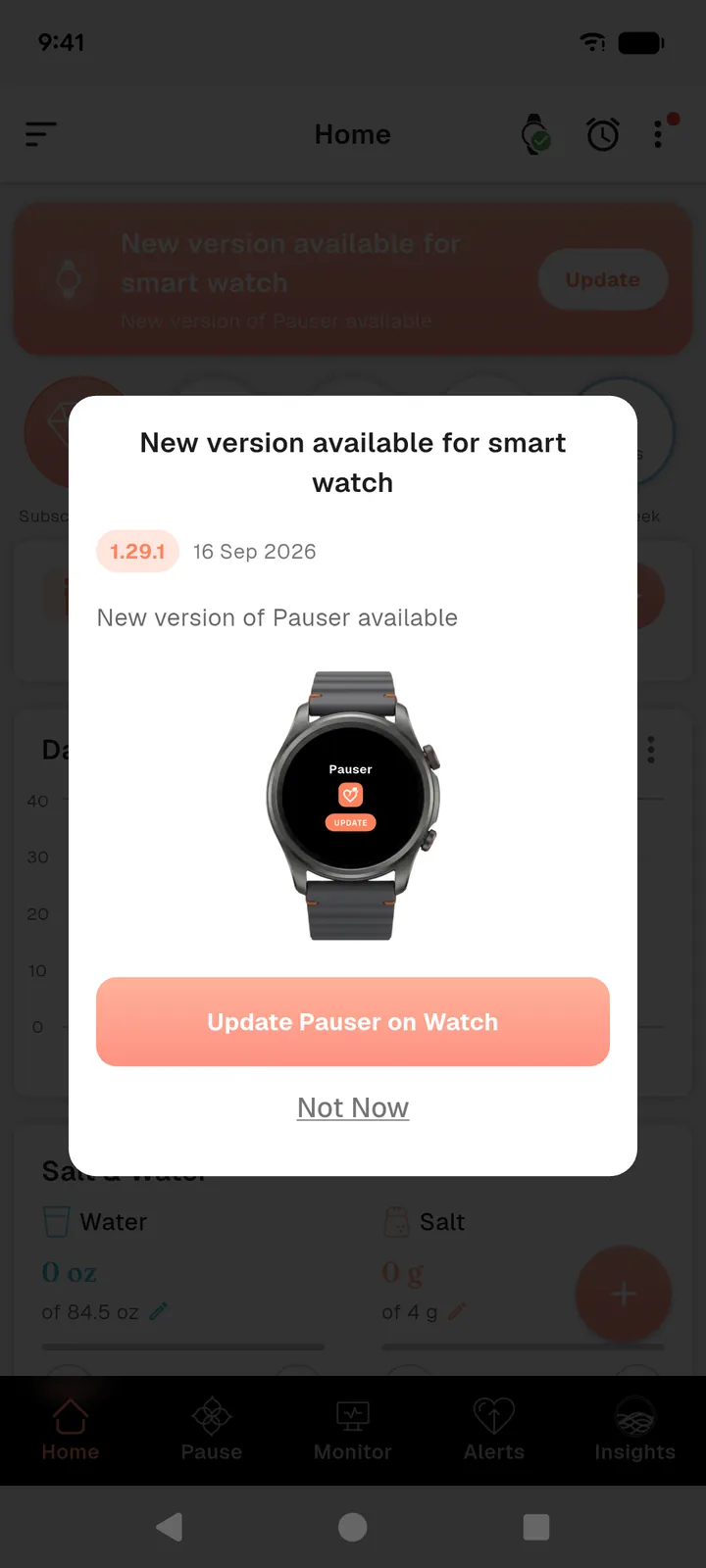
- Look at your watch and tap Update.
On a Wear OS watch, from the watch: open the Play Store on the watch, find Pauser and tap Update.
On an Apple Watch: update Pauser on your iPhone (see How do I update Pauser?).
Good to know:
- The update card only appears while your watch is connected to Pauser on your phone.
- After the update installs, Pauser starts its background heart rate checks on the watch again by itself.
Still stuck? Tap Support at the top of Home, or open the menu and tap Message us. You can also email support@pauser.health.
Related articles
What does the Alert Analysis screen show?
Alert Analysis shows one alert in detail: when it happened, the heart rate readings in it, and what else Pauser knows about that time. Open it by tapping any alert in the Alerts tab.
From top to bottom
- Time and length: the date and time the alert started, and how long it lasted.
- Start, Min and Max: the first, lowest and highest heart rate in the alert, in bpm.
- Steps and Pause: the step and Pause counts saved with the alert.
- Sleep: shown when Pauser has sleep data around that time.
- Bio Vitals: your latest Blood Pressure, Sugar, Salt, Oxygen and Water entries from that day, up to the alert. Tap the card to add one.
- Heart Rate: a graph of the readings. Tap the card to see them as a list, or tap the list icon to open HR Details for the day.
- Add Cause, Note & Mood: tag what was going on.
- Screen Time (Android only): your app use in the hour before the alert, if you allowed Pauser to see app usage.
- Meetings: calendar events in the hour before the alert, if you allowed calendar access.
- Location: tap Add locations to tag where you were.
- Archive: moves the alert to Archived Alerts.
Good to know
- The alarm button at the bottom right lets you set a reminder at the alert’s time of day.
- Pauser shows what was happening around the alert. It does not say what caused it.
Some features depend on your plan. To see what yours includes, open the menu and tap the plan badge under your name.
Pauser shares wellness insights, not medical advice. If you have questions about your readings or how you feel, talk to your clinician.
Still stuck? Tap Support at the top of Home, or open the menu and tap Message us. You can also email support@pauser.health.
Related articles
How do I log an activity?
Tap + at the bottom right of Home, then Add Activity, pick what you did, how long it lasted and when it started, and tap Check-In. The time starts at now, so set it back to when the activity began, or Pauser can’t save it.
- On Home, tap + at the bottom right, then tap Add Activity. You can also open the menu, tap Activity under Manage & log, then tap the button at the bottom right of Activity History.
- On Your activity?, tap what you did: Run, Walk, Cycling, Climb stairs, Sports, Swimming, Yoga, Pilates, Strength Training, HIIT, Rowing, Elliptical, Hiking, Dance or Exercising. Swipe the row to see them all.
- Under Duration, tap 15 min, 30 min, 45 min, 1 hr or 1 hr 30 min. For another length, tap Custom, set the hours and minutes in Select Duration, and tap Done.
- Tap Time and set when the activity started, early enough that it ends by now. If it was on another day, tap Date too.
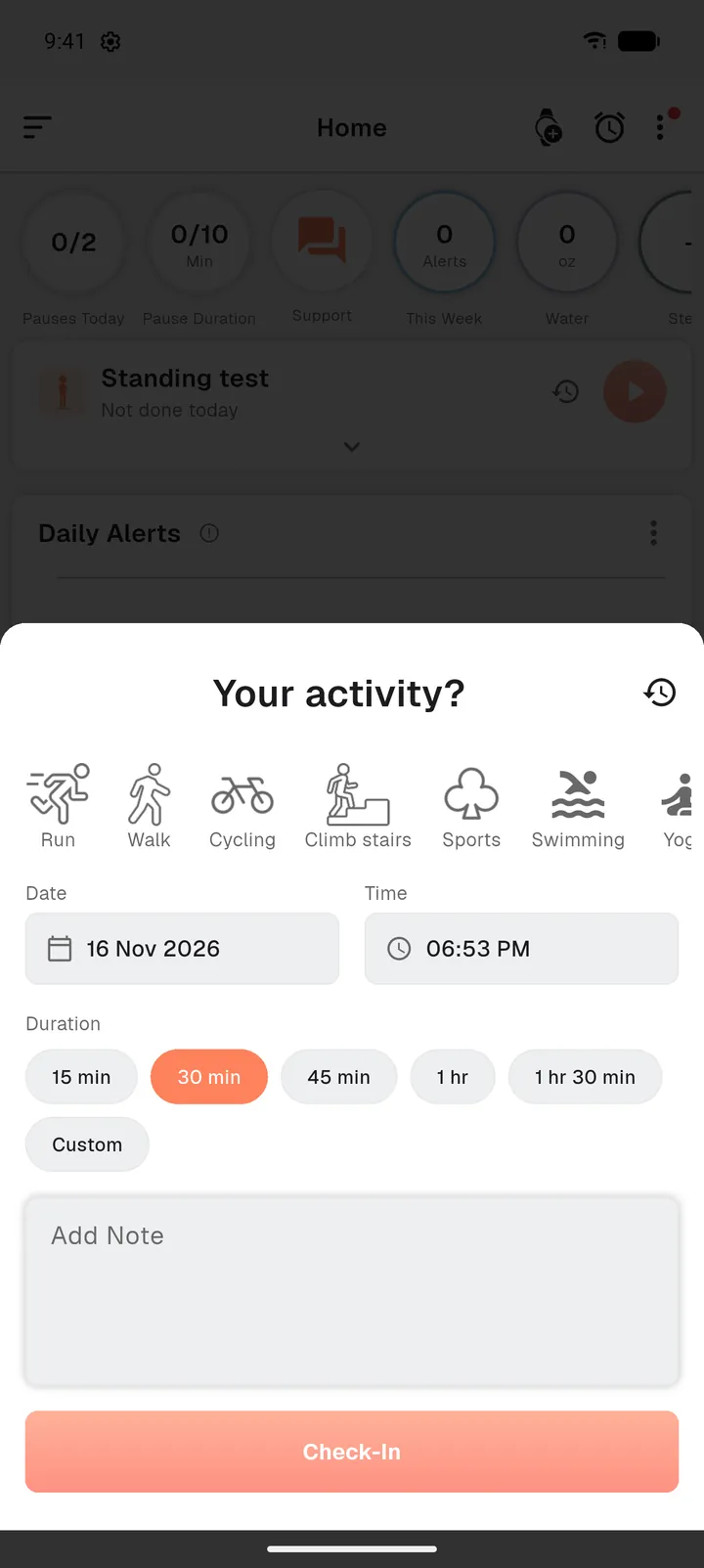
- Tap Check-In.
Good to know:
- 30 min is selected when the sheet opens, and Date and Time are set to now, so the activity would end 30 minutes from now until you change the time.
- Changing the length doesn’t move the start time.
- An activity can’t end in the future. If it would, you see “That time hasn’t happened yet. Pick a time that’s now or earlier.”
- If you tap Check-In without choosing an activity, you see “Pick an activity to check in.”
- The sheet has an Add Note field, but Pauser doesn’t save what you type there.
- You can’t change or remove an activity after you save it, so check the time and length first.
Still stuck? Tap Support at the top of Home, or open the menu and tap Message us. You can also email support@pauser.health.
Related articles
My Apple Watch says “Connecting… Check your mobile app”. What do I do?
That message appears for a few seconds after you tap Connect on the last page of Pauser on your Apple Watch. The watch is asking your iPhone to connect, so open Pauser on your iPhone to finish.
- Keep your iPhone nearby and open Pauser on it.
- In Pauser on your iPhone, open the menu and, under Settings, tap Watch Setup.
- If Pauser finds the watch app, you’re connected. If it says We don’t see a watch or asks you to install Pauser, follow the steps on that screen.
Good to know:
- The message goes away by itself after a few seconds.
- You don’t need to tap Connect for everyday use. Pauser on your iPhone connects to the watch when you open it.
Still stuck? Tap Support at the top of Home, or open the menu and tap Message us. You can also email support@pauser.health.
Related articles
Can I edit or delete an activity?
Not at the moment. Once an activity is saved, Pauser has no way to change or remove it.
You can see your activities in Activity History (open the menu and tap Activity). The list shows activities you checked in on your phone or watch, and workouts that came in from Apple Health or Health Connect, each with where it came from. Tapping an entry doesn’t open an editor.
Good to know:
- Before you save a new activity, check its time and length, because you can’t fix them afterwards.
Some features depend on your plan. To see what yours includes, open the menu and tap the plan badge under your name.
Still stuck? Tap Support at the top of Home, or open the menu and tap Message us. You can also email support@pauser.health.
Related articles
Where can I see every heart rate reading for a day?
Open HR Details from the Heart Rate Trend card on Home. It lists every reading Pauser has for the day, with a chart above the list.
- On Home, find the Heart Rate Trend card.
- Tap HR Details.
- Change the day with the date at the top.
- Tap the sort label above the list to sort by Latest HR, Oldest HR, Highest HR or Lowest HR.

Good to know
- Readings at or above your upper limit are highlighted. Tap one that belongs to an alert to open its Alert Analysis.
- For a bigger chart, tap the expand icon (Open full view) on the card, or at the top of HR Details. The full view opens sideways (landscape).
- From an alert’s Alert Analysis, tap the list icon on the Heart Rate card to open HR Details too.
- HR Details shows the readings stored in Pauser, so a reading your watch or health app has not synced yet will not be listed.
Some features depend on your plan. To see what yours includes, open the menu and tap the plan badge under your name.
Still stuck? Tap Support at the top of Home, or open the menu and tap Message us. You can also email support@pauser.health.
Related articles
What is the Activity Monitor, and how do I start one?
The Activity Monitor records your heart rate continuously for a set time while you do something, such as a walk, a workout or a meeting. You start one from the Monitor tab on your phone, or from Activity on your watch.
From your phone
- Open the Monitor tab. Its header reads Activity Monitor.
- Tap Start Session.

- On Start Activity Monitor, tap Select workout and pick an activity. Choose Other to type your own name.
- Under Select Duration, pick 3, 5, 7 or 10 minutes, or set a custom length.
- If you like, turn on Exercise mode.
- Tap Start Session.
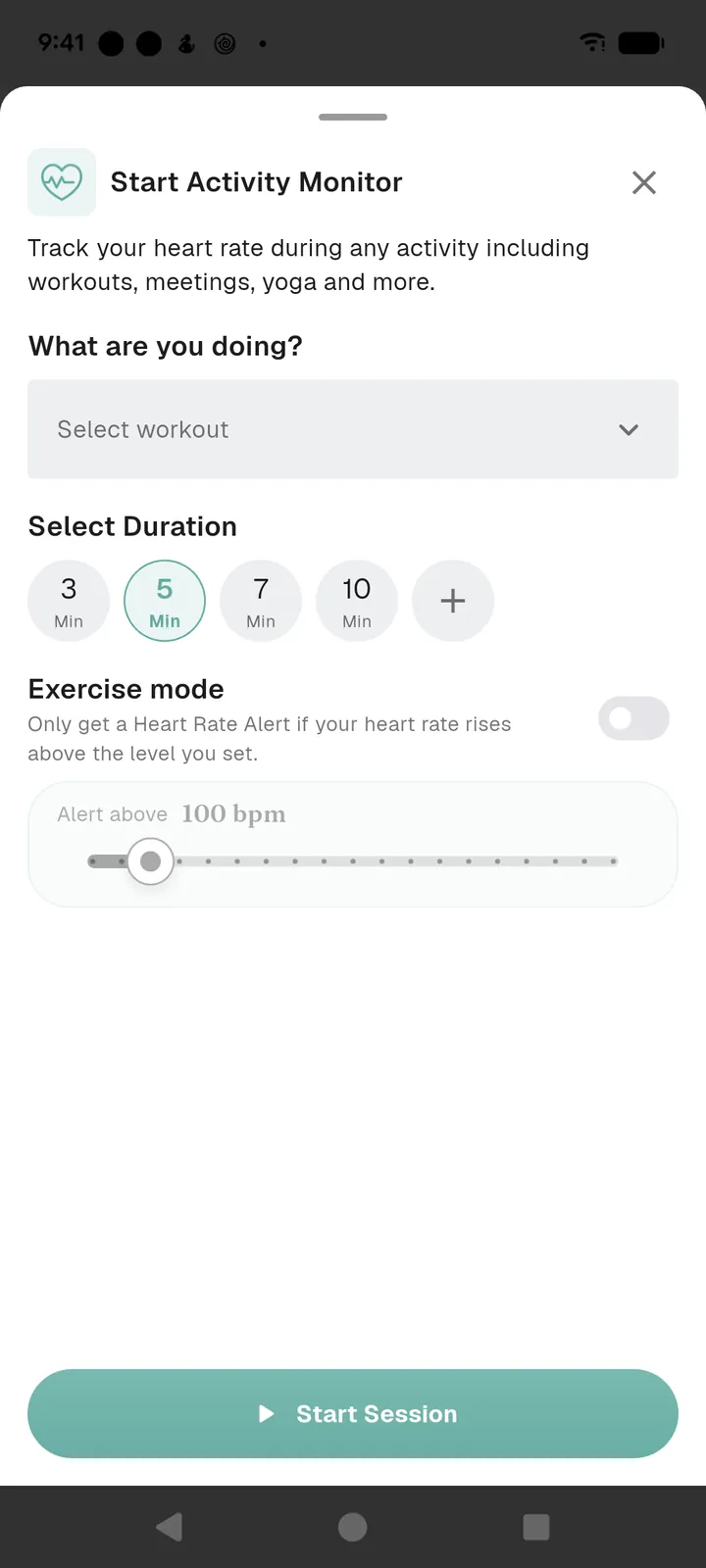
The live screen shows your heart rate as it arrives, the time left and a graph. When it ends, the session is saved in the Monitor tab. Tap it to see the details.
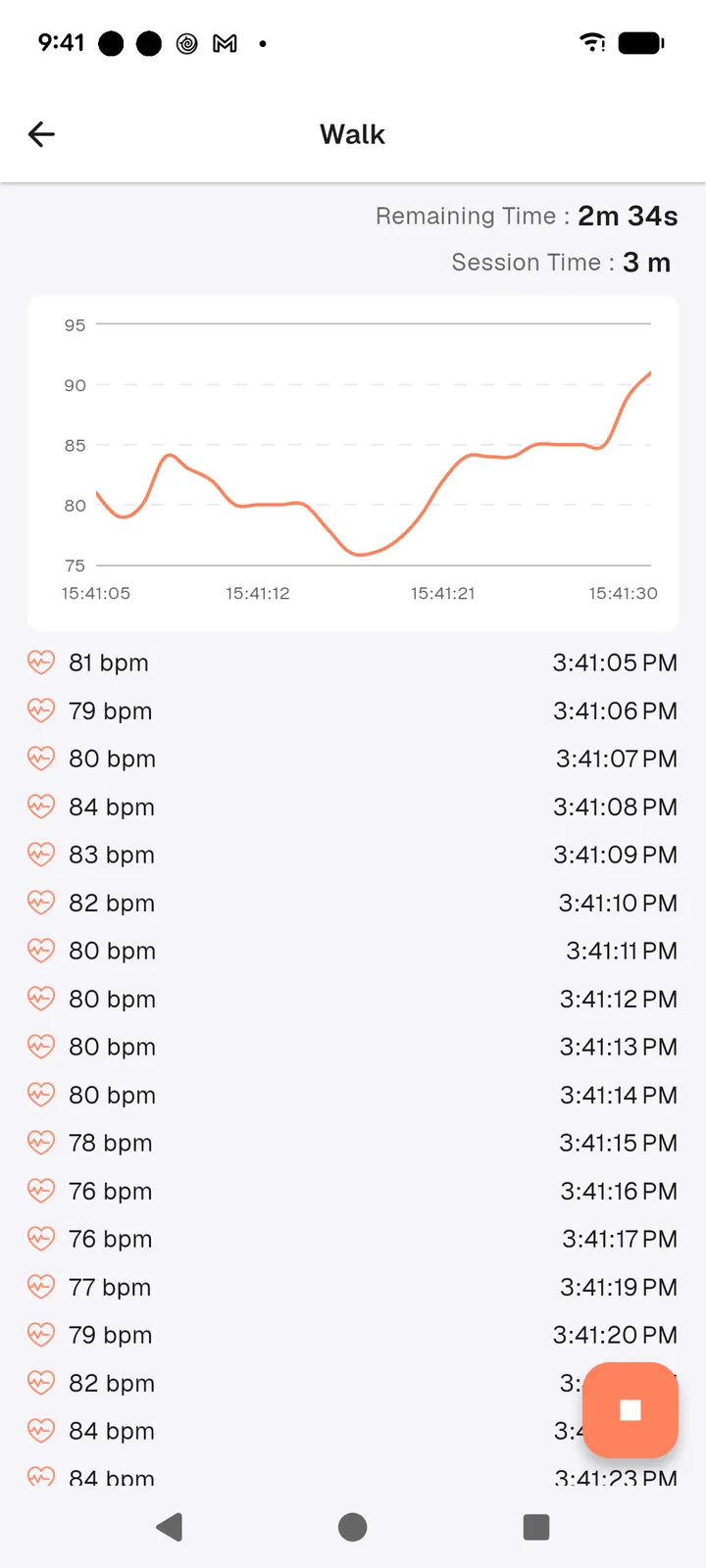
On a Wear OS watch: tap Activity, choose minutes under Duration · min and tap Next, then pick Standard or Exercise. When it finishes, the watch shows Workout done with your peak and average.
On Apple Watch: tap Activity, pick an activity and the minutes, turn Exercise Mode on or off, then tap Start.
Good to know
- Start Session needs a Pauser watch set up. Without one, the Monitor tab offers Create monitor session instead.
Some features depend on your plan. To see what yours includes, open the menu and tap the plan badge under your name.
Still stuck? Tap Support at the top of Home, or open the menu and tap Message us. You can also email support@pauser.health.
Related articles
Can I record an Activity Monitor without a watch?
Yes, for something you have already done. When no Pauser watch is set up, the Monitor tab offers Create monitor session, which builds a session from heart rate Pauser already has for that time, for example from Apple Health or Health Connect.
- Open the Monitor tab.
- Tap Create monitor session (“Record an activity you already did”).
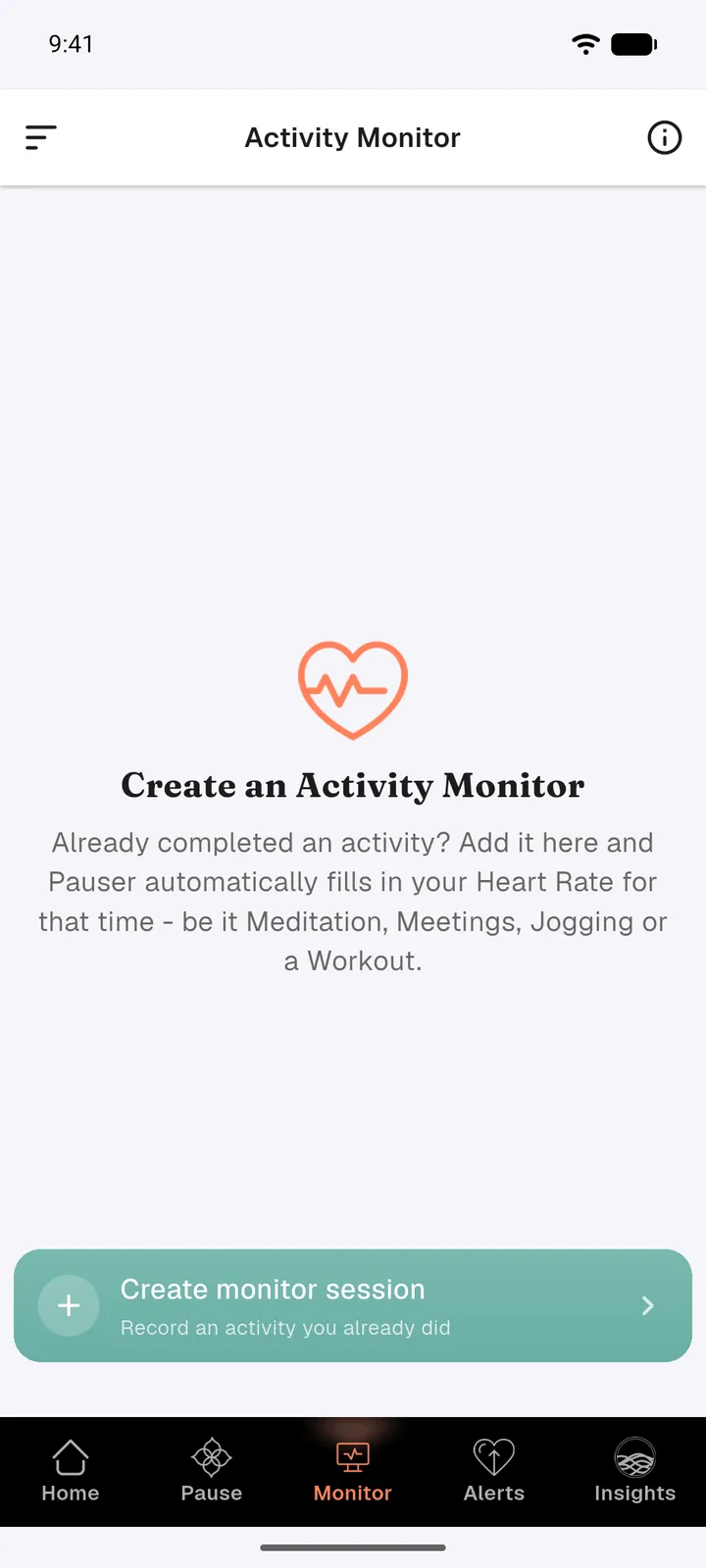
- Tap Select workout and pick an activity, or Other to type a name.
- Set the Date, Start Time and End Time.
- Look at Heart rate readings to see how many readings that time holds.
- Tap Save.
If it will not save
- No heart rate data found for this time range: Pauser has no readings for that time yet. Open Pauser so it can sync, then try again.
- Please choose a time in the past: the end time is later than now.
- End time must be after start time: move the end time later.
- A session already exists at that start time: you already have a session that starts then. Check the list in the Monitor tab.
Good to know
- Live recording, with heart rate shown as it happens, needs a Pauser watch set up.
Some features depend on your plan. To see what yours includes, open the menu and tap the plan badge under your name.
Still stuck? Tap Support at the top of Home, or open the menu and tap Message us. You can also email support@pauser.health.
Related articles
Why does the Activity Monitor say it isn’t receiving heart rate?
Your phone has stopped getting heart rate from your watch for a short while, about 15 seconds on Android and 30 seconds on iPhone. The session keeps running, and the message goes away when readings arrive again.
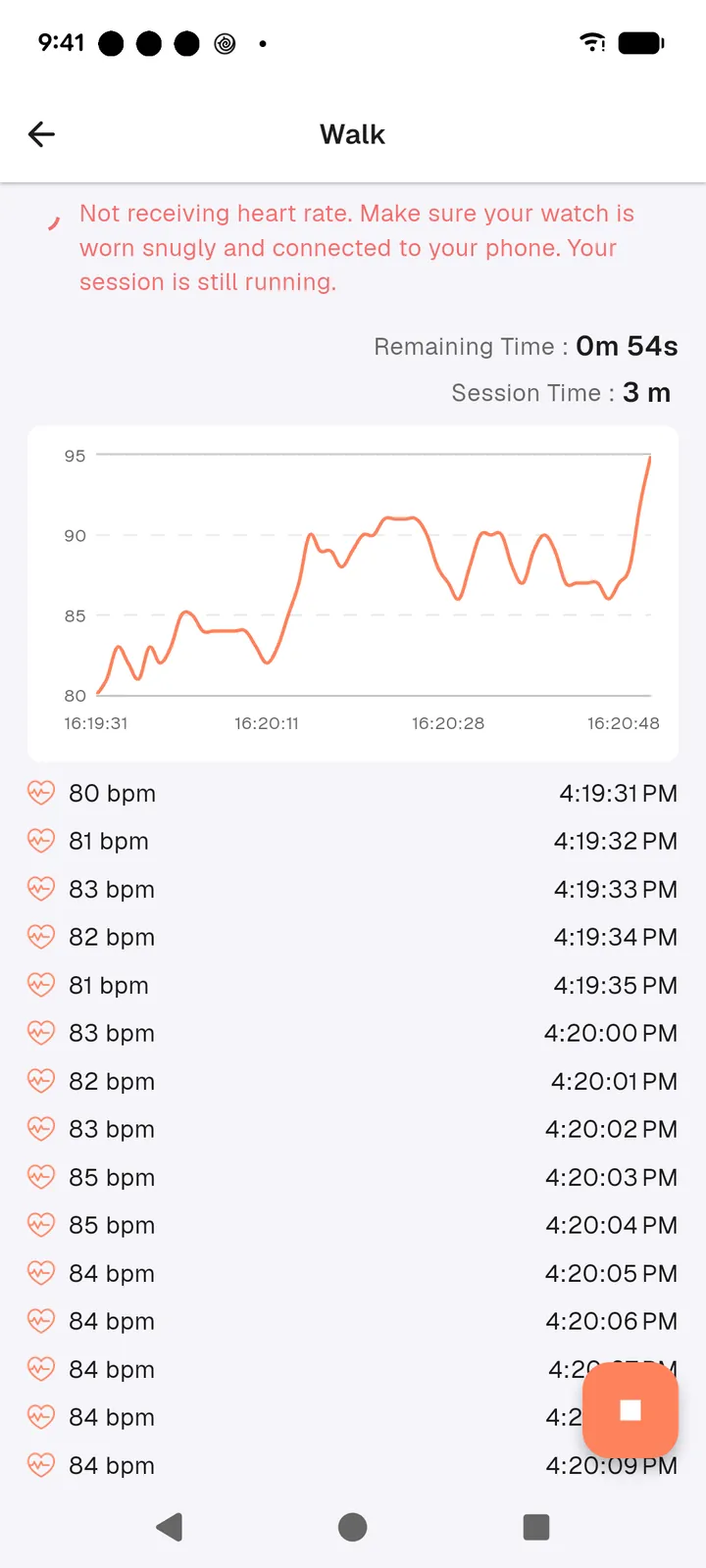
What to check
- Make sure the watch sits snugly on your wrist.
- Keep Bluetooth on and the watch close to your phone.
- On iPhone: make sure Heart Rate and Workout access is allowed for Pauser in the Health app. Tap What to check under the message for more tips, such as Unlock your watch and Open Pauser on your watch.
- On Android: make sure your Wear OS watch is connected to your phone.
If no heart rate arrives at all
If the watch sends nothing from the start, the session ends with No heart rate received (Android) or No Heart Rate Detected (iPhone), and nothing is saved. Fix the checks above, then start again from your watch, or tap Retry to start from your phone.
Still stuck? Tap Support at the top of Home, or open the menu and tap Message us. You can also email support@pauser.health.
Related articles
What is Exercise Mode?
Exercise Mode is an option for an Activity Monitor session. You set a heart rate limit for that session, and Pauser adds alerts when you get close to it and when you reach it, while your usual Heart Rate Alerts keep running.
How to use it
On your phone: when starting a session, turn on Exercise mode and move the Alert above slider. It runs from 90 to 180 bpm in steps of 5 and starts at 100. Under the switch, Pauser says: “Only get a Heart Rate Alert if your heart rate rises above the level you set.”
On a Wear OS watch: tap Activity, choose the minutes, pick Exercise, then choose a value on Alert when HR reaches this and tap Start.

On Apple Watch: tap Activity, pick the activity and minutes, turn on Exercise Mode, set the bpm limit with the Digital Crown or the minus and plus buttons, and tap Start.
What you will see
- When your heart rate comes within 10 bpm of your limit, you get a gentle nudge. On your phone it reads “You are close to your maximum heart rate. Consider easing up.” On a Wear OS watch it reads HR approaching limit.
- At or above your limit, the phone says “You have hit your maximum heart rate limit. Slow down now.” and a Wear OS watch says HR at limit – slow down.
- Each of these repeats at most once a minute.
- The limit only applies to that session. It does not change your usual alert limits.
- Exercise Mode doesn’t turn off your usual Heart Rate Alerts (see What is a Heart Rate Alert?). It adds its own alerts on top.
The “maximum heart rate” in these messages is simply the limit you chose. It is not worked out from your body.
Some features depend on your plan. To see what yours includes, open the menu and tap the plan badge under your name.
Pauser shares wellness insights, not medical advice. If you have questions about your readings or how you feel, talk to your clinician.
Still stuck? Tap Support at the top of Home, or open the menu and tap Message us. You can also email support@pauser.health.
Related articles
Why can’t I stop an Activity Monitor from my iPhone?
A session can only be stopped on the device that started it. If you started it on your Apple Watch, the iPhone’s stop button is greyed out and a note near the top of the screen tells you to stop it from your watch.
To stop a session you started on Apple Watch
- Raise your wrist and open Pauser on the watch.
- On the session screen, tap Stop.
If you started the session on your iPhone
Stop it with the stop button on your iPhone. On the watch, the button reads Stop from iPhone and cannot be tapped.
Good to know
- Either way, the session ends by itself when its time runs out, and it is saved in the Monitor tab.
- When a session has finished, the watch shows Close.
Still stuck? Tap Support at the top of Home, or open the menu and tap Message us. You can also email support@pauser.health.